Power Up - Upskill Yourself...

Reading view

AI-Assisted Canvas App Development Using External Tools in Power Apps
Canvas AppCanvas apps have always been known for rapid development using a low-code, drag-and-drop approach. However, even with this speed, developers still spend a significant amount of time on repetitive UI building, writing Power Fx formulas, and refining logic manually.

Microsoft has recently introduced support for external AI-powered development tools for Canvas Apps. This allows developers and business users to work with AI-assisted tooling outside the traditional Power Apps Studio experience. Using external tools such as GitHub Copilot, AI agents, and Power Platform skills, users can now generate Canvas App structures, layouts, and workflows using natural language prompts.

This blog explores the setup experience, the architectural shift introduced by these tools, and most importantly how AI-assisted Canvas App generation can significantly accelerate development and provide a strong starting point for projects.

Key Takeaways

  • Generate Canvas Apps using natural language prompts with external AI-powered tools.
  • AI agents can automatically create screens, navigation, and basic app logic.
  • Reduce manual setup and accelerate development with GitHub Copilot and Power Platform skills.
  • Sync generated changes directly to live Canvas Apps through coauthoring.
  • Ideal for rapid prototyping and app scaffolding, while complex logic still requires developer expertise.

Overview

The introduction of external AI tooling for Canvas Apps represents a major change in the Power Platform ecosystem. Instead of relying completely on drag-and-drop development inside the browser, users can now interact with AI agents capable of understanding application requirements and generating app structures automatically.

The workflow combines:

  • GitHub Copilot and AI-assisted coding tools
  • Power Platform skills and AI agents
  • Local CLI-based tooling
  • Canvas App source generation
  • Natural language prompts

This creates a development experience that feels closer to modern software engineering workflows rather than traditional low-code configuration.

One of the most interesting aspects of this approach is that the AI system is no longer behaving like a simple chatbot. Instead, it works through

specialized agents such as:

  • canvas-app-planner
  • canvas-screen-builder

These agents understand specific Power Platform concepts and can generate app scaffolding, screen layouts, navigation structures, and other components based on user instructions.

Prerequisites and Setup

Before working with external AI tools for Canvas Apps, several prerequisites must be configured locally.

Required Tools

The following components are required:

  • .NET SDK 10+
  • GitHub CLI
  • Git installation
  • Power Platform CLI
  • GitHub Copilot access
  • Power Apps environment access

These tools provide the local runtime, authentication, AI integration, and Power Platform connectivity required for AI-assisted Canvas App generation.

You also need to have Environment ID and Canvas App ID (if you need to modify in an existing app).

Installing the Power Platform Skills Plugin

To enable Canvas App generation capabilities, the Power Platform Skills marketplace plugin must be installed.

The following commands can be executed using either:

  • Copilot CLI
  • Claude Code

Step 1 – Add the Power Platform Skills Marketplace

/plugin marketplace add microsoft/power-platform-skills

Step 2 – Install the Canvas Apps Plugin

/plugin install canvas-apps@power-platform-skills

After installation, restart the CLI session to load the newly added skills:

/restart

Once restarted, the environment exposes specialized AI agents and skills capable of assisting with Canvas App generation and screen creation.

Enabling Coauthoring for Canvas Apps

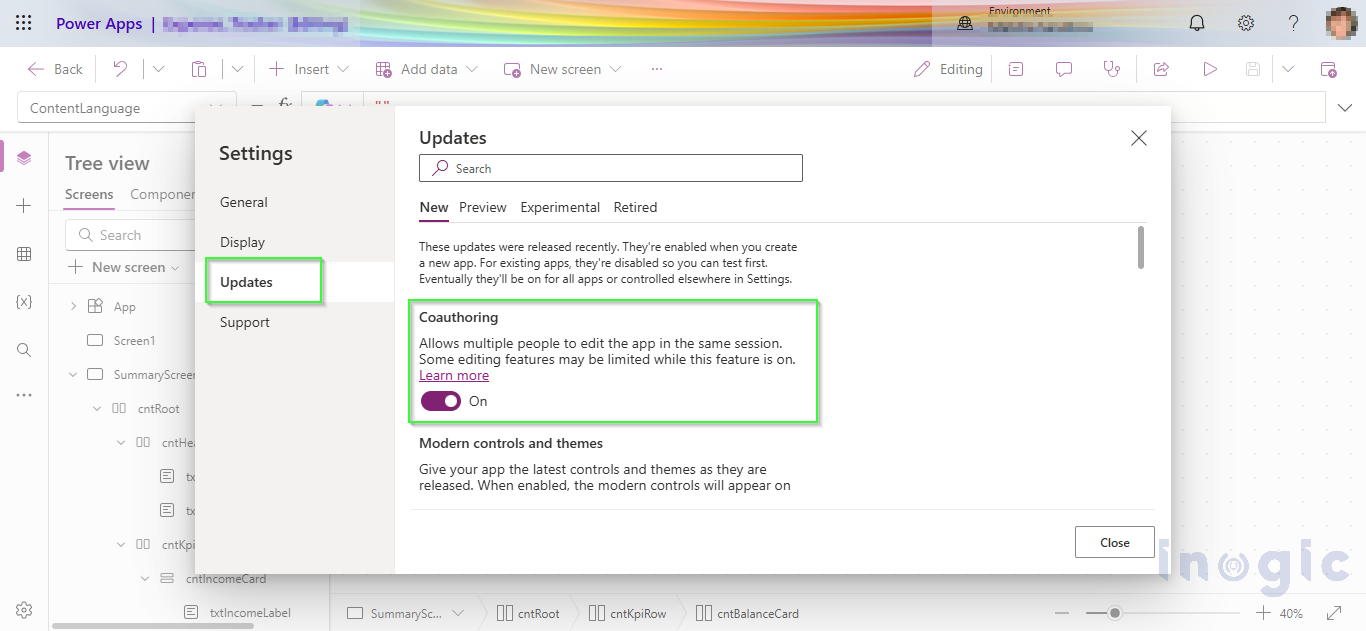
To use AI-assisted capabilities with Canvas Apps, coauthoring must be enabled for the application.

This can be configured inside Power Apps Studio:

Power Apps Studio

→ Settings

→ Updates

→ Enable Coauthoring
Canvas App

Without coauthoring enabled, the AI tooling cannot properly interact with the Canvas App source.

Connecting to the Power Platform Environment

Before generating apps, authentication with the target Power Platform environment is required.

Run the following command:

pac auth create –environment <your_environment_url>

This establishes the connection between the AI tooling and the Power Platform environment.

The environment ID is also required so the AI agents can correctly identify the target instance during app generation.

Initializing the Canvas App AI Workflow

Once the setup is complete, the Canvas App workflow can be initialized using:

/canvas-apps:canvas-app

This configures the MCP server connection and prepares the environment for AI-assisted Canvas App creation.

After initialization, users can begin generating app structures, screens, and workflows using natural language prompts.

Implementation

Instead of starting with a blank canvas and designing every screen from scratch, you can now just describe what you want in plain English. Something like:

“Create a LeadBoard showing all leads in card format. Clicking a card should open a qualification form where I can enter a score and add notes, with an option to save.”

That is all it takes to get started.

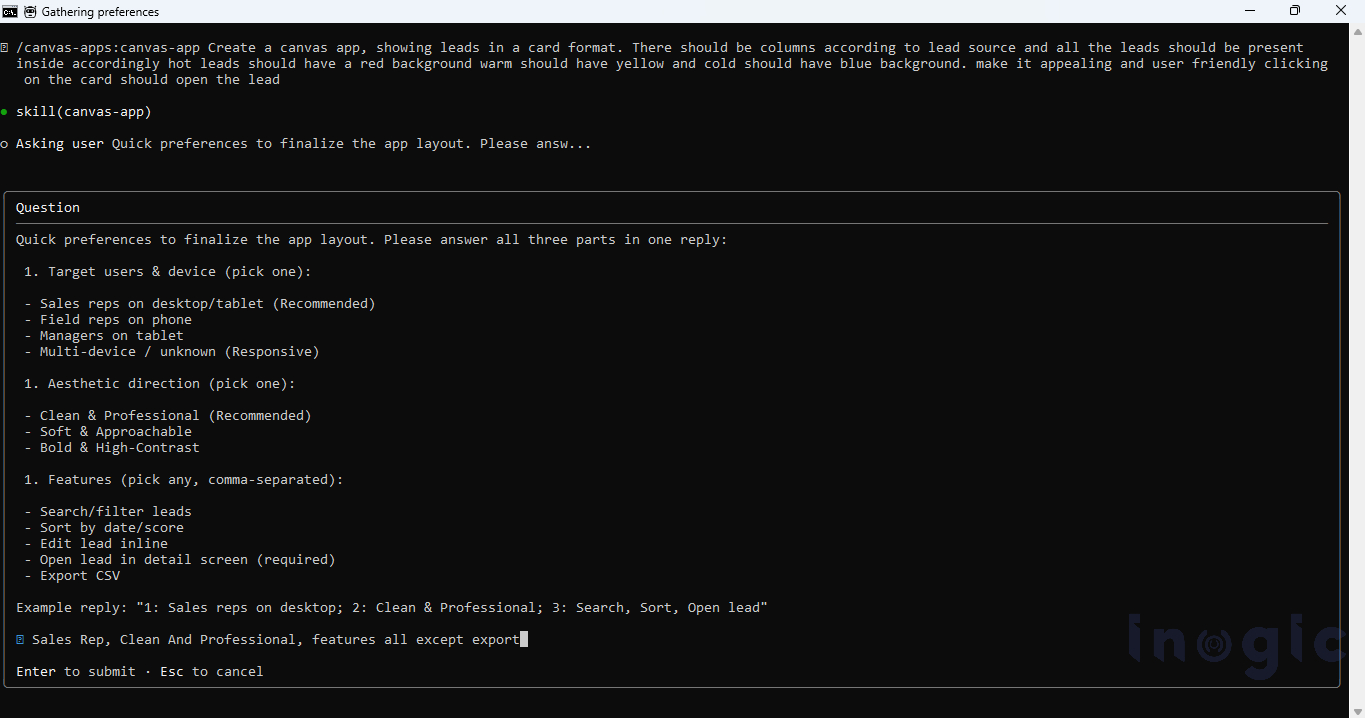
After you submit the prompt, the AI agent gets to work. It reads your requirement, checks the necessary connections, and starts building the app for you. One thing I really liked about this experience is that you can actually watch it work in real time, you are not just staring at a loading screen waiting for something to appear.
Canvas App

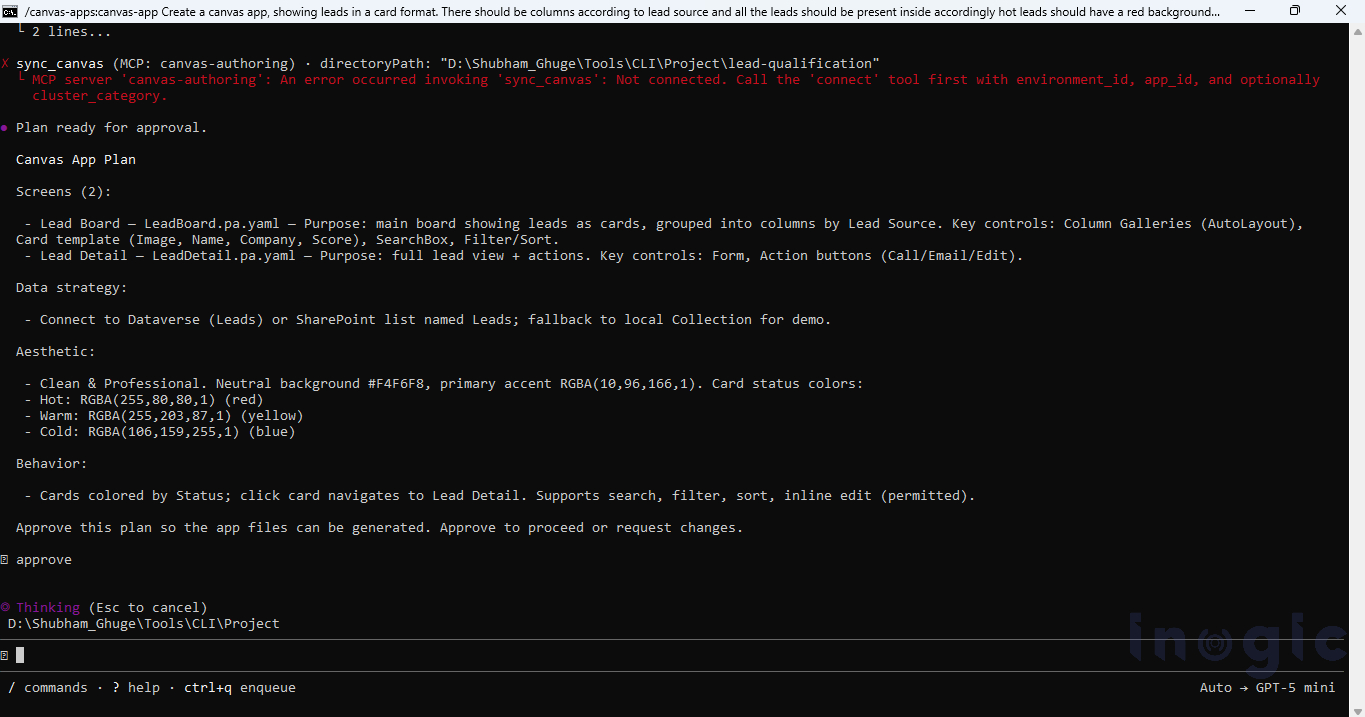
What surprised me is that the agent does not just guess and generate. If your prompt is missing something, it asks. It might check whether you have a preferred layout in mind, whether the data is already set up, or how many screens you need.
Canvas App

This means even a rough prompt gets you a decent result. The agent fills in the blanks by asking the right questions, so you are not stuck fixing a broken app just because you forgot to mention something upfront. The experience feels less like using a conventional tool and more like interacting with a partner that understands your objectives and provides meaningful assistance beyond basic commands.

Once everything is confirmed, it generates the screens, sets up the navigation, connects the data source, and puts together the basic app logic. Within a few minutes you have something you can actually open and use, not just a wireframe or a demo.

The results were better than I expected. Once the files were ready, the CLI compiled them and pushed the changes directly into the live app through coauthoring – the LeadBoard appeared in Power Apps Studio in real time without any manual copying or pasting. The card layout came through cleanly, showing each lead’s name, company, and source.
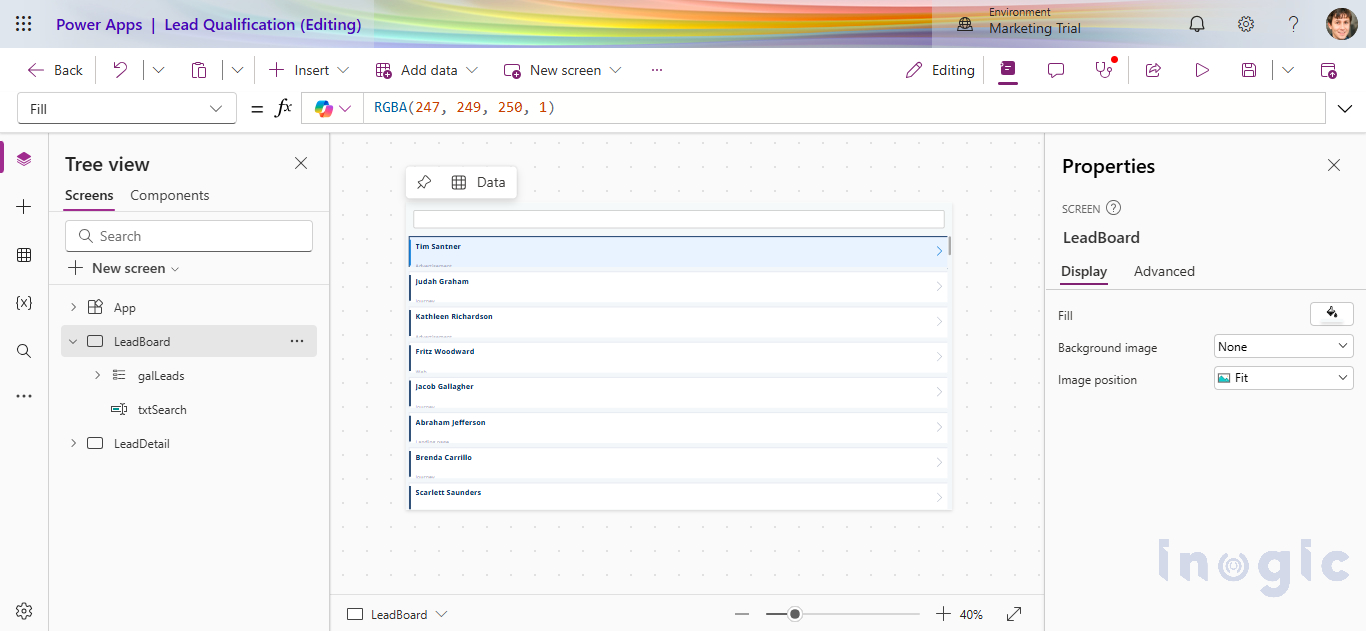
Canvas App

During the generation process, the AI asked whether a search bar should be included. We confirmed yes, and it handled the rest. It is a small thing but it reflects how the agent approaches requirements, it does not assume, it asks, and then it delivers exactly what was agreed.
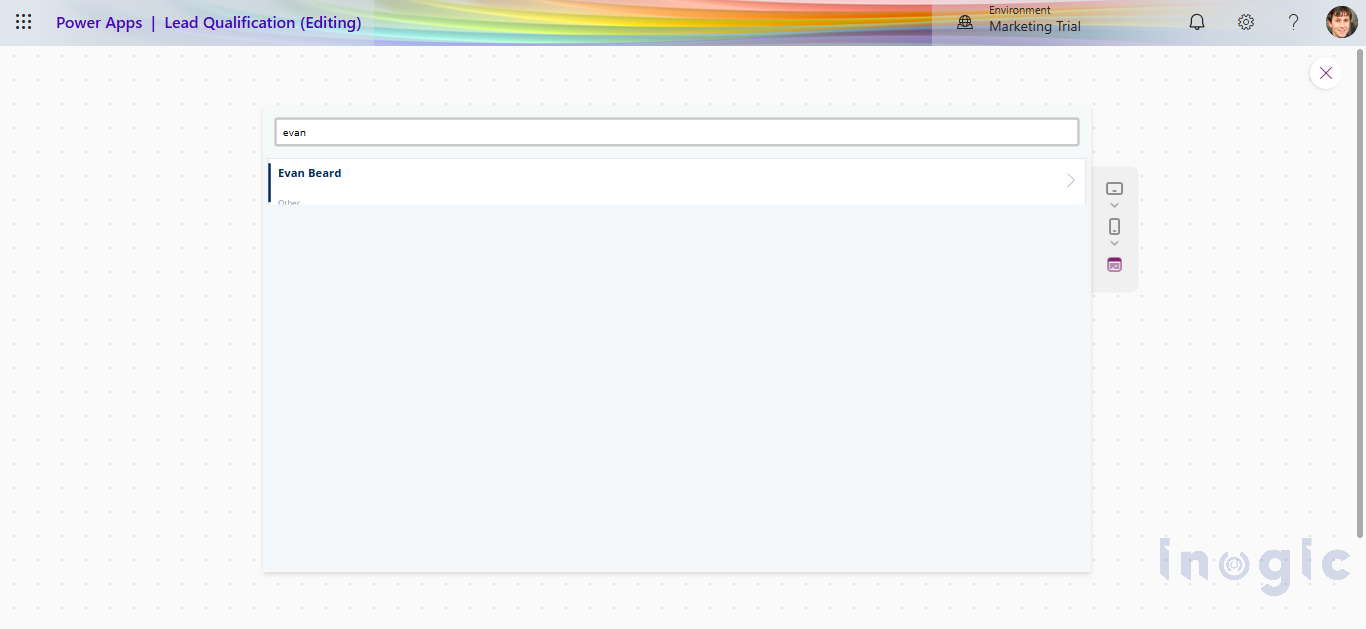
Canvas App

The qualification screen came through the same way, compiled and synced live. A form with a score input, a notes field, and a Save button that writes back to the Lead record in Dataverse.
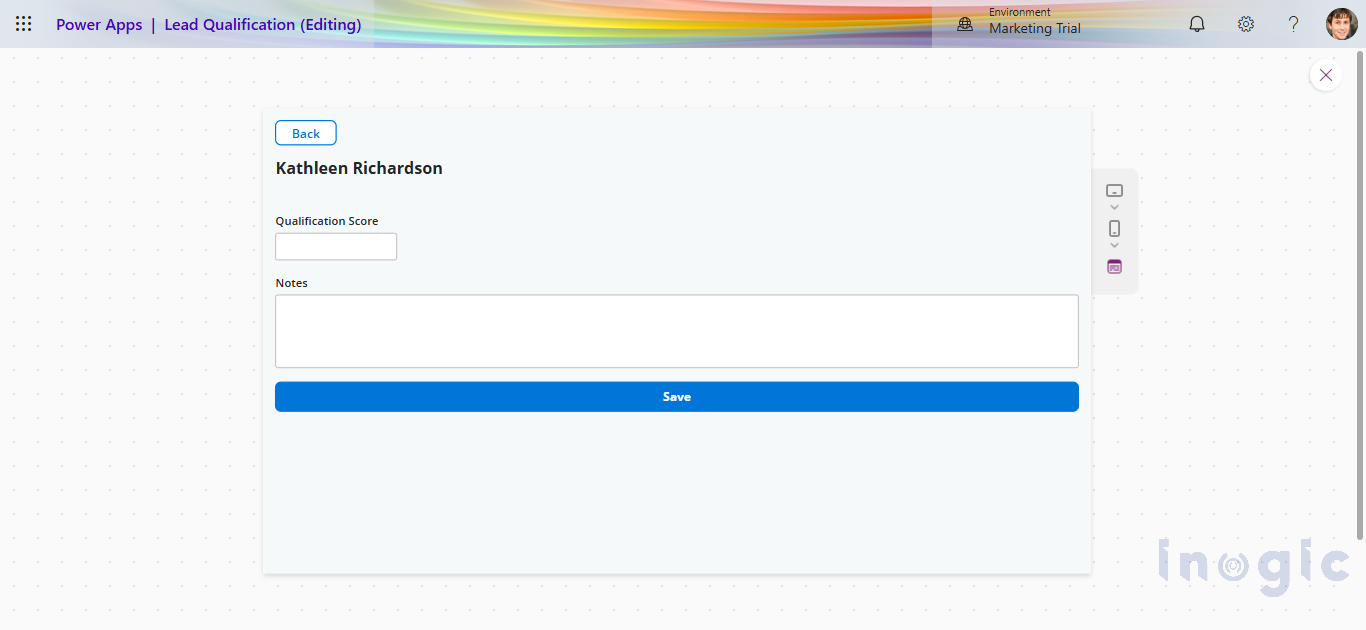
Canvas App

This is where AI-assisted Canvas App development really shows its value. Business users can take an idea and turn it into a working app quickly, without needing a developer involved from day one.

That said, there is a limit to what the AI handles well. If your app needs complex business logic, external integrations, security controls, or needs to scale across an enterprise, you will still need a developer in the loop. But the AI gives you a solid starting point. The boring setup work, scaffolding screens, wiring up navigation, connecting data, is done for you. Developers can jump straight into the parts that actually need their expertise.

Wrapping Up

The biggest takeaway from this experience is not that AI can generate a Canvas App for you. It is that it gives you a real starting point you can actually work from.

When I started this, I expected the AI to handle most of the heavy lifting. What I got instead was a collaboration, I described what I wanted, the agent generated a foundation, and then the real work began. Fixing YAML schema errors, figuring out the right control types, getting the Gallery variant string correct, iterating on the card design, none of that was automatic. But I was doing it on top of something that already existed, which is fundamentally different from staring at a blank canvas.

For business users, this matter because they can now describe an idea in plain English and get something tangible back within minutes. They do not need a developer just to see what an app might look like.

For developers, the value is different. The scaffolding, screens, navigation, basic data connections, is handled. You come in for the parts that actually need your skills: the business logic, the integrations, the performance tuning, the governance. The repetitive setup work that used to eat the first day of any project is largely gone.

That said, AI tooling for Canvas Apps is still maturing. The YAML schema is strict, control type strings are version-specific, and the gap between what the agent generates and what Studio actually accepts requires hands-on debugging. Knowing the platform well is still a prerequisite for getting the most out of these tools, not a nice to have.

Canvas App development is moving toward an AI-assisted engineering workflow. We are not there yet, but projects like this make it clear the direction is set.

The post AI-Assisted Canvas App Development Using External Tools in Power Apps first appeared on Microsoft Dynamics 365 CRM Tips and Tricks.
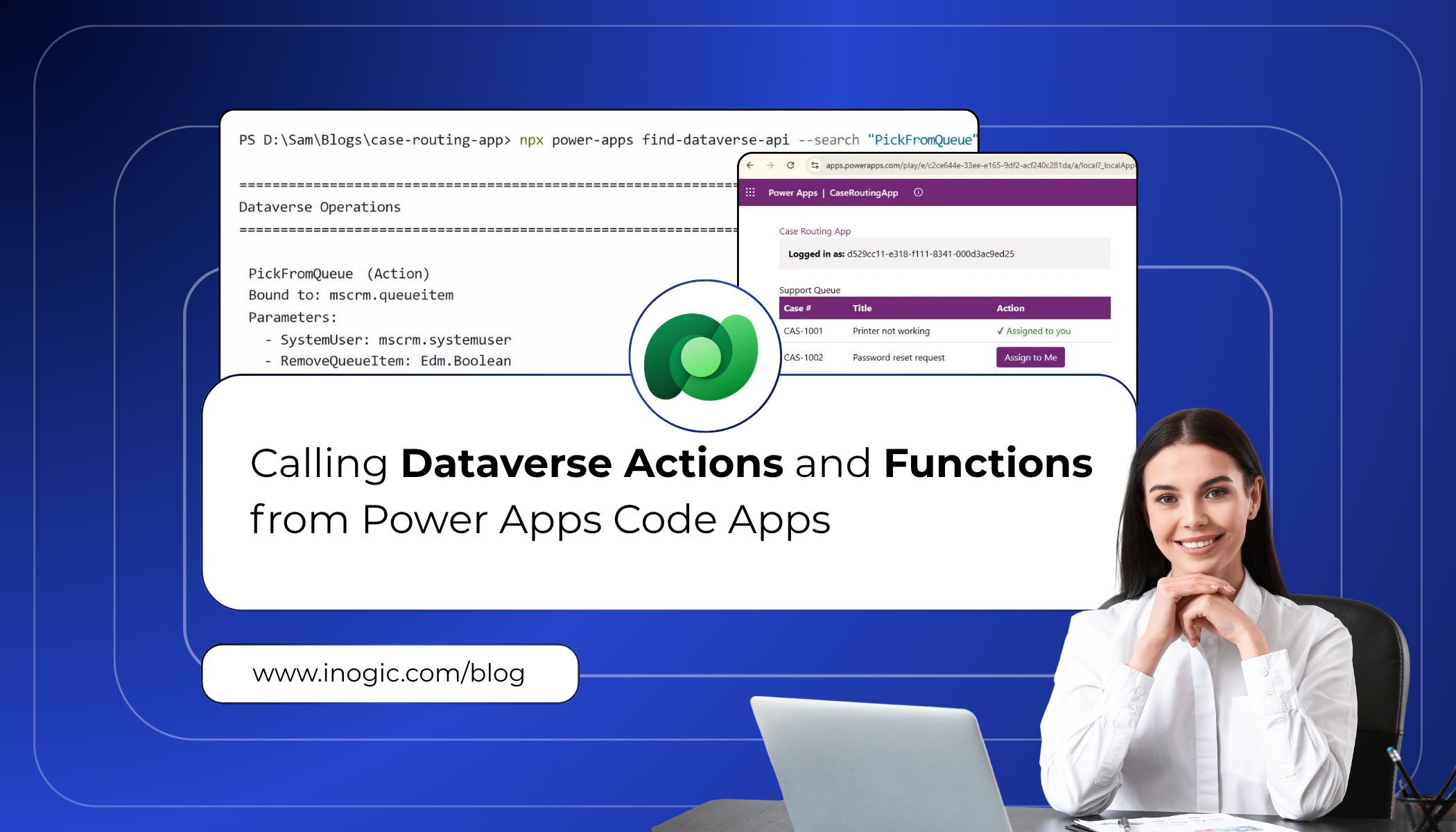
Calling Dataverse Actions and Functions from Power Apps Code Apps

DataverseWhen building Power Apps code apps, one of the most powerful things you can do is reach directly into Dataverse to trigger business logic. Whether it is routing a support ticket to the right queue, checking who the current user is, or running a custom API operation, Dataverse actions and functions are the engine behind most enterprise workflows.
In the past, calling these operations required manually writing Web API fetch calls, constructing the right URLs, and handling typed responses by hand. It worked, but it was slow, error-prone, and hard to maintain as schemas evolved.

Microsoft has now introduced a much cleaner developer experience through the Power Apps npm CLI. With just two commands — find-dataverse-api and add-dataverse-api — you can discover operations in your Dataverse environment, generate fully typed TypeScript service classes, and call them directly from your code app with confidence.

This blog walks through exactly how to do that, using a real-world scenario: a support team that needs to automatically route incoming cases to the correct queue based on priority.

Client Scenario: Automated Case Routing

A client running a customer support operation on Dynamics 365 came to us with a specific pain point. Their agents were starting every shift by manually scanning a shared queue, finding cases relevant to them, and self-assigning each one individually through the Dynamics 365 UI. With dozens of queued cases at any given time, agents were spending the first 15–20 minutes of every shift just on assignment, before they had even looked at a single customer issue.

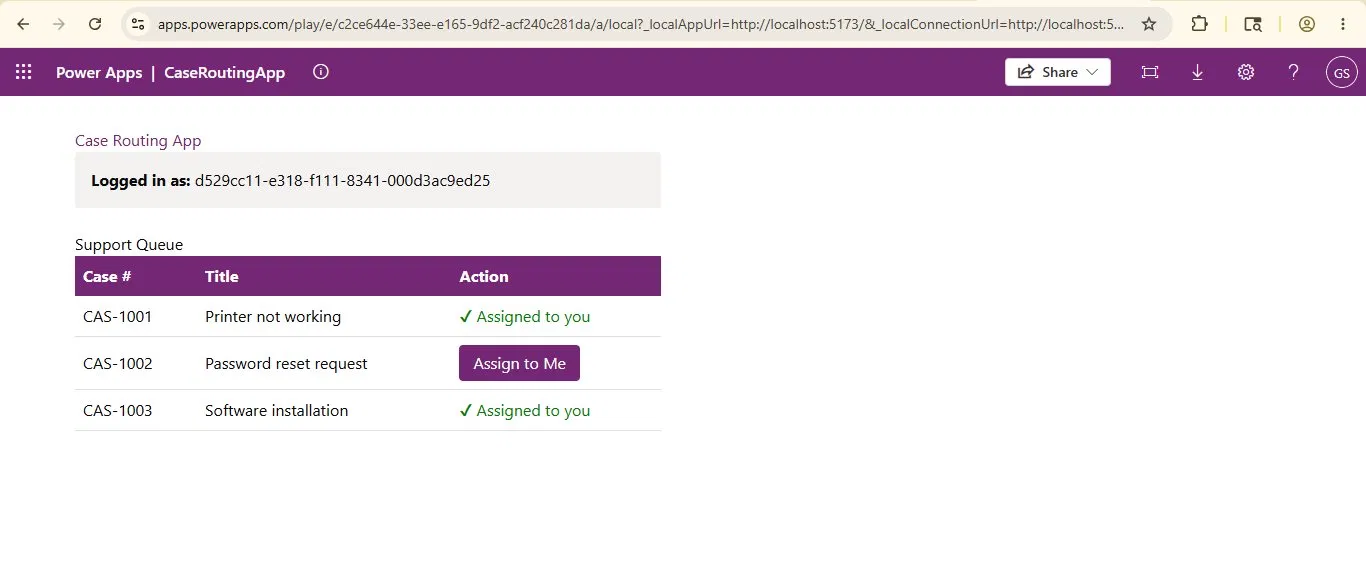
They needed a code app that displayed all cases currently sitting in the queue and allowed an agent to pick and assign any case to themselves with a single click. The assignment logic already existed as a Dataverse bound action called PickFromQueue. The challenge was invoking it cleanly from a modern Power Apps code app.

The requirements the client laid out were straightforward:

  • View all active cases in a clean, filterable list
  • Select a case from the queue and assign it to yourself with one click
  • Show who is currently logged in so agents can confirm their session
  • Ensure all operations are type-safe and maintainable

This is exactly the kind of scenario the add-dataverse-api command was built for.

Prerequisites

Before following this guide, make sure the following are in place:

  • A Power Apps code app initialised using npx power-apps init
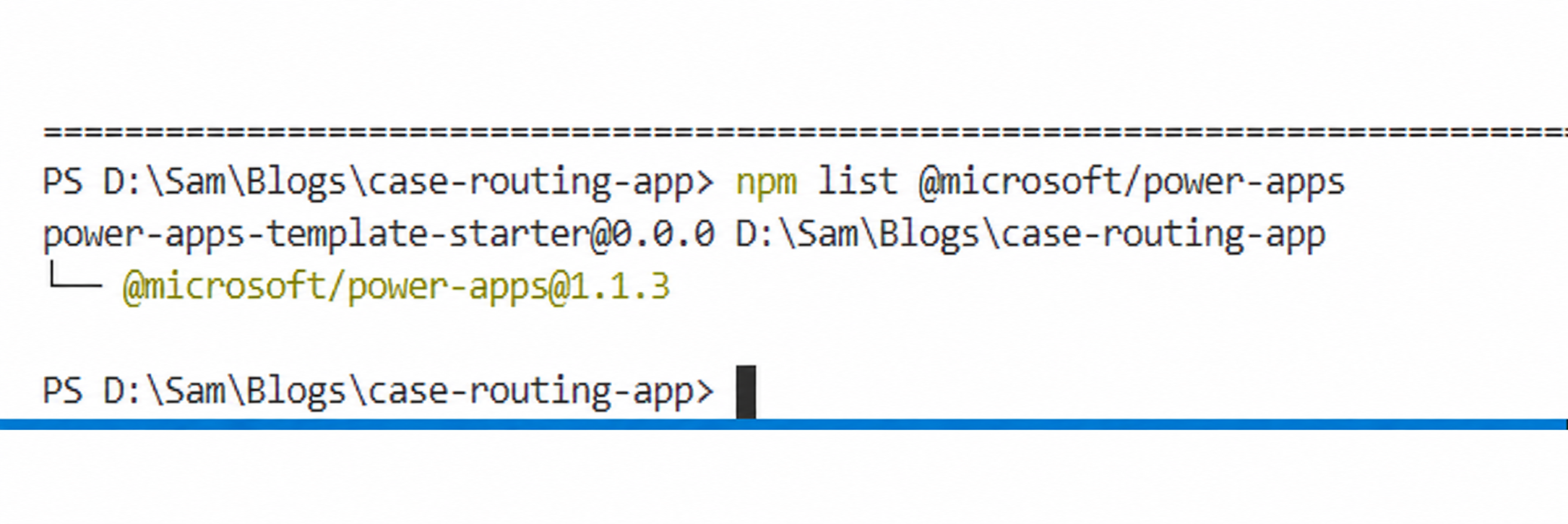
  • The @microsoft/power-apps package at version 1.1.1 or later in your package.json
  • An active CLI session (the CLI will prompt you to authenticate if not already logged in)
  • Access to the Dataverse environment that contains the operations you want to call
  • js installed on your machine (version 18 or later recommended)

Note: Run npm list @microsoft/power-apps to confirm the package version (1.1.1 or later). The CLI version (shown by npx power-apps –version) may differ from the package version..

Dataverse 1

Step 1: Discover Available Dataverse Operations

The first step is to find out which Dataverse operations are available in your environment. The find-dataverse-api command performs a case-insensitive substring search against the operation names in your connected environment.

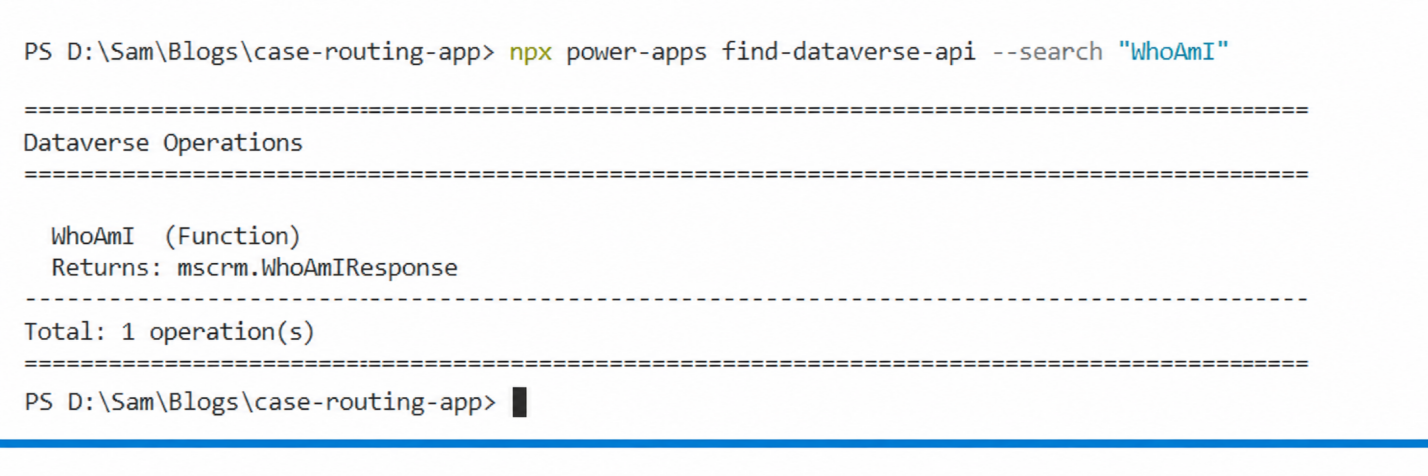
For this scenario, we need two operations. The first is WhoAmI, which identifies the current logged-in user. The second is PickFromQueue, which picks a case from a queue and assigns it to a specified user.

Finding WhoAmI

Run the following command in your terminal from inside the code app project folder:

npx power-apps find-dataverse-api --search "WhoAmI"

The output will show the operation name, its kind (Function or Action), and its return type:

Dataverse

Finding PickFromQueue

Next, search for the PickFromQueue action:

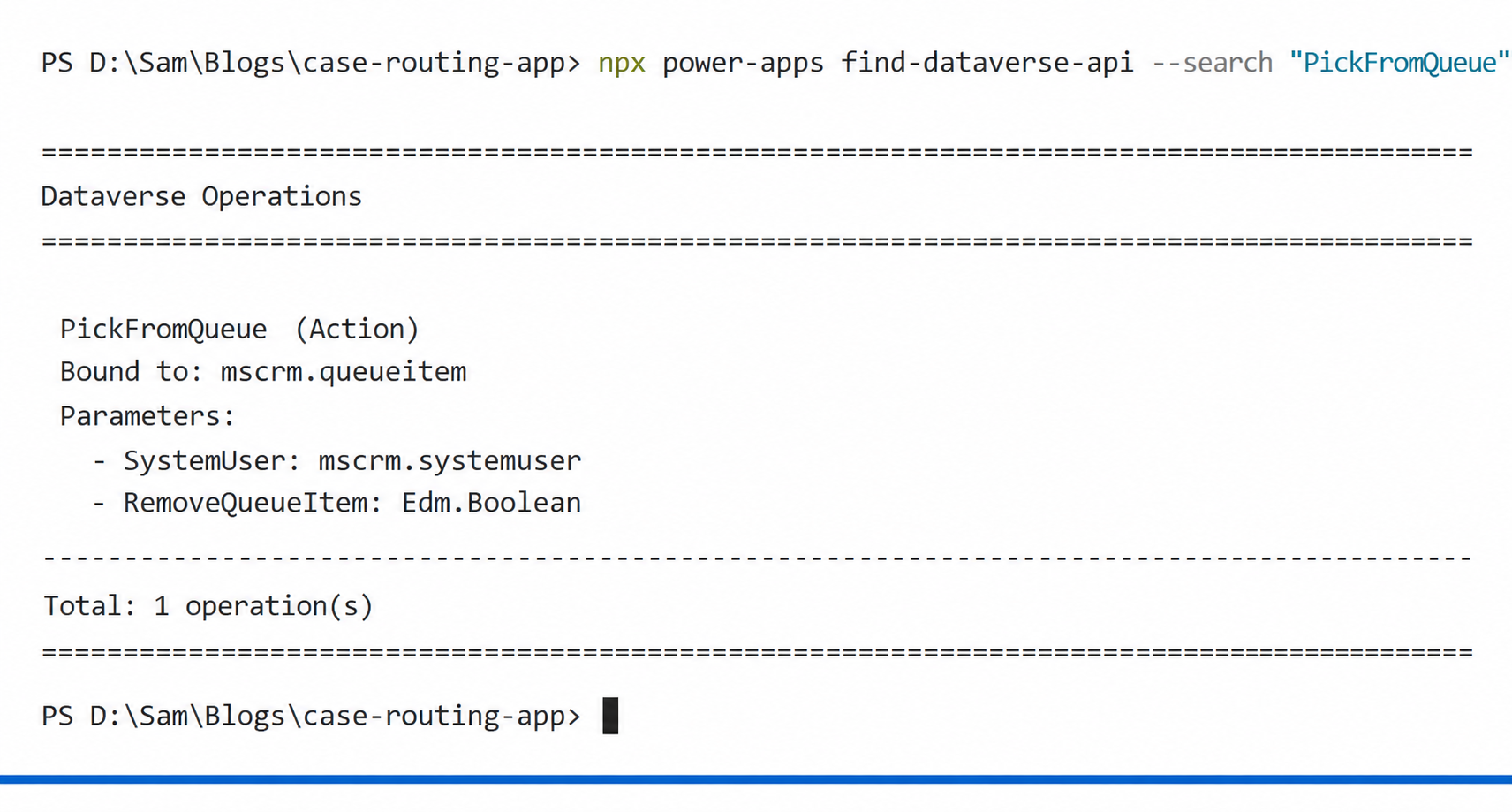
npx power-apps find-dataverse-api --search "PickFromQueue"

You will see something like this:

Dataverse

Notice that PickFromQueue is a bound action — it is bound to mscrm.queueitem, meaning it must be called with the GUID of the queue item record as its first argument. This is an important distinction that affects how the generated service method works, which we will cover shortly.

If you want to inspect the raw JSON output for scripting purposes, add the –json flag:

npx power-apps find-dataverse-api --search "PickFromQueue" --json

Step 2: Add the Operations to Your Code App

Once you have confirmed the operation names, use the add-dataverse-api command to wire them into your project. This command does several things automatically:

  • Fetches the full operation definition from your environment’s Dataverse metadata endpoint
  • Creates a schema file at the configured schema path
  • Generates TypeScript model files for any entities referenced in the operation
  • Generates a typed service class for the operation
  • Updates power.config.json with the necessary database reference
  • Regenerates dataSourcesInfo.ts to include the new operation

Adding WhoAmI

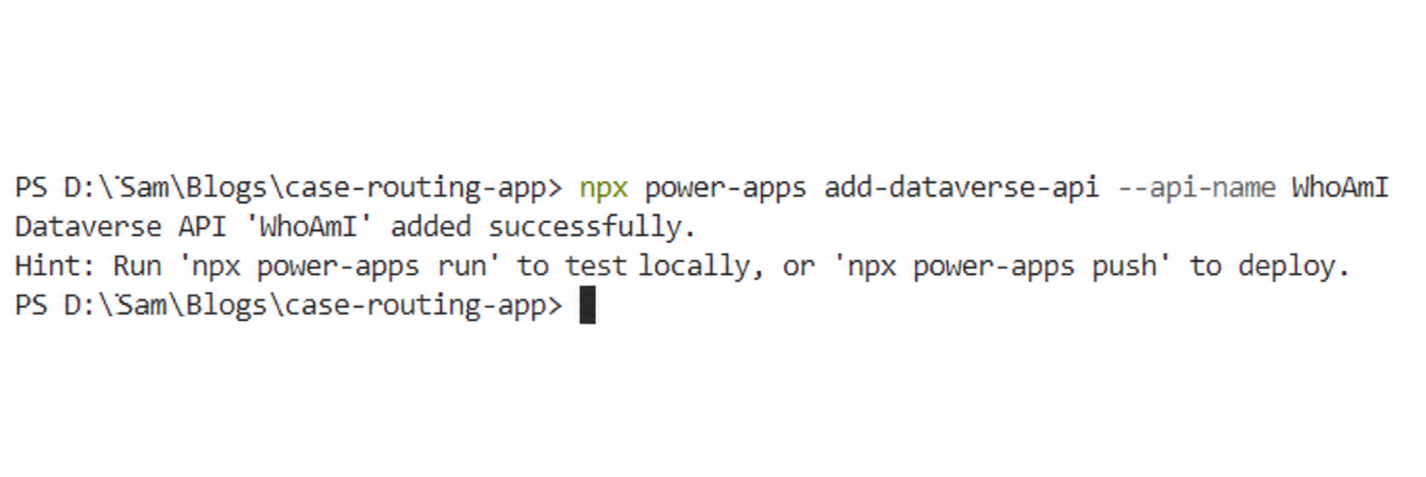
npx power-apps add-dataverse-api --api-name WhoAmI

On success, you will see:

Dataverse 1

Adding PickFromQueue

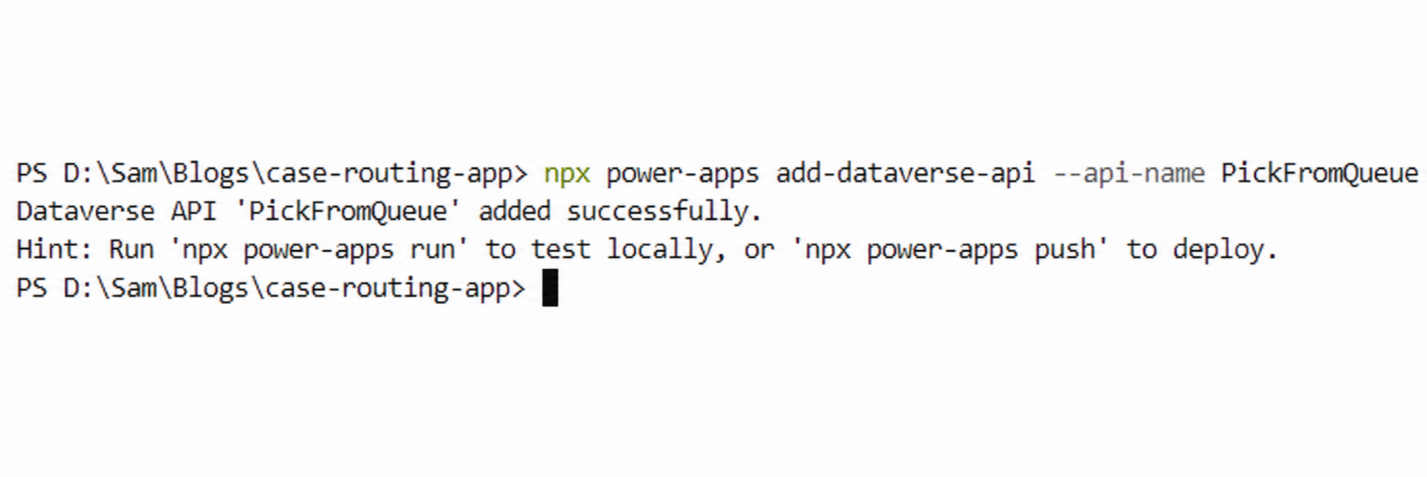
npx power-apps add-dataverse-api --api-name PickFromQueue

Or using the short alias:

Dataverse

npx power-apps add-dataverse-api -n PickFromQueue

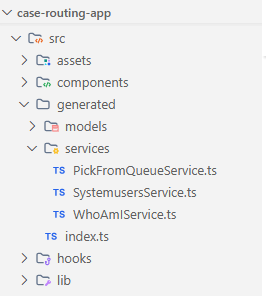
Once both commands complete, your project structure will include new generated files. Here is a summary of what was created or updated:

File What Changed
schemas/dataverse/WhoAmI.Schema.json Created — operation schema
schemas/dataverse/PickFromQueue.Schema.json Created — operation schema
schemas/appschemas/dataSourcesInfo.ts Regenerated to include both operations
power.config.json Updated with default.cds database reference
generated/services/WhoAmIService.ts Generated typed service class
generated/services/PickFromQueueService.ts Generated typed service class

Dataverse

Step 3: Use the Generated Services in Your App

With the service classes generated, you can now import and call them directly in your application code. The CLI handles all the Web API URL construction, authentication headers, and response parsing behind the scenes.

Calling WhoAmI

Import the WhoAmIService from the generated services directory and call it to retrieve the current user’s identity:

import { WhoAmIService } from './generated/services/WhoAmIService';

const userInfo = await WhoAmIService.WhoAmI() as any;

const currentUserId = userInfo.UserId;

const businessUnitId = userInfo.BusinessUnitId;

const orgId = userInfo.OrganizationId;

The result object contains three GUIDs — UserId, BusinessUnitId, and OrganizationId — all fully typed. In the case routing app, we use the UserId to display which agent is currently logged in, giving the team lead confidence before performing any routing action.

Calling PickFromQueue

The PickFromQueue action is a bound operation, which means the generated service method takes the queue item GUID as its first argument, followed by the operation parameters:

import { PickFromQueueService } from './generated/services/PickFromQueueService';
const handlePickCase = async (queueItemId: string, currentUserId: string) => {

const systemUser = {

'@odata.type': 'Microsoft.Dynamics.CRM.systemuser',

systemuserid: currentUserId

};

await PickFromQueueService.PickFromQueue(

queueItemId,    // GUID of the queue item (first arg for bound actions)

systemUser,     // The system user to assign the case to

true            // RemoveQueueItem — remove from queue after picking

);

console.log('Case picked from queue successfully');

};

The function picks the case from the queue and assigns it to the specified user. When RemoveQueueItem is true, the item is automatically removed from the queue to prevent duplicate assignments.

Note: For bound operations, the first argument is always the GUID of the record the action is bound to. In this case, PickFromQueue is bound to mscrm.queueitem, so the first argument is the queue item ID.

Step 4: Build the Case Routing UI

With both services wired up, the final step is to build the actual interface the team leads will use. The component needs to show a list of open cases, allow selection, and trigger the routing action.

Below is a simplified version of how the component comes together:

import { useEffect, useState } from 'react';

import { WhoAmIService } from './generated/services/WhoAmIService';

import { PickFromQueueService } from './generated/services/PickFromQueueService';

// Sample cases in queue (in production, fetch from Dataverse)

const queuedCases = [

{ id: 'CAS-1001', title: 'Printer not working',    queueItemId: '< queue-item-guid-1 >' },

{ id: 'CAS-1002', title: 'Password reset request', queueItemId: '< queue-item-guid-2 >' },

{ id: 'CAS-1003', title: 'Software installation',  queueItemId: '< queue-item-guid-3 >' },

];

export const CaseRoutingApp = () => {

const [currentUserId, setCurrentUserId] = useState('');

const [routedCases, setRoutedCases] = useState<Record<string, boolean>>({});

useEffect(() => {

WhoAmIService.WhoAmI().then((r: any) => setCurrentUserId(r.UserId));

}, []);

const handlePickCase = async (queueItemId: string, caseId: string) => {

const systemUser = {

'@odata.type': 'Microsoft.Dynamics.CRM.systemuser',

systemuserid: currentUserId

};

await PickFromQueueService.PickFromQueue(queueItemId, systemUser, true);

setRoutedCases(prev => ({ ...prev, [caseId]: true }));

};

return ( /* your JSX here */ );

};

Dataverse 

Once you are happy with the result in local preview, run:

npx power-apps push

This deploys the app to your Dataverse environment and makes it available inside the model-driven app.

Important Notes and Common Pitfalls

A few things to keep in mind as you work with this feature:

Bound vs. Unbound Operations

The distinction between bound and unbound operations matters for how you call the generated service method. Bound operations always take an id: string as the first argument (the GUID of the record the operation is bound to). Unbound operations, like WhoAmI, take only the declared parameters.

The CLI detects the operation type automatically and generates the method signature accordingly. You do not need to configure anything manually.

Re-running add-dataverse-api is Safe

If the operation’s signature changes in your environment — for example, a developer added a new optional parameter — simply re-run the same command:

npx power-apps add-dataverse-api --api-name PickFromQueue

The command is idempotent. It overwrites the schema and regenerates the service class with the latest definition. It will not create duplicate entries in power.config.json, and it will not overwrite entity schema files that already exist.

Conclusion

The add-dataverse-api command is a significant quality-of-life improvement for developers building Power Apps code apps. Instead of handwriting Web API calls, managing URL patterns for bound vs. unbound operations, and manually typing response objects, you get fully generated, type-safe service classes in seconds.

For the support team in our scenario, the result was exactly what the client needed. Cases are now routed with a single click, the correct agent identity is confirmed before any action is taken, and the development time was a fraction of what it would have taken with raw Web API calls.

Whether you are calling WhoAmI to verify the current session, triggering a bound action like PickFromQueue to execute business logic, or invoking a custom operation your team has built, the CLI handles the scaffolding so you can focus on building the experience.

FAQs

What is add-dataverse-api in Power Apps code apps?

The add-dataverse-api command is a Power Apps CLI feature that generates fully typed TypeScript service classes for Dataverse actions and functions. It eliminates the need to manually write Web API fetch calls when building Power Apps code apps.

How do you call Dataverse actions from a Power Apps code app?

You can call Dataverse actions in a Power Apps code app by using the Power Apps npm CLI commands find-dataverse-api and add-dataverse-api. These commands generate typed service classes that let developers invoke Dataverse actions directly in TypeScript.

What is the difference between bound and unbound Dataverse actions?

Bound Dataverse actions are linked to a specific Dataverse table or record and require a record GUID as the first parameter. Unbound actions are standalone operations that do not require a record reference. For example, PickFromQueue is bound, while WhoAmI is unbound.

The post Calling Dataverse Actions and Functions from Power Apps Code Apps first appeared on Microsoft Dynamics 365 CRM Tips and Tricks.

How to Use JSON Output in AI Builder Prompts for Structured Automation

JSON Output If you’ve been working with AI in your business processes lately, you’ve probably run into a really frustrating roadblock: the gap between the chatty text an AI wants to give you and the structured data your automation actually needs.
Let’s say you’re building a Power Automate flow to pull details out of customer emails. You want the person’s name, the priority, and the category. Ideally, you want to get back something clean like this:

JSON:

{

"customer_name": "Sarah Johnson",

"priority": "High",

"issue_category": "Billing"

}

Instead, the AI usually gives out a whole paragraph:

The customer, Sarah Johnson, appears to have a high-priority concern related to billing. It would be advisable to route this to the finance team for further assistance.”

That’s great if a human is reading it. But for an automated flow? It’s a nightmare. You end up trying to write expressions using ‘split()’ or regular expressions just to grab the values you want, and if the AI rephrases even slightly on the next run, those expressions break. The core issue is straightforward: AI produces conversational text, but automated systems require structured, predictable data.

Microsoft’s Power Platform has a fix for this inside the AI Builder Prompt action. Whether you are using Power Automate or Copilot Studio, you can just tell the AI to hand you back perfectly formatted JSON instead of a paragraph. And the best part? That JSON maps straight into your Dynamics 365 fields, your flow conditions, or your Copilot variables. No messy parsing needed.

Understanding AI Builder Prompts

The Prompt tool can be accessed via the Power Apps maker portal, under AI Builder in Prompts. It allows users to define a custom AI instruction with optional dynamic input variables, and the generated response can be consumed in Power Automate or in Copilot Studio. By default, the output is plain text, but switching the output format to JSON enables the AI to return a structured object that downstream actions consume directly.

As a general guideline: use text output when communicating with a user, and JSON output when communicating with a system.

Setting Up a Prompt with JSON Output:

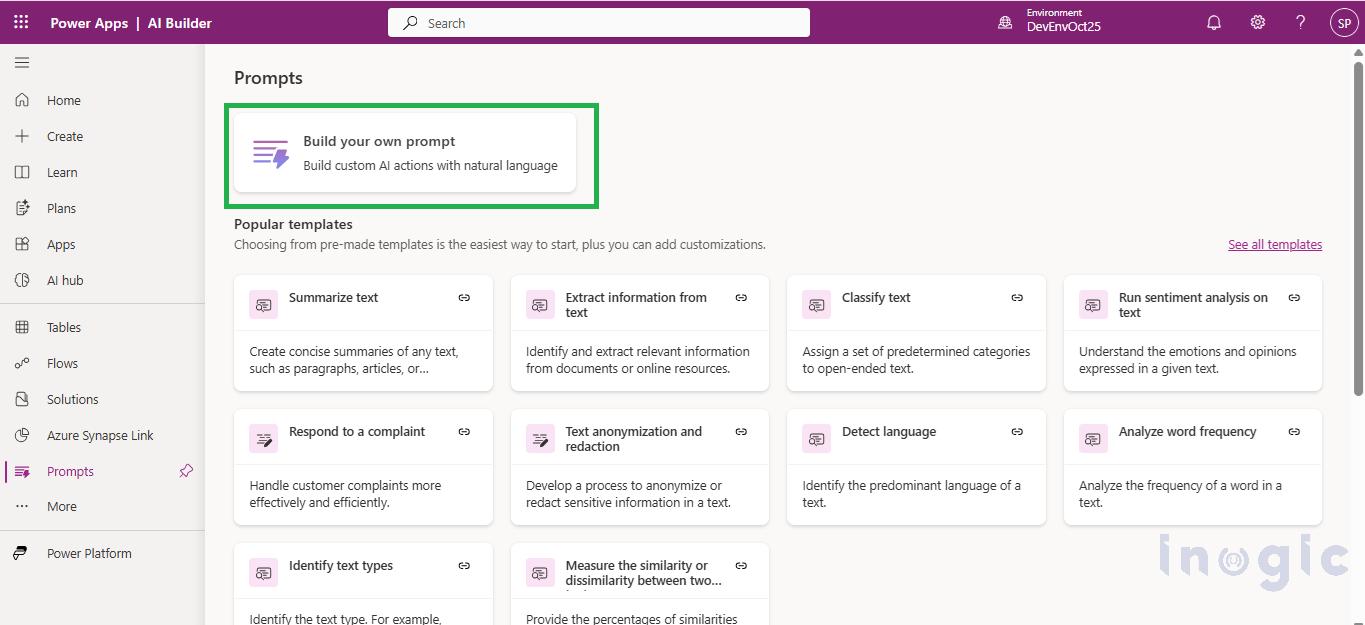
Navigate to Power Apps maker portal, under AI Builder in Prompts select the Build your own Prompt.

Configuring JSON Output with AI Builder Prompts in Power AppsWhen writing the prompt, three elements are essential: a clear task definition, the JSON schema (field names, data types, allowed values), and explicit output constraints (return only the JSON, no extra text or formatting). Define dynamic inputs by clicking on Input, for example, an ‘EmailBody’ variable to hold customer email text passed from a flow.
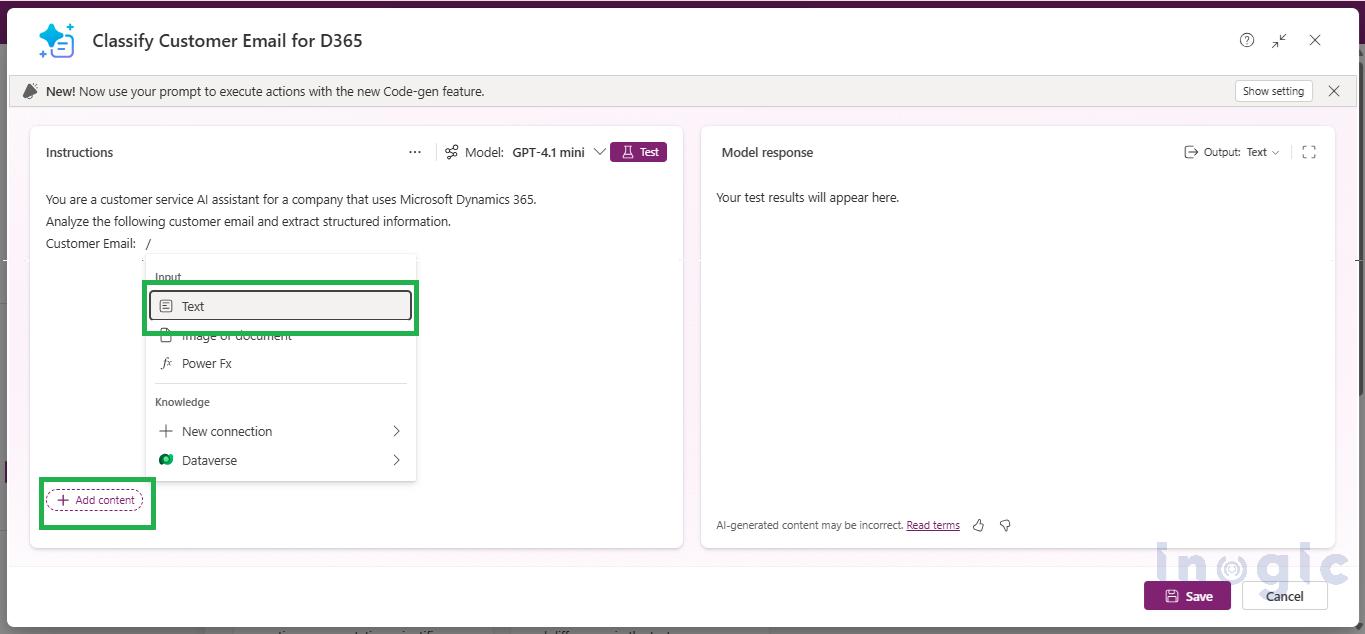
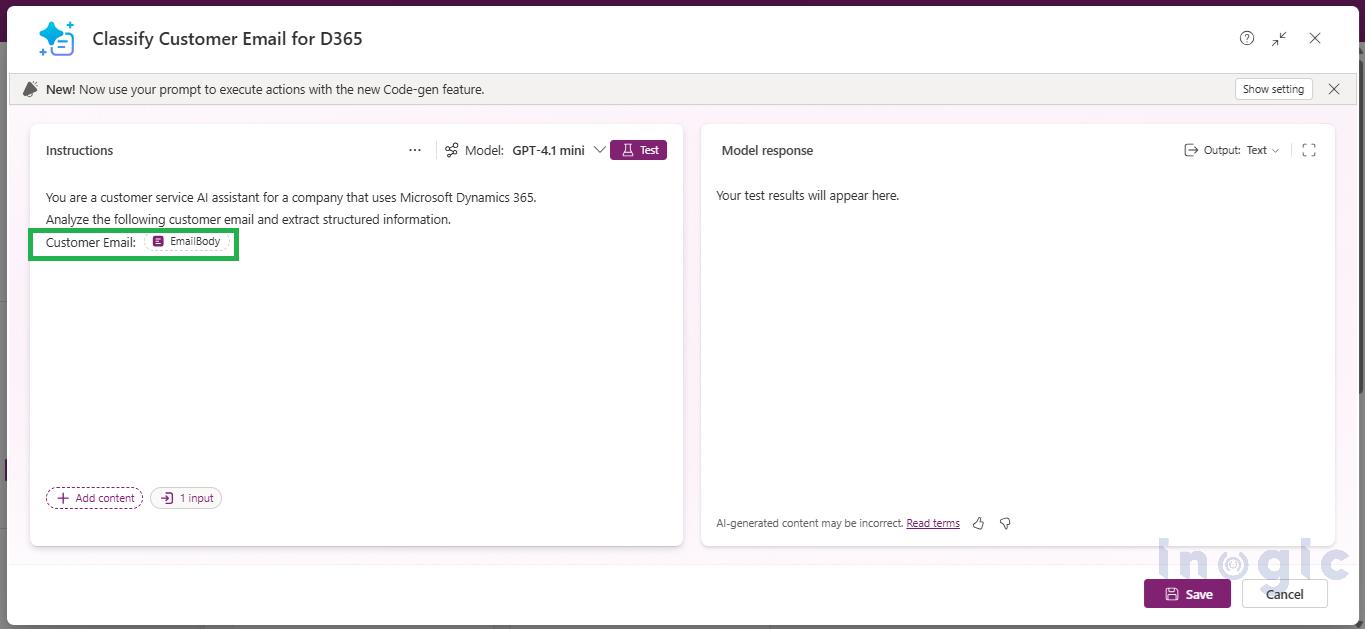
Configuring JSON Output with AI Builder Prompts in Power Apps

Configuring JSON Output with AI Builder Prompts in Power AppsIn the configuration panel, change the Output format from Text to JSON. Use the built-in Test feature to validate the response structure.
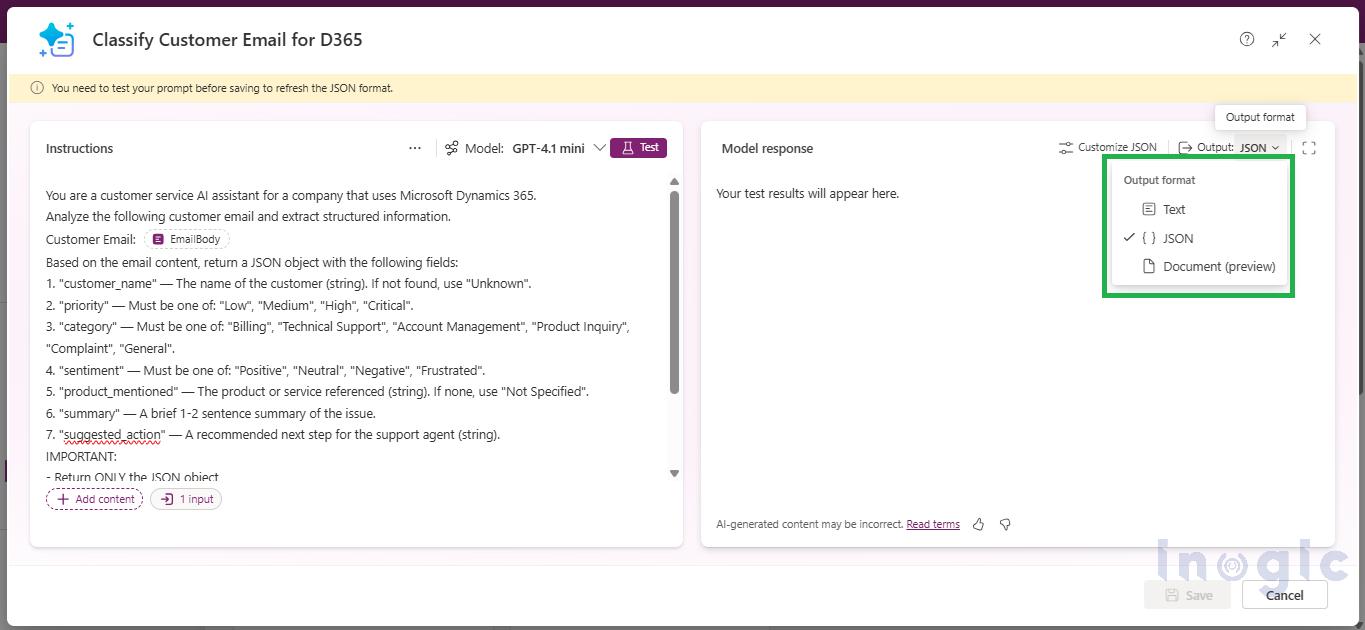
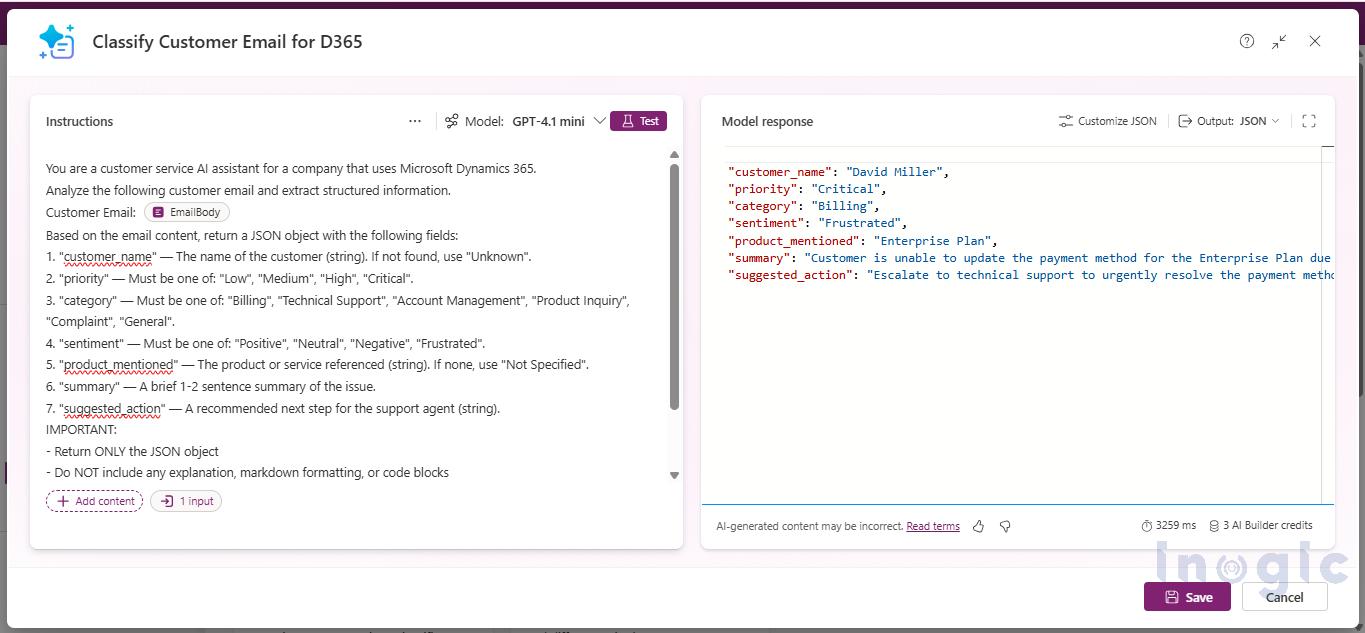
Configuring JSON Output with AI Builder Prompts in Power Apps

Configuring JSON Output with AI Builder Prompts in Power AppsOnce tested, integrate it into Power Automate via the “Run a prompt” action, or into Copilot Studio as a Prompt Tool directly or use it within a topic.
Automated Email Categorization with Power Automate

Support teams get flooded with emails every single day. Usually, a human has to sit there, read each one, figure out the priority, guess the customer’s mood, and write a summary.

By combining the Prompt tool with JSON output, you can put this whole categorization process on autopilot. Here is roughly how it flows:

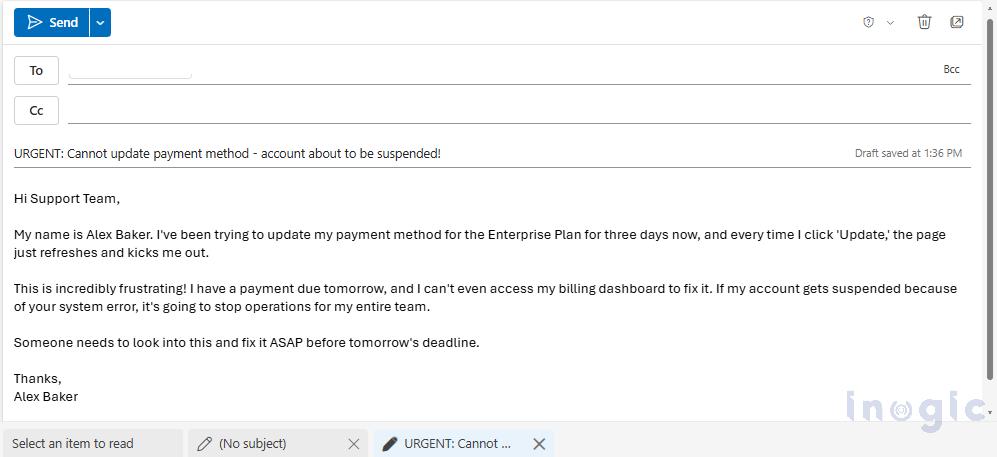
An Email Arrives: A distressed customer sends an email regarding a critical payment failure on their account.

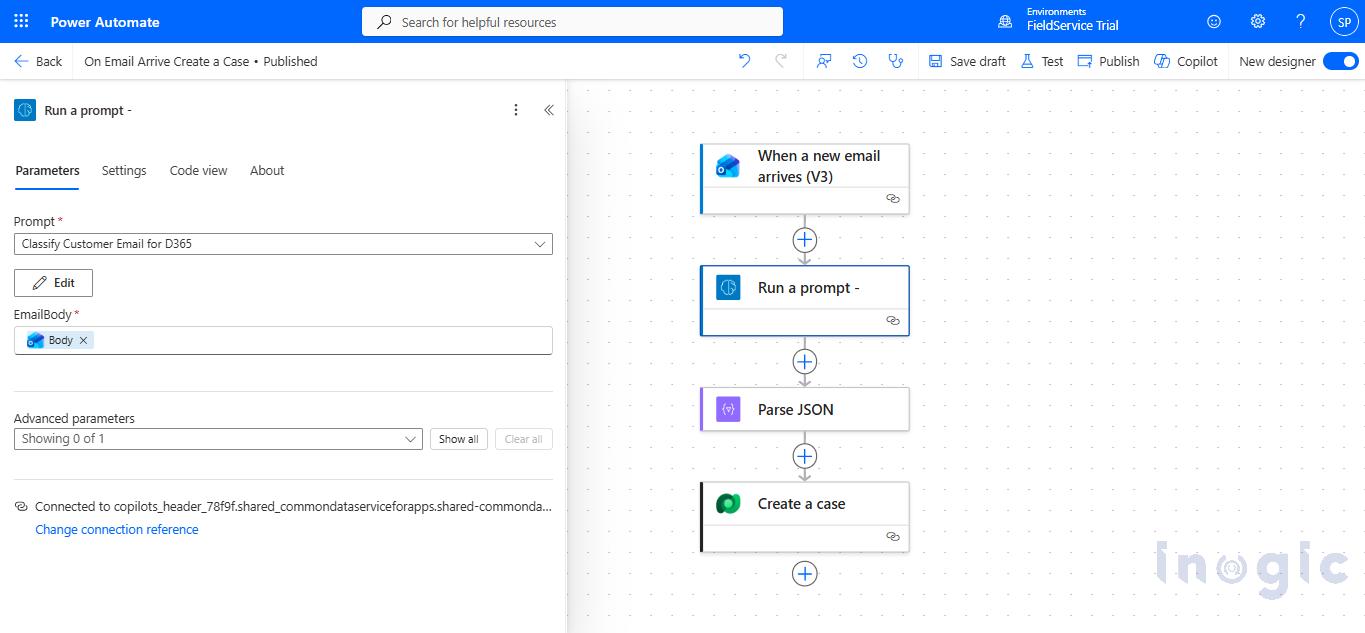
Configuring JSON Output with AI Builder Prompts in Power AppsThe Prompt Analyzes: Your flow triggers immediately, grabs that email text, and ships it over to the AI Builder Prompt you built.
Configuring JSON Output with AI Builder Prompts in Power AppsClean Data is Structured: The AI reads it, understands the context, and hands you back a neat JSON block.
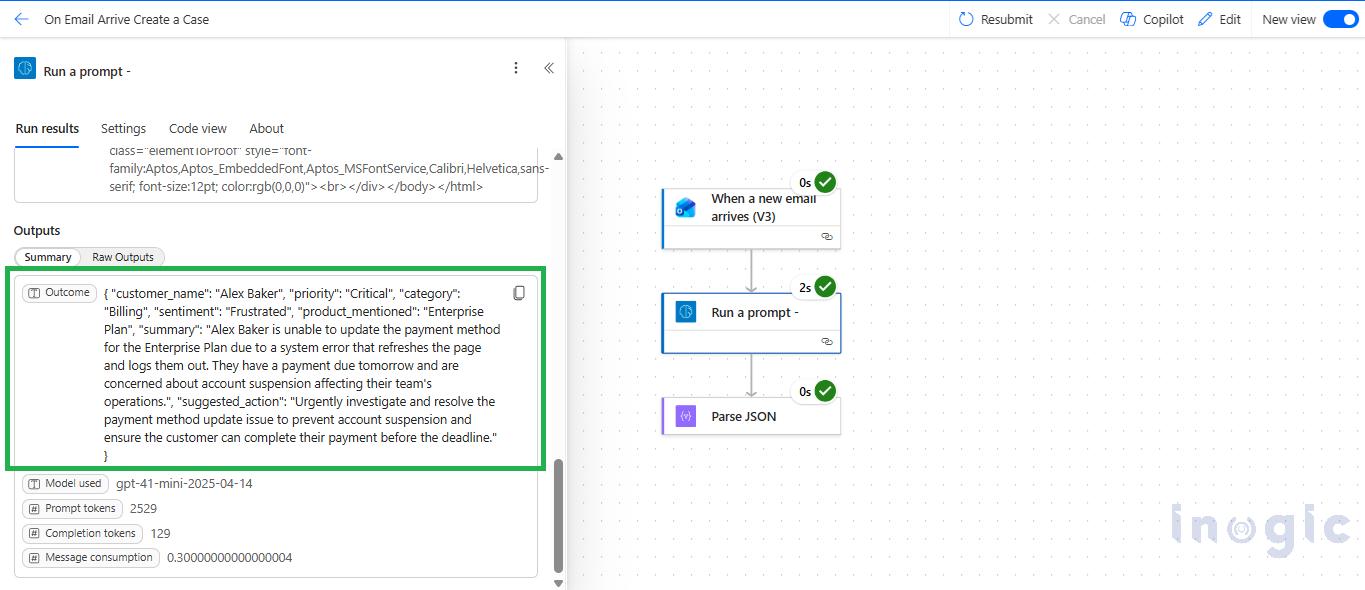
Configuring JSON Output with AI Builder Prompts in Power AppsParsed for Automation: Using the “Parse JSON” action in Power Automate, the structured data is instantly converted into dynamic content. You can now use these variables anywhere in your flow to route the email to the right team, trigger an urgent alert, or seamlessly create a record in Dataverse.

Configuring JSON Output with AI Builder Prompts in Power AppsConclusion

Switching AI Builder Prompts to JSON output is a simple but powerful enhancement for building production-ready automation.

While text responses are useful for human interaction, JSON output provides the structure required for reliable system integration.

This approach:

  • Eliminates fragile parsing logic
  • Ensures consistent AI responses
  • Enables direct mapping to business systems

For any solution involving Power Automate, Copilot Studio, or Dynamics 365, using JSON output is one of the most impactful improvements you can make with minimal effort.

FAQs

What is JSON output in AI Builder Prompts?

JSON output is a structured response format in AI Builder Prompts that returns data as key-value pairs instead of conversational text, making it easier for automation systems to process.

 Can JSON output integrate with Dynamics 365?

Yes, structured JSON fields can map directly into Dynamics 365 entities and records without additional transformation.

 Can JSON output integrate with Dynamics 365?

Yes, structured JSON fields can map directly into Dynamics 365 entities and records without additional transformation.

What problems does JSON output solve in AI automation?

It eliminates inconsistent AI responses, removes the need for regex or string parsing, and ensures stable automation workflows.

How do I enable JSON output in Power Apps AI Builder Prompts?

In the Power Apps maker portal, go to AI Builder → Prompts, create or edit a prompt, and change the output format from Text to JSON in the configuration panel.

The post How to Use JSON Output in AI Builder Prompts for Structured Automation first appeared on Microsoft Dynamics 365 CRM Tips and Tricks.

How to Customize the Task Pane in Project Operations

Earlier, the Task Details pane in Project Operations was standard and not customizable at admin level. When users clicked the info icon present next to a task, a fixed task pane from Project showed only predefined fields. Organizations could not add custom fields or modify the layout, so users often had to navigate away from the task grid to view or update additional task details.

Now, with the latest update, the task pane is customizable. Using this feature, we can customize tasks of a project within the Task Pane itself. This allows users to view and update all relevant task information directly from the task pane, improving efficiency while still keeping the option to access the original standard view if needed.

In this blog, let us explore how to Customize Task Pane in Project Operations.

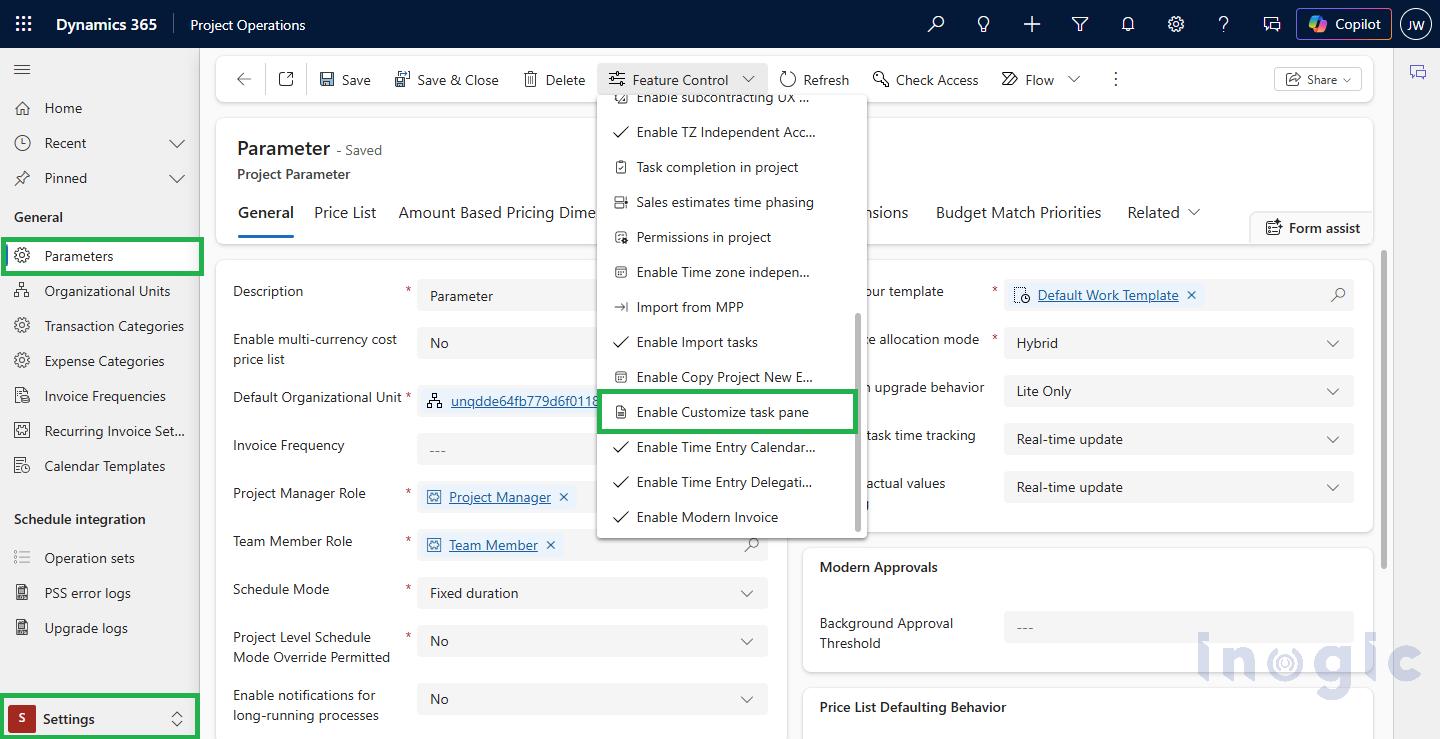
  • To enable theCustomize Task Pane feature in Project Operations, navigate to the Parameters entity present in the Settings
  • Click on the Feature Control button on the ribbon bar, as shown below.

How to Customize the Task Pane in Project Operations

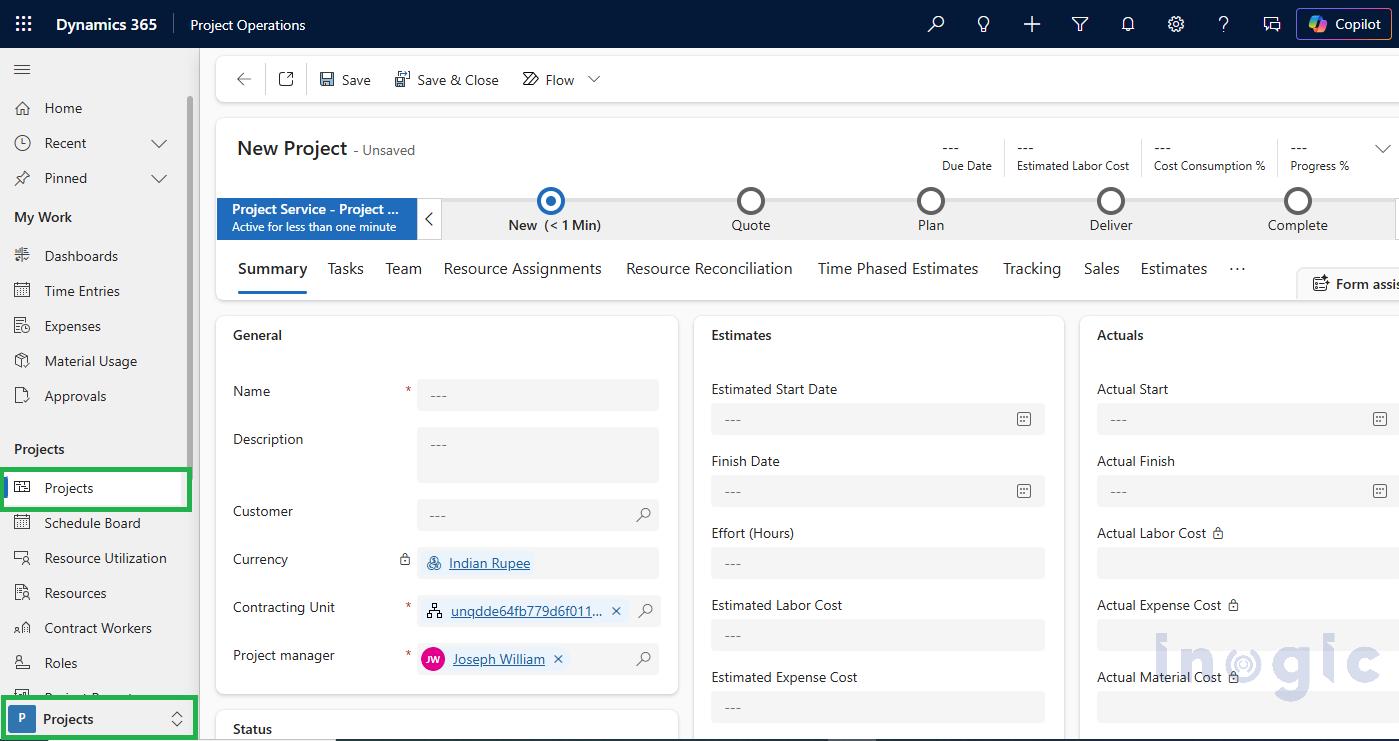
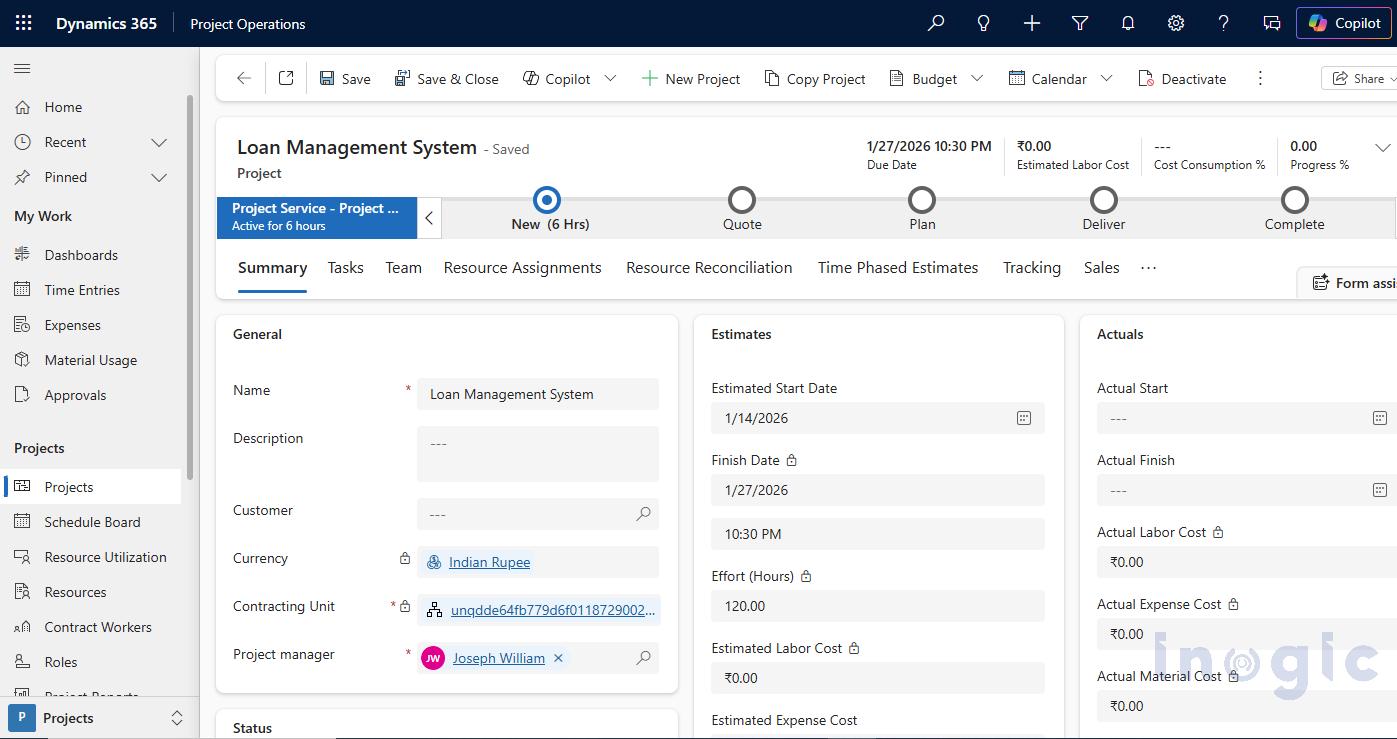
  • After enabling Customize Task Pane feature, navigate to Projects area under Projects group click on Projects

Note: Choose Existing Project or create a New Project.

How to Customize the Task Pane in Project Operations

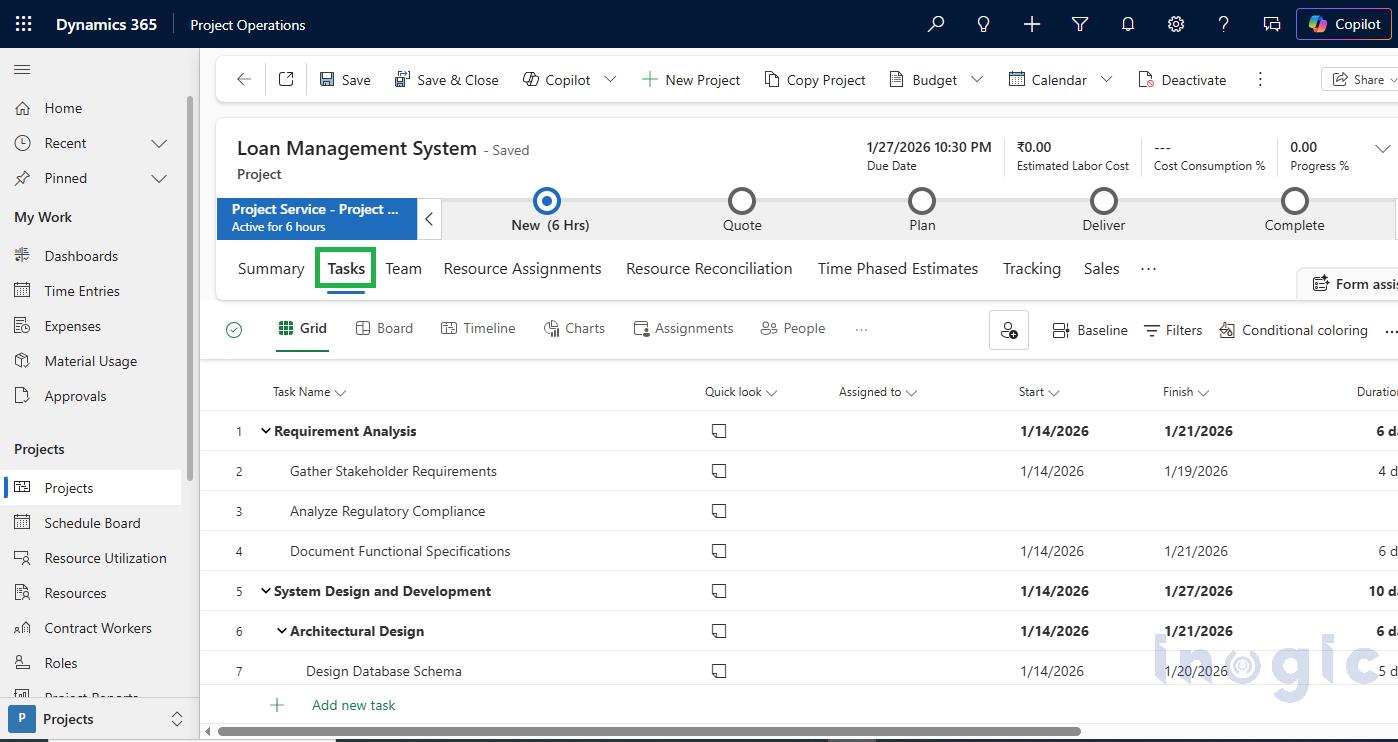
  • Let us create a project with all the required details, save it and then navigate to the Tasks tab

How to Customize the Task Pane in Project Operations

How to Customize the Task Pane in Project Operations

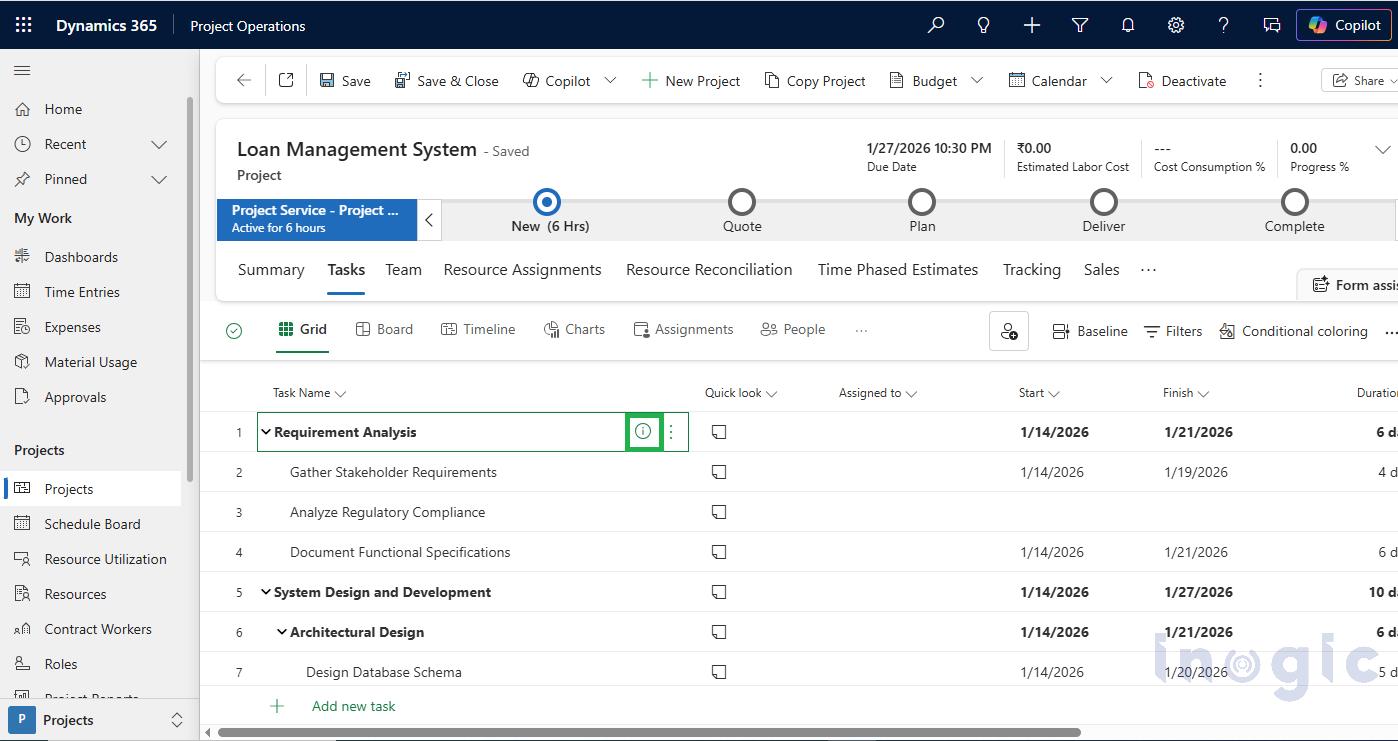
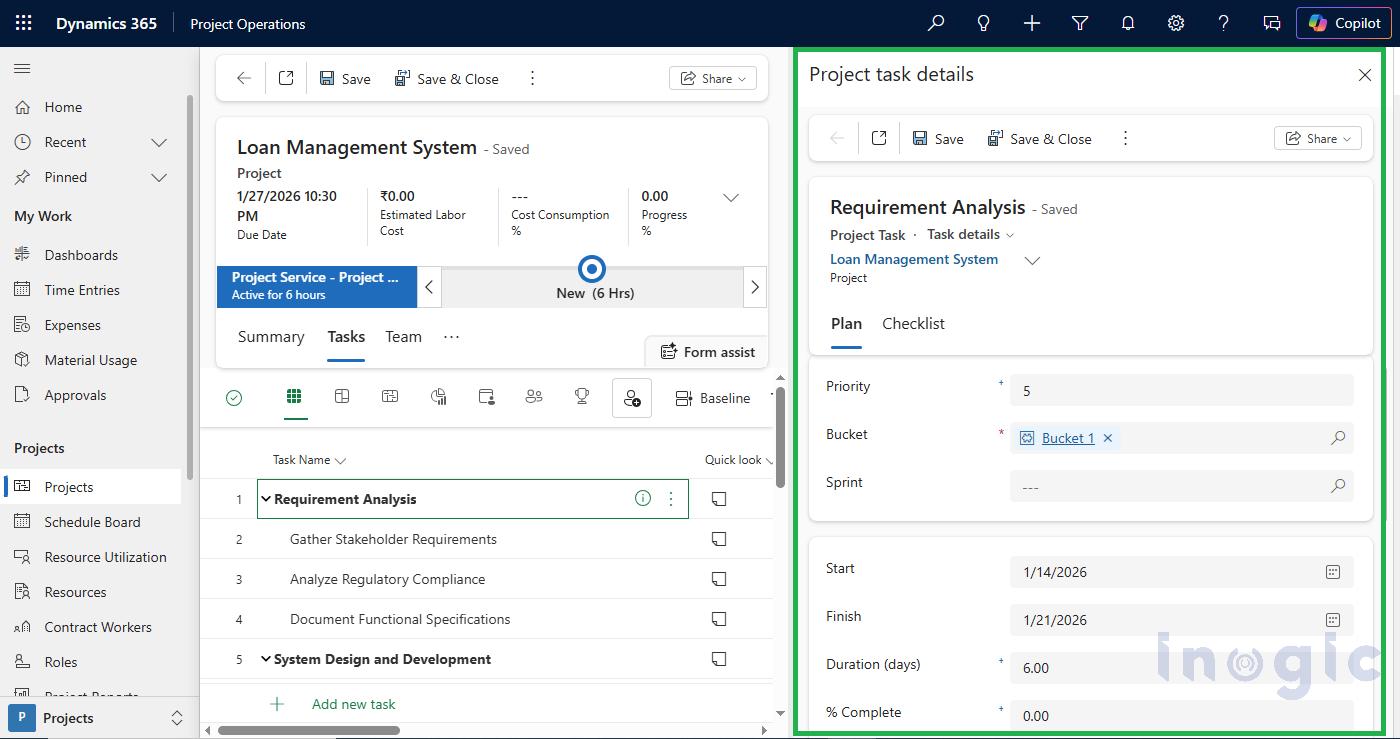
  • Add the tasks required to complete your project. Click on any task’s ⓘ icon to view its details in the new Task Side Pane.

How to Customize the Task Pane in Project Operations

How to Customize the Task Pane in Project Operations

  • Now, let us navigate to Power Apps to customize the Task Side Pane. This customization allows users to view and update task details directly from the Task Grid, eliminating the need to open separate pages or navigate away from their current screen.
  • As a result, users can manage tasks more efficiently within a single, streamlined interface.

 Steps to customize the Task Pane:

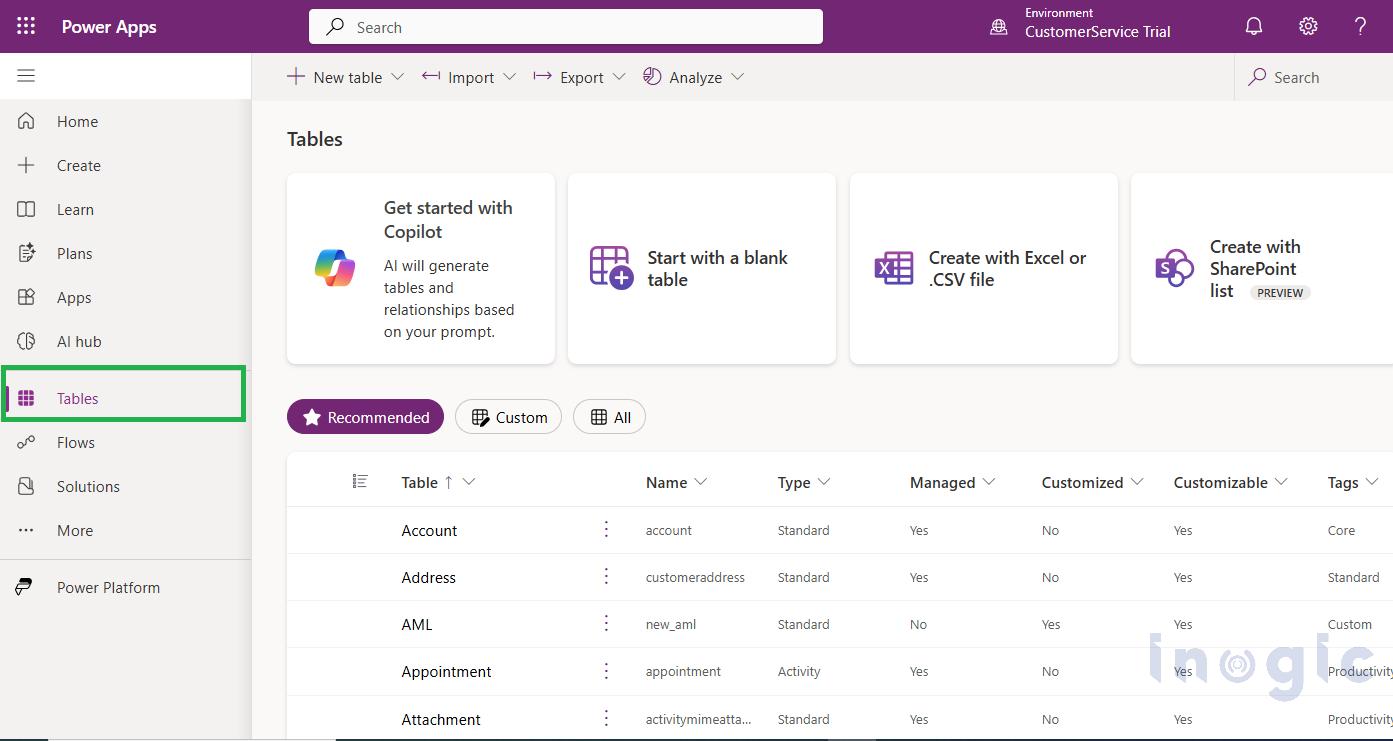
1. Navigate to Power Apps and click on Tables as below –

How to Customize the Task Pane in Project Operations

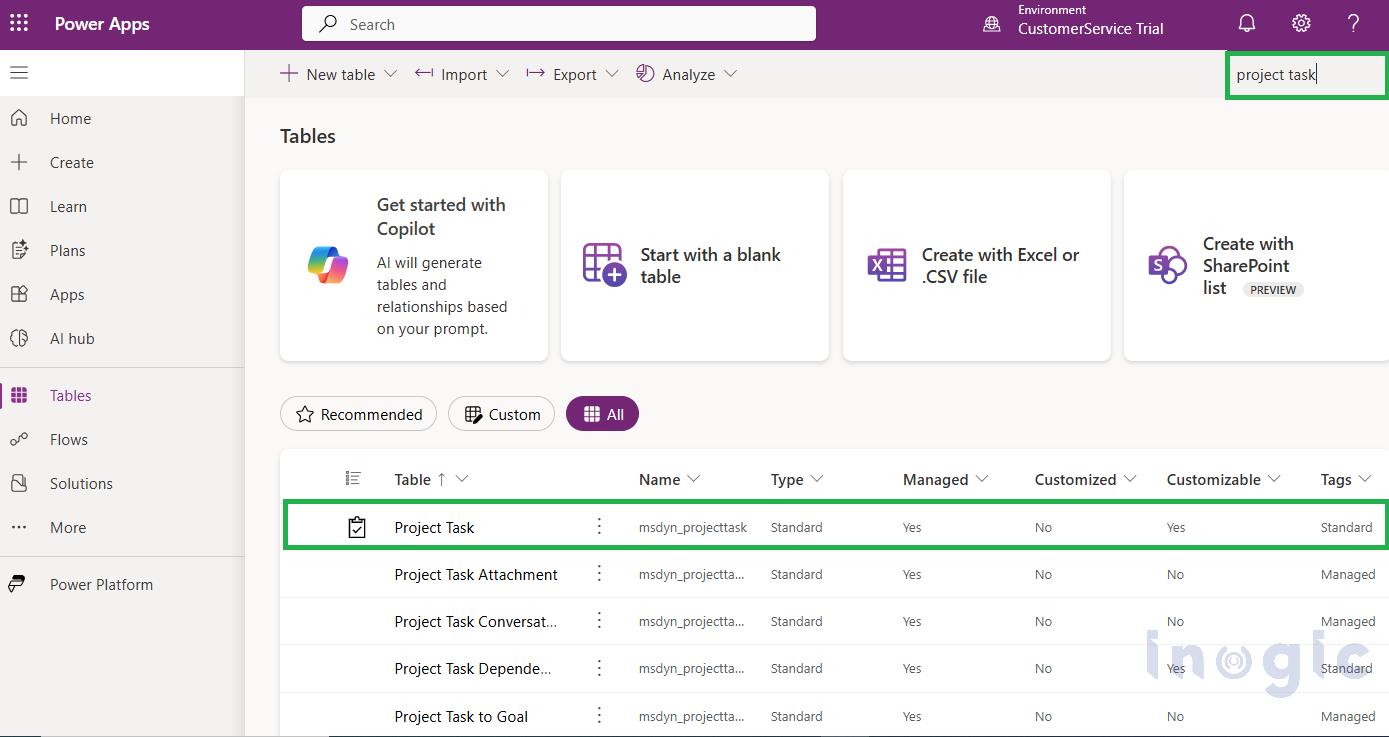
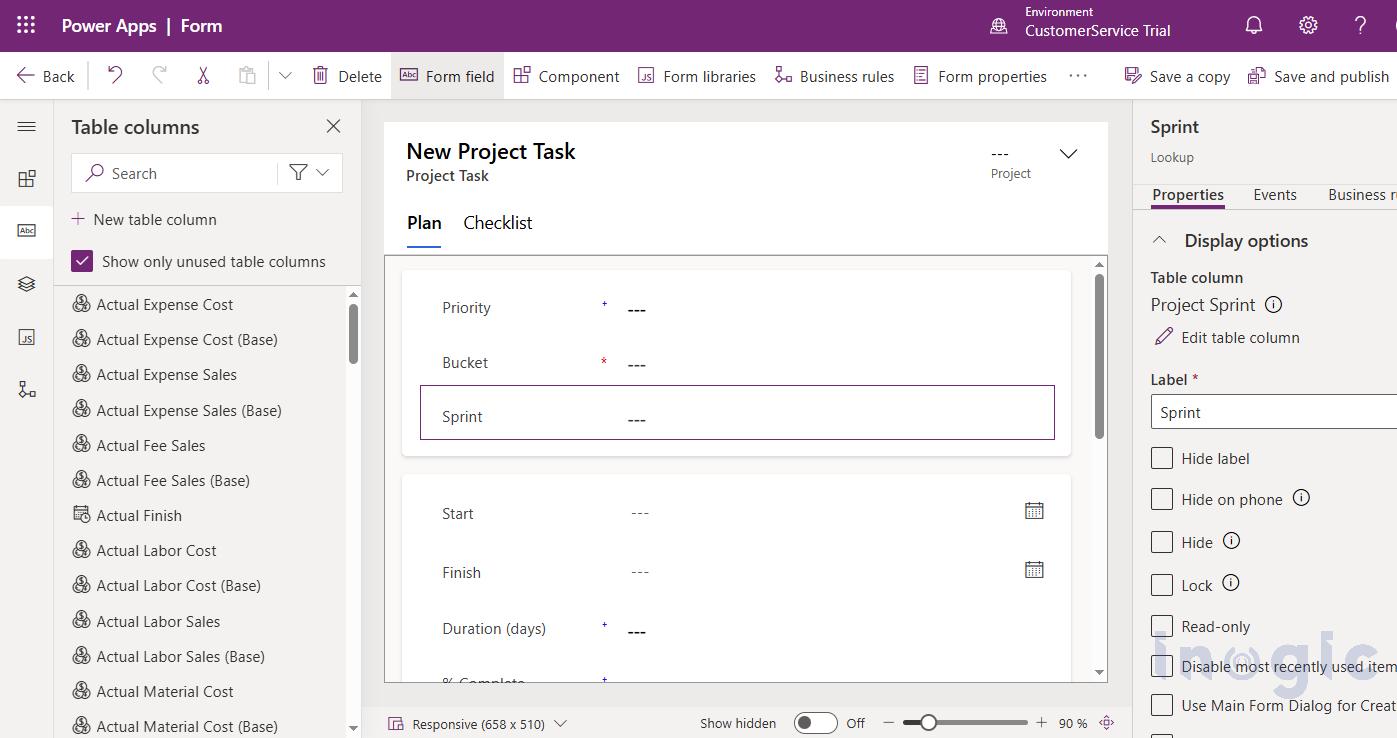
2. Search Project Task form and click on it.

How to Customize the Task Pane in Project Operations

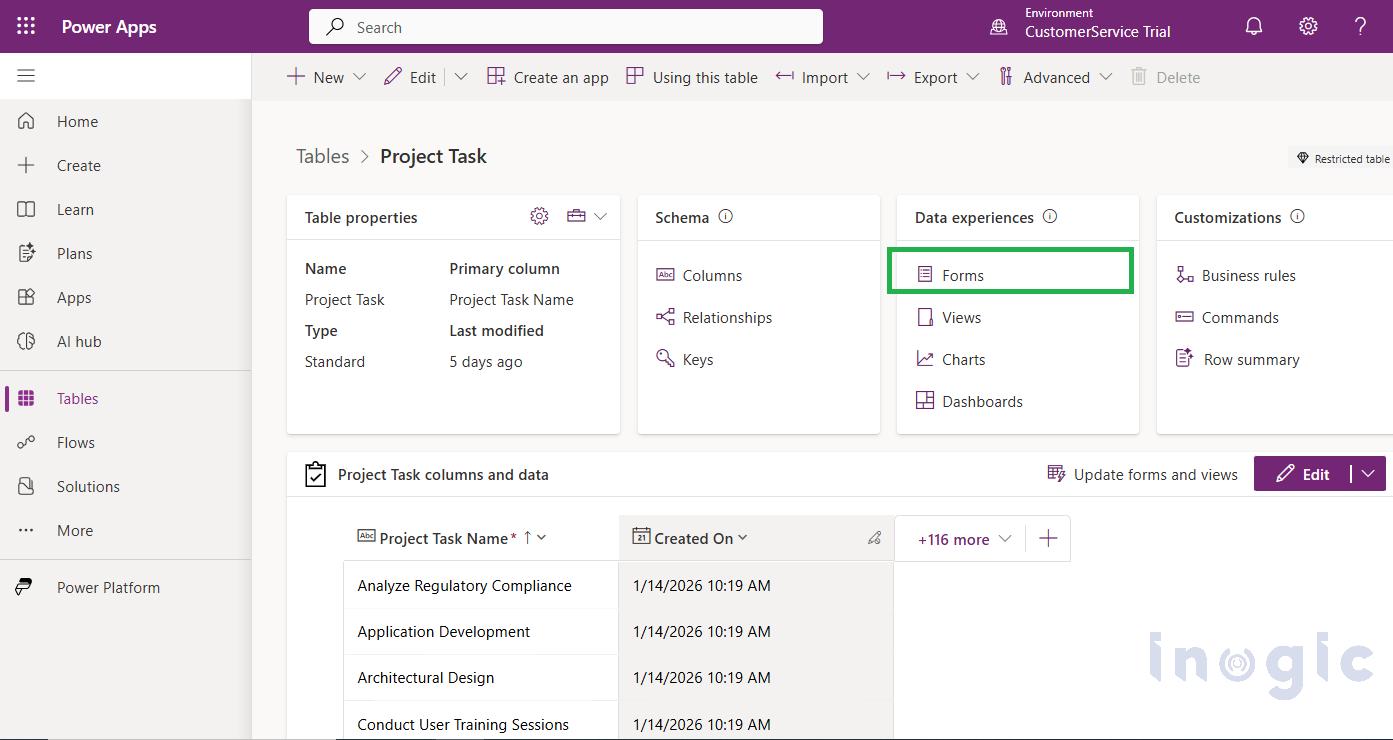
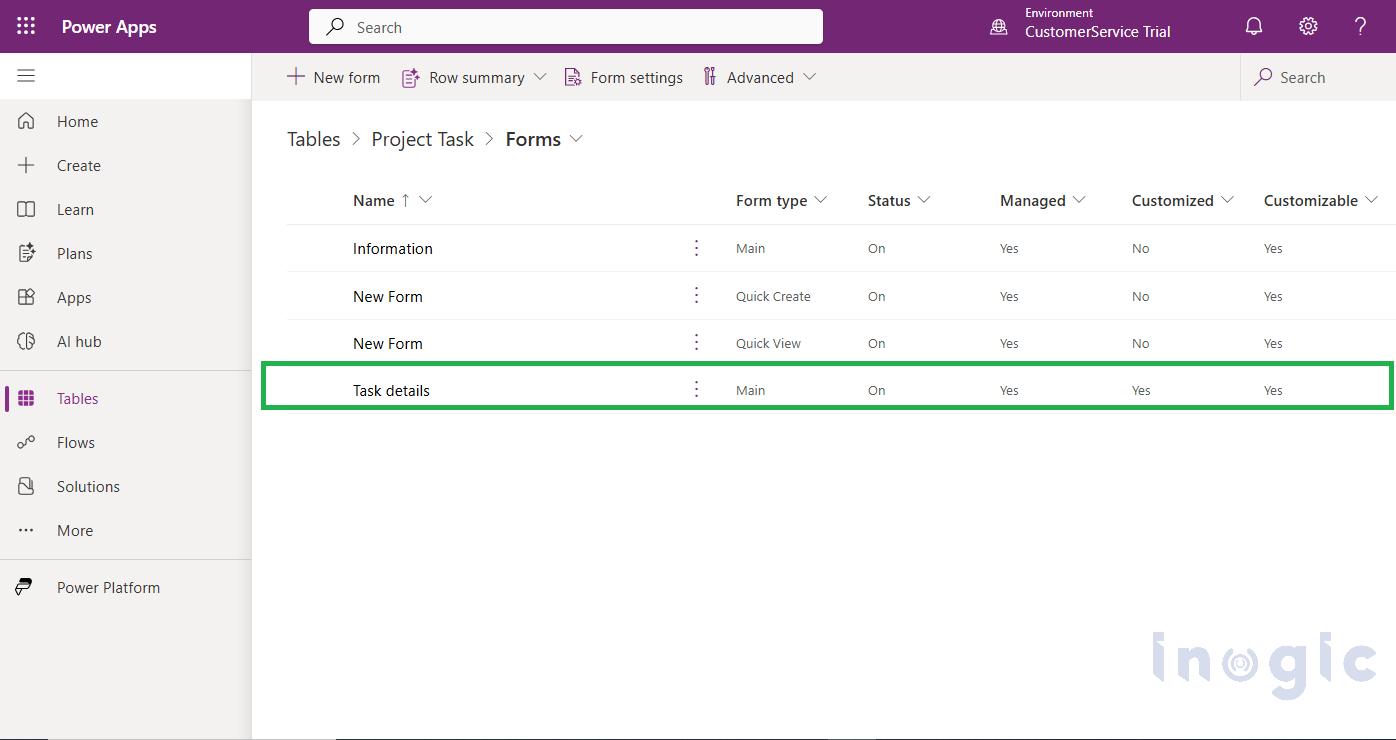
3. In Data experiences select Forms & click on Task details

How to Customize the Task Pane in Project Operations

How to Customize the Task Pane in Project Operations

How to Customize the Task Pane in Project Operations

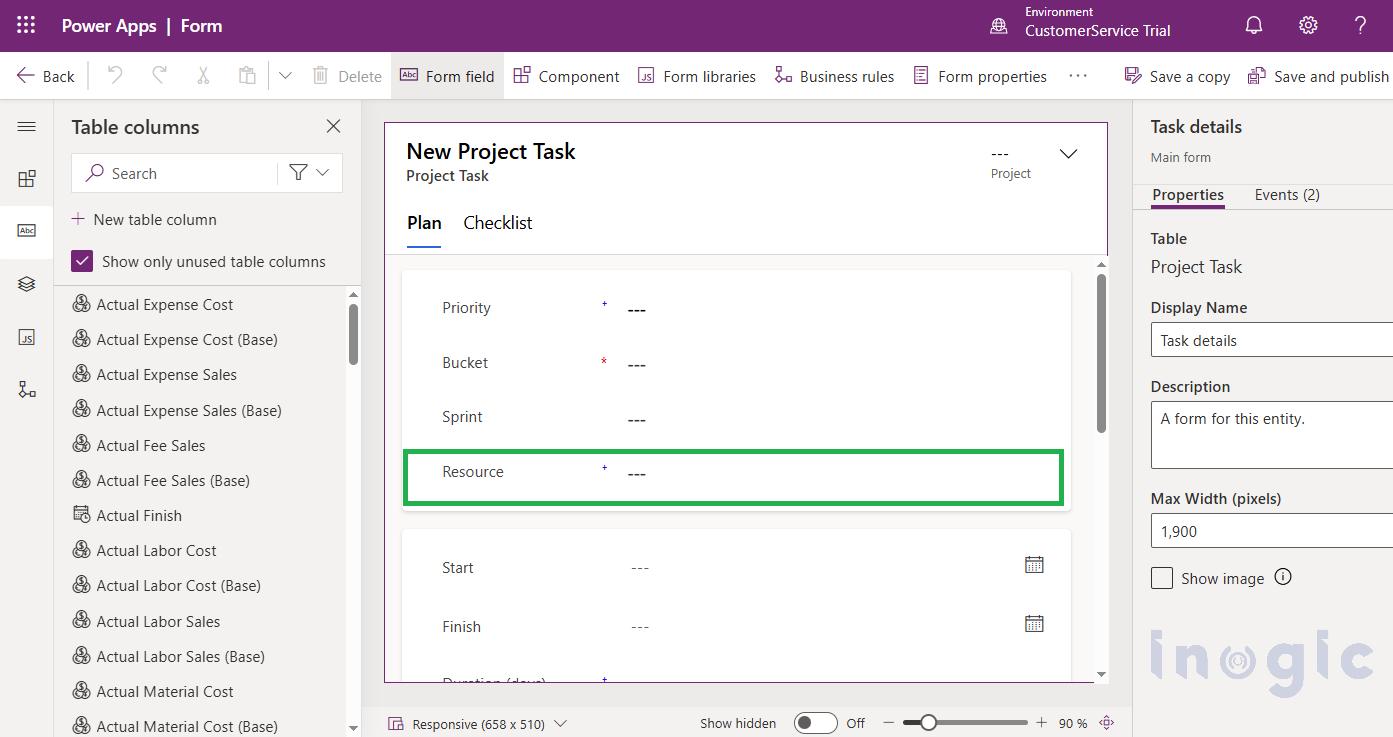
4. Customize the Task details form according to your requirements.

Note: You can customize the task pane whenever you want in Task details and publish it according to your requirements.

How to Customize the Task Pane in Project Operations

Note:  A Resource field is added in Task details form for customization.

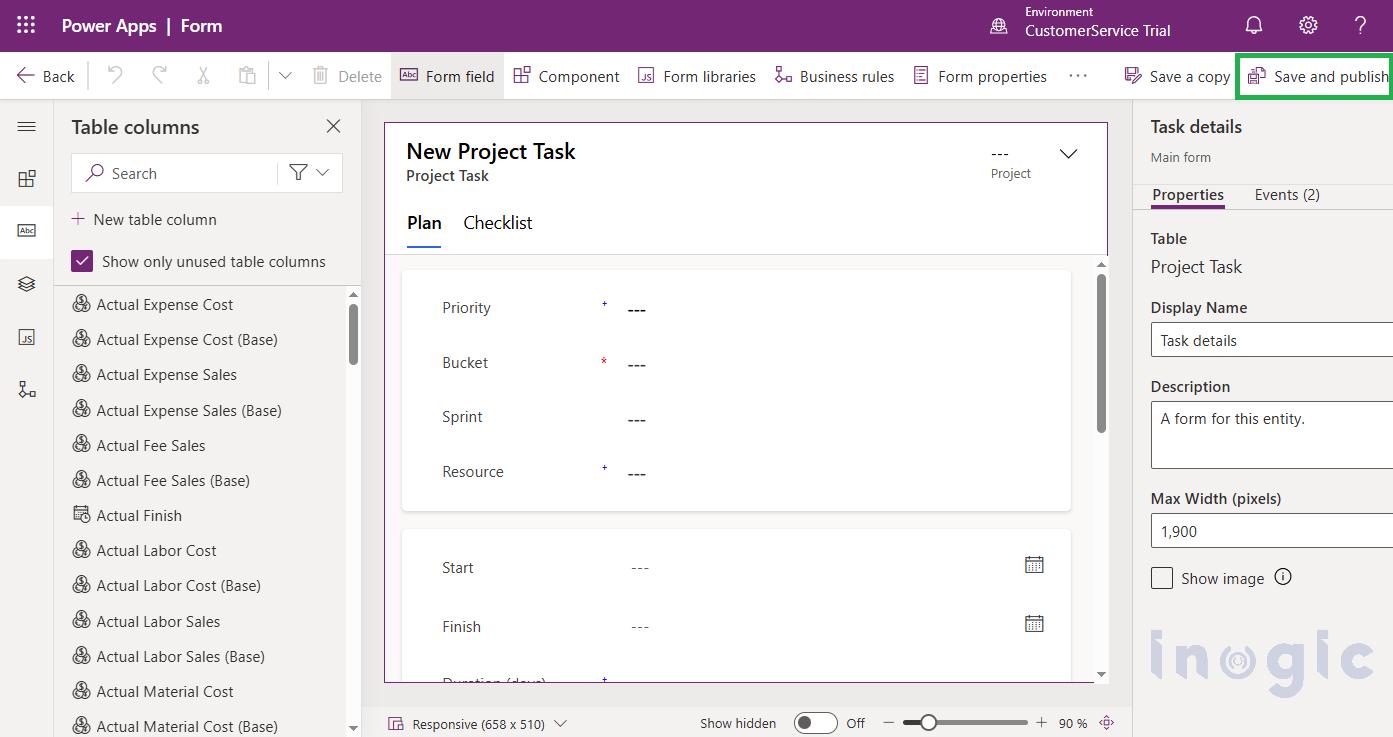
5. Click on Save and Publish button to apply the changes.

How to Customize the Task Pane in Project Operations

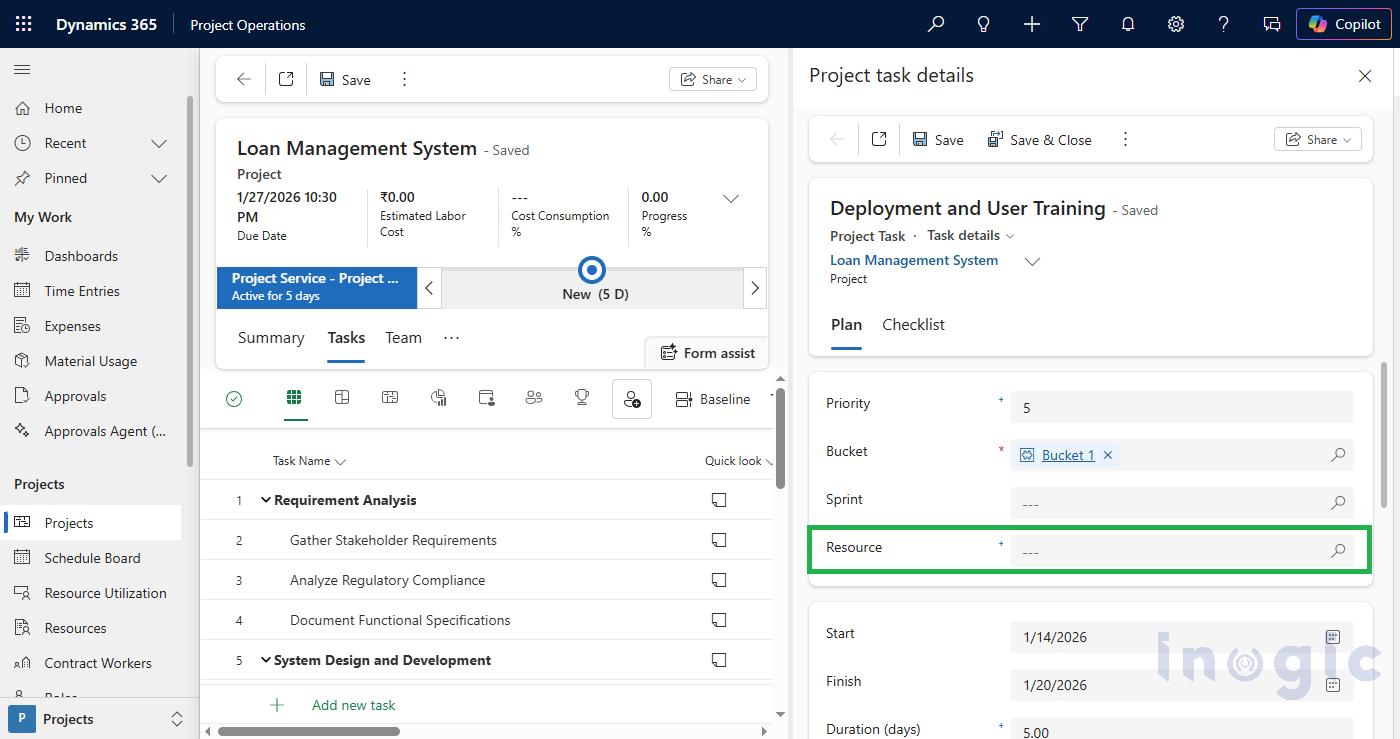
6. Navigate to Project, Click on Tasks tab and click on any Task’s ⓘ icon to view Task details in new Task Side Pane.

How to Customize the Task Pane in Project OperationsNote: Resource field added in Task details form is visible in Task Pane.
Conclusion:

This approach allows us to customize the Task Details form so users can view and update additional task information directly in the Task Side Pane, without navigating away from the task grid.

The post How to Customize the Task Pane in Project Operations first appeared on Microsoft Dynamics 365 CRM Tips and Tricks.

Building Standalone Apps with Power Apps Code Apps: Using Dataverse and Office 365 Users Connectors (Part 1)

Power Apps

In the Dynamics 365 and Power Apps ecosystem, we have several options for building applications, each one is for a specific type of requirement. Model-driven Apps works well when we need a structured UI with standard components, while we use Canvas Apps to create custom, mobile-friendly interfaces with a low-code approach. Recently, Microsoft introduced another application type called Code Apps, which offers a completely different way to build applications using pro code approach.

With the introduction of  Power Apps Code Apps, things have changed. Code Apps let us build standalone single page applications using modern web frameworks. These are independent applications that cannot be integrated with Canvas Apps or Model-driven Apps.

The best part is that we get direct access to more than 1,500 standard and premium connectors through the Power Apps SDK. We do not have to write any authentication code, no OAuth flows, no custom APIs, no middleware. We just have to connect and use.

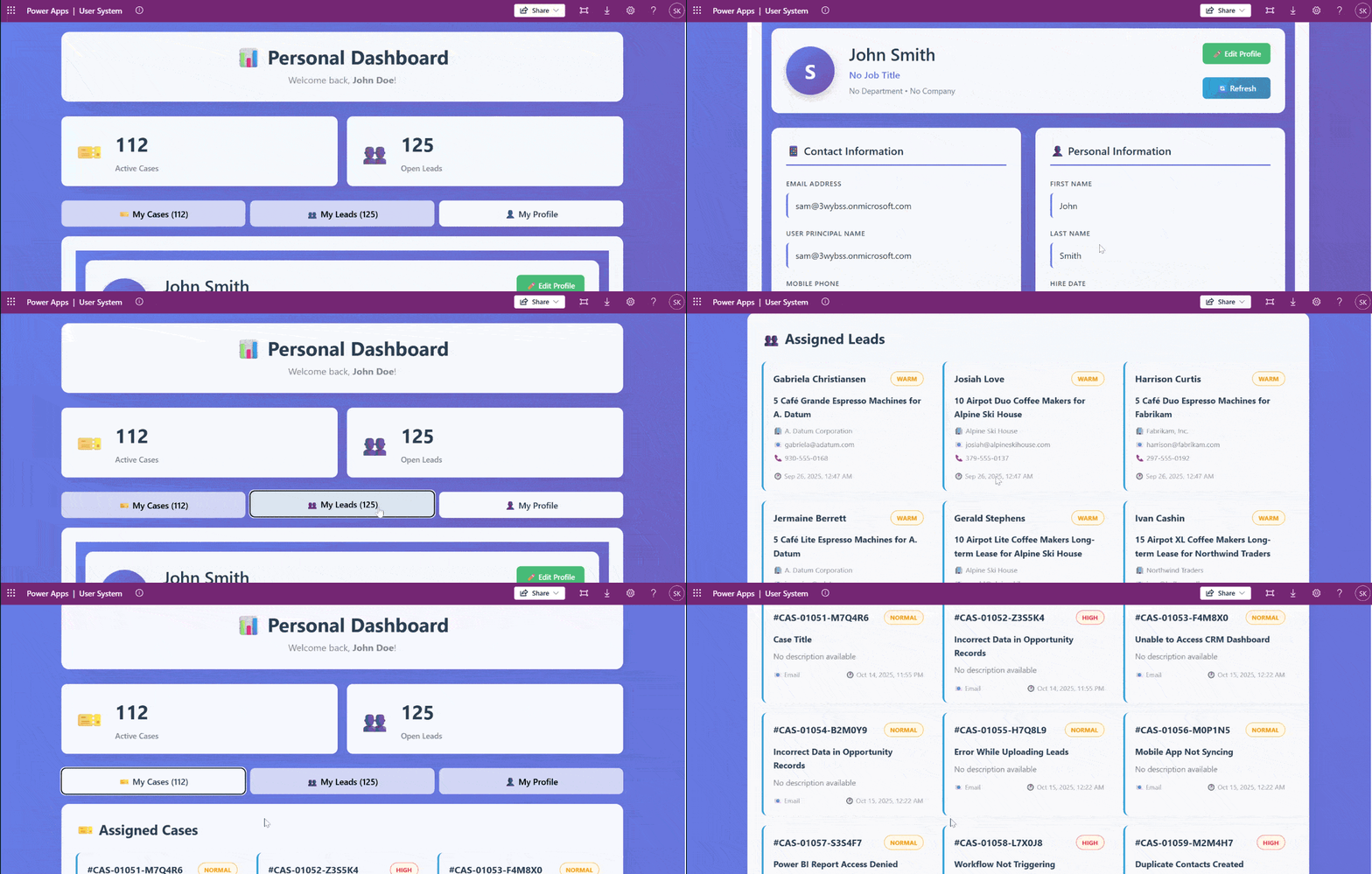
In this article, we’ll walk you through creating a Code App from scratch. We’ll build Personal Dashboard, a simple application that pulls assigned cases and leads from Dataverse and shows current logged in user details using the Office 365 Users and Dataverse connectors.

What Makes Code Apps Different?

We can build a UI of our own choice and connect to a wide range of data sources using more than 1,500 standard and premium connectors provided by the Power Platform. All connections are secure because the Power Apps SDK handles authentication, and each connector enforces user-level permissions. This means the app can only access data that the signed-in user is allowed to see, so there’s no need to write custom authentication code.

Code Apps provide a balanced approach with several key advantages:

  • A standalone application that runs directly within Power Platform
  • Full development with modern web frameworks such as React, Vue, or Angular, with support for  your preferred libraries
  • Direct access to connectors through the Power Apps SDK without custom authentication code
  • Streamlined deployment through a single command to your environment

The connector integration is particularly valuable. Whether the need is to query Dataverse, access current user profile details, or use other services, the connector can be called directly. There’s no need to configure service principals, manage app registrations, or implement token management. The integration works seamlessly within the platform.

Prerequisites

Before getting started, we have to make sure the following prerequisites are in place:

  • Power Apps Premium license with Code Apps enabled environment
  • Visual Studio Code installed
  • Node.js LTS version
  • Power Platform Tools for VS Code extension

Step 1: Setting Up the Code App

Let’s create the app. Open VS Code, launch a PowerShell terminal, and run the following command:

npm create vite@latest PersonalDashboard — –template react-ts

For this application, we are using React as the framework and TypeScript as the variant. After that, navigate to the project folder and install the dependencies:

npm install

Install the node type definitions:

npm i –save-dev @types/node

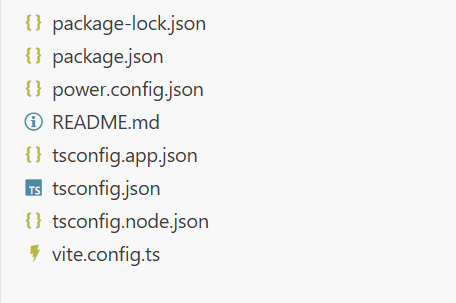
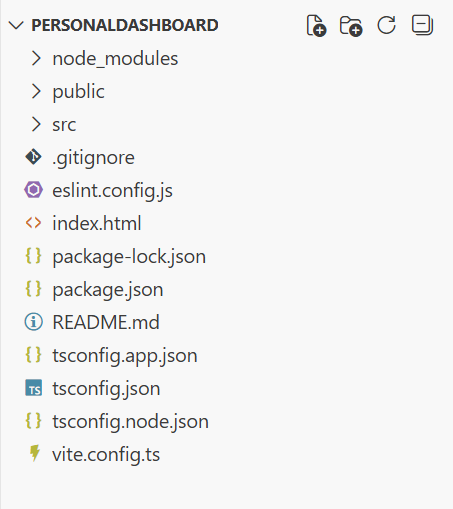
After executing these commands, the project structure will appear as shown in the image below.

PowerAppsCode

According to the official Microsoft documentation, the Power Apps SDK currently requires the port to be 3000 in the default configuration. To configure this, open vite.config.ts and replace the content with the following code:

import { defineConfig } from 'vite'

import react from '@vitejs/plugin-react'

import * as path from 'path'


// https://vite.dev/config/

export default defineConfig({

base: "./",

server: {

host: "::",

port: 3000,

},

plugins: [react()],

resolve: {

alias: {

"@": path.resolve(__dirname, "./src"),

},

},

});

Note for Mac users: It may be necessary to modify the package.json scripts section.

Change from:

"scripts":  {

"dev": "start vite && start pac code run",

"build": "tsc -b && vite build",

"lint": "eslint .",

"preview": "vite preview"

}

to this

"scripts": {
"dev": "vite && pac code run",
"build": "tsc -b && vite build",
"lint": "eslint .",
"preview": "vite preview"
}

Save the file and run the Code App locally by executing:

npm run dev

Browse to http://localhost:3000. If the application loads successfully, press Ctrl+C to stop the server.

Step 2: Initialize the Code App

First authenticate to Power Platform:

pac auth create

After that, sign in with the credentials and select the environment:

pac env select -env <environment-url>

Initialize the Code App:

pac code init –displayName “Personal Dashboard”

This will create a power.config.json file in the project as shown in the image below.

PowerAppsCode

Now install the Power Apps SDK. This package provides APIs that allow the application to interact directly with Power Platform services and includes built-in logic to manage connections automatically as they are added or removed.

npm install –save-dev “@microsoft/power-apps

Update package.json to run both Vite and the Power Apps SDK server:

"scripts": {
"dev": "start pac code run && vite",
"build": "tsc -b && vite build",
"lint": "eslint .",
"preview": "vite preview"
}

Step 3: Configure Power Provider


Create PowerProvider.tsx under src and add the Power SDK context provider code given below.


import { initialize } from "@microsoft/power-apps/app";

import { useEffect, type ReactNode } from "react";

interface PowerProviderProps {

children: ReactNode;

}

export default function PowerProvider({ children }: PowerProviderProps) {

useEffect(() => {

const initApp = async () => {

try {

await initialize();

console.log('Power Platform SDK initialized successfully');

} catch (error) {

console.error('Failed to initialize Power Platform SDK:', error);

}

};

initApp();

}, []);

return <>{children}</>;

}

Update the main.tsx and add this line in the imports section:

import PowerProvider from './PowerProvider.tsx'

and change this code snippet

<StrictMode>
<App />
</StrictMode>,

to this

<StrictMode>

<PowerProvider>

<App />

</PowerProvider>

</StrictMode>,

Run the app by executing :

npm run dev

Open the URL provided by the Power SDK Server in the same browser profile as that of power platform tenant.

Step 4: Adding Dataverse Connector

Now comes the part where we will add the data source to our application. In this step, we’ll use the Dataverse connector to fetch assigned cases and leads for the logged-in user.

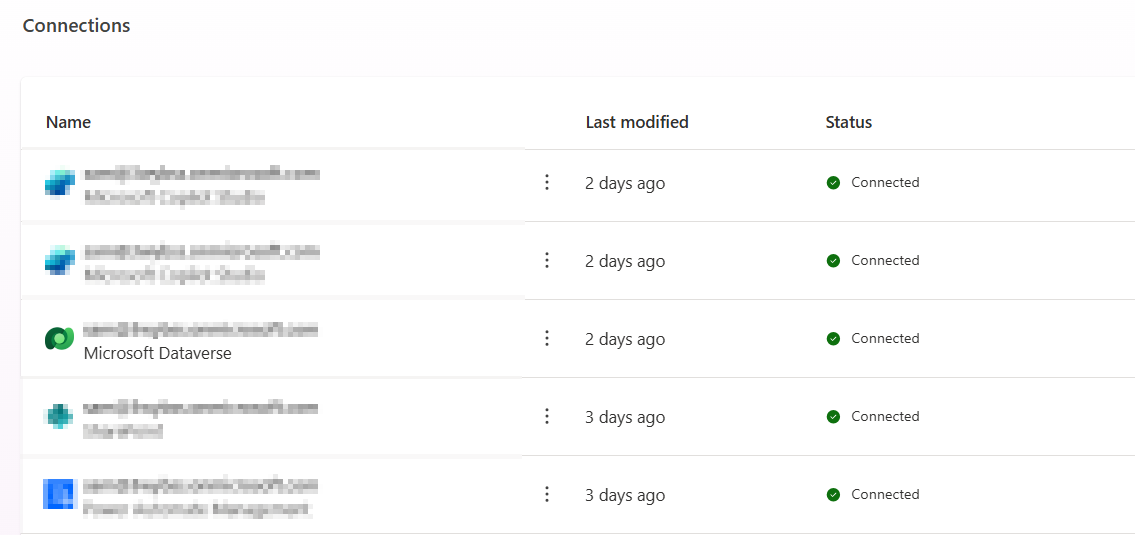
For that First, we need to create a connection:

1. Go to Power Apps and open Connections.

2. Click New Connection and select Dataverse.

Follow the instruction properly to create the connection, as shown in the

PowerAppsCode

Once the connection is ready, we have to open the terminal. For Dataverse, we have to add the tables required for the application. For this example, we’ll add the Leads and Incident (Cases) tables using the following commands:

pac code add-data-source -a dataverse -t lead

pac code add-data-source -a dataverse -t incident

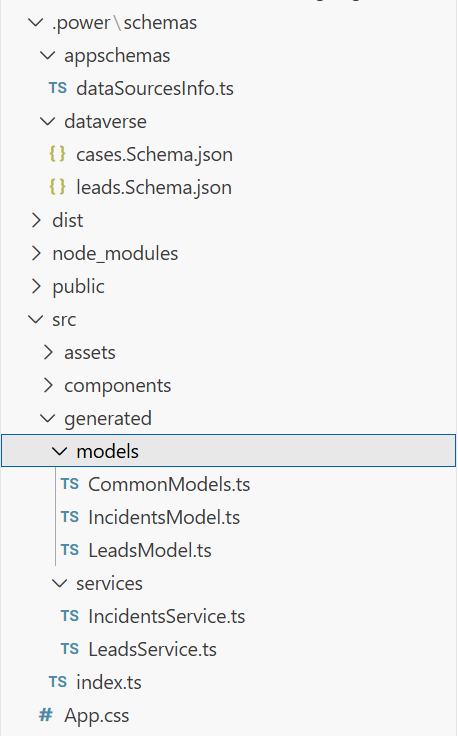
PowerAppsCode

After running these commands, we can see that some files and folders are added to the project. Inside the generated folder, there are services and models folders. These contain the files for Leads, Incidents, and other tables, which can be used in the code. For example:

import { AccountsService } from './generated/services/AccountsService';

Import type { Accounts } from './generated/models/AccountsModel';

CRUD operations can be performed on Dataverse using the app. Before accessing any data, we have to initialize the Power Apps SDK to avoid errors. An async function or state check can ensure the SDK is ready before making API calls. For example:

useEffect(() => {

// Define a function of asynchronous type to properly initialize the Power Apps SDK to avoid any error during runtime


const init = async () => {

try {

await initialize(); // Wait for SDK initialization

setIsInitialized(true); // Mark the app as ready for data operations

} catch (err) {

setError('Failed to initialize Power Apps SDK'); // Handle initialization errors

setLoading(false); // Stop any loading indicators

}

};


init(); // Call the initialization function when the component mounts

}, []);


useEffect(() => {

If (!isInitialized) return;


// Place your data reading logic here

}, []);


Step 5: Adding Office 365 Users Connector

Similar to Dataverse, we need to create a connection for Office 365 Users by following the same steps. Once the connection is ready, we need to add it to the application. First, list all available connections to get the connection ID using command:

pac connection list

It will list all the connections available in the selected environment. We need to Copy the connection ID for Office 365 Users from the list, then add it to the project using:

pac code add-data-source -a “shared_office365users” -c “<connection-id>”

After running this command, the Office 365 Users connector will be available to use in the application, allowing access to user profiles, and other Office 365 user data.


Step 6: Building the UI

There are two ways to build a good UI. The first is the traditional coding approach where we write the complete code manually. The second is by using GitHub Copilot integrated in VS Code with the help of prompts.

Using GitHub Copilot:

We can generate the UI by writing a detailed prompt in GitHub Copilot. Here’s an example prompt:

Create a Personal Dashboard UI component in React with TypeScript that displays:

  1. A header section showing the current logged-in user’s profile information (name, email, job title, and profile photo) fetched from Office 365 Users connector
  2. Two main sections side by side:

– Left section: Display a list of assigned Cases (Incidents) from Dataverse

* Show case title, case number, priority, status, and created date

* Use card layout for each case

* Add loading state and error handling

– Right section: Display a list of assigned Leads from Dataverse

* Show lead name, company, topic, status, and created date

* Use card layout for each lead

* Add loading state and error handling

  1. Use modern, clean UI design with:

– Responsive layout (works on desktop and mobile)

– Tailwind CSS for styling

– Professional color scheme (blues and grays)

– Proper spacing and typography

– Loading spinners while data is fetching

– Error messages if data fails to load

After providing this prompt to GitHub Copilot, it will generate the complete component code. We can then review the generated code, make any necessary adjustments, and integrate it into our application.

Step 7: Deploy Your Code App

Once the code is complete and the app is running locally, the next step is to deploy the application. For Code Apps, deployment is straightforward. First, build the application by running:

npm run build

After a successful build, execute the following command to push the application to Power Apps:

pac code push

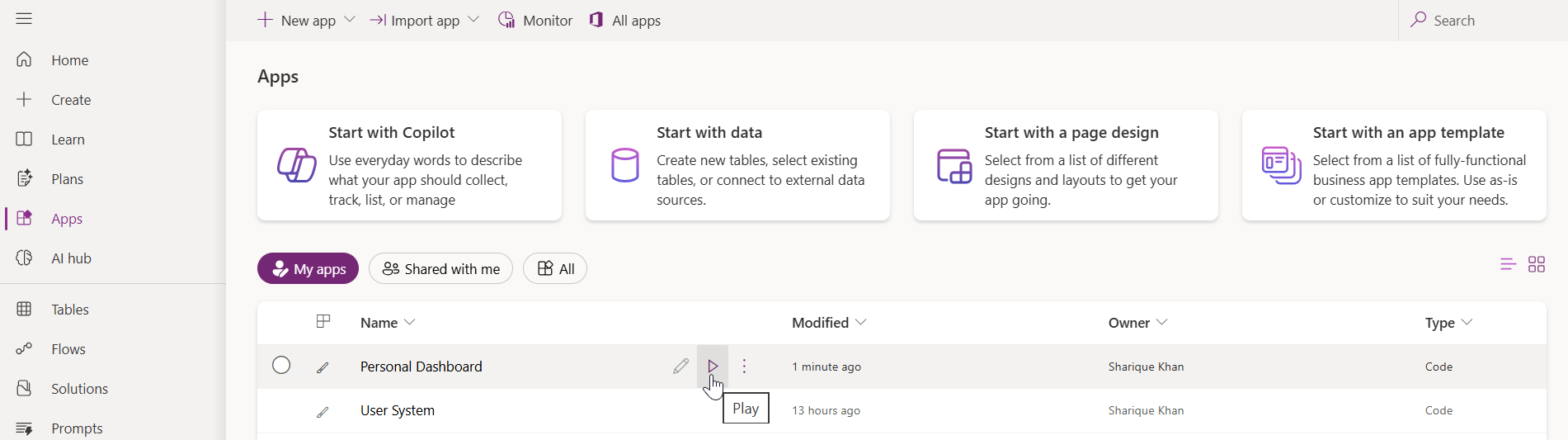
This command will deploy the application to Power Apps. To verify the deployment, go to the Power Apps portal and open the Apps section. The newly deployed Code App will be visible in the list as shown in the image below.

PowerAppsCode

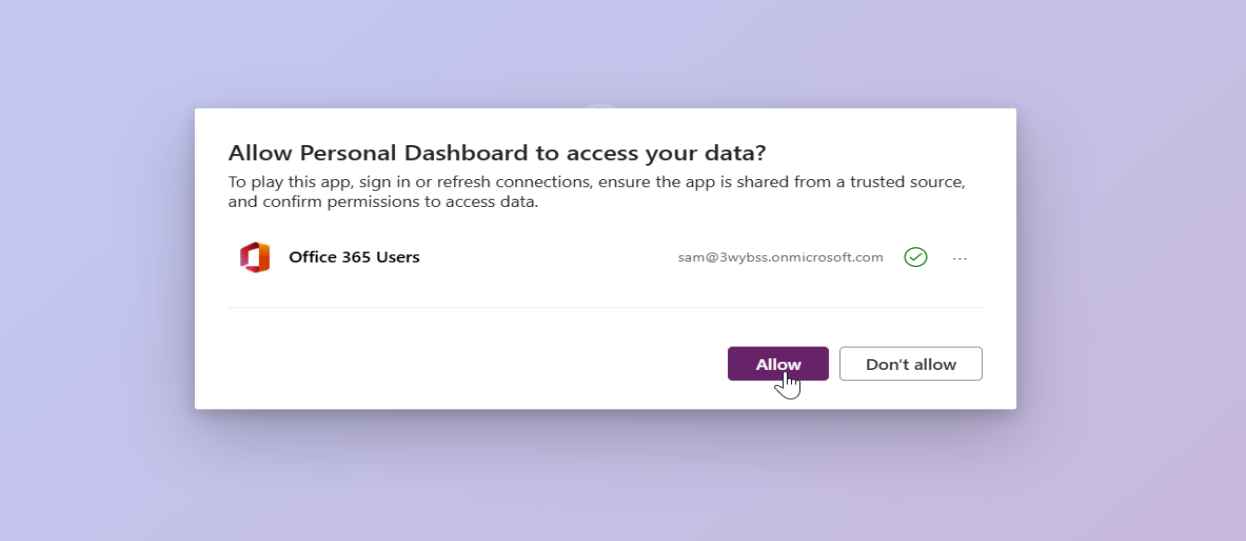
To run the app, click the play button. On the first launch, the application will prompt for permission to access the connected data sources. After allowing the permissions, the application will use those connection references for all subsequent operations.

PowerAppsCode


PowerAppsCode

Conclusion

With Power Apps Code Apps, we can now build standalone applications. The real advantage here is the direct access to over 1,500 connectors through the Power Apps SDK. We can connect to Dataverse, Office 365 Users, and other services without writing any authentication code. The Power Apps SDK handles all the security, and each connector respects user level permissions automatically.

We also get complete freedom to design our own UI using any libraries we prefer. The deployment process is simple. Just run the build command and push it to Power Platform with a single command.

In this article, we built a Personal Dashboard that pulls data from Dataverse and Office 365 Users. The same approach works for any application that needs to connect with Power Platform services. The setup is straightforward, and once the project is initialized, adding new data sources is just a matter of running a few commands.

Code Apps provide a practical way to build custom applications within the Power Platform ecosystem while maintaining secure connections and proper access control.

Frequently Asked Questions (FAQs)

What are Power Apps Code Apps?

Power Apps Code Apps are a new application type in Microsoft Power Platform that allow developers to build standalone single-page applications using modern web frameworks such as React, Angular, or Vue. They provide direct access to Power Platform connectors through the Power Apps SDK without requiring custom authentication code.

How are Code Apps different from Canvas Apps and Model-Driven Apps?

Unlike Canvas Apps and Model-Driven Apps, Code Apps:

  • Are fully standalone applications
  • Use a pro-code development approach
  • Allow complete control over UI and application architecture
  • Cannot be embedded into Canvas or Model-Driven Apps
  • Use modern frontend frameworks instead of low-code designers

Do Power Apps Code Apps require authentication setup?

No. Authentication is handled automatically by the Power Apps SDK. Developers do not need to implement OAuth flows, manage tokens, or configure app registrations. All connectors enforce user-level permissions by default.

Can Power Apps Code Apps connect to Dataverse?

Yes. Power Apps Code Apps can connect directly to Dataverse using the Dataverse connector. Developers can perform CRUD operations on Dataverse tables, such as Leads and Incidents once the SDK is initialized.

How do Code Apps access Office 365 user information?

Code Apps use the Office 365 Users connector to retrieve profile details such as name, email, job title, and profile photo. The connector respects the signed-in user’s permissions automatically.

The post Building Standalone Apps with Power Apps Code Apps: Using Dataverse and Office 365 Users Connectors (Part 1) first appeared on Microsoft Dynamics 365 CRM Tips and Tricks.

Build AI-Powered Apps in Minutes with Power Apps Vibe: A Complete Guide (Preview)

Power Apps Vibe

If you’ve ever tried building apps with Microsoft Power Apps, you know the process: creating tables, designing screens, adding controls, connecting data, and writing formulas. While the traditional app-building process is effective, it can also be time-consuming and complex.

But now, imagine this:

You simply describe the app you need, and within minutes, Power Apps Vibe takes over:

  • A complete data model is generated.
  • UI screens are automatically designed.
  • Built-in logic is incorporated.
  • A functional prototype is ready to go.

All this, without having to drag a single control or write a line of code.

Welcome to Power Apps Vibe—a revolutionary AI-powered app development platform. Unlike traditional app design methods, Power Apps Vibe makes building apps simpler, faster, and more intuitive than ever before.

Instead of spending hours designing screens and wiring logic, Vibe transforms app development into a simple, conversational experience. You describe what you need, and it creates the foundation for your app—data model, UI, navigation, and logic—automatically.

Power Apps Vibe

In this blog, I’ll break down what Vibe is, why Microsoft created it, and how you can start building full-stack apps with nothing more than a sentence.

What is Power Apps Vibe?

Power Apps Vibe is Microsoft’s AI-driven app-building experience, designed to simplify app development. Available now in preview, this feature combines the best aspects of low-code and AI-powered development into a single, seamless interface.

Unlike traditional app-building tools such as Canvas or Model-Driven apps, Vibe functions like a creative partner, helping you bring your app ideas to life faster. Here’s how it works:

  • You describe your app’s requirements in simple language.
  • Power Apps Vibe automatically creates:
    • The data model behind your app.
    • The UI screens you need.
    • Navigation and action flows.
    • The core logic for functionality.

You still have full control to modify or refine any aspect of the app. Think of Power Apps Vibe as a combination of Power Apps, an AI architect, a UI designer, and a developer, all within a single interface.

Think of it as Power Apps + a smart architect + a designer + a developer, all rolled into one interface.

Why Did Microsoft Introduce Power Apps Vibe?

The goal behind Power Apps Vibe is simple: to make app development faster, smarter, and more accessible for everyone, from business users to developers.

Organizations often face challenges such as:

  • Long development cycles
  • Lack of skilled developers
  • Difficulty translating business ideas into working apps
  • Fragmented requirements
  • Slow prototype development

Power Apps Vibe addresses these issues by enabling anyone, whether a business user, analyst, or developer, to rapidly create a solid app foundation. With Vibe, you can skip the time-consuming setup and dive straight into customizing the app for your specific needs.

We can maintain full control for customization, but the time-consuming initial setup is handled for us.

Where Do You Access Power Apps Vibe?

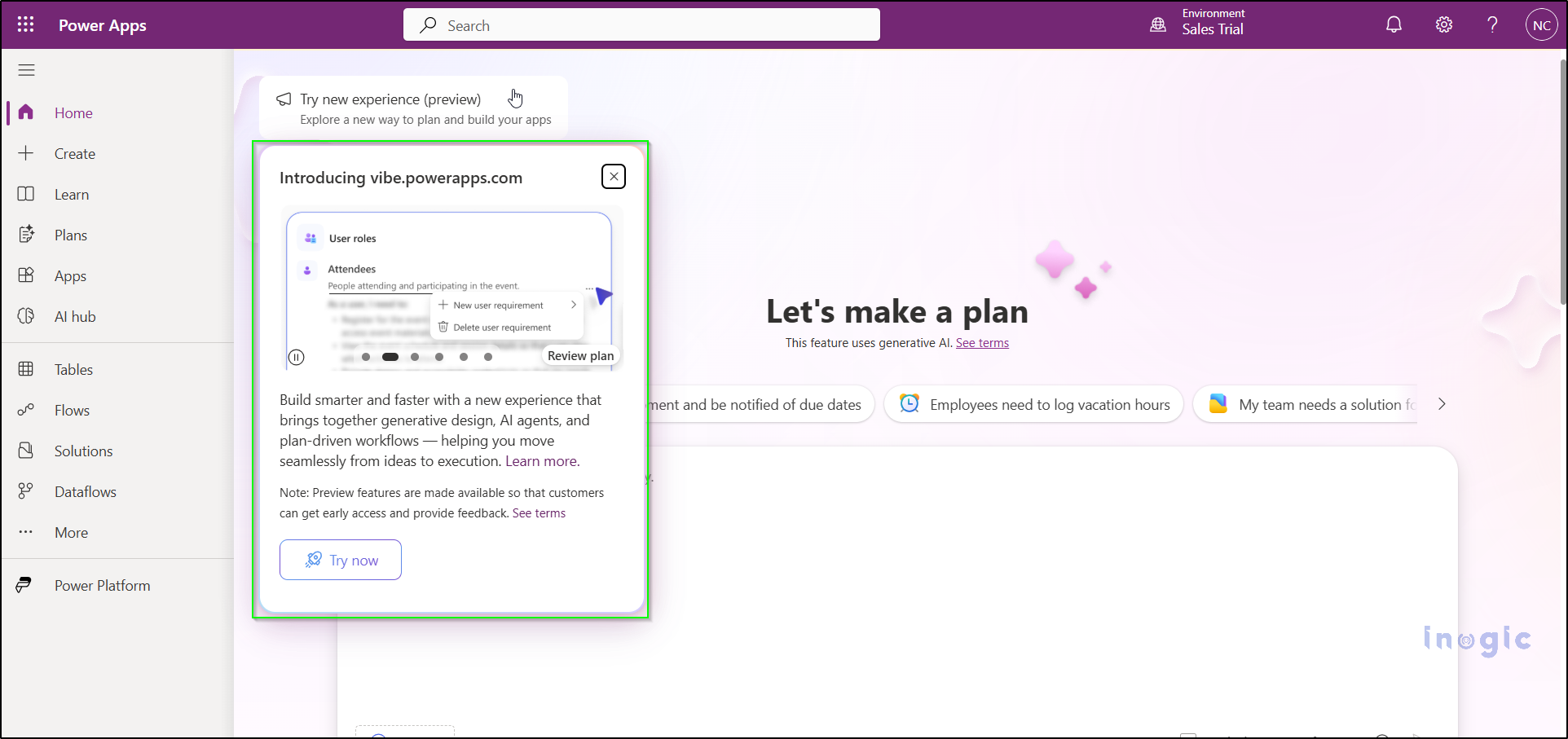
Currently, Power Apps Vibe is available in preview and is not yet part of the standard Power Apps studio. To get started, head over to the preview portal: Power Apps Vibe Preview

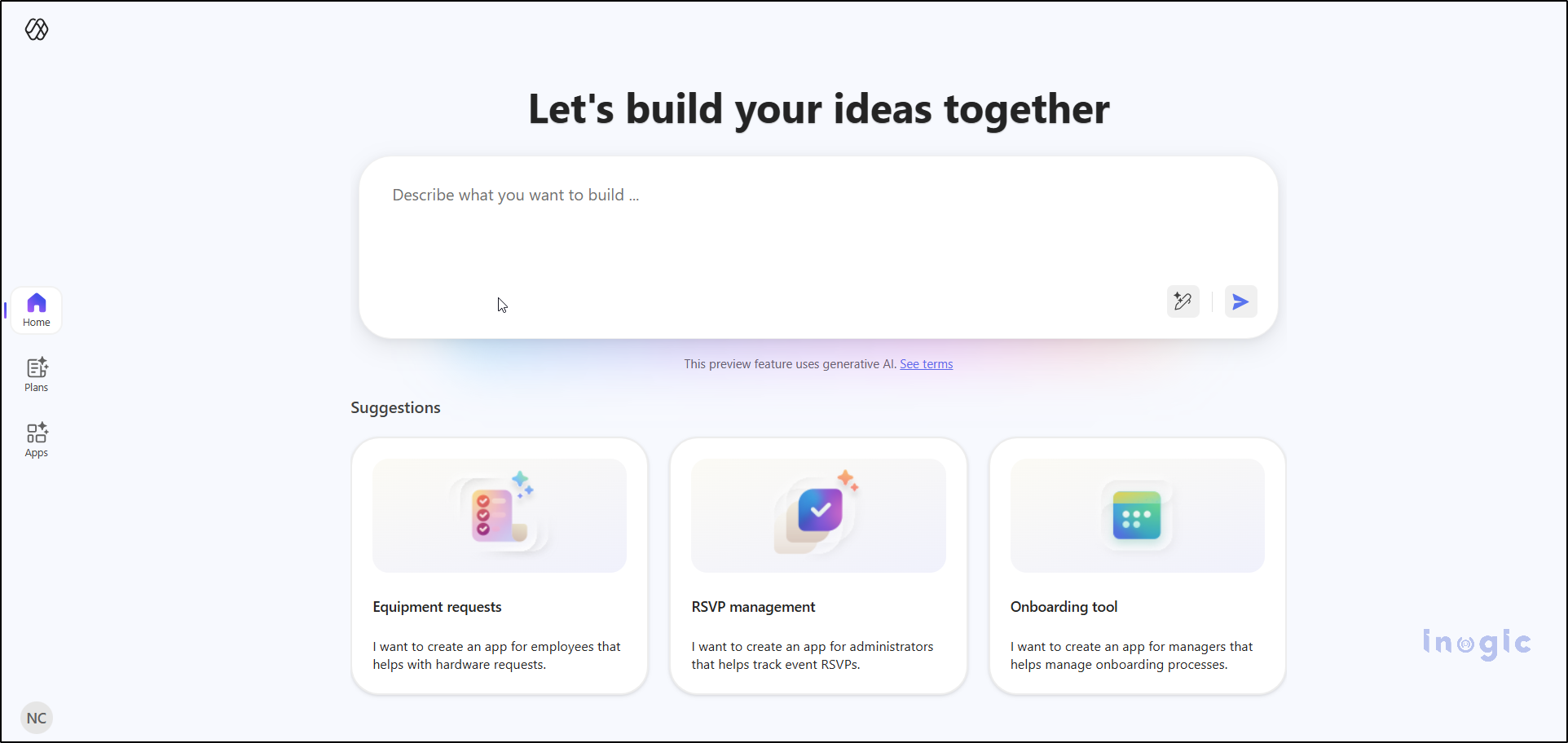
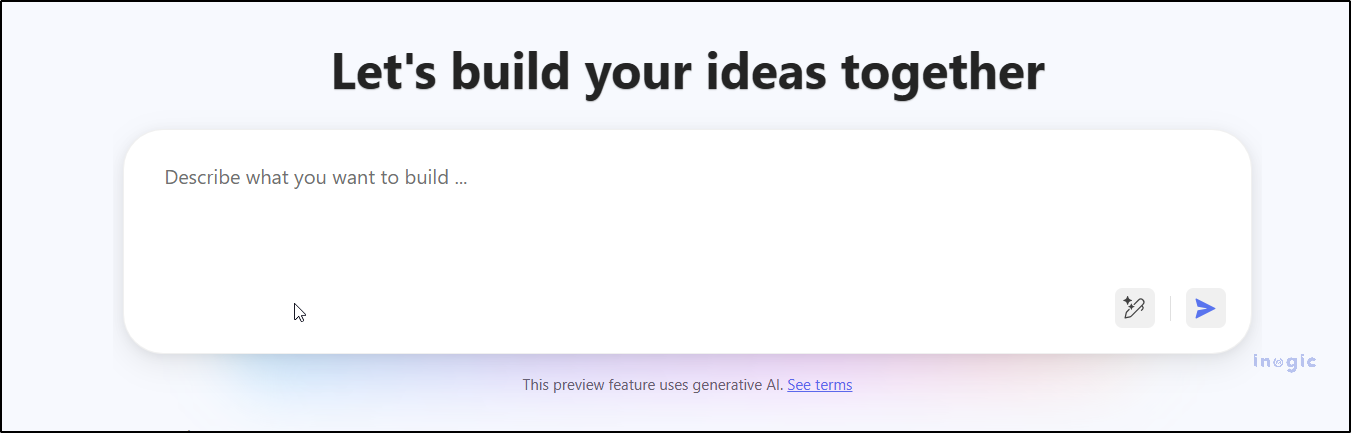
Simply sign in with your Microsoft account, and you’ll be greeted with a clean, intuitive workspace. A large prompt box will be ready for your ideas, making it easy to get started.

Power Apps Vibe

To use it, Navigate to:

🔗 https://vibe.preview.powerapps.com

Sign in with your Microsoft account, and you’ll enter a clean, streamlined workspace featuring a large prompt area—ready for your ideas.

How to Build an App Using Vibe?

Step-by-Step Guide to Building an App with Power Apps Vibe

Here’s what surprises most people:

Using Power Apps Vibe feels less like coding and more like having a conversation with a colleague. You describe what you need, and Vibe does the heavy lifting. Here’s how the process works:

Let’s walk through the complete process step by step.

Step 1: Describe the App You Want

In the prompt box, simply describe your app in plain language. You don’t need to worry about technical jargon or formatting. For example:

“I want to build a Time Entry Admin app. Admins should be able to update the Base Pay Code, view a list of time entries, and edit the Base Pay Code only on this screen.”

Power Apps Vibe

No need for complex formatting or technical jargon.
Just describe your app idea as if you were explaining it to a teammate – simple, clear, and conversational.

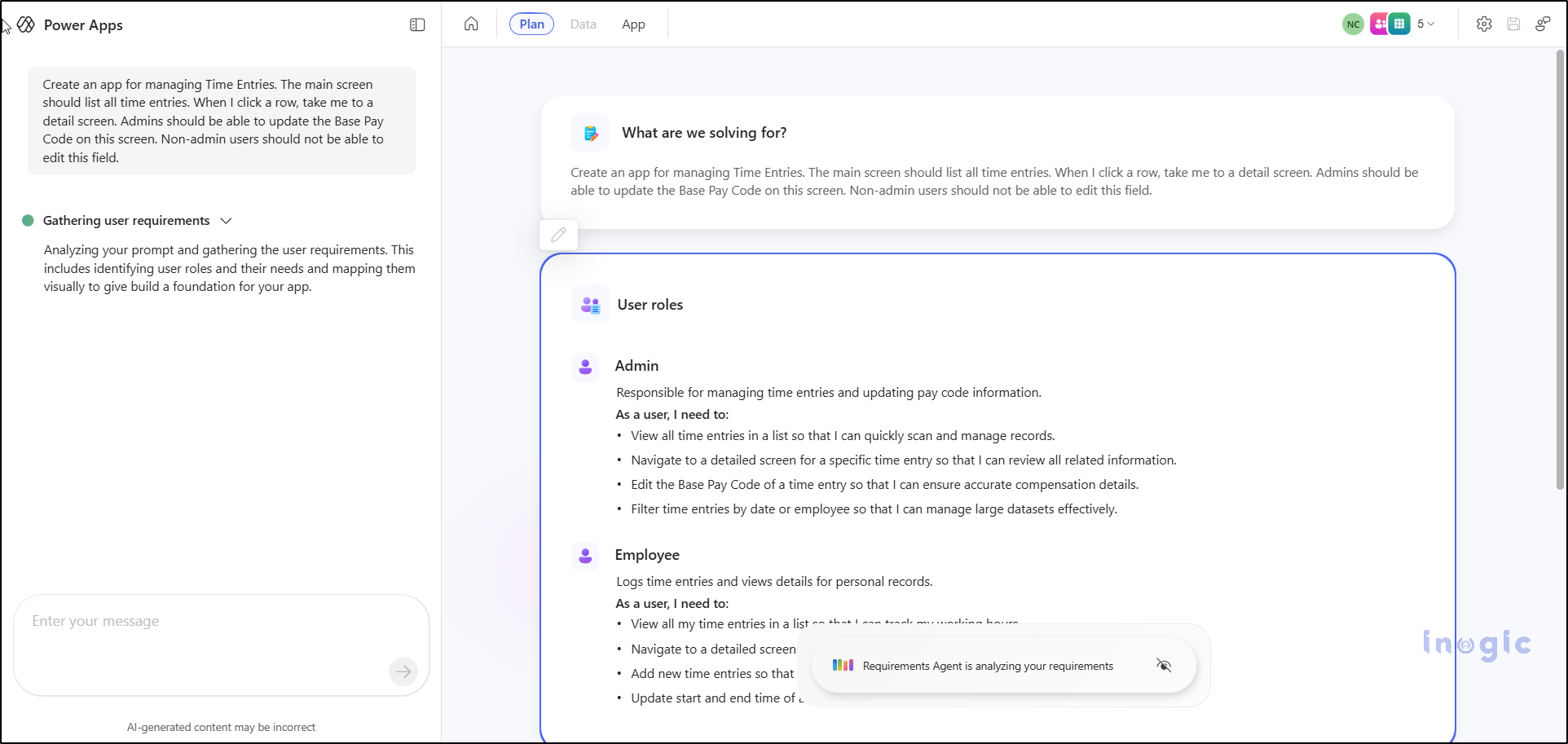
Step 2: Vibe Generates Your App Plan

Once you submit your prompt, Vibe analyses your requirements and generates a detailed plan. This blueprint typically includes:

  • The tables it will create
  • The fields within those tables
  • The screens your app will have
  • Actions and commands for functionality
  • Navigation flow between screens

Test Prompt:

“Create an app for managing Time Entries. The main screen should list all time entries. When I click a row, take me to a detail screen. Admins should be able to update the Base Pay Code on this screen. Non-admin users should not be able to edit this field.”

Power Apps Vibe

It’s essentially the blueprint of your app. If something doesn’t look right, you don’t need to start over – just refine your prompt. For example:

  • Add an audit field
  • Change the name of this table
  • Make Base Pay Code read-only for non-admins

Vibe instantly updates the plan based on your instructions, making the process feel conversational and effortless.

Step 3: Create the App

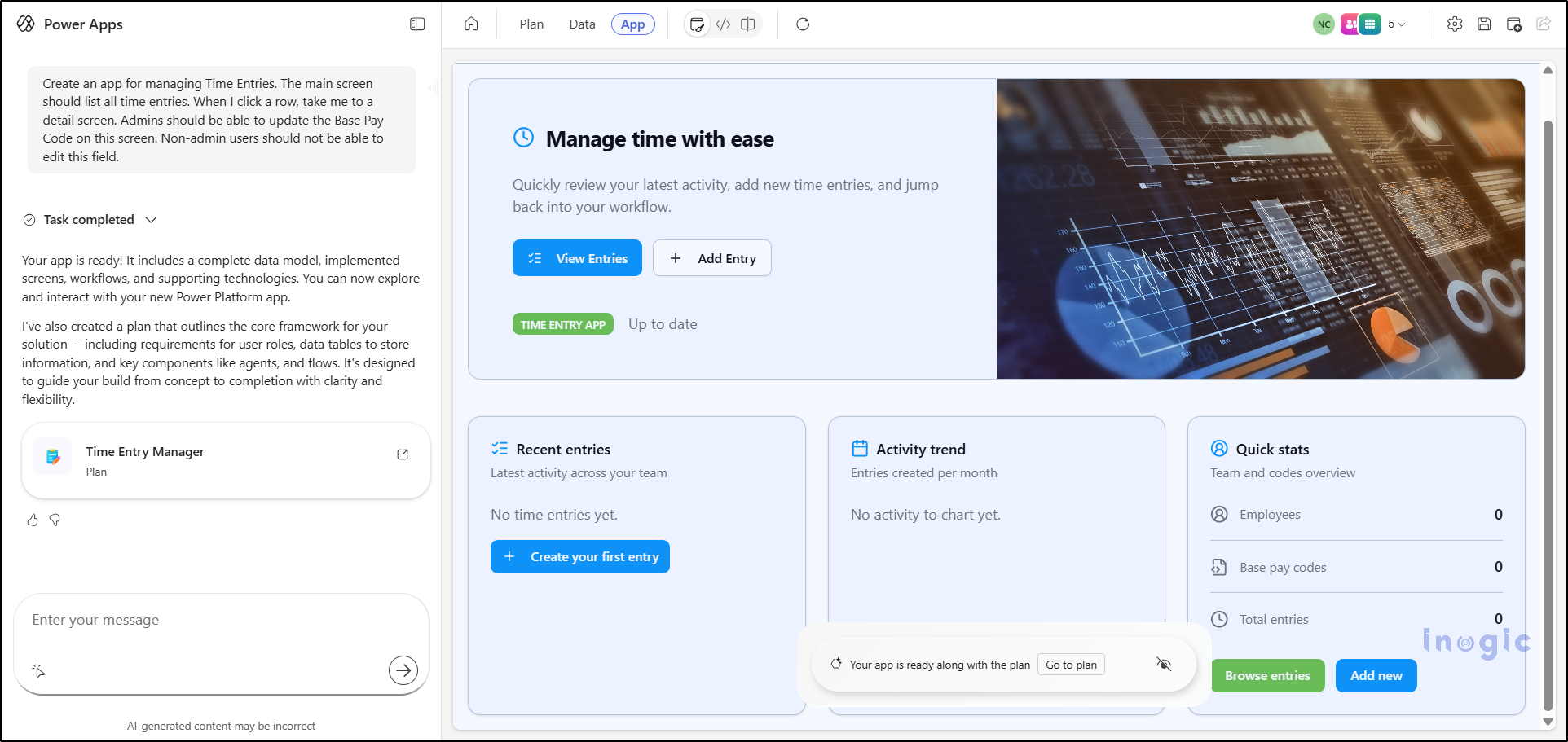
Once your plan looks good, simply click Create App.

Vibe now builds:

  • The user interface (UI)
  • Interactive forms
  • The underlying data model
  • Core logic for functionality

This process yields a functional web application that is available for immediate preview.

Power Apps Vibe

Vibe handles all the heavy lifting so you can focus on refining ideas instead of wrestling with syntax.

Step 4: Refine the App Through Natural Language

This is where Vibe feels different from anything we’ve seen before.

You can simply chat with it:

  • “Make the Base Pay Code field bigger.”
  • “Add a dashboard screen with totals.”
  • “Add a search bar at the top.”
  • “Show only records assigned to the logged-in user.”

And Vibe will update the app instantly.

It’s the first time Power Apps feels like a conversation instead of a tool.

Step 5: Save Your App

When you save the app for the first time, Power Apps stores:

  • the app
  • the plan
  • the screens
  • and the data model

All inside a single solution.

It becomes part of your Power Apps environment, just like any other app.

Step 6: Connect to Real Data (Optional)

When you first build the app, it uses “draft data” –  temporary tables that exist only for prototyping.

Once your app is ready for real use:

  1. Go to Data
  2. Connect to Dataverse, SQL, SharePoint, or any supported source
  3. Map the fields
  4. Publish the app again

This step turns your prototype into a production-ready application.

Step 7: Publish and Share

Once everything looks right, click Publish.

Your app becomes live, and you can share it with your team exactly like any other Power App.

Where Power Apps Vibe Really Shines

After playing with it, I realized Vibe is perfect for:

  • Rapid prototyping
  • Converting ideas into real apps within minutes
  • Building admin tools
  • Internal dashboards
  • Small line-of-business apps
  • Automating manual processes
  • Mockups for client demos
  • Reducing the back-and-forth between business teams and developers

It reduces friction. It reduces waiting. It reduces technical complexity.

You still get full control — formulas, data, actions, security, connectors — everything you normally have in Power Apps remains available.

But the start is dramatically faster.

Limitations to Keep in Mind for Power Apps Vibe

Since Vibe is still a preview feature, a few things have limitations:

  • You cannot edit Vibe apps in the classic Canvas app studio.
  • If you export/import the solution, it may break the link with the AI “plan.”
  • It currently supports creating only one app per plan.
  • Existing Dataverse tables aren’t automatically suggested during generation.
  • Some refinements still need to be done manually.

But even with these limitations, Vibe is powerful enough to start real-world projects and prototypes.

Final Thoughts

Power Apps Vibe is one of the biggest updates to the Power Platform in years.
It brings a fresh, modern, conversational style of development that feels more natural and less stressful.

Instead of spending hours designing screens and wiring logic, you can now focus on:

  • Refining ideas,
  • Improving workflows,
  • And delivering value faster.

If you haven’t tried it yet, open the preview today and type the first idea that comes to mind.
You’ll be surprised how quickly it becomes a working app.

Frequently Asked Questions: Power Apps Vibe

1. What is Power Apps Vibe and how is it different from traditional Power Apps development?

Power Apps Vibe is an AI-powered app-building tool that allows you to create full-stack apps simply by describing your requirements in natural language. Unlike traditional Power Apps, which involve manually designing screens and writing formulas, Vibe automatically generates the data model, UI, navigation, and logic. It simplifies app development by transforming it into a conversational, automated process.

2. Can I use Power Apps Vibe without any coding knowledge?

Yes, Power Apps Vibe is designed for users with little or no coding experience. It allows you to create apps by simply describing what you want in plain language. The AI handles the complex aspects of app development, such as data modeling, UI design, and logic, so you can focus on refining your ideas rather than writing code.

3. Is Power Apps Vibe available for all users or only those in certain regions?

Currently, Power Apps Vibe is in preview and can be accessed by users who sign in through the dedicated portal at https://vibe.preview.powerapps.com. While the feature is available globally, its availability might vary based on regional preview settings and Microsoft’s rollout timeline. Keep an eye on updates for broader access.

4. What are some limitations of Power Apps Vibe?

While Power Apps Vibe is a powerful tool, it does have some limitations:

  • You cannot edit Vibe-generated apps in the classic Canvas App Studio.
  • The feature currently supports only one app per plan.
  • Existing Dataverse tables aren’t automatically suggested during the app creation process.
  • Some refinements still require manual adjustments after the initial app is generated.

5. How can I connect my Power Apps Vibe app to real data?

Once your prototype is ready, you can connect your Power Apps Vibe app to real data by navigating to the Data section within Power Apps and linking it to supported data sources such as Dataverse, SQL, or SharePoint. After mapping the fields, you can publish the app again to make it production-ready.

The post Build AI-Powered Apps in Minutes with Power Apps Vibe: A Complete Guide (Preview) first appeared on Microsoft Dynamics 365 CRM Tips and Tricks.

Run Power FX expressions through PowerApps Component Framework Events: Part 2

Run Power FX expressions through PowerApps Component Framework Events Part 2

Introduction

Just like we explored in Part 1, where Events in the PowerApps Component Framework (PCF) brought new possibilities to Model-Driven Apps, the same feature can be just as powerful in Canvas Apps. With Events, PCF controls can now trigger Power Fx expressions directly, enabling seamless interaction between the Custom UI components and App logic.

This is part 2 of the PCF events series, where we’ll explore how to use Events in PCF to trigger Power Fx expressions in Canvas Apps, with practical examples and real-world use cases to help you apply this pattern effectively.

Scenario: Triggering Power FX Expression through PCF control (Canvas App)

Canvas App offers great flexibility with standard controls (like buttons, dropdowns, sliders), but sometimes you hit UI limitations, such as –

  • No way to create interactive, animated, or visually branded UI components.
  • Lack of complex layout logic, like multi-step chips, dynamic tag selectors, or compact visual pickers.
  • Can’t achieve gesture-based interactions (e.g., swipe, drag, hover preview) using default controls.

These are situations where design or user experience is central to your business logic, and native Canvas App controls just aren’t enough.

Use Case:

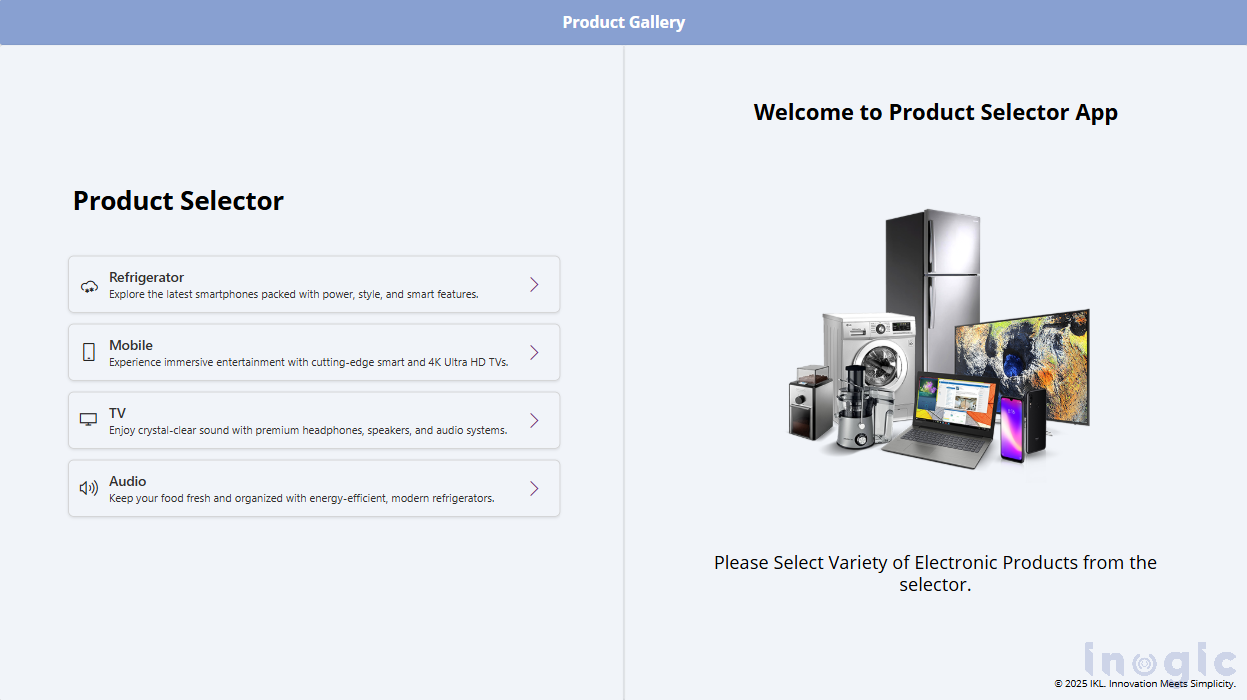
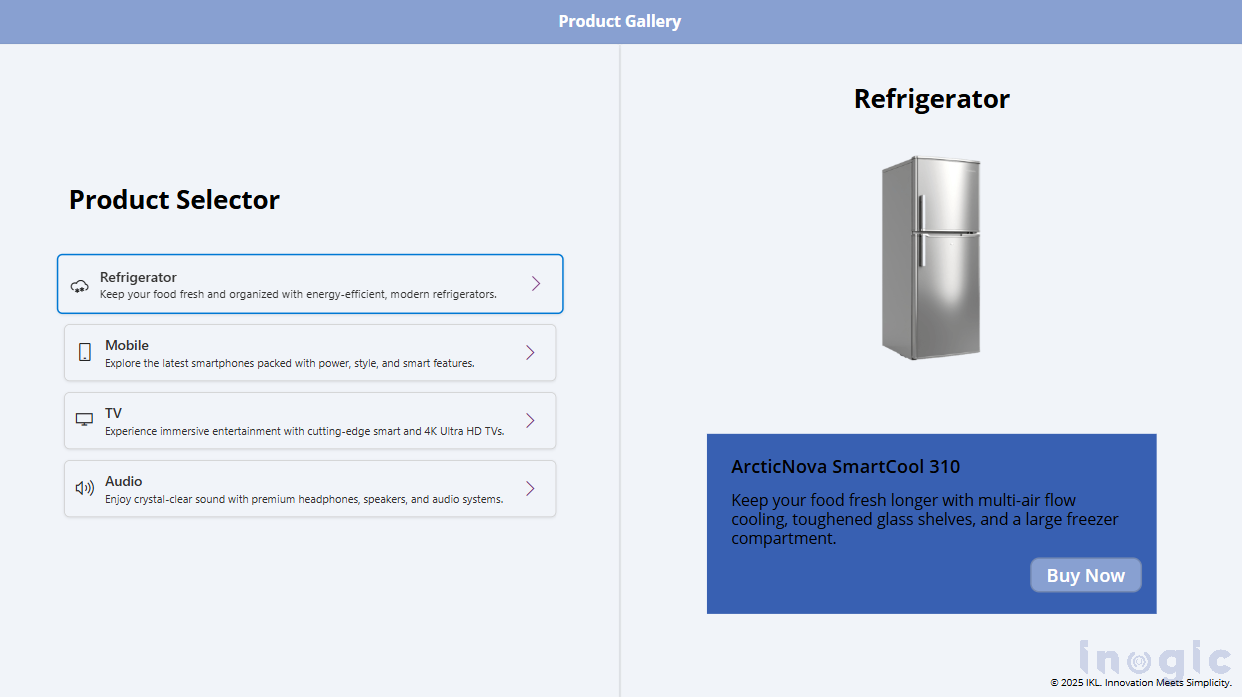
Let’s build a Product Selector Canvas App that includes a PCF Component to display a list of products like Refrigerator, Mobile, TV, and Audio, each with its icon and description. Here’s a screenshot attached below for how the Canvas app looks.

PowerApps Component Framework Events

When the user clicks on a product, the PCF control will trigger a custom event that contains the Power Fx expression, which sets the product name in the Product Gallery that will show the corresponding product.

Let’s start with a step-by-step guide to build this.

Step-by-Step Implementation

Step 1: Define the custom event in the control’s manifest file.

Just like we did for the model-driven app scenario, define the custom event in the ControlManifest.Input.xml:

<event name=”productEventdisplay-name-key=”Product Click Event” description-key=” Triggers when a product is selected” />

Step 2: Add and Trigger the Event in the PCF Control (index.ts)

Within index.ts, pass the event handler via props and invoke it at the appropriate point:

public updateView(context: ComponentFramework.Context<IInputs>): React.ReactElement {

const props: IProductSelectorProps = {

onProductClick: (productName: string) => {

this.selectedProduct = productName; // Update selected product

this.notifyOutputChanged();

context.events?.productEvent(productName);

}
}
return React.createElement(ProductSelector, props);
}

Step 3: Update the React Component (ProductSelector.tsx)

In ProductSelector.tsx, trigger the event when the user interacts with your custom UI like selecting the product:

export interface IProductSelectorProps {

onProductClick: (productName: string) => void;

}

export const ProductSelector: React.FC<IProductSelectorProps> = ({ onProductClick }) => {

//Your existing logic

return(

// Render list of products

<IconButton iconProps={{ iconName: "ChevronRight" }} ariaLabel="Select"

onClick={() => onProductClick(product.name)}
/>
);
}

Step 4: Configure the Canvas App (Power Fx)

In the Canvas App, add the ProductSelector PCF component and configure it to interact with the app using Power Fx.

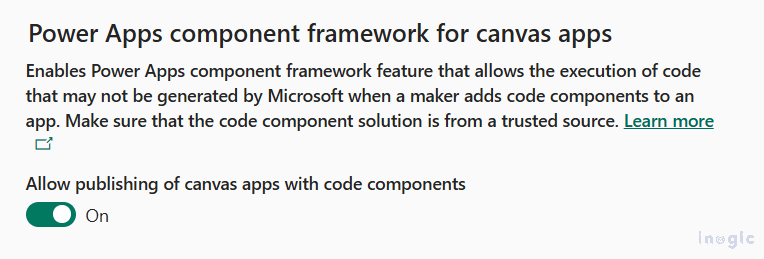
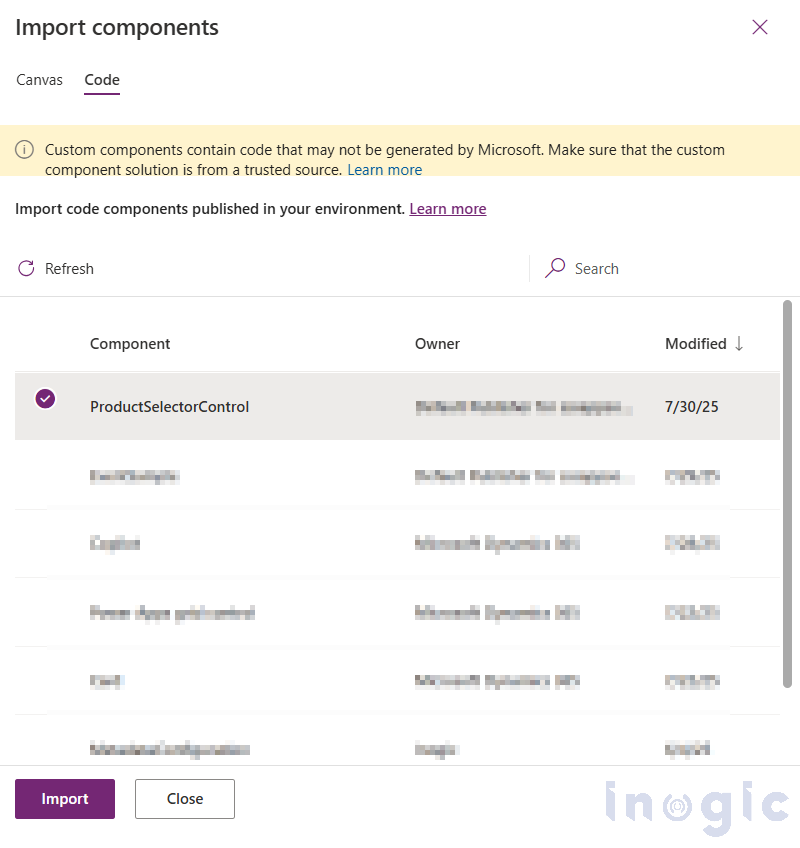
Note: To add the PowerApps Component Framework in the Canvas App, make sure the feature is turned ON in the Power Platform Admin Center. You can find this by navigating to the admin center, selecting the environment, and clicking on Settings. Under the Product select Features option. Here, you will find a list of all the features, including the one we need to turn ON.

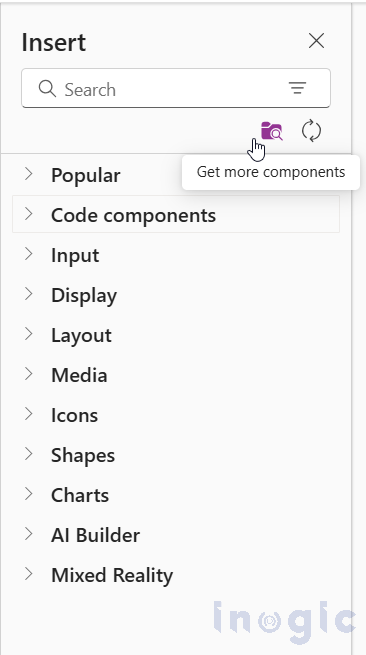
Insert the ProductSelector PCF control into your Canvas App.

PowerApps-Component-Framework-EventsPowerApps-Component-Framework-Events

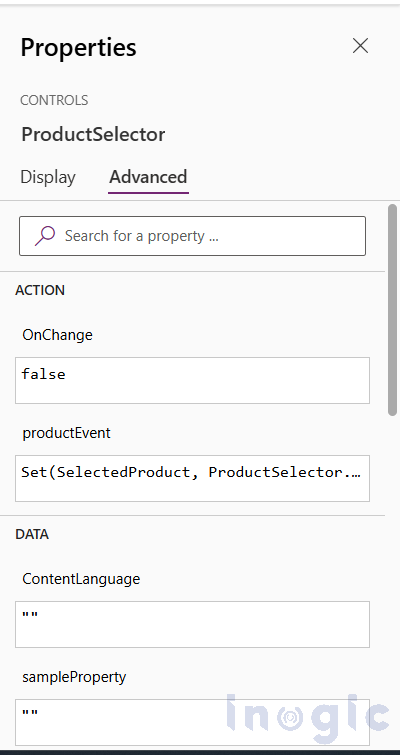
Select the PCF Control and set the productEvent property of the component to update a global variable (SelectedProduct) with the product selected:

Set(SelectedProduct, ProductSelector.productEvent)

You can refer to the screenshot below.

PowerApps Component Framework Events

Result: A Dynamic and Interactive Product Selector

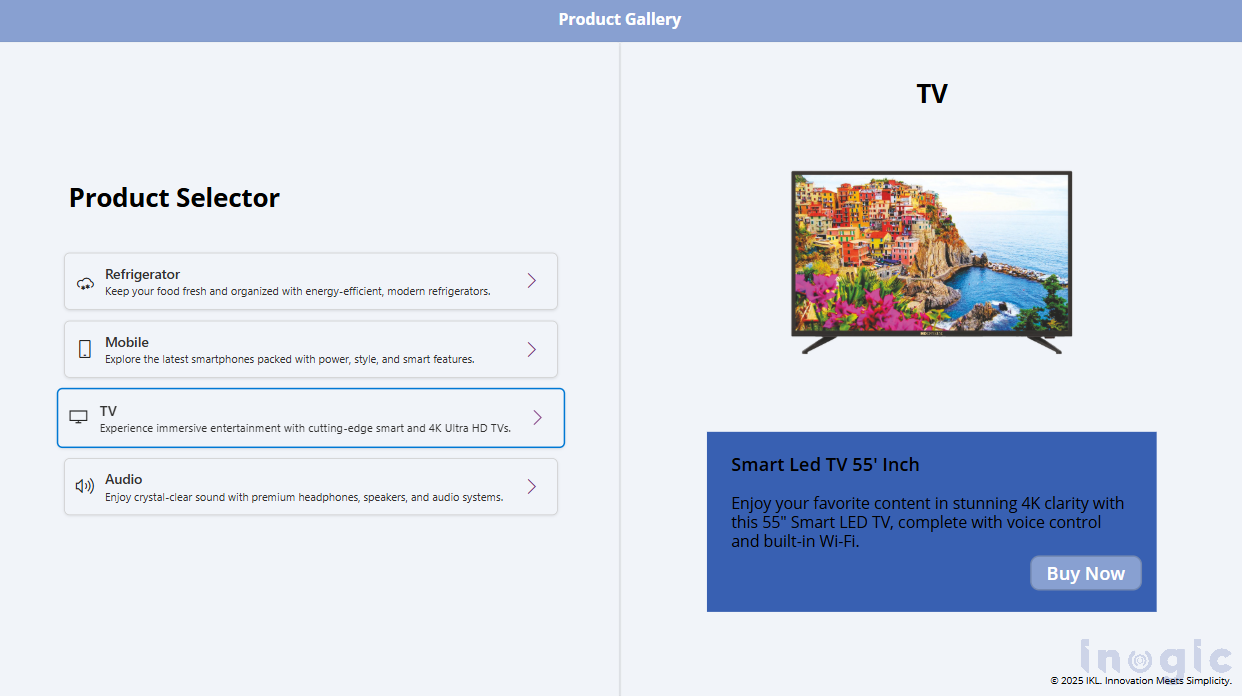
Once configured, your Canvas App will respond instantly to interactions from the PCF control, providing a seamless and dynamic product selection experience. Each product click in the PCF control conditionally displays the corresponding products.

This integration showcases how PCF and Power Fx can work together to overcome Canvas App limitations and deliver a highly customized UI. You can refer to the screenshots below:

PowerApps Component Framework Events

PowerApps Component Framework Events

Conclusion

With the introduction of Events in the PowerApps Component Framework (PCF) for Canvas App, the gap between the Custom UI and App Logic has finally been filled. PCF controls are no longer just static, isolated elements — they can now communicate directly with Power Fx expressions, making the experience far more dynamic and interactive.

The post Run Power FX expressions through PowerApps Component Framework Events: Part 2 first appeared on Microsoft Dynamics 365 CRM Tips and Tricks.

How to Call External Scripts using PowerApps Component Framework Events: Part 1

How to Call External Scripts using PowerApps Component Framework Events

The Power Apps Component Framework (PCF) has long empowered developers to create custom controls for Power Apps, but its interaction capabilities were historically limited.

In model-driven apps, form interactions were confined to some core events, which are OnLoad, OnChange, TabStateChange, and OnSave, tied to the form lifecycle or field updates.

PCF controls could only trigger OnChange by updating a bound field, restricting direct communication with the parent form. Similarly, in canvas apps, PCF controls faced challenges in dynamically interacting with Power Fx expressions or external scripts in a model-driven app.

With the introduction of Events in PCF, these barriers have been significantly reduced. Developers can now define and raise custom events within PCF controls, enabling seamless communication with form scripts in model-driven apps or Power Fx logic in canvas apps.

This blog is part 1 of the PCF events series, where we’ll explore how to leverage Events in PCF to call external scripts in Model-Driven Apps, walk through practical examples, and highlight best practices and use cases to implement these patterns effectively.

Scenario: Calling our Custom Events in Form Script through PCF control (Model-driven App)

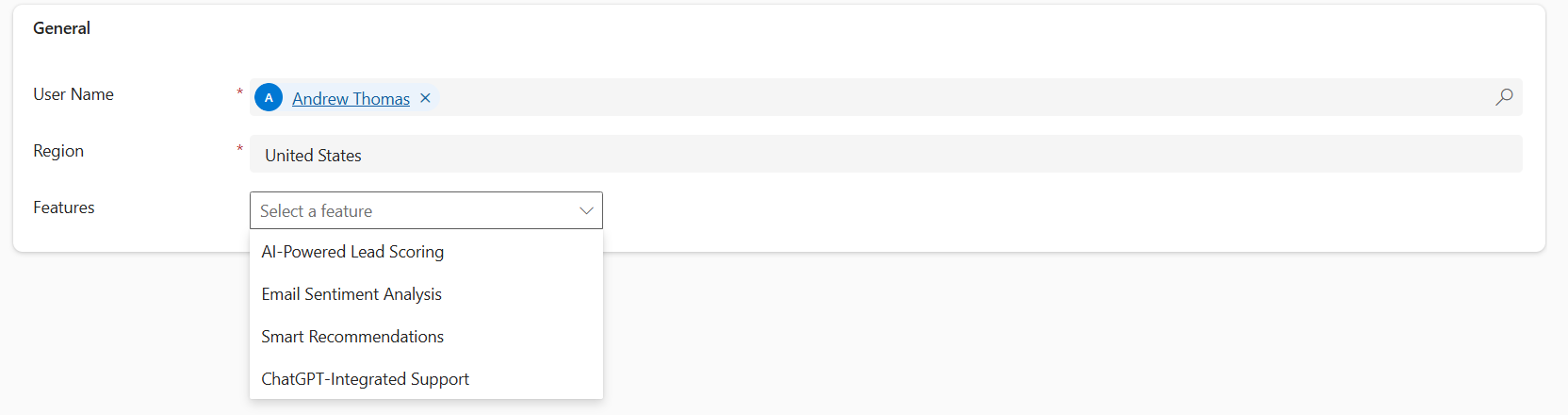
Let’s consider a scenario where an admin configures user-specific features via a User Feature Settings form within CRM. The form includes a PCF component that displays a dropdown of features fetched from a Features List API, including each feature’s name and its supported regions, respectively.

Now, here, instead of binding the onChange event within the CRM, which will require updating our bound field of the PCF control to indirectly trigger form scripts, we created our custom event named featureChange. This event triggers whenever the feature field value changes, allowing seamless interaction of the PCF component within the CRM form itself.

Here is our visual image for our PCF component.

PowerApps Component Framework Events

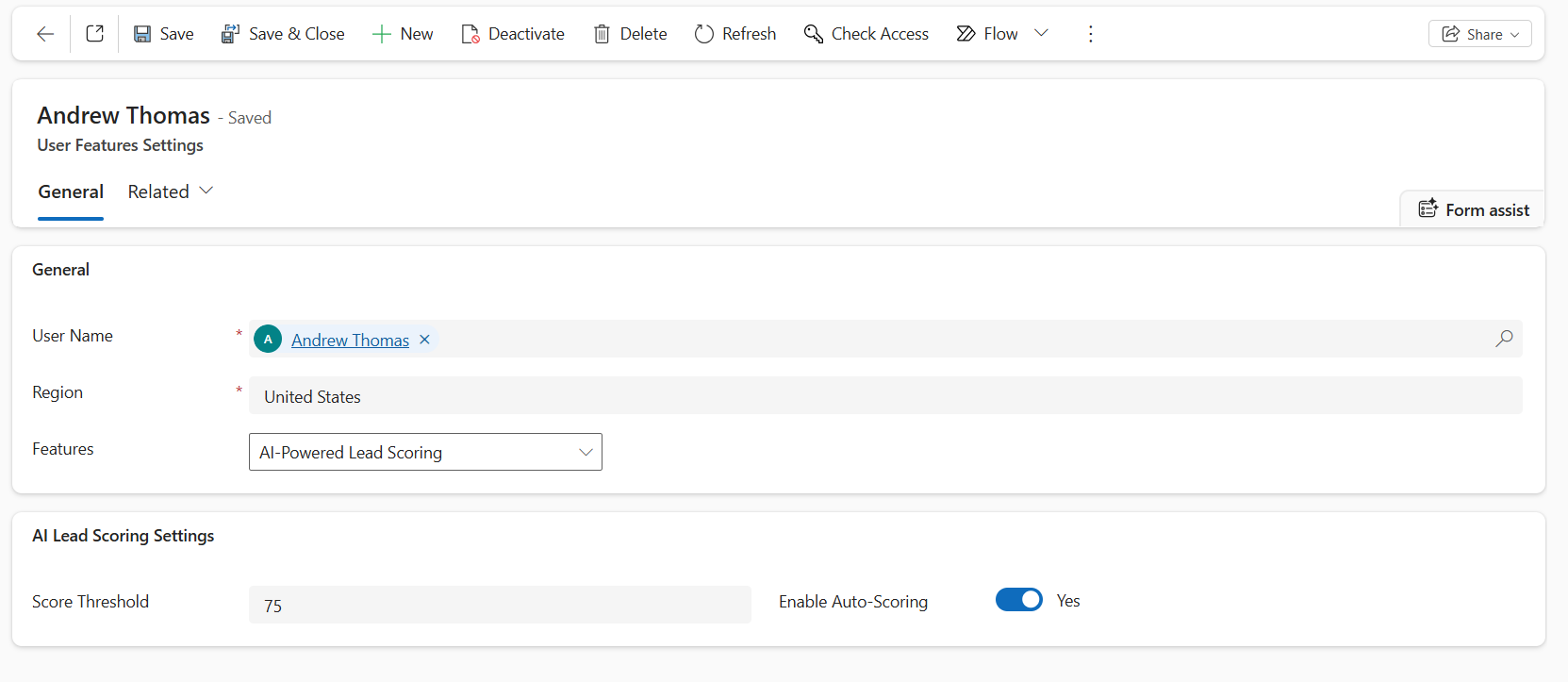
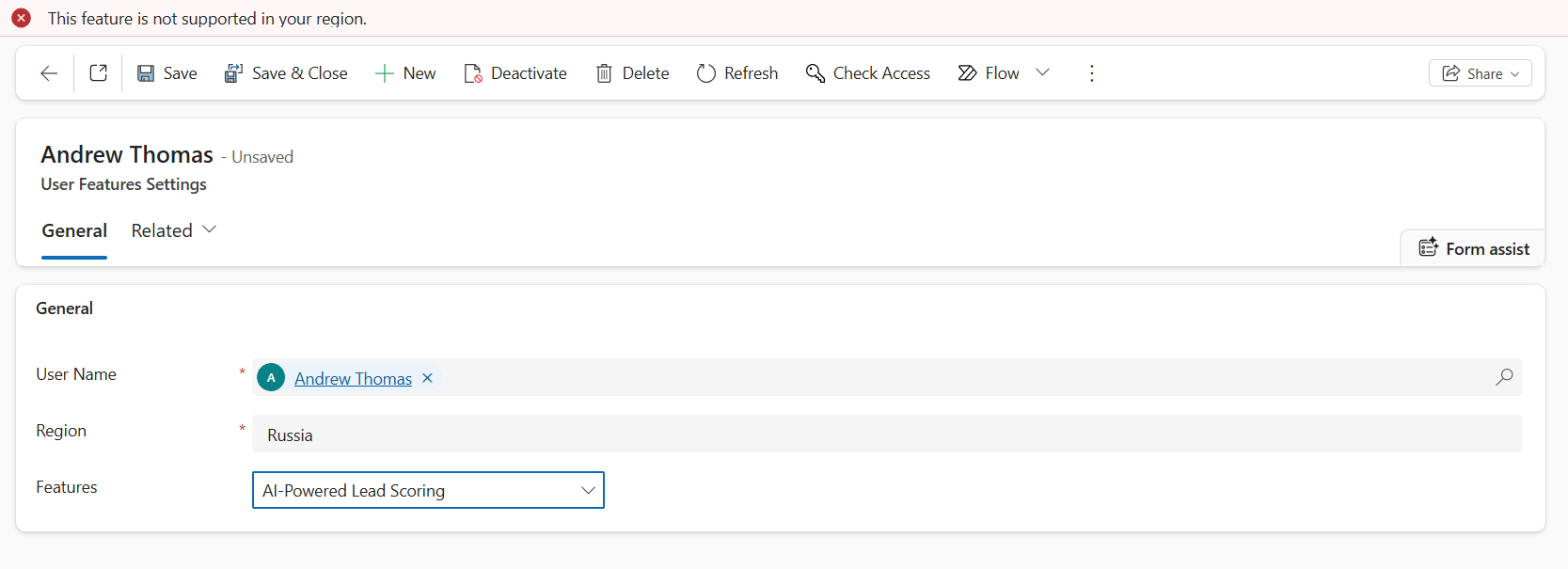
Now, when the admin selects a feature, the form checks if the feature is supported in the user’s region and enables the respective settings. If not, a form-level notification is displayed.

Let’s walk through how to implement events in our PCF control with a step-by-step guide to implement events.

Step-by-Step Implementation

Step 1: Define the Custom Event in the PCF Manifest

Define the custom event that the PCF control will expose. This is done in the same way as we define properties in the ControlManifest.Input.xml. Here’s what the new event declaration looks like:

<event name=”featureChangedisplay-name-key=”featureChange” description-key=”The event to handle feature change.” />

Step 2: Implement the Event in the PCF Control (index.ts)

In index.ts, define a method to fire the event and pass it to your React component via props. Include parameters (e.g., a selected license key) to provide context to the form script.

private handleValidate = () => {
if (this._selectedFeature) {

this._context.events.featureChange({

featureKey: this._selectedFeature,

supportedRegions: this._supportedRegions.map(r => r.toLowerCase()),

});

}

};


private handleFeatureChange= (key: string, supportedRegions: string[]) => {

this._selectedFeature = key;

this._supportedRegions = supportedRegions;

};

public updateView(context: ComponentFramework.Context<IInputs>): React.ReactElement {

const props: IFeatureControlProps= {

featureChange: this.handleValidate,

onFeatureChange: this.handleFeatureChange,

};

return React.createElement(FeatureControl, props);

}

Step 3: Update the React Component (FeatureControl.tsx)

In your React component, define the props interface and bind the event handler to the onChange of the Dropdown. So, when the user changes the option in the Dropdown, the onFeatureChange and featureChange methods will be triggered. The featureChange is the event that we had set in the Manifest file.

export interface IFeatureControlProps{

featureChange: () => void;

onFeatureChange: (selectedKey: string, regions: string[]) => void;

}

export const FeatureControl = (props: IFeatureControlProps) => {

const [selectedKey, setSelectedKey] = React.useState<string | undefined>(undefined);

return (

<div>

<Dropdown options={options} selectedKey={selectedKey}

onChange={(event,option) => {

const key = option?.key as string;

const regions = (option as IFeatureOption)?.data?.supportedRegions || [];

setSelectedKey(key);

props.onFeatureChange(key,regions);

if(key) { props.featureChange(); }

}}

placeholder="Select a feature"

styles={{ root: { minWidth: 200 } }}

/>

</div>

);};

Step 4: Update the Existing Form Script (TypeScript Web Resource)

Update your existing web resource to handle the featureChange event. Register it on the form’s on-load event to attach the event handler to the PCF control. So, when the event is triggered from the PCF control, it invokes the method defined in this script –

namespace IKL{

export namespace FeatureControl {

export class CheckFeature {

private readonly controlName = "sha_features";

public onLoad(executionContext: any): void {

let formContext = executionContext.getFormContext();

let featureControl = formContext.getControl(this.controlName);

if (featureControl ) {

featureControl.addEventHandler("featureChange", (params: any) => {

this.onFeatureChange(params, formContext);

});

}

}

public onFeatureChange(params: any, formContext: any): void {

//Here, our logic for enabling settings and showing form-level notification will come.

}

}

}

}

let featureValidate = new IKL.FeatureControl.CheckFeature();


Summary: What’s Happening Here:

  • We define a custom event (featureChange) in the manifest file.
  • In the PCF control, we fire that event from the React Component when the user selects/changes the dropdown option.
  • The JavaScript Web Resource present on the CRM Form listens for that event and executes the logic.

Time to See It in Action

Now that everything is wired up, event in the manifest, handler in the control, and logic in the form script, you’re ready to test it. Load up your form, interact with the control, and watch how your external script reacts instantly. Smooth, seamless, and finally possible thanks to the PCF Events!

Now, based on the user’s selected feature, the PCF control’s FeatureChange event enables the corresponding settings. Refer to the screenshots below for a better understanding.

PowerApps Component Framework Events

PowerApps Component Framework Events

Conclusion

The introduction of Events in PowerApps Component Framework (PCF) has extended its limits of what developers can do with the field-level controls. What once seemed to be a rigid, isolated environment now has a more interactive and integrated ecosystem, allowing PCF controls to communicate directly with the Parent Form.

Whether you’re triggering form script events or updating related fields, Events are a bridge between the PCF control and the CRM form. This capability of Events not only simplifies complicated workarounds but also promotes cleaner, more consistent, and maintainable code.

As you design your next PCF control, consider leveraging Events to create more powerful, flexible, and context-aware experiences across model-driven apps.

The post How to Call External Scripts using PowerApps Component Framework Events: Part 1 first appeared on Microsoft Dynamics 365 CRM Tips and Tricks.

❌