Login
Login
From Topics to Skills: The Evolution of Copilot Studio Agents
The Microsoft Copilot Studio is revolutionizing the design and construction of conversational agents. Normally, developers-built agents around Topics, which are essentially conversational flows invoked by specific phrases. Topics worked well for structured chatbot scenarios, but they became more and more difficult to manage as agents became more complex.
Microsoft has introduced Skills as a core building block for modern agent development with the rise of AI-powered agents. This represents a shift from static conversation trees to intelligent agents that can reason, choose the appropriate capability, and dynamically complete tasks. The developers are now building reusable business capabilities that an AI agent can call on when needed, instead of building big sets of conversational flows.
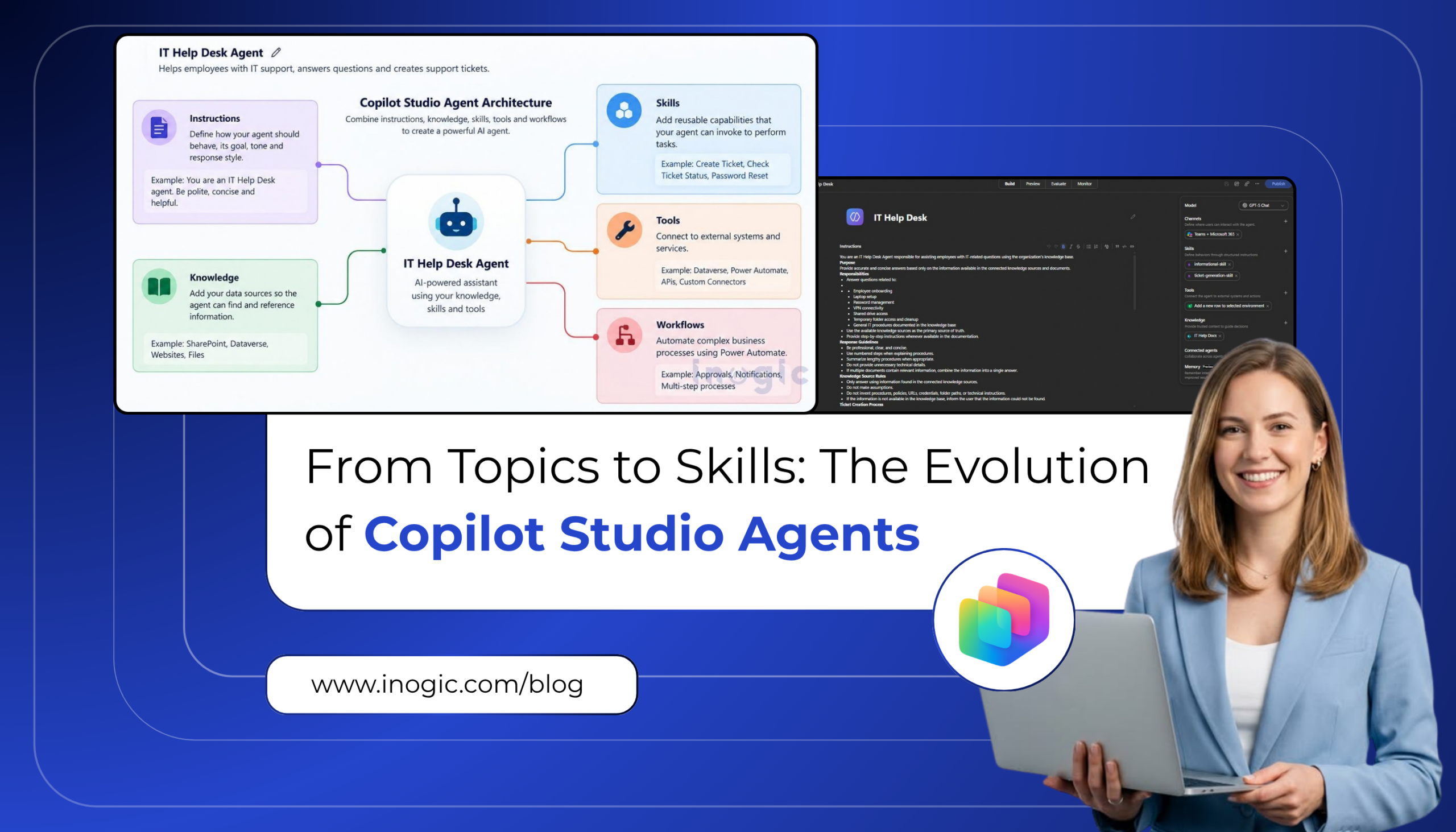
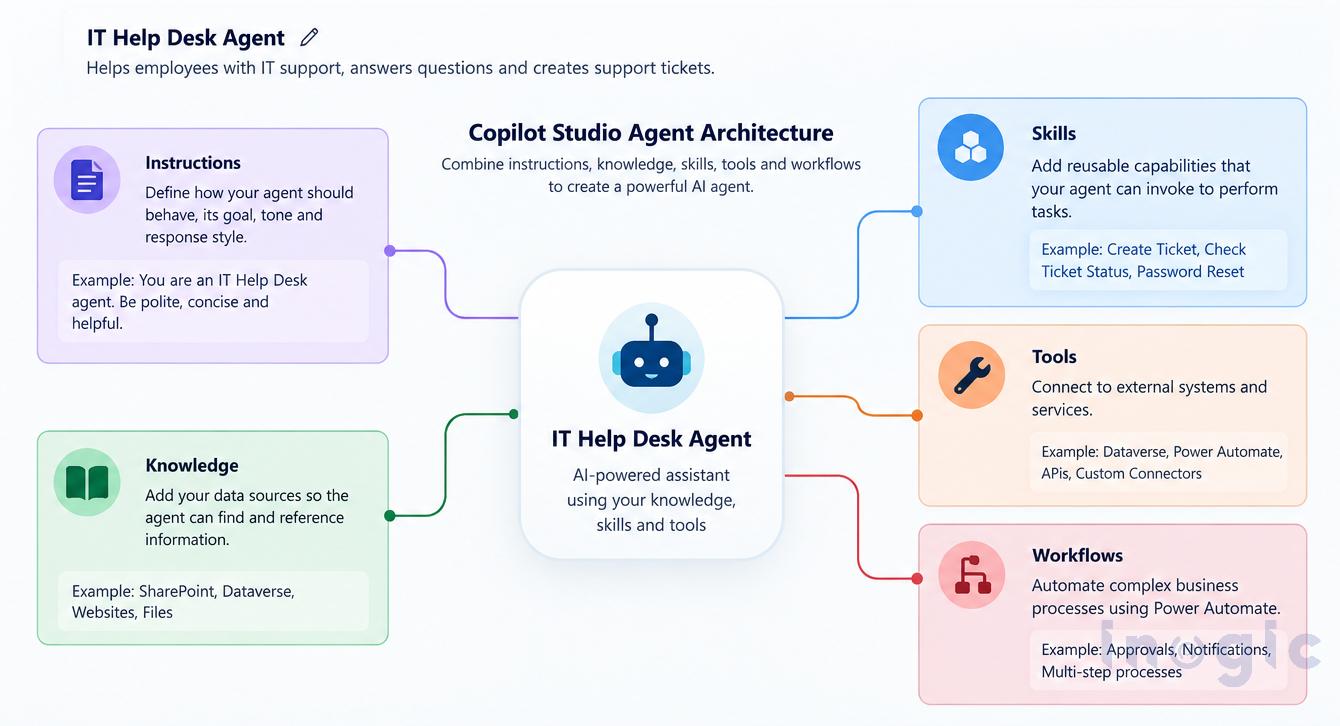 Image 1: Agent architecture showing Instructions, Knowledge, Skills, Tools, and Workflows.
Key Takeaways
- Copilot Studio agents are shifting from Topics (trigger-phrase conversation flows) to Skills (reusable business capabilities the agent invokes through reasoning).
- Topics work for simple, structured chatbots but get hard to maintain as agents scale to dozens or hundreds of conversation paths.
- Skills let an agent decide what to do based on user intent, not just which phrase matched.
- Skills are reusable across multiple agents (Sales, Service, HR), reducing duplicated logic.
- For Dynamics 365 and Power Platform developers, Skills feel closer to Custom APIs, Actions, Plugins and Power Automate Flows than to chatbot design.
- This shift reflects Microsoft’s broader move from chatbot development to enterprise AI agent development.
Understanding the Traditional Topic-Based Approach
The topics were mostly designed for chatbot experiences. Each topic represented a predefined conversation path, triggered by certain user phrases. A typical topic might have a structure such as: User requests a password reset.
→ Request Employee ID
→ User Validation
→ Change Password
→ Confirm Completion
Topics worked well in simple situations. However, as organizations added more use cases, agents tended to have dozens or even hundreds of Topics, making maintenance more and more difficult.
Topics presented common challenges such as:
- Handling multiple trigger phrases
- Complex conversation tree maintenance
- Dealing with unanticipated requests from users
- Reuse of functionality between multiple agents
- Scaling agents as the business grows
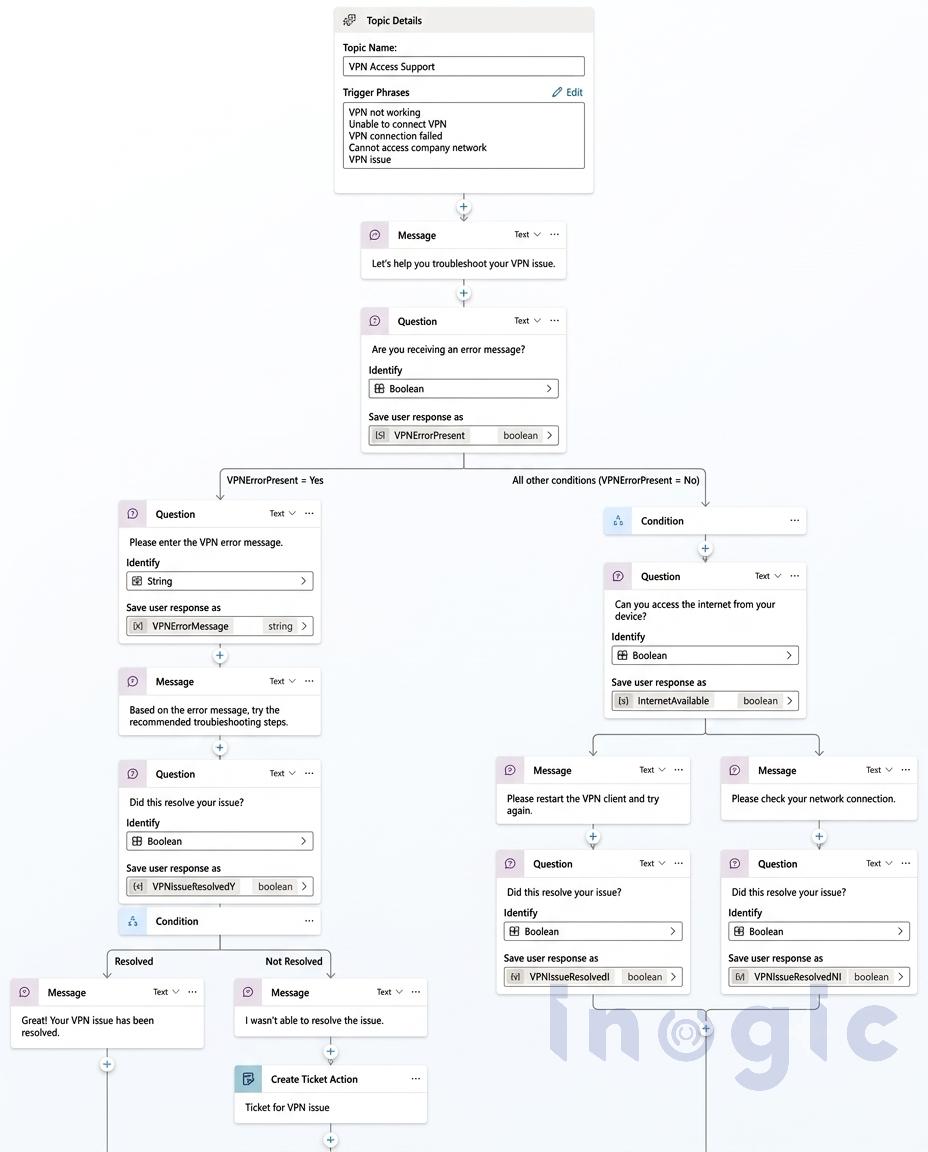
Image 2: Topic showing trigger phrases, conditions, and conversation nodes.
Topics vs Skills: A Comparison
The introduction of Skills changes how developers think about agent development.
| Area | Topics | Skills |
| Primary Focus | Conversation Flow | Business Capability |
| Triggering Mechanism | Trigger Phrases | AI Reasoning |
| Reusability | Limited | High |
| Scalability | Difficult with many Topics | Easier through modular design |
| Maintenance | Large conversation trees | Independent capabilities |
| Multi-Agent Support | Limited | Designed for reuse |
| AI Flexibility | Low | Hight |
| Future Direction | Traditional Chatbots | AI Agents |
Topics guide a user through a predetermined conversation.
Skills are for the execution of a business task.
This distinction is important because modern AI agents are expected to understand intent, not just match trigger phrases.
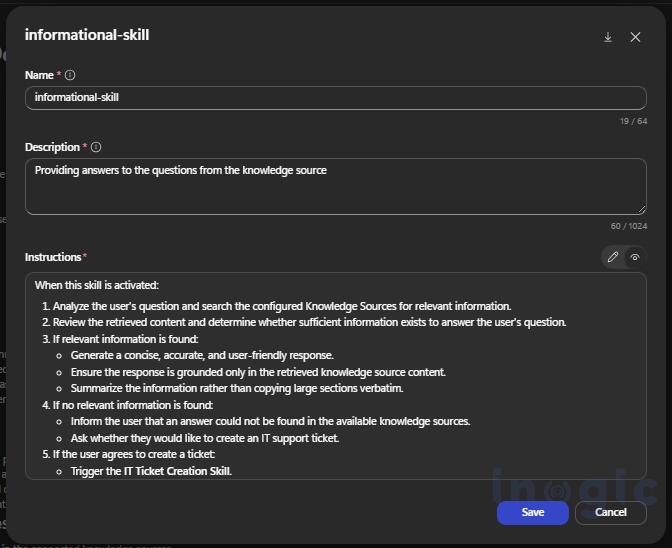
Image 3: Showing a skill record in a Copilot Agent.
Why Skills?
The move to Skills is part of Microsoft’s broader vision of an AI agent.
Rather than asking:
Which topic should this request go to?
Now the agent asks:
What skill can be used to solve this problem?
This feature enables agents to make intelligent decisions based on the user’s intent.
Let us consider there’s an IT help desk agent.
A user wrote:
My VPN is not working. If you can’t fix it, open a support ticket.
Often, in a topic-based system, this scenario would require multiple Topics and careful routing logic.
However, with skills, the agent can:
- Search the knowledge base.
- Run a VPN troubleshooting skill.
- Verify that the problem is solved.
- If necessary, invoke the create ticket skill.
While the user experiences a smooth interaction, the agent manages various functions in the background.
Benefits of Skills
- Better Reusability
Skills are versatile and modular; they can be shared across multiple agents.
For example:
- Create Ticket Skill
- Check Ticket Status Skill
- Password Reset Skill
- User Onboarding Skill
Instead of recreating these capabilities in every agent, they can be reused wherever needed.
- Improved Scalability
As business requirements grow, adding new capabilities becomes easier.
Rather than maintaining dozens of Topics and conversation nodes, developers need to add new Skills.
- AI-Driven Decision Making
The agent uses the skills to reason about the request and decide on the best action. As a result, the conversations become more natural and flexible.
- Easier Maintenance
Each skill is concerned with one responsibility only.
When it is necessary to make changes, the developers update the appropriate Skill without affecting the functionality that is not related.
- Alignment with Software Development Practices
For developers working with Dynamics 365 and the Power Platform, Skills are quite familiar.
They share a similar foundation with things like Custom APIs, Actions, Plugins, and Power Automate Flows.
Instead of getting into the nitty-gritty of designing conversation trees, developers can focus on implementing real business solutions that make a difference.
- Better Multi-Agent Architecture
Organizations are progressively implementing specialized agents. A Sales Agent, Service Agent, and HR Agent can all utilize shared Skills without repeating logic.
Real-World Example: IT Help Desk Agent
Topic-Based Design
Topic: Password Reset
Topic: VPN Access
Topic: Software Installation
Topic: User Onboarding
Topic: Ticket Creation
Topic: Ticket Status
Every Topic requires:
- Trigger phrases
- Variables
- Conditions
- Conversation logic
As the number of Topics increases, management becomes more complex.
Skill-Based Design
Knowledge Source
├── Password Reset Skill
├── VPN Troubleshooting Skill
├── User Onboarding Skill
├── Create Ticket Skill
└── Check Ticket Status Skill
The agent determines which Skill to invoke based on the user’s intent, creating a more intelligent and maintainable solution.
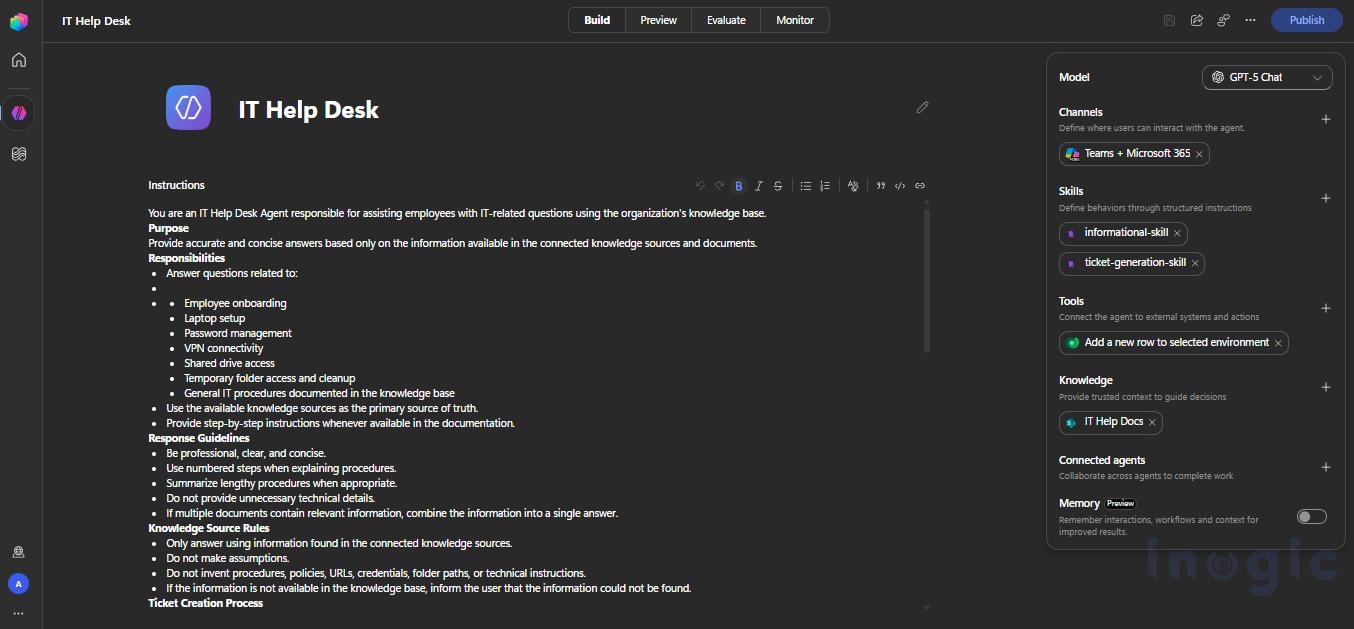 Image 4: Complete Copilot Studio agent showing Instructions, Knowledge, Skills, and Actions.
Conclusion
The transition from Topics to Skills represents more than a feature change, it reflects Microsoft’s broader shift from chatbot development to AI agent development.
Topics were designed for structured conversations and predefined paths. Skills are designed for intelligent agents that can reason, dynamically select capabilities, and solve problems more effectively.
For Dynamics 365 CRM and Power Platform professionals, Skills introduce a development model that feels closer to building business services than designing chatbot conversations. They promote reusability, scalability, easier maintenance, and AI-driven orchestration.
As Copilot Studio continues to develop, Skills are becoming the foundation for building modern, enterprise-grade AI agents. Organizations adopting this approach today will be better positioned in the future to create flexible, scalable, and intelligent solutions for the future.
FAQs
What is the difference between Topics and Skills in Copilot Studio?
Topics are predefined conversation flows triggered by specific phrases. Skills are reusable business capabilities that an AI agent selects dynamically based on user intent.
Why is Microsoft moving from Topics to Skills in Copilot Studio?
Topic-based agents become difficult to maintain as the number of conversation flows grows. Skills let agents reason about a request and choose the right capability, making them easier to scale and maintain.
Can Skills be reused across multiple Copilot Studio agents?
Yes. A Skill such as Create Ticket or Password Reset can be shared across a Sales Agent, Service Agent or HR Agent without rebuilding the logic each time.
Are Skills related to Power Platform components like Custom APIs or Power Automate Flows?
Yes. Skills share a similar foundation with Custom APIs, Actions, Plugins and Power Automate Flows, making them familiar to Dynamics 365 and Power Platform developers.
Do Skills replace Topics completely in Copilot Studio?
Not necessarily. Topics can still suit simple, structured scenarios, but Skills are Microsoft’s direction for building intelligent, scalable AI agents.
The post From Topics to Skills: The Evolution of Copilot Studio Agents first appeared on Microsoft Dynamics 365 CRM Tips and Tricks.
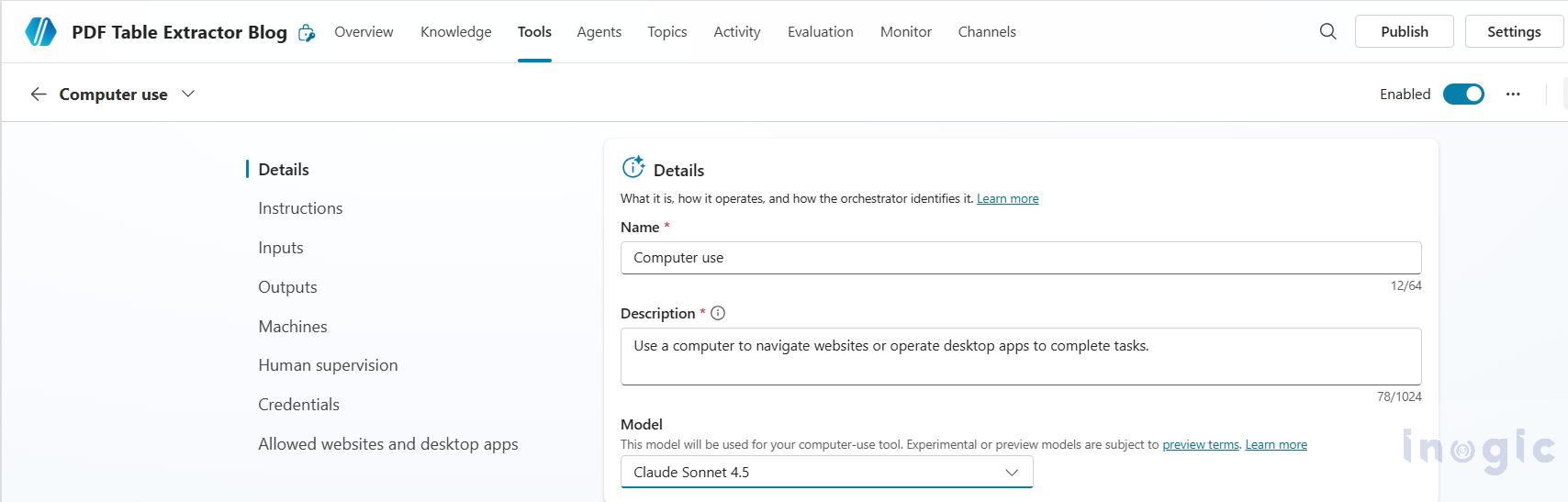
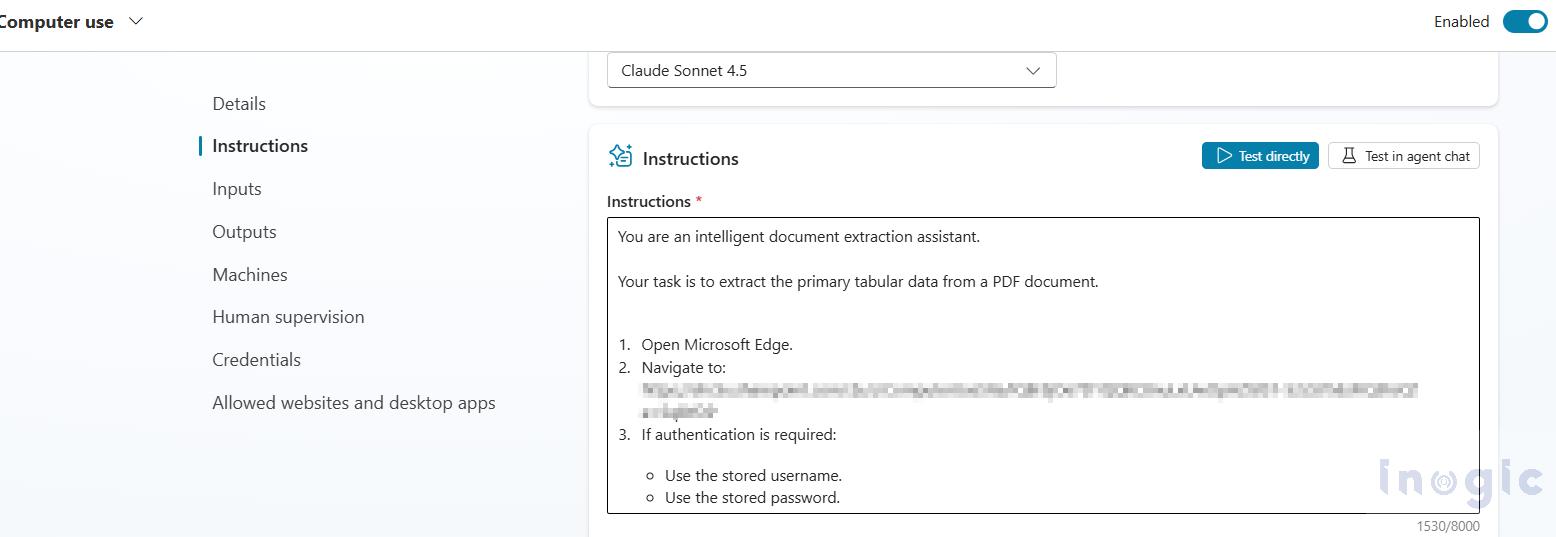
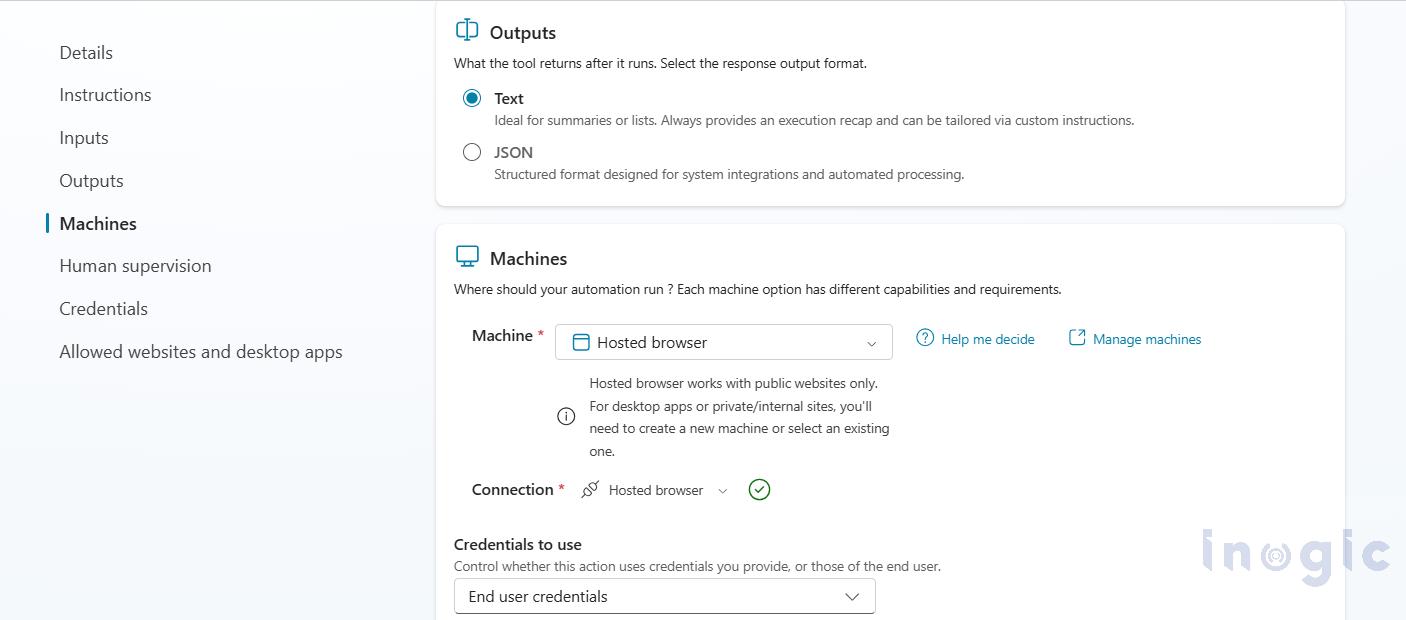
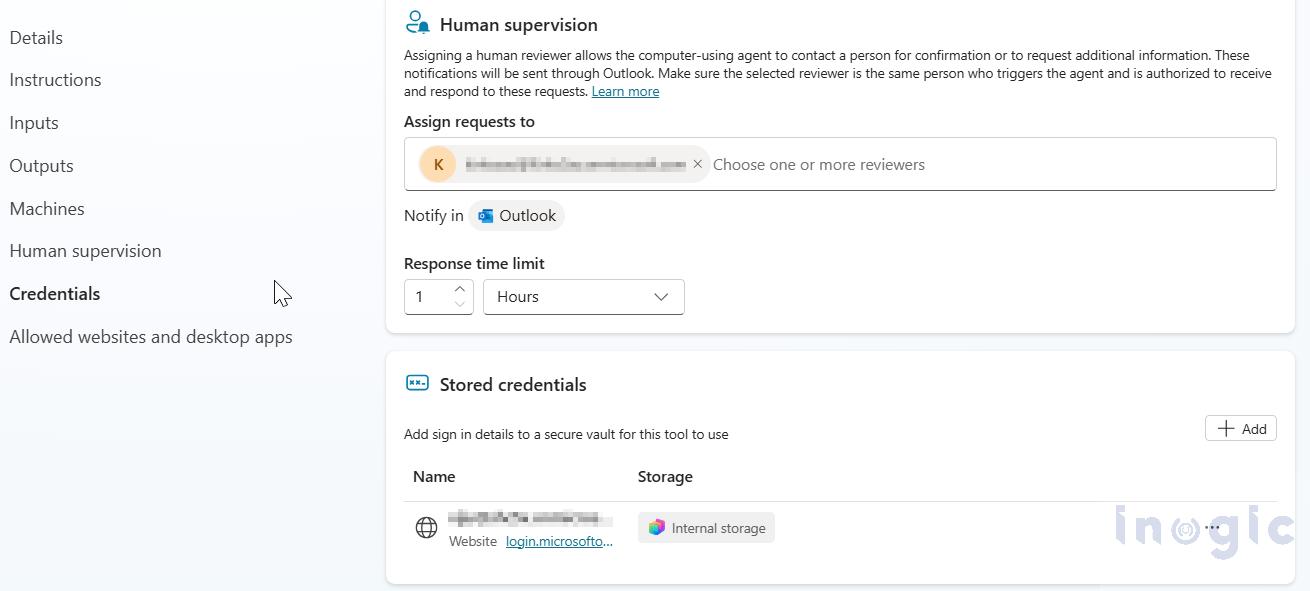
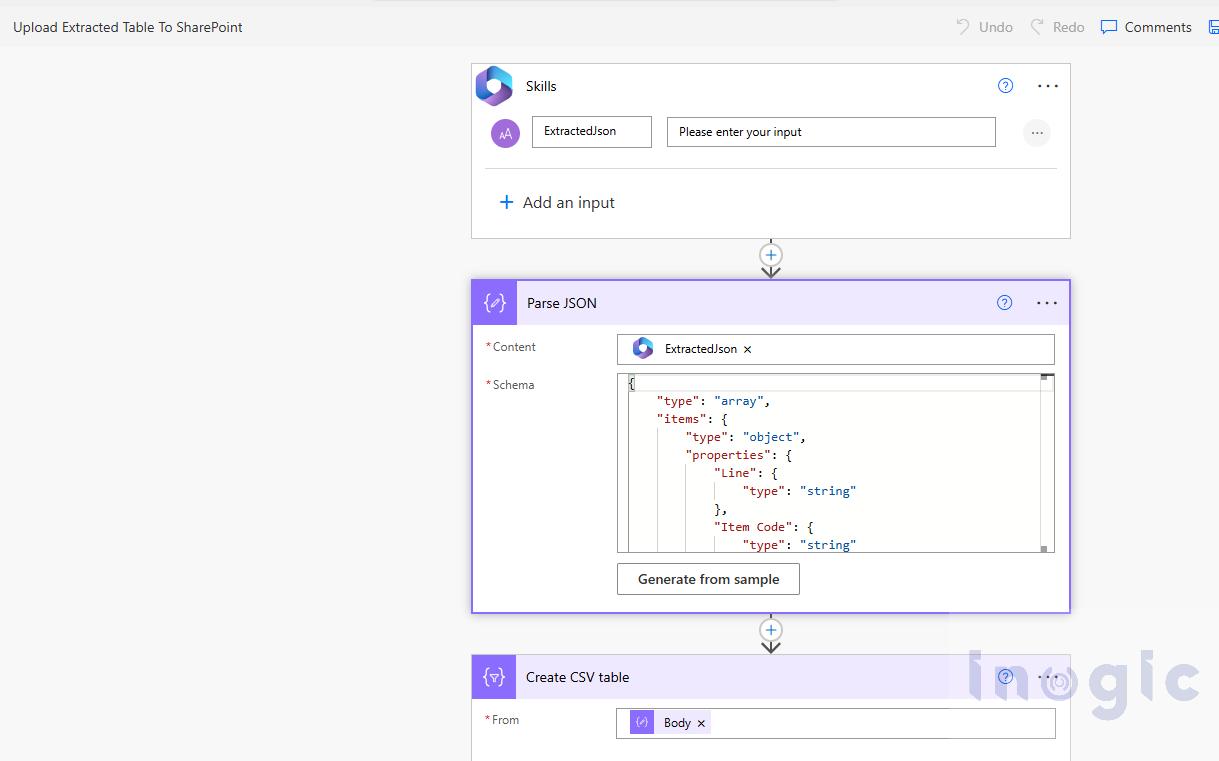
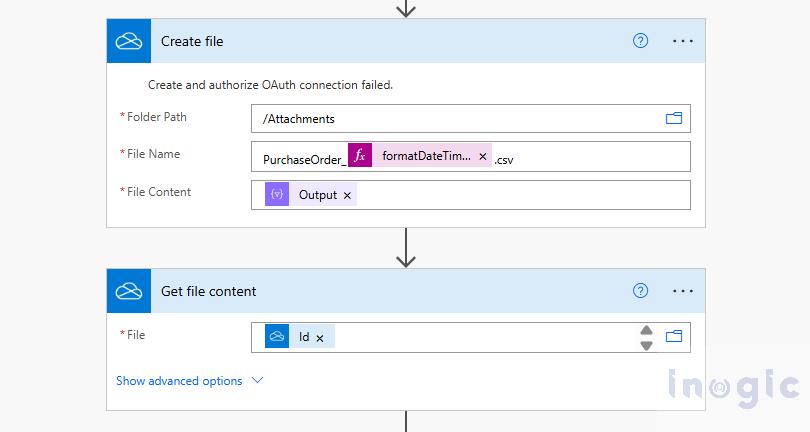
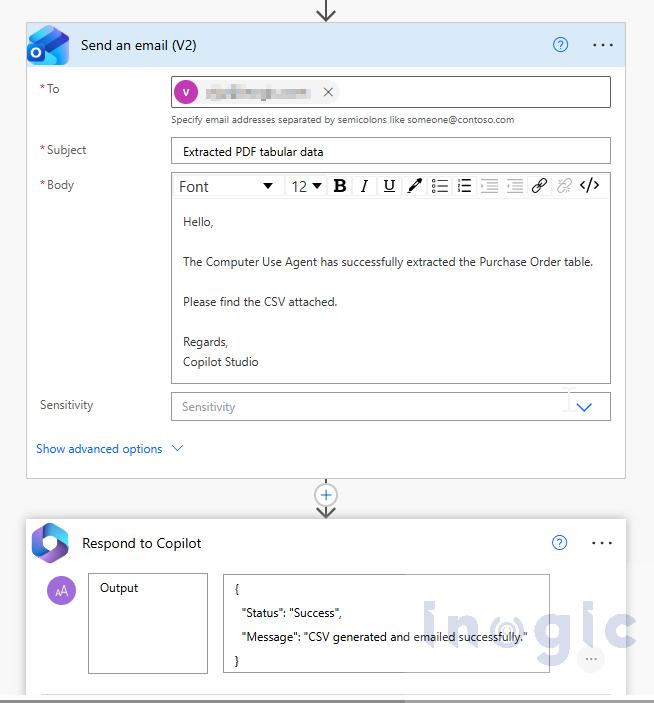
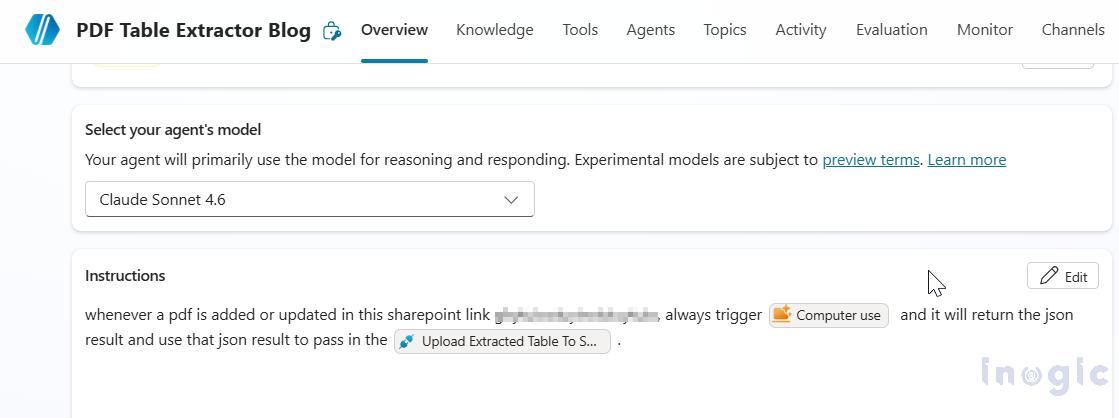
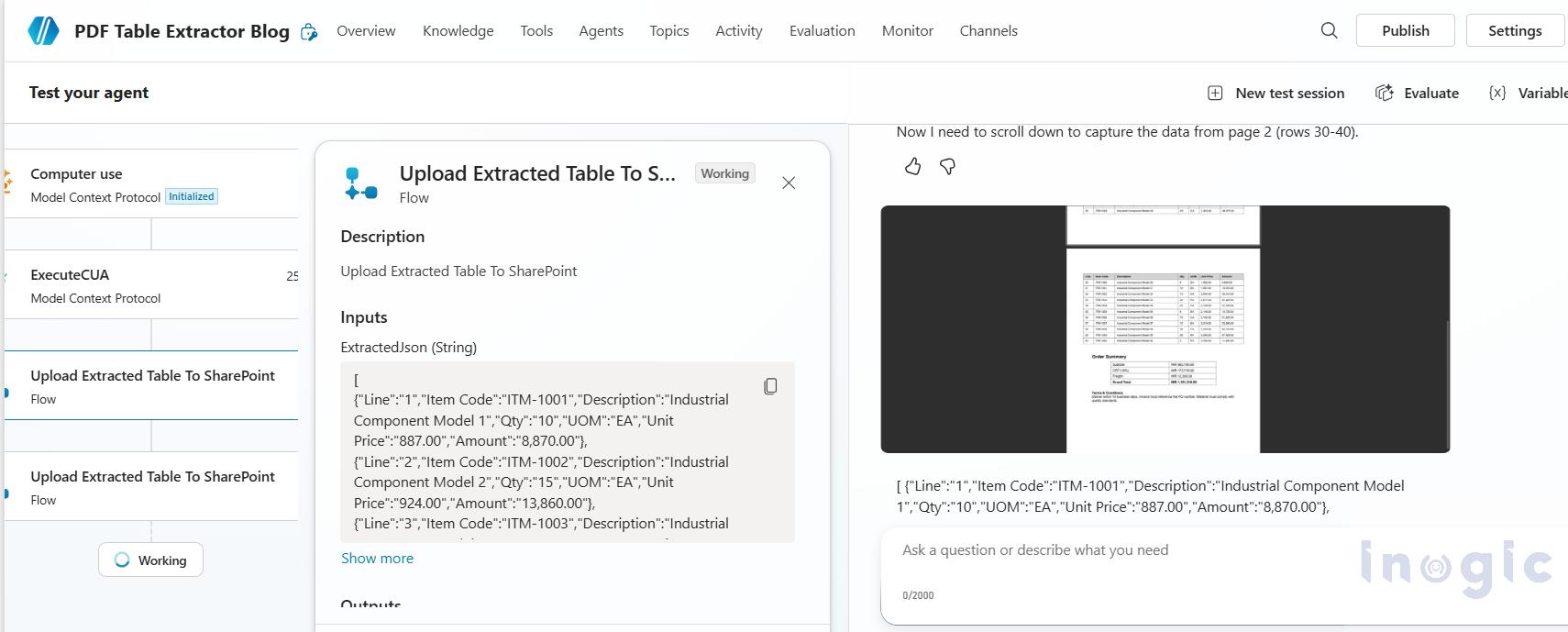
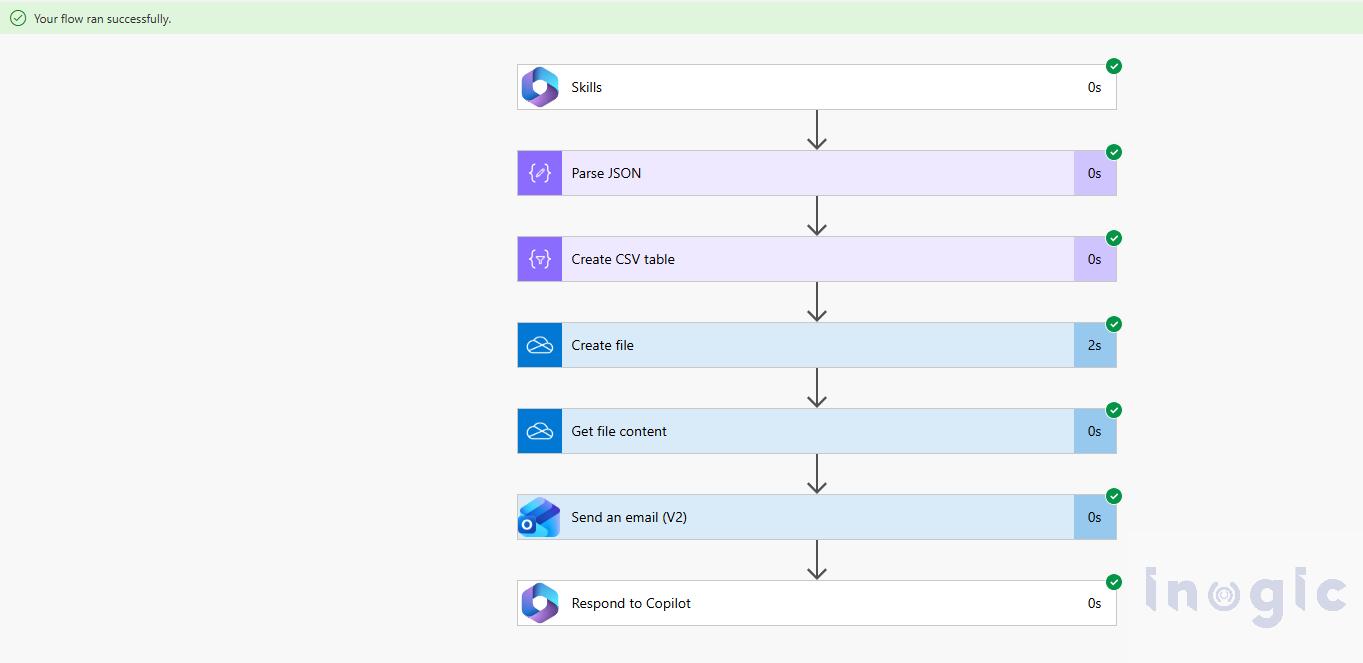
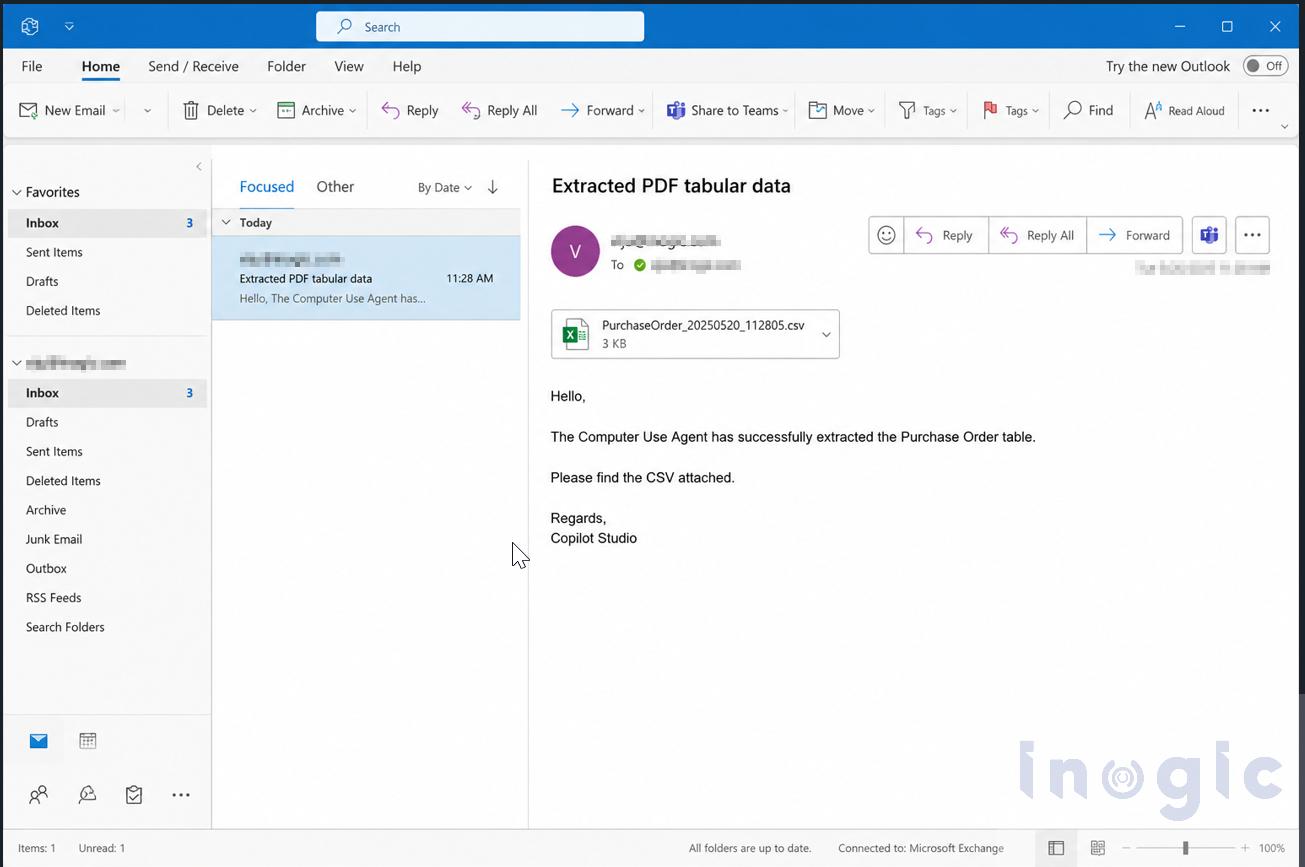
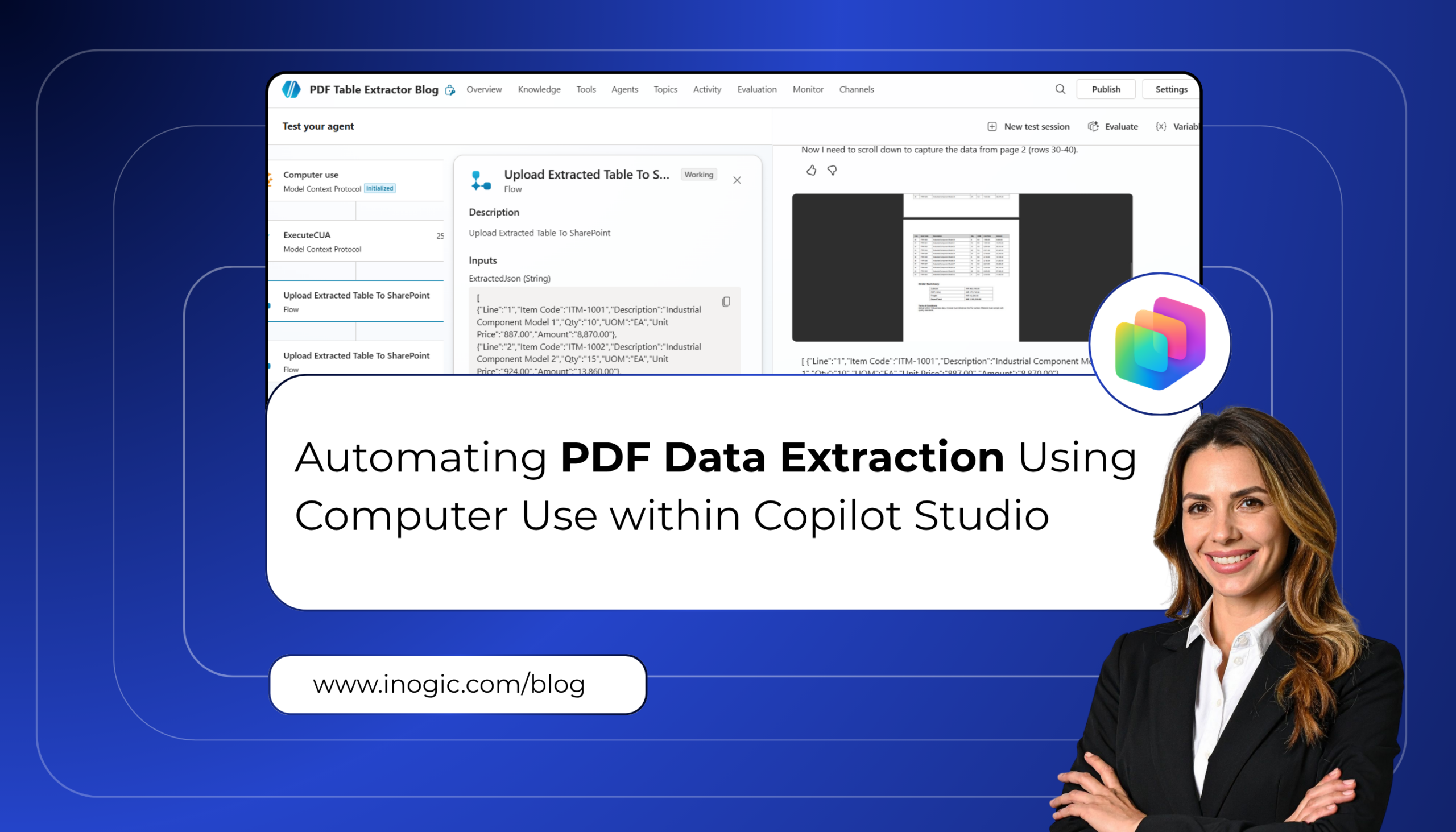 Business documents such as purchase orders, invoices, reports, and shipping documents often contain valuable information in tabular format. In many organizations, this information is still copied manually into spreadsheets or business applications, which takes time and increases the possibility of errors.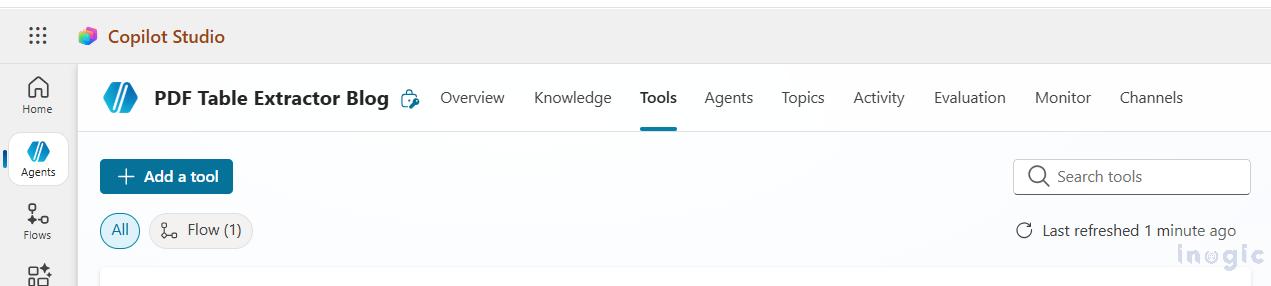
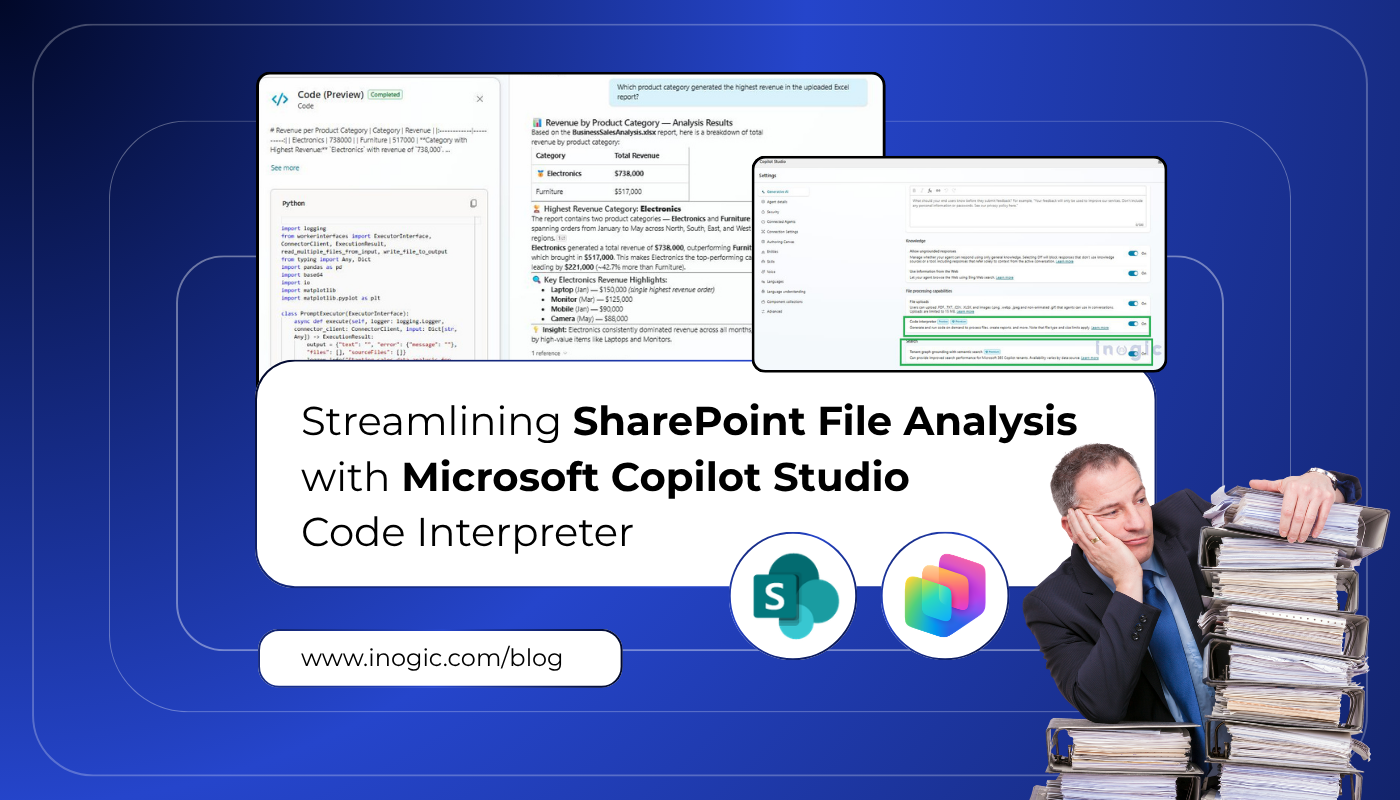 Organizations today store massive volumes of structured data sales figures, inventory records, and financial reports in Excel and CSV files across SharePoint libraries. When someone needs a quick insight from that data, the typical path involves downloading the file, opening it in Excel or Power BI, writing formulas or building visuals, and then sharing the result. It works, but it’s slow, manual, and requires a level of technical skill that not every team member has.
 Organizations frequently receive employee requests for training programs, certifications, or skill-development courses. Traditionally, these requests go through manual review and approval processes which can delay decision making and create administrative overhead.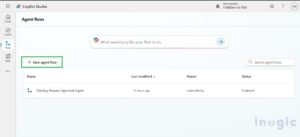
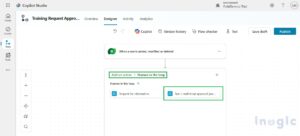 Run a multistage approval (preview) configuration screen
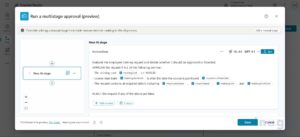 AI instruction configuration inside the Evaluate Request stage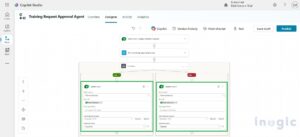
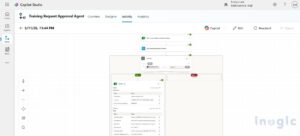 Dataverse Update Row action flow when all conditions are met / true