Power Up - Upskill Yourself...

Reading view

Dynamics 365 Sales Alerts: Native Notifications vs. Alerts4Dynamics – Which one is Right for You?
Native Notifications vs. Alerts4Dynamics

For an effective sales process, it is crucial to be up-to-date with important sales events. By staying abreast of these crucial moments, you gain a vital edge, allowing you to tailor outreach, craft timely offers, and strike while the iron’s hot. Imagine the missed sales deal and loss of revenue if you remained oblivious to new leads entering the CRM or subscription renewals.

Conversely, consider the doors that swing open when you proactively engage with prospects, offering a well-timed solution that directly addresses their queries.

Dynamics 365 CRM, with its in-app notifications, enables salespeople to stay informed about simple and quick updates such as new record creation, etc. However, when aiming to establish an effective sales communication system tailored to update about diverse sales events, a more robust alert management solution becomes essential.

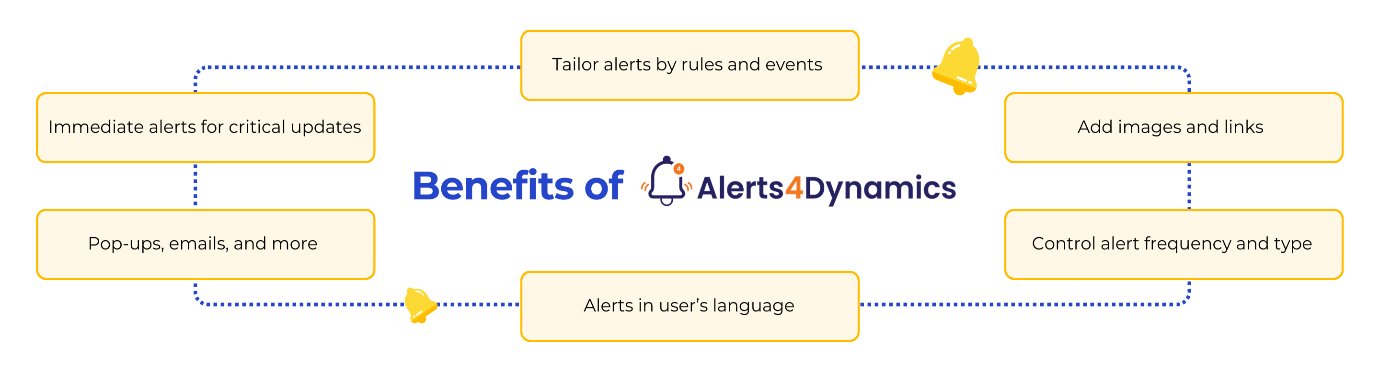
If you wish there was a better way, A notification system that whispers critical updates when you need them most and allows you to personalize alerts and notifications based on your preferences? And it lets you create alerts and notifications for specific sales events. Enter Alerts4Dynamics by Inogic, the ultimate upgrade for your notification game.

Alerts4Dynamics is a sales alert / notification solution for Microsoft Dynamics 365 CRM. It lets you create four types of alerts and notifications, such as announcement, rule-based, record-based, and event-based alerts, in multiple languages. These notifications can be displayed either indefinitely or for a specified duration and are accessible from any location within CRM, notifications can be pop-ups, form notifications, or email notifications.

Here is an in-depth comparison between the Alerts4Dynamics app and Dynamics 365 CRM In-app notifications to help you comprehend what’s best for your CRM sales alerts and notification needs.

1. Alerts and Notifications Visibility

CRM In-App Notifications: Dynamics 365 CRM In-App Notifications are visible only in the app you have enabled them for. Suppose you have enabled In-App notifications in Dynamics 365 Sales, then you will be able to see the notifications in Dynamics 365 sales, but you won’t be able to see notifications in Dynamics 365 field service or Dynamics 365 customer service until you enable the In-App Notifications for these apps.

Alerts4Dynamics: Sales alerts created using Alerts4Dynamics app are visible globally in your Dynamics 365 CRM on Dynamics 365 Sales, Dynamics 365 Field Service, Dynamics 365 Project Service Automation, Dynamics 365 Customer Service, and Power Apps.

The form can be filled in the actual website url.

2. Alerts and Notifications Modes

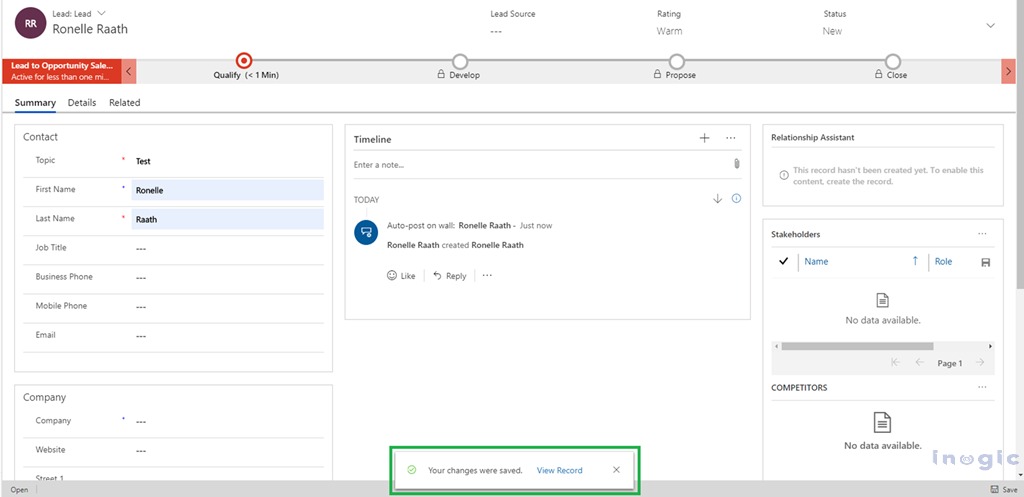
CRM In-App Notifications: Dynamics 365 CRM in-app notifications can be displayed through two different notification modes, i.e., as toast or within the notification centre.
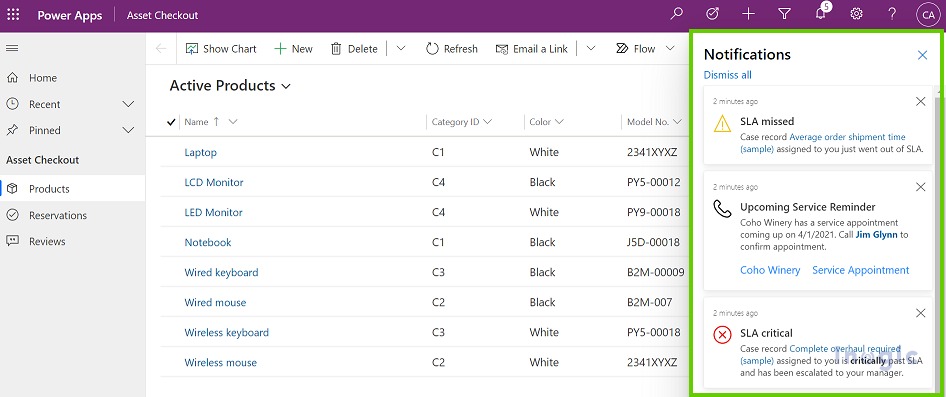
Dynamics 365 Sales Alerts_ Native Notifications vs. Alerts4Dynamics

Dynamics 365 Sales Alerts_ Native Notifications vs. Alerts4Dynamics

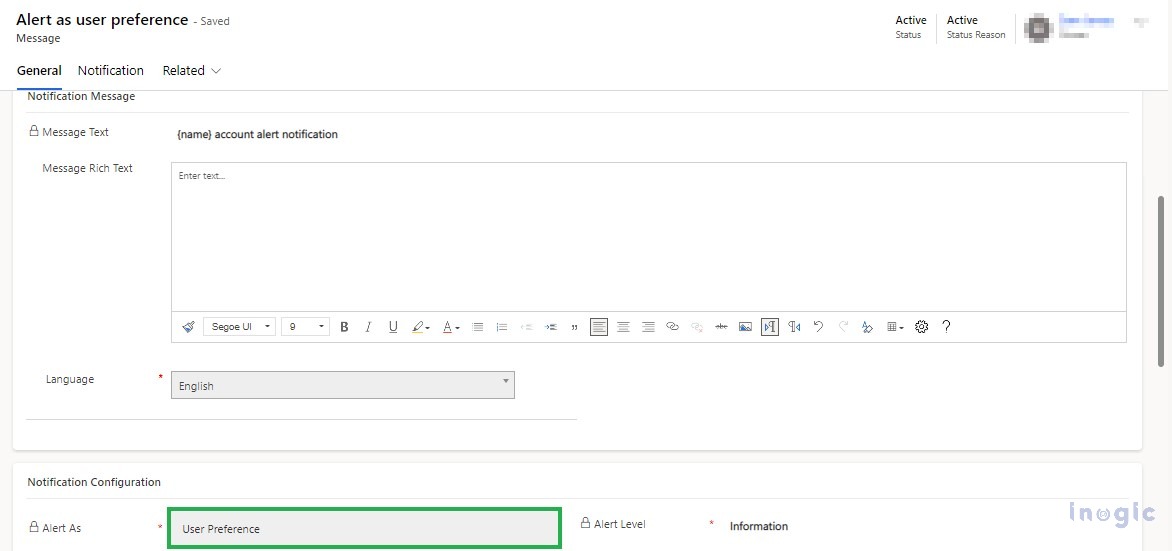
Alerts4Dynamics: Sales alerts created using the Alerts4Dynamics app can be displayed in three modes: pop-ups, form notifications, or email notifications to CRM users and external audiences, i.e., clients. In addition to that, with ‘User Preference’, you can send alerts to the users based on the preferences they have set as a mode to receive an alert.

In the below screenshot, you can see how notifications created using Alerts4Dynamics appear in CRM.
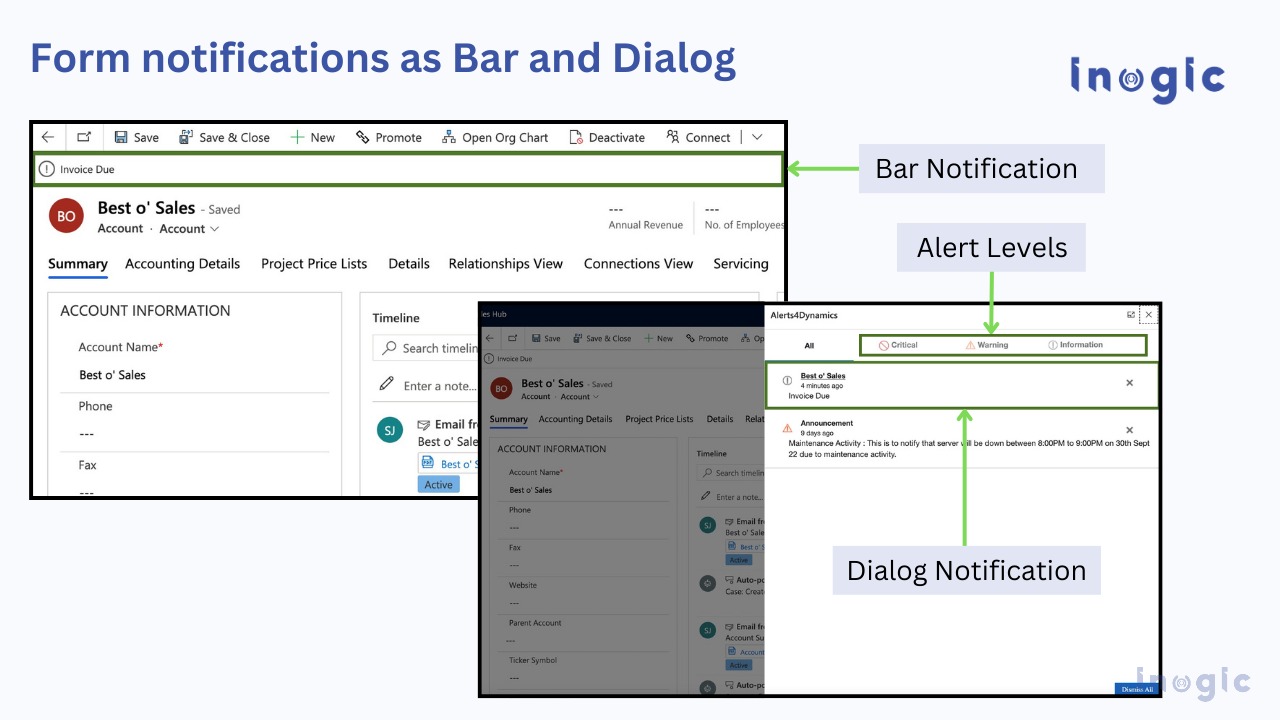
Dynamics 365 Sales Alerts_ Native Notifications vs. Alerts4Dynamics

3.

Types of Alerts and Notifications

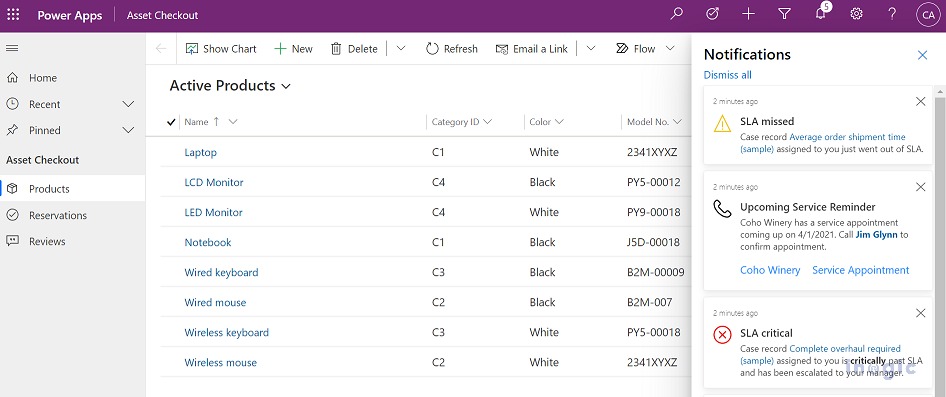
CRM In-App Notifications:  Dynamics 365 CRM In-App notifications can help you create simple notifications to inform CRM users about new cases being assigned, new opportunities created, opportunities closed, leads qualified, etc.
Dynamics 365 Sales Alerts_ Native Notifications vs. Alerts4Dynamics

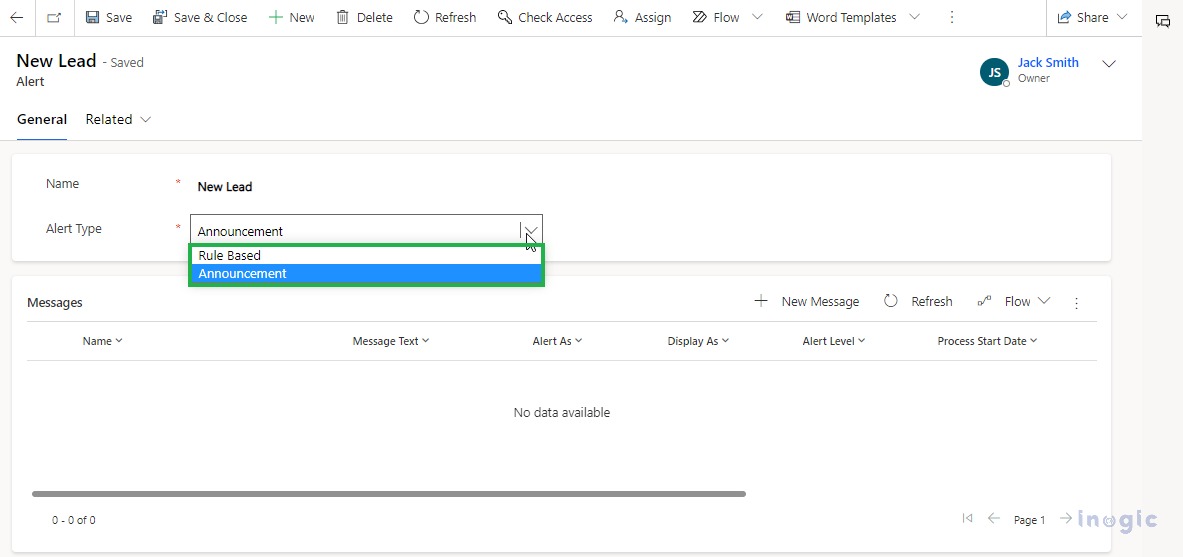
Alerts4Dynamics: Alerts4Dynamics can help you create four types of alerts, i.e., rule-based, event-based, record-based alerts, and announcements.

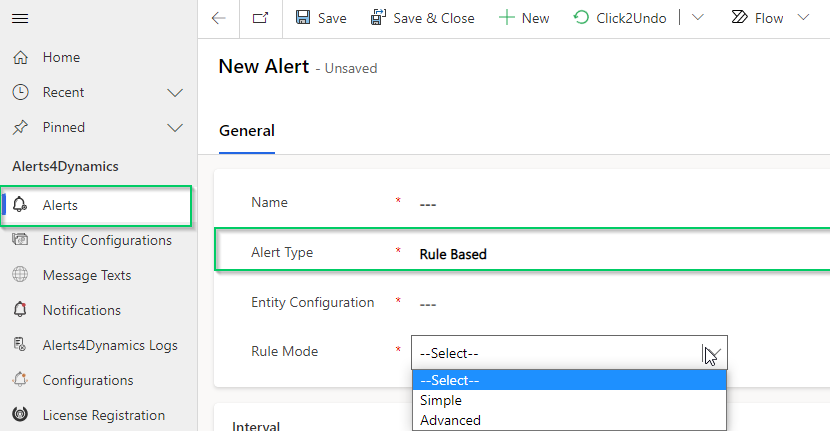
  • Rule-based alerts are created to inform users about particular conditions and are subsequently classified into Simple and Advanced Alert categories.
  • Event-based alerts empower users to trigger an alert for any occurrence within CRM.
  • Announcements, generated at organizational level, stand as alerts accessible from any location within the CRM.
  • Record-based alerts are tailored to provide information specific to individual records.
Dynamics 365 Sales Alerts_ Native Notifications vs. Alerts4Dynamics

4. Message Rich Text

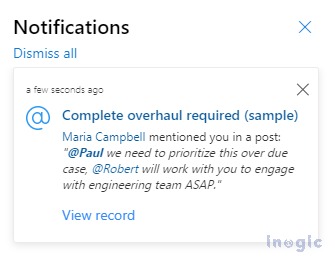
CRM In-App Notifications: Dynamics 365 CRM in-app notifications allow you to create engaging notification messages with limited text formatting options, i.e., bold, italic, bullet list, number list, and hyperlinks.
Dynamics 365 Sales Alerts_ Native Notifications vs. Alerts4Dynamics

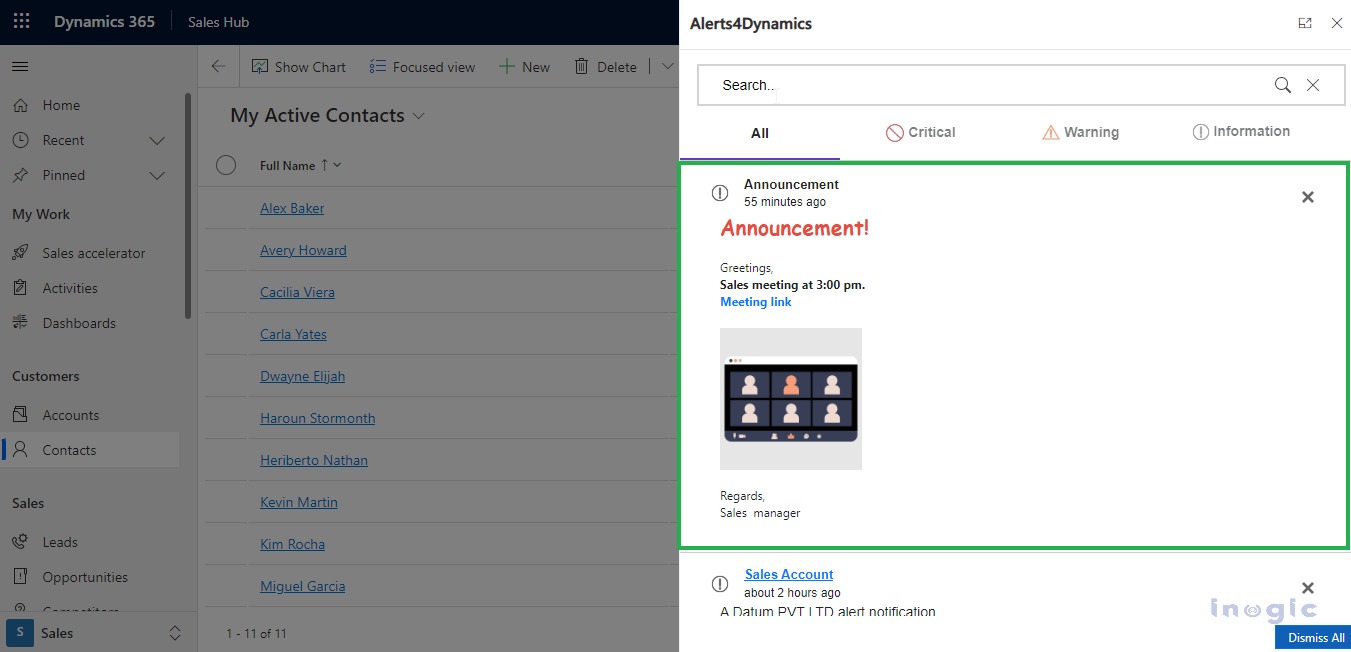
Alerts4Dynamics: The Alerts4Dynamics app empowers users to create highly engaging messages by offering a diverse range of text formatting options. Users can customize font style, size, and enhance text with bold, italic, underline, and strikethrough effects. Additionally, they can incorporate background colors, text colors, bullets, and numbered lists, adjust indentation, and include quotation marks. The app also allows users to embed links, images, and tables into their messages for a more dynamic communication experience.
Dynamics 365 Sales Alerts_ Native Notifications vs. Alerts4Dynamics

5. Dismiss Alerts

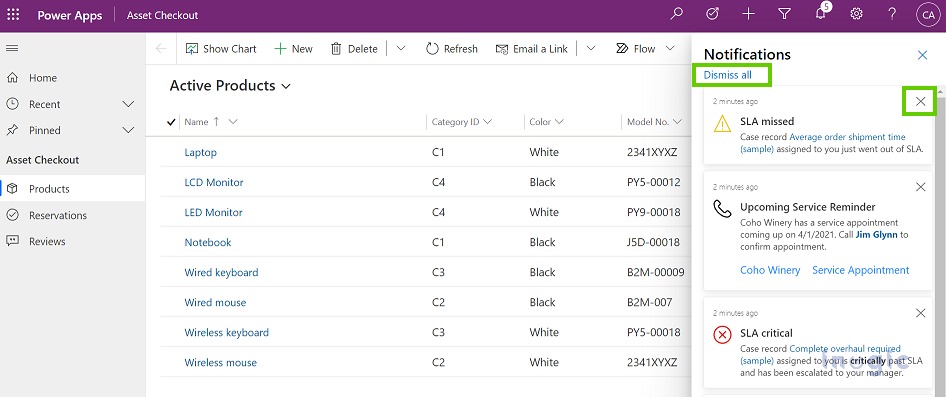
CRM In-App Notifications: In-app notifications appear in the notification center, where they are stored until you dismiss them. By default, these notifications have a 14-day lifespan, although the expiration date can be customized by your system administrator. To dismiss a single notification, simply click the close X button. For a swift clearing of your notification center, opt for ‘Dismiss all’ to dismiss and remove all notifications at once.
Dynamics 365 Sales Alerts_ Native Notifications vs. Alerts4Dynamics

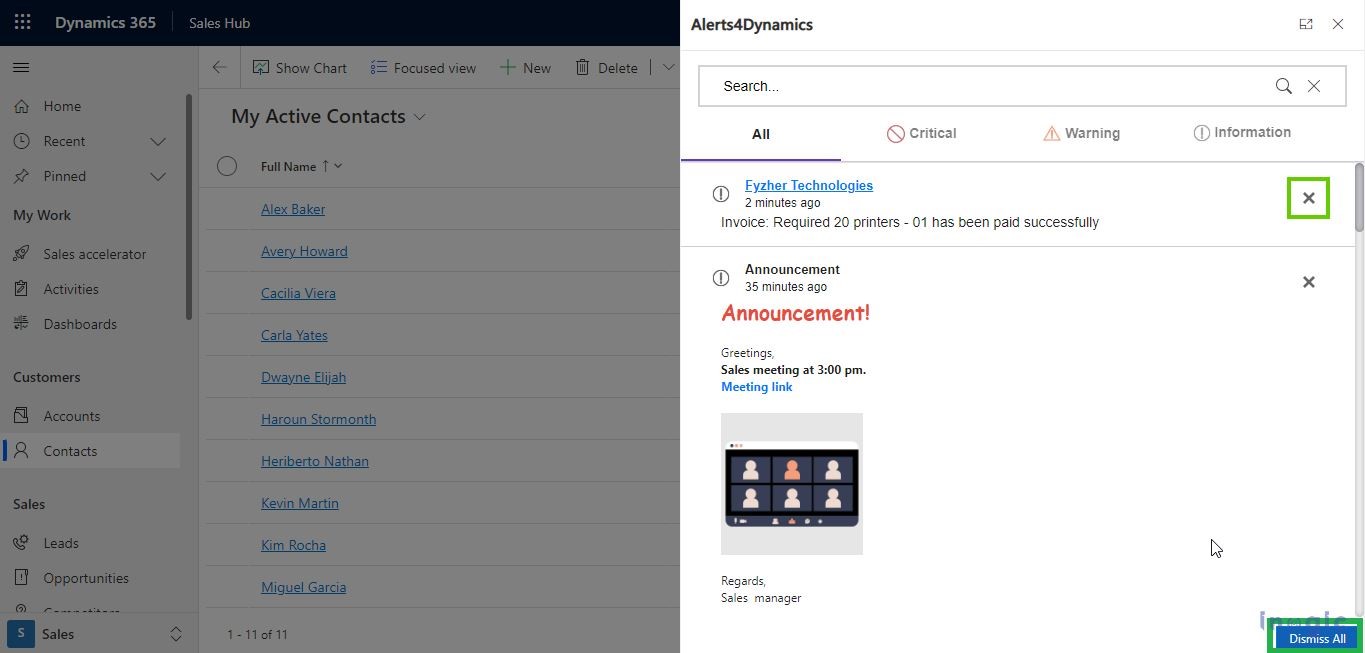
Alerts4Dynamics: Alerts4Dynamics includes the above features of dismissing the alerts and also comes with more nuanced customization. The app also enables you to configure notifications to automatically get dismissed once the record moves out of the rule/condition defined while configuring an alert. One can even set the notifications as non-dismissible.
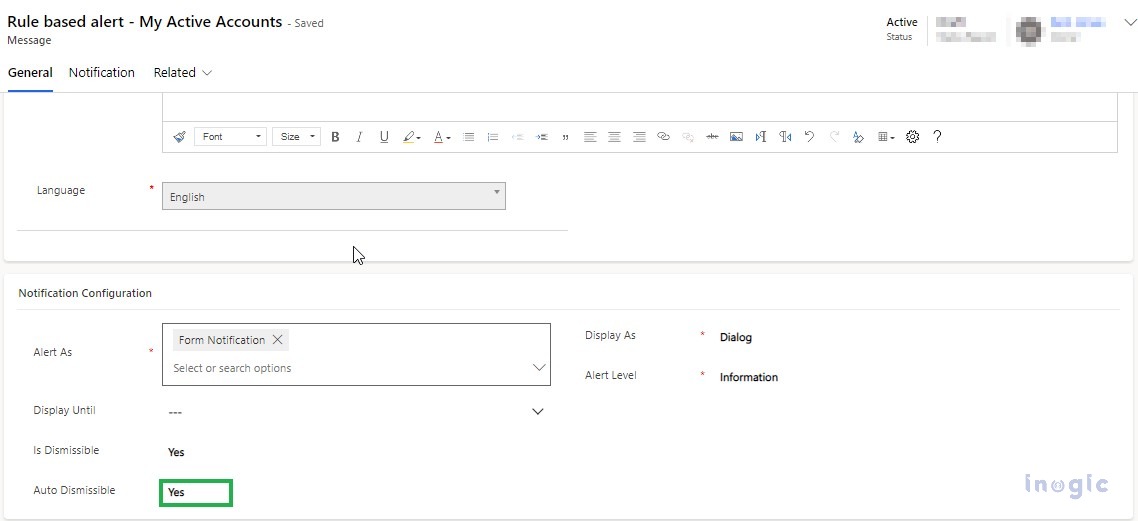
Dynamics 365 Sales Alerts_ Native Notifications vs. Alerts4Dynamics

Dynamics 365 Sales Alerts_ Native Notifications vs. Alerts4Dynamics

6. Alert and Notification Level

CRM In-App Notifications: In-App notifications allow you to signify the priority level of a notification with different icons on individual notifications that denote different alert levels, i.e., informational, mention, success, failure, or warning.
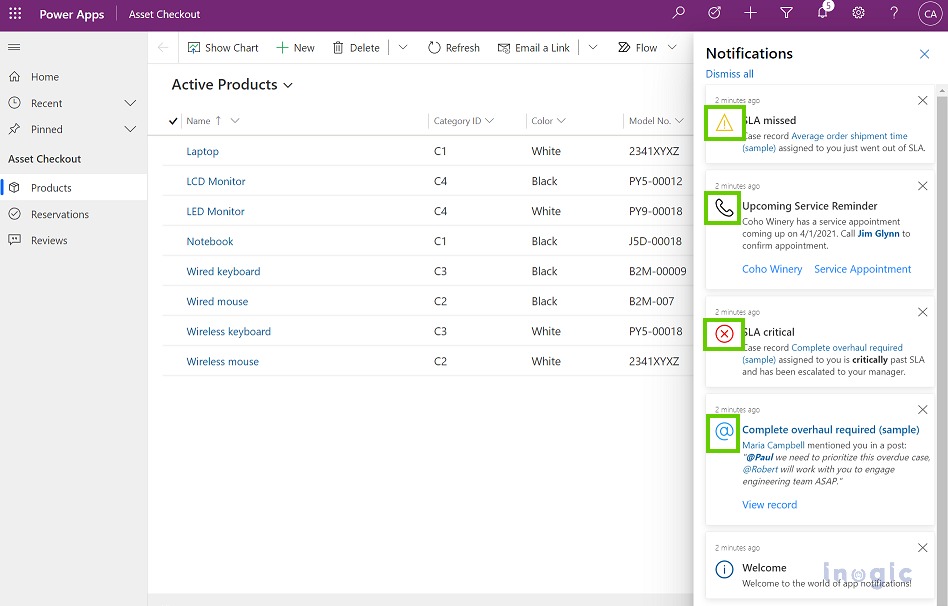
Dynamics 365 Sales Alerts_ Native Notifications vs. Alerts4Dynamics

Alerts4Dynamics: Empowers users to effortlessly classify alert levels into three categories: Information, Warning, or Critical, during the configuration process. This feature enables CRM users to effectively prioritize alerts according to their urgency, gaining a clear understanding of their significance. Alerts4Dynamics enhances user experience by presenting notifications on the alert panel, strategically organized into distinct sections based on priority levels. This intuitive design ensures a seamless navigation experience, allowing users to respond promptly to alerts based on their criticality.
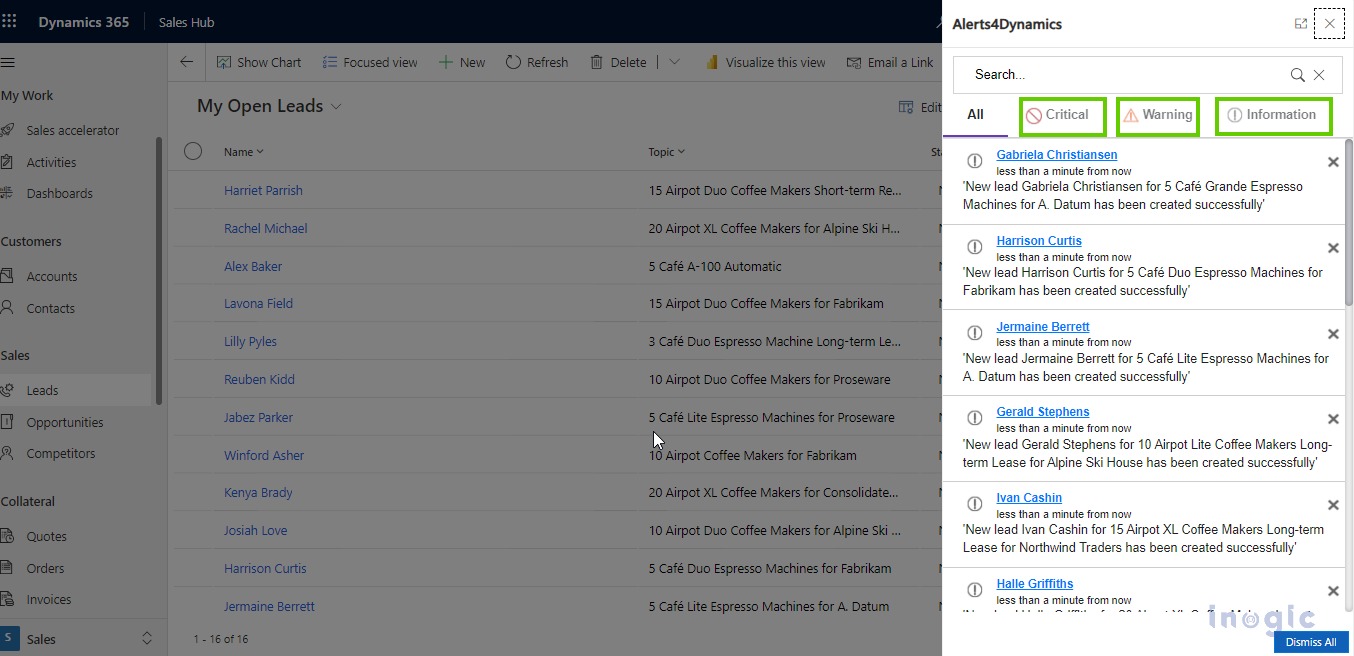
Dynamics 365 Sales Alerts_ Native Notifications vs. Alerts4Dynamics

So, these were some of the key functionalities of the Alerts4Dynamics app and Microsoft Dynamics 365 CRM In-App notifications. They can help you streamline sales communication in CRM.

Now that we have talked about some of the common features between CRM’s inert notification system and Alerts4Dynamics and shown you why Inogic’s app fills the unintentional white spaces, let us check out some of the unique features of Alerts4Dynamics. These take alerts and notification management to a whole another level.

  1. Rule Based Alerts: A Rule-Based alert in CRM is generated in response to specific conditions and is classified into two types: Simple and Advanced. Simple alerts are created based on system views associated with the selected Entity Configuration.

On the other hand, Advanced alerts allow users to define conditions for alert generation, such as creating alerts for Invoices with a total amount greater than or equal to $1,000. This dynamic capability enables precise tailoring of alerts to align with specific business needs.
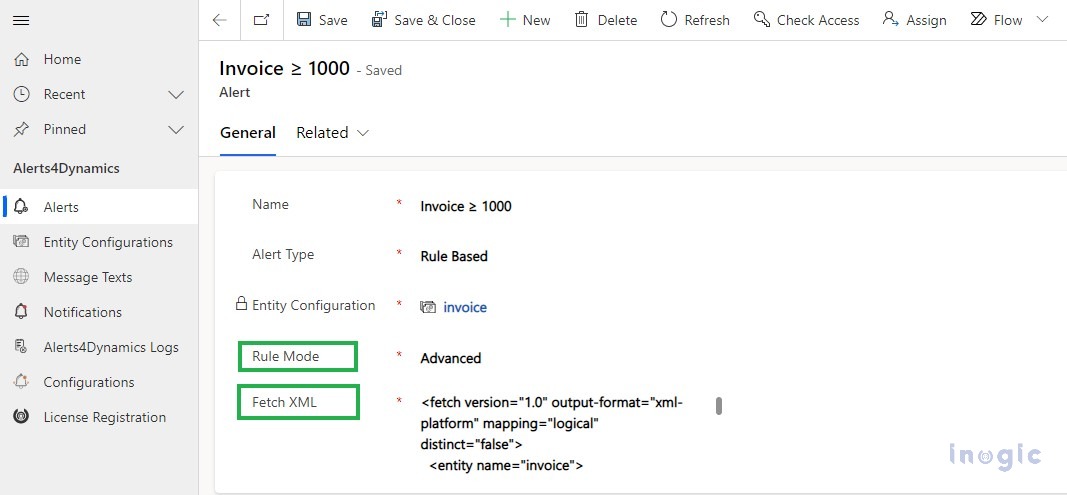
Dynamics 365 Sales Alerts_ Native Notifications vs. Alerts4Dynamics

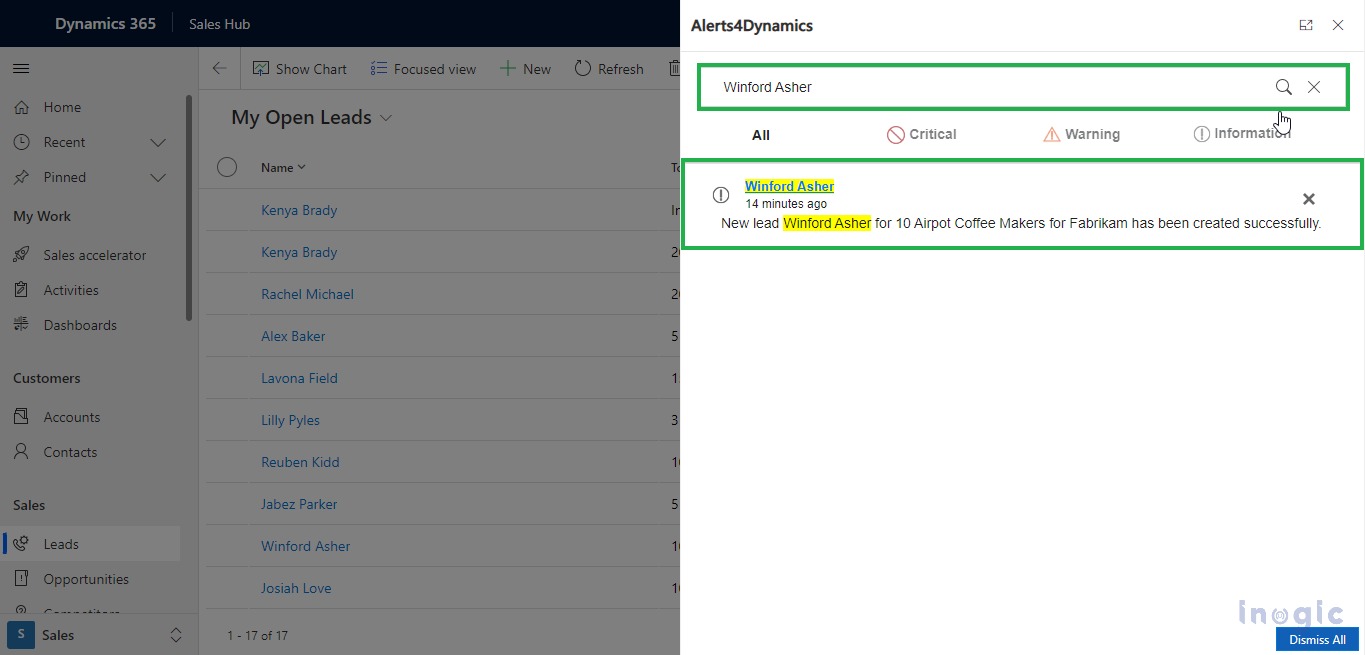
  1. Search Notifications: With notification search bar on the notification panel, you can quickly search for desired notifications, and it will display the desired notifications in real-time.
Dynamics 365 Sales Alerts_ Native Notifications vs. Alerts4Dynamics

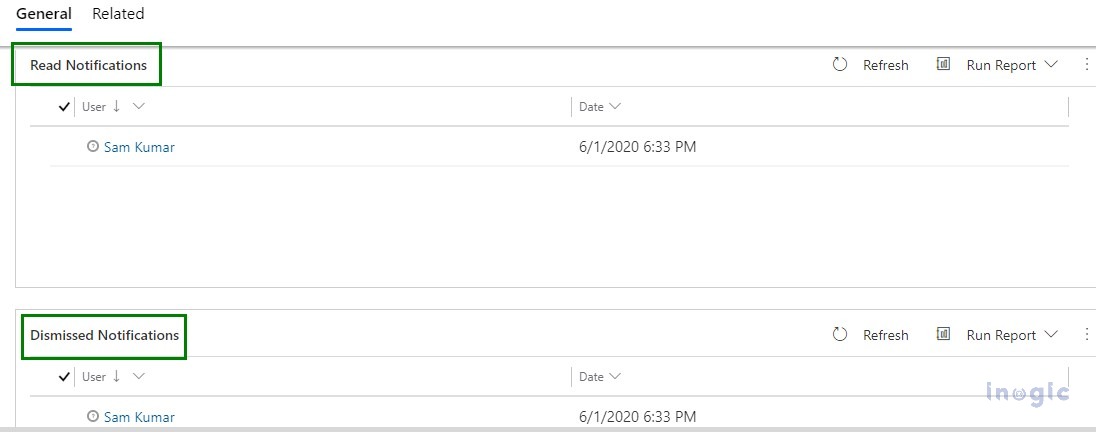
  1. Notification Logs: Alerts4Dynamics allows you to view the log of read/dismissed notifications by users. If you want to know whether a user has read the notification or dismissed it, then you can simply do so by accessing the notification logs.
Dynamics 365 Sales Alerts_ Native Notifications vs. Alerts4Dynamics

  1. Set User Preference: By using Alerts4Dynamics CRM, users can decide how they want to view an alert, i.e., through pop-ups, form notifications, or email notifications. They can also choose the language they want to receive the message in.
Dynamics 365 Sales Alerts_ Native Notifications vs. Alerts4Dynamics

Never miss a hot lead again. Receive instant notifications on lead updates and close the deal before anyone else. Respond to urgent customer issues promptly with real-time sales alerts.

Conclusion

While Dynamics 365 CRM in-app notifications might be good for a quick shout, Alerts4Dynamics delivers a symphony of information. It’s personalized, powerful, and puts you in control.

To test the app for your organization’s needs, you can download it for a 15-day free trial from our website or Microsoft AppSource.

If you want to explore the app and its features in detail and clear any doubts related to its implementation in Dynamics 365 CRM, then you can mail us at crm@inogic.com to get a personalized demo of the app.

Are you ready to experience the difference? Try Alerts4Dynamics today!

The post Dynamics 365 Sales Alerts: Native Notifications vs. Alerts4Dynamics – Which one is Right for You? first appeared on Microsoft Dynamics 365 CRM Tips and Tricks.
  •  

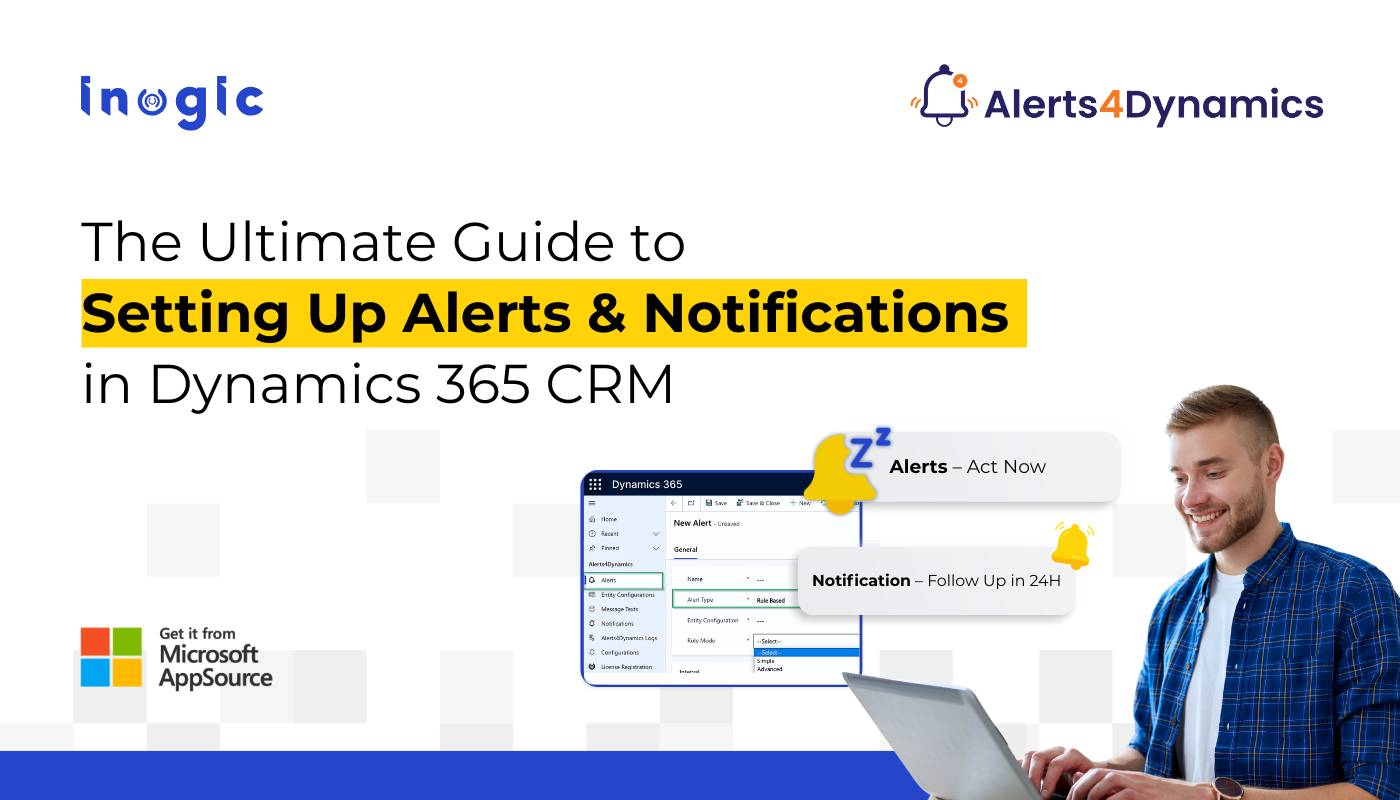
The Ultimate Guide to Setting Up Alerts & Notifications in Dynamics 365 CRM


Alerts & Notifications in Dynamics 365 CRM

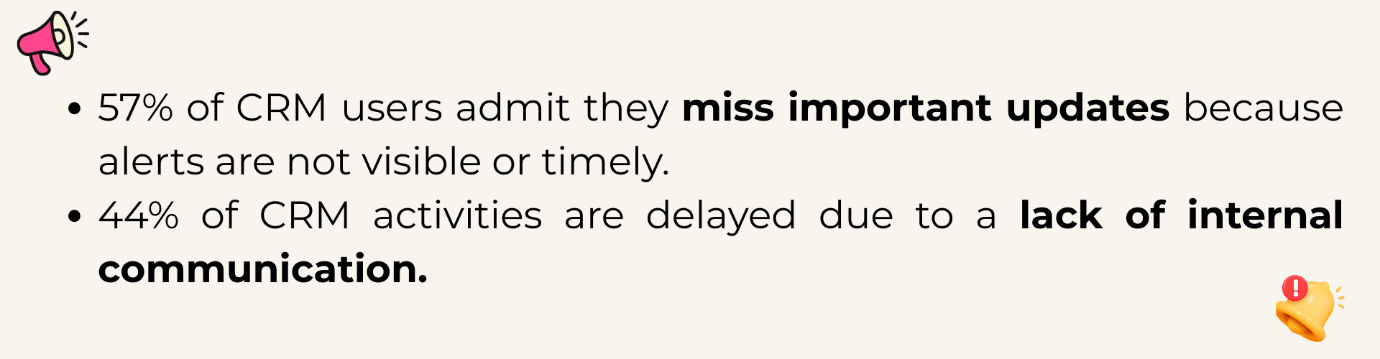
In many businesses, important updates in Dynamics 365 CRM go unnoticed. One delayed update can cost a deal, damage customer trust, or slow down decision-making. Sales teams miss important lead updates, service teams fail to act on escalations, and marketing teams lose track of campaign responses.

Common Challenges Teams Face with Alerts in CRM

  • No real-time alerts inside CRM → missed updates
  • Too many emails → ignored or overlooked
  • No way to alert users based on record changes
  • No support for rich-text messages or multilingual teams
  • Managers do not get notified when targets, deadlines, or SLAs are at risk

Alerts & Notifications in Dynamics 365 CRM

This is exactly why automated alerting is no longer optional; it’s essential.

The Solution: Alerts4Dynamics – The Complete Alert Engine for Dynamics 365 CRM

Dynamics 365 CRM doesn’t offer robust in-app alerts by default.

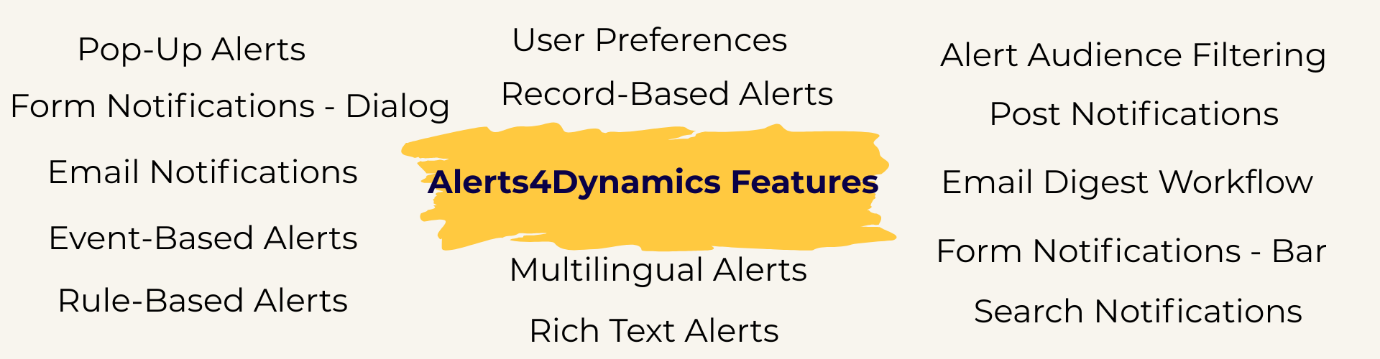
Alerts4Dynamics fills this gap perfectly by supporting pop-ups, form notifications, email alerts, rich text notifications, multilingual content, user preferences, and much more.

Before we dive into the configuration tutorial, let’s explore the key features with practical examples.

Type of Alerts in CRM (With Real Business Examples)

1️. Pop-Up Alerts

Instant notifications that appear in the alerts panel (Bell icon).

Example:

A new lead is created from the website, and the assigned sales rep receives a pop-up alert instantly.

2️. Form Notifications – Dialog

A pop-up box opens automatically when the user enters a record form.

Example:

When entering an Account record with unpaid invoices, users see a dialog warning:

“This customer has 3 overdue invoices. Please review before proceeding.”

Helps service agents make informed decisions instantly.

3️. Form Notifications – Bar

A banner-style alert displayed at the top of record forms.

Example:

A quote nearing expiry shows a yellow bar:

“Quote expires in 3 days. Please follow up with the customer.”

Reduces lost revenue from expired quotes.

4️. Email Notifications

Send alerts directly to internal users or external contacts.

Example:

When an invoice is marked as “Paid,” an email goes to all contacts related to that Account, notifying them about payment confirmation.

Speeds up customer communication without manual emails.

5️. Event-Based Alerts

Trigger alerts when a record is created, updated, or changes status.

Example:

When a case is escalated:

  • The assigned agent gets a pop-up
  • The supervisor gets an email
  • The account manager gets a dialog alert

Ensures immediate action across all departments.

6️. Rule-Based Alerts

Trigger alerts using system views or FetchXML conditions.

Example:

Send alerts for:

  • Opportunities over $50,000
  • Invoices with amount ≥ $1000
  • Accounts without recent interactions

Perfect for automated monitoring of high-impact data.

7️. Record-Based Alerts

Alerts created for individual records.

Example:

A specific quote is expiring in 48 hours → alert only on that record.

Great for one-time reminders.

CRM

Alerts & Notifications in Dynamics 365 CRM

8️. Multilingual Alerts

Display alerts in user’s preferred CRM language.

Example:

English user sees:
“Invoice is overdue.”

French user sees:
“Facture en retard.”

Ideal for global companies.

9️. Rich Text Alerts (Images, Links, Colors, Formatting)

Create visually engaging messages.

Example:

A marketing alert with:

  • Bold text
  • Hyperlink to campaign page
  • Embedded image

Boosts clarity and engagement.

10. User Preferences

Let users choose how they want alerts delivered:

  • Pop-up
  • Email
  • Both
  • Or none

Example:

Sales reps prefer email, service agents prefer pop-ups → Alerts4Dynamics adapts accordingly.

Prevents alert fatigue.

11. Alert Audience Filtering

Show alerts only to selected users, teams, or roles.

Example:

A finance alert is visible only to the finance team, not sales.

Enhances data confidentiality.

12. Post Notifications (Tag Users Like Social Media)

Tag users in Timeline → they receive notifications automatically.

Example:

Support agent tags a sales rep:
“@Bob, please contact this customer regarding renewal.”

13. Email Digest Workflow (Daily/Weekly/Monthly)

Send a summary of unread or active alerts.

Example:

Managers receive a daily digest of:

  • Pending approvals
  • Escalated cases
  • Missed follow-ups

Replaces manual reporting.

1️4. Search Notifications

Quickly find alerts using keywords.

Example:

Sales manager searches “Invoice” to view all invoice-related notifications.

Saves time for high-volume CRM users.

Video Tutorial:

6 Real-Time Alerts Every Sales Team Must Set Up in Dynamics 365 CRM

Step-by-Step Guide: Create an Alert Notification in Dynamics 365 CRM

Step 1 – Open Alerts4Dynamics

Advanced Settings → Alerts4Dynamics → Alerts → New

Step 2 – Choose Alert Type

Record-Based, Rule-Based, or Event-Based

Step 3 – Add Message Text or Rich Text

Add colors, images, links, or formatted text.

Step 4 – Select Delivery Mode

Pop-up, form bar, form dialog, email, or user preference.

Step 5 – Assign Alert Levels

Information, Warning, Critical

Step 6 – Choose Audience

User, team, BU, related records, or entire org.

Step 7 – Activate

Alert becomes live instantly.

Practical Use Cases Across Departments

Sales Use Cases

  • New lead alerts
  • Opportunity stage change alerts
  • Quote expiry warnings
  • High-value deal alerts
  • Renewal reminders

Service Use Cases

  • Case creation alerts
  • SLA breach warnings
  • Escalation notifications
  • Customer dissatisfaction alerts

Marketing Use Cases

  • Event registration alerts
  • Form submission notifications
  • Campaign milestone reminders

Challenges Solved by Alerts4Dynamics

Challenge Impact Solution
Missed data updates Slow response Real-time pop-ups + dialogs
Too many emails Alerts ignored User preference control
No workflow visibility Delayed action Event-based triggers
No multilingual support Miscommunication Multi-language alerts
Poor engagement Alerts overlooked Rich-text notifications

FAQs

1. What are CRM alert notifications?

CRM alert notifications are automated messages that inform users about important updates such as new leads, escalations, deadlines, or record changes. While most CRMs offer basic notifications, tools like Alerts4Dynamics provide advanced real-time pop-ups, form alerts, email alerts, and rich-text messages that ensure nothing gets missed.

2. Why do businesses need alerts in a CRM system?

Alerts help teams respond quickly, reduce missed follow-ups, and stay updated without manually checking every record. A solution like Alerts4Dynamics adds smart, automated alerting to Dynamics 365 CRM, helping sales, service, and marketing teams act instantly.

3. What types of alerts can a CRM send?

CRMs typically support email alerts, reminders, and workflow-based notifications. With Alerts4Dynamics, users can go beyond the basics and send real-time pop-ups, form dialogs, form banners, multilingual alerts, rich-text notifications, audience-filtered alerts, and event-based triggers.

4. How do CRM alerts work?

Alerts trigger based on actions like new record creation, updates, or approaching deadlines. In Dynamics 365 CRM, Alerts4Dynamics makes this easier by allowing no-code configuration of event-based and rule-based alerts that fire instantly when something important happens.

5. Can CRM alerts be customized?

Yes. CRMs allow some customization, but Alerts4Dynamics offers deeper flexibility, colored messages, bold text, images, links, icons, and structured formatting. You can also choose levels like Information, Warning, or Critical.

6. Can I choose who receives CRM alerts?

Absolutely. With Alerts4Dynamics, you can target users, teams, roles, business units, or even related record owners. This ensures alerts reach only the right audience while keeping sensitive information restricted.

7. How do CRM alerts help sales teams?

Sales reps get immediate notifications about new leads, stage changes, high-value deals, and expiring quotes. Alerts4Dynamics helps increase conversions by ensuring reps never miss a follow-up or time-sensitive opportunity.

8. Can CRM alerts help reduce email overload?

Yes. In-app pop-ups in Alerts4Dynamics reduce email dependency. Users can choose how they want to receive alerts: pop-up only, email only, both, or none, helping prevent alert fatigue.

9. Does CRM alerts support multiple languages?

Some CRMs offer partial translation support. Alerts4Dynamics goes further by auto-displaying alerts in the user’s preferred CRM language, making it ideal for global teams.

Final Thoughts: Make Dynamics 365 CRM Smarter with Alerts4Dynamics

Alert automation transforms how your teams communicate.
With Alerts4Dynamics, you empower your organization to:

  • React faster
  • Communicate smarter
  • Boost productivity
  • Improve customer experience
  • Reduce missed follow-ups
  • Deliver timely updates across roles

This is the missing alert infrastructure that Dynamics 365 CRM always needed.

Try Alerts4Dynamics with a 15-day free trial from our website or Microsoft AppSource alert notifications.

Need a live demo? Contact us at crm@inogic.com.

The post The Ultimate Guide to Setting Up Alerts & Notifications in Dynamics 365 CRM first appeared on Microsoft Dynamics 365 CRM Tips and Tricks.
  •  

Your Guide to Adding and Managing Alerts and Notifications in Dynamics 365!

Notifications Dynamics 365!

Want to notify your sales team when a high-value deal lands instantly? Or alert your support agents when a case is escalated?

Missing a key update could mean lost opportunities or unsatisfied customers. That’s why knowing how to add and manage alerts in Dynamics 365 CRM is essential for any modern business team.

That’s where Alerts4Dynamics steps in – a smart app that empowers users to create real-time, multilingual notifications across Microsoft Dynamics 365.

Adding and Managing Alerts and Notifications in Dynamics 365

How to Add and Manage Alerts in Dynamics 365 CRM

Alerts4Dynamics makes it easy to create, schedule, and target notifications. Here’s a simplified process:

1. Install Alerts4Dynamics from AppSource in your Dynamics 365 CRM.

2. Navigate to the app → Alerts section.

3. Choose Alert Type: Event-based, Rule-based, Record-based, Announcement, or Email Digest.

Adding and Managing Alerts and Notifications in Dynamics 365

4. Configure Details:

  • Title
  • Message text or rich text
  • Alert level (Information, Warning, Critical)
  • Delivery methods: Email, pop-up, form notification

5. Define Target Users:

  • Individual user(s)
  • Teams
  • Roles
  • Related record contacts

6. Set Conditions (if applicable):

  • FetchXML for rule-based
  • Status updates for event-based

7. Activate the Alert and monitor delivery.

Understanding the Types of Alerts in Dynamics 365 CRM

Not all alerts serve the same purpose. In Alerts4Dynamics, you can configure five main types of alerts depending on your needs: Event-Based, Rule-Based, Record-Based, Announcement, and Email Digest alerts.

Alert Type Purpose Trigger Mechanism Example
Event-Based Alert Notify users when a specific event occurs Triggered by system events (e.g., record update) Alert when a Case is escalated
Rule-Based Alert Trigger alerts based on conditions or filters Based on system views or FetchXML Alert for Invoices over $1,000
Record-Based Alert Alert related to a specific record Manual or workflow-based “Follow up with Lead ABC”
Announcement Alert Organization-wide broadcast messages Manually triggered by admin “CRM maintenance on Friday”
Email Digest Alert Summarized alerts in one email Time-based (daily, weekly, monthly) “You have 6 unread alerts”

Use Case Summary:

  • Real-time workflow updates? → Event-Based
  • Filter records? → Rule-Based
  • Track one record? → Record-Based
  • Company news? → Announcement
  • Avoid alert fatigue? → Email Digest

Dynamics 365 Pop-Up Alerts and Notification Modes

You can deliver alerts in various formats for maximum visibility and personalization:

  • Pop-Ups: Appear via the global notification bell. Ideal for quick updates.
  • Form Notification – Dialog: Alert pops up when opening a record.
  • Form Notification – Bar: Message shows as a bar at the top of the form.
  • Email Notifications: For external users or non-CRM-based alerts.
  • User Preference: Let users choose how they want to receive alerts.

Example: A Sales Rep can opt for email alerts, while a Support Agent prefers pop-ups.

Multi-Language Support in Alerts

Need to alert a global team? You can create one alert message in multiple languages and deliver it based on each user’s CRM UI language preference.

For example:

  • French-speaking users receive: “Le devis est approuvé”
  • English-speaking users see: “The quote has been approved”

Post Notifications: Tag and Alert Users on Timeline

With Post Notifications, you can tag users directly from record timelines and send them personalized or workflow-based messages.

Example Use Cases:

  • @Bob: “Please follow up with this contact.”
  • Tag @SupportTeam weekly via workflow: “Weekly check-in due today.”

Frequently Asked Questions (FAQs)

  1. How do I add and manage alerts in Dynamics 365 CRM?

Use the Alerts4Dynamics app to configure various types of alerts via workflows or manual settings. You can send them via pop-ups, form dialogs, or email.

  1. Can I use Dynamics 365 pop-up alerts for custom entities?

Yes, Alerts4Dynamics supports both out-of-the-box (OOB) and custom entities.

  1. Can alerts be multilingual?

Absolutely! You can create alerts in multiple languages and target them based on the user’s CRM language settings.

  1. How many notifications can I include in an email digest?

You can send up to 100 alerts in a single email digest.

  1. Can alerts be dismissed by users?

Yes, if configured as “dismissible,” users can remove individual alerts or dismiss all at once.

Wrapping Up

Whether you’re managing sales, customer service, or internal operations, mastering how to add and manage alerts in Dynamics 365 CRM is essential for timely action, better communication, and seamless workflow automation.

By using a strategic mix of event-based, rule-based, record-based, announcement, and email digest alerts, you ensure that nothing important falls through the cracks.

Ready to Supercharge Your CRM Alerts?

Try Alerts4Dynamics with a 15-day free trial from our website or Microsoft AppSource for alert notifications.

Watch our video on Alerts4Dynamics to see real-time demos for managing alerts like a pro.

Need a live demo? Contact us at crm@inogic.com.

The post Your Guide to Adding and Managing Alerts and Notifications in Dynamics 365! first appeared on Microsoft Dynamics 365 CRM Tips and Tricks.
  •