Power Up - Upskill Yourself...

Reading view

Run Power FX expressions through PowerApps Component Framework Events: Part 2
Run Power FX expressions through PowerApps Component Framework Events Part 2

Introduction

Just like we explored in Part 1, where Events in the PowerApps Component Framework (PCF) brought new possibilities to Model-Driven Apps, the same feature can be just as powerful in Canvas Apps. With Events, PCF controls can now trigger Power Fx expressions directly, enabling seamless interaction between the Custom UI components and App logic.

This is part 2 of the PCF events series, where we’ll explore how to use Events in PCF to trigger Power Fx expressions in Canvas Apps, with practical examples and real-world use cases to help you apply this pattern effectively.

Scenario: Triggering Power FX Expression through PCF control (Canvas App)

Canvas App offers great flexibility with standard controls (like buttons, dropdowns, sliders), but sometimes you hit UI limitations, such as –

  • No way to create interactive, animated, or visually branded UI components.
  • Lack of complex layout logic, like multi-step chips, dynamic tag selectors, or compact visual pickers.
  • Can’t achieve gesture-based interactions (e.g., swipe, drag, hover preview) using default controls.

These are situations where design or user experience is central to your business logic, and native Canvas App controls just aren’t enough.

Use Case:

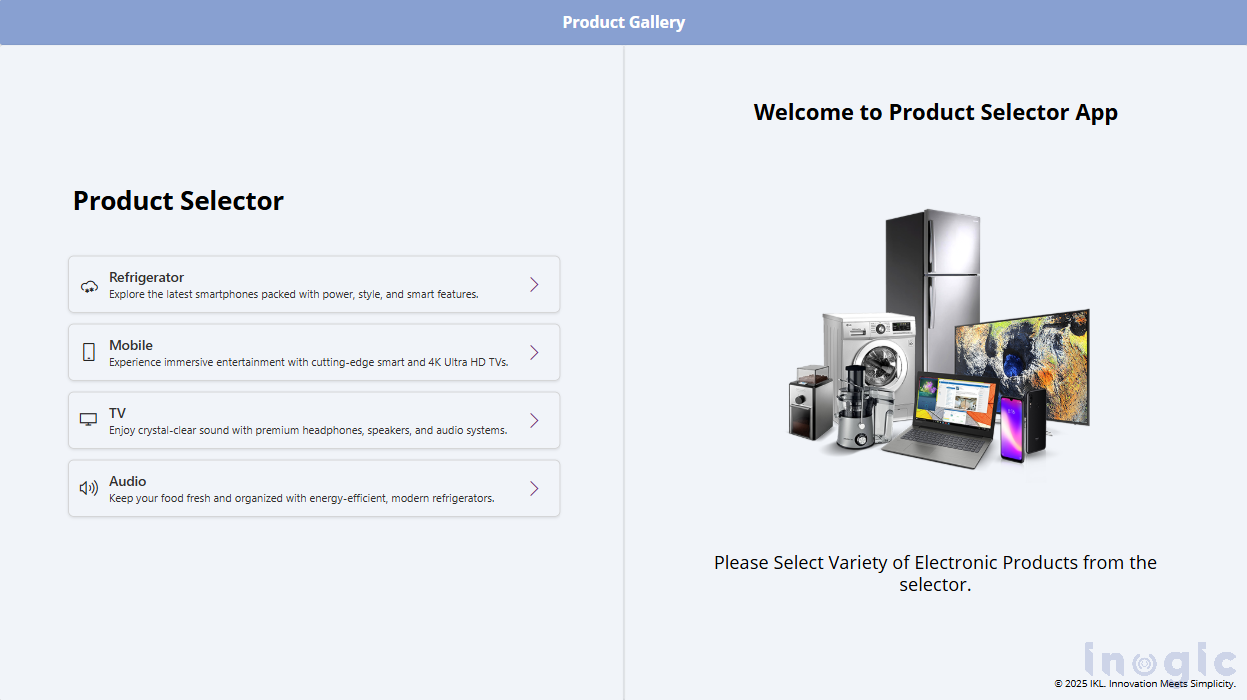
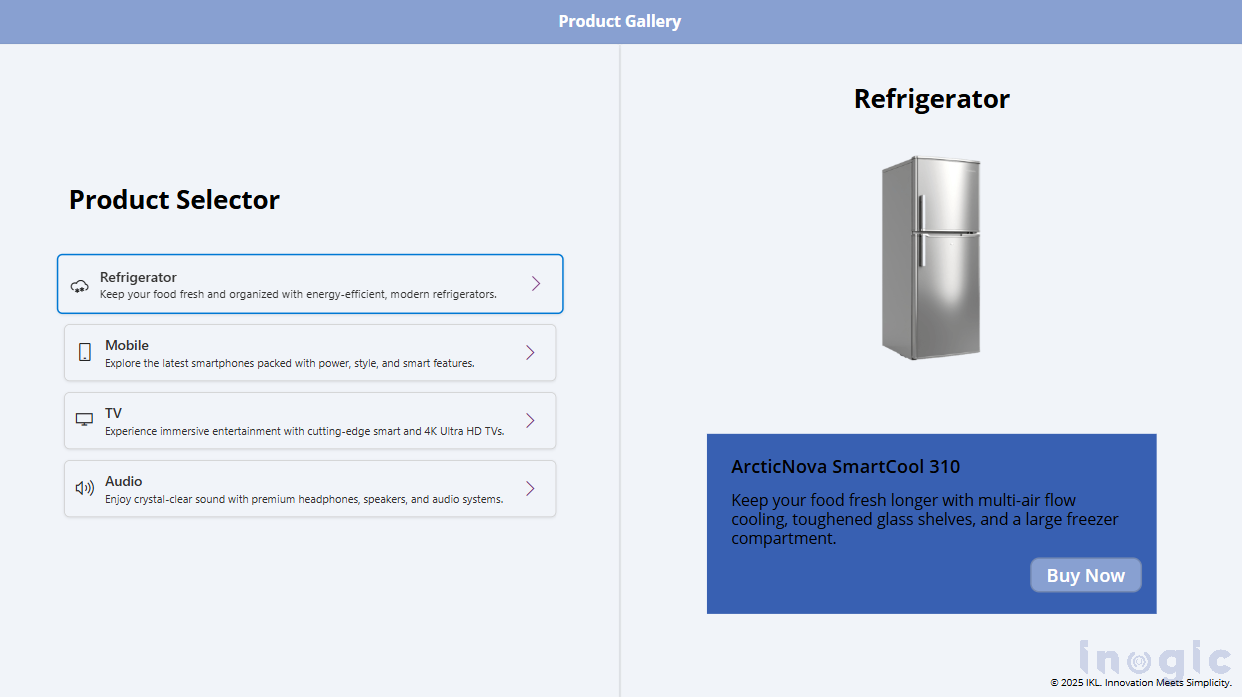
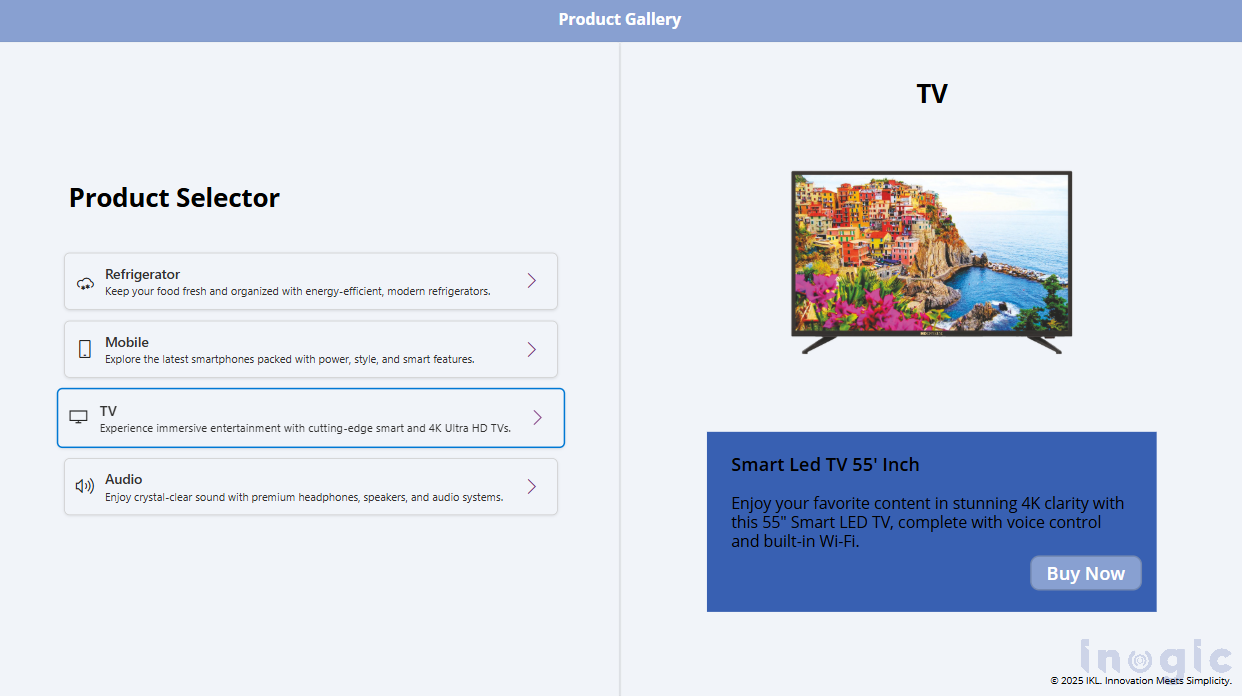
Let’s build a Product Selector Canvas App that includes a PCF Component to display a list of products like Refrigerator, Mobile, TV, and Audio, each with its icon and description. Here’s a screenshot attached below for how the Canvas app looks.
PowerApps Component Framework Events

When the user clicks on a product, the PCF control will trigger a custom event that contains the Power Fx expression, which sets the product name in the Product Gallery that will show the corresponding product.

Let’s start with a step-by-step guide to build this.

Step-by-Step Implementation

Step 1: Define the custom event in the control’s manifest file.

Just like we did for the model-driven app scenario, define the custom event in the ControlManifest.Input.xml:

<event name=”productEventdisplay-name-key=”Product Click Event” description-key=” Triggers when a product is selected” />

Step 2: Add and Trigger the Event in the PCF Control (index.ts)

Within index.ts, pass the event handler via props and invoke it at the appropriate point:

public updateView(context: ComponentFramework.Context<IInputs>): React.ReactElement {

const props: IProductSelectorProps = {

onProductClick: (productName: string) => {

this.selectedProduct = productName; // Update selected product

this.notifyOutputChanged();

context.events?.productEvent(productName);

}
}
return React.createElement(ProductSelector, props);
}

Step 3: Update the React Component (ProductSelector.tsx)

In ProductSelector.tsx, trigger the event when the user interacts with your custom UI like selecting the product:

export interface IProductSelectorProps {

onProductClick: (productName: string) => void;

}

export const ProductSelector: React.FC<IProductSelectorProps> = ({ onProductClick }) => {

//Your existing logic

return(

// Render list of products

<IconButton iconProps={{ iconName: "ChevronRight" }} ariaLabel="Select"

onClick={() => onProductClick(product.name)}
/>
);
}

Step 4: Configure the Canvas App (Power Fx)

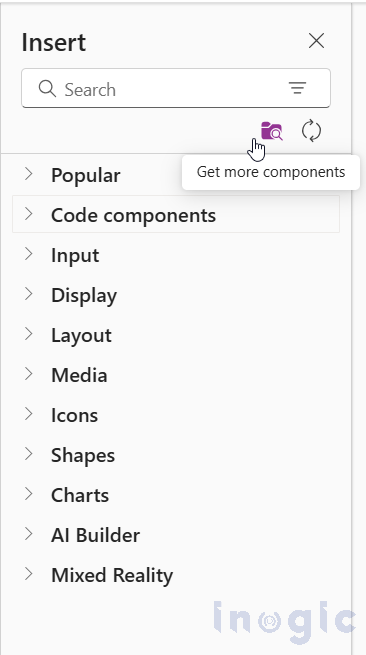
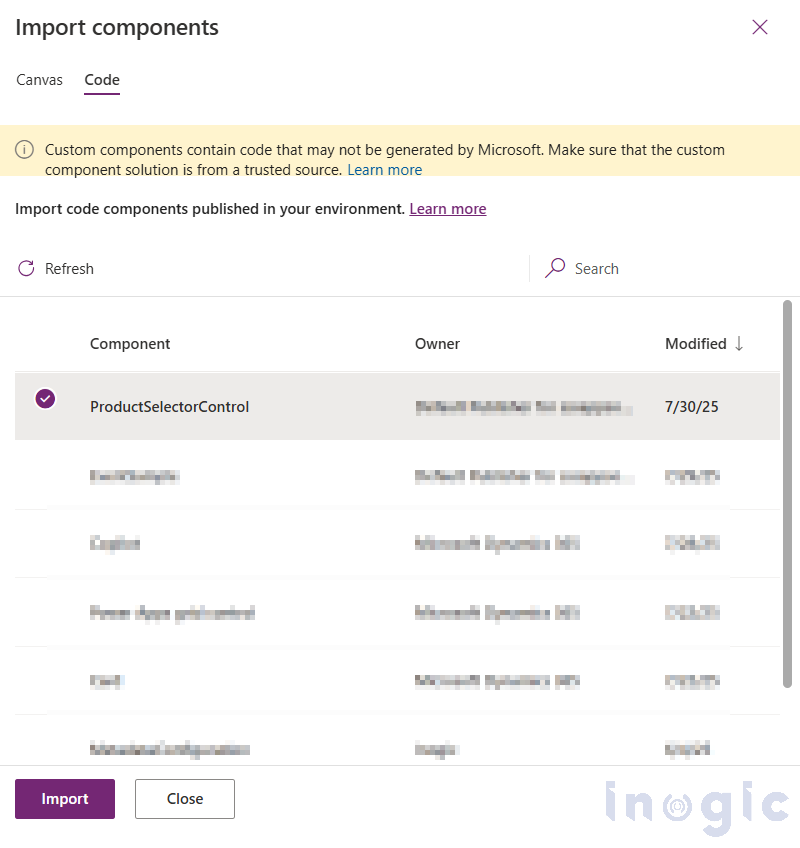
In the Canvas App, add the ProductSelector PCF component and configure it to interact with the app using Power Fx.

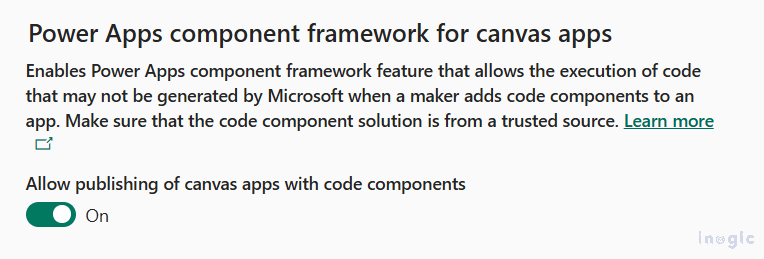
Note: To add the PowerApps Component Framework in the Canvas App, make sure the feature is turned ON in the Power Platform Admin Center. You can find this by navigating to the admin center, selecting the environment, and clicking on Settings. Under the Product select Features option. Here, you will find a list of all the features, including the one we need to turn ON.
Insert the ProductSelector PCF control into your Canvas App.
PowerApps-Component-Framework-EventsPowerApps-Component-Framework-Events

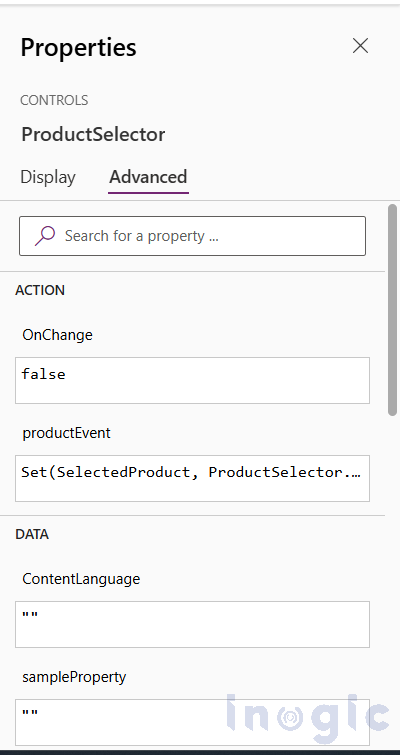
Select the PCF Control and set the productEvent property of the component to update a global variable (SelectedProduct) with the product selected:

Set(SelectedProduct, ProductSelector.productEvent)

You can refer to the screenshot below.
PowerApps Component Framework Events

Result: A Dynamic and Interactive Product Selector

Once configured, your Canvas App will respond instantly to interactions from the PCF control, providing a seamless and dynamic product selection experience. Each product click in the PCF control conditionally displays the corresponding products.

This integration showcases how PCF and Power Fx can work together to overcome Canvas App limitations and deliver a highly customized UI. You can refer to the screenshots below:
PowerApps Component Framework Events

PowerApps Component Framework Events

Conclusion

With the introduction of Events in the PowerApps Component Framework (PCF) for Canvas App, the gap between the Custom UI and App Logic has finally been filled. PCF controls are no longer just static, isolated elements — they can now communicate directly with Power Fx expressions, making the experience far more dynamic and interactive.

The post Run Power FX expressions through PowerApps Component Framework Events: Part 2 first appeared on Microsoft Dynamics 365 CRM Tips and Tricks.
How to Call External Scripts using PowerApps Component Framework Events: Part 1

How to Call External Scripts using PowerApps Component Framework Events

The Power Apps Component Framework (PCF) has long empowered developers to create custom controls for Power Apps, but its interaction capabilities were historically limited.

In model-driven apps, form interactions were confined to some core events, which are OnLoad, OnChange, TabStateChange, and OnSave, tied to the form lifecycle or field updates.

PCF controls could only trigger OnChange by updating a bound field, restricting direct communication with the parent form. Similarly, in canvas apps, PCF controls faced challenges in dynamically interacting with Power Fx expressions or external scripts in a model-driven app.

With the introduction of Events in PCF, these barriers have been significantly reduced. Developers can now define and raise custom events within PCF controls, enabling seamless communication with form scripts in model-driven apps or Power Fx logic in canvas apps.

This blog is part 1 of the PCF events series, where we’ll explore how to leverage Events in PCF to call external scripts in Model-Driven Apps, walk through practical examples, and highlight best practices and use cases to implement these patterns effectively.

Scenario: Calling our Custom Events in Form Script through PCF control (Model-driven App)

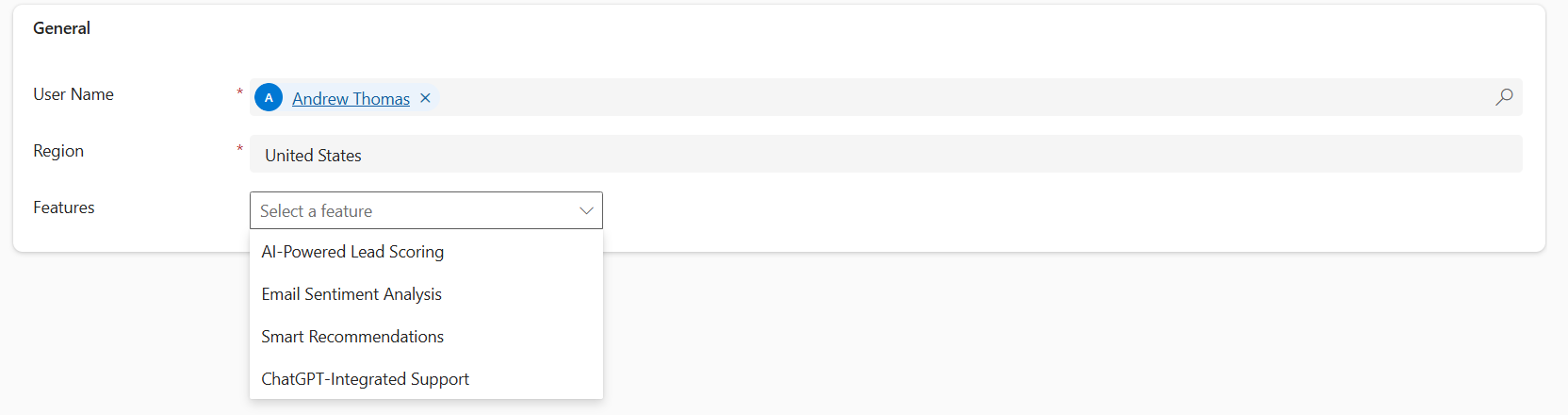
Let’s consider a scenario where an admin configures user-specific features via a User Feature Settings form within CRM. The form includes a PCF component that displays a dropdown of features fetched from a Features List API, including each feature’s name and its supported regions, respectively.

Now, here, instead of binding the onChange event within the CRM, which will require updating our bound field of the PCF control to indirectly trigger form scripts, we created our custom event named featureChange. This event triggers whenever the feature field value changes, allowing seamless interaction of the PCF component within the CRM form itself.

Here is our visual image for our PCF component.

PowerApps Component Framework Events

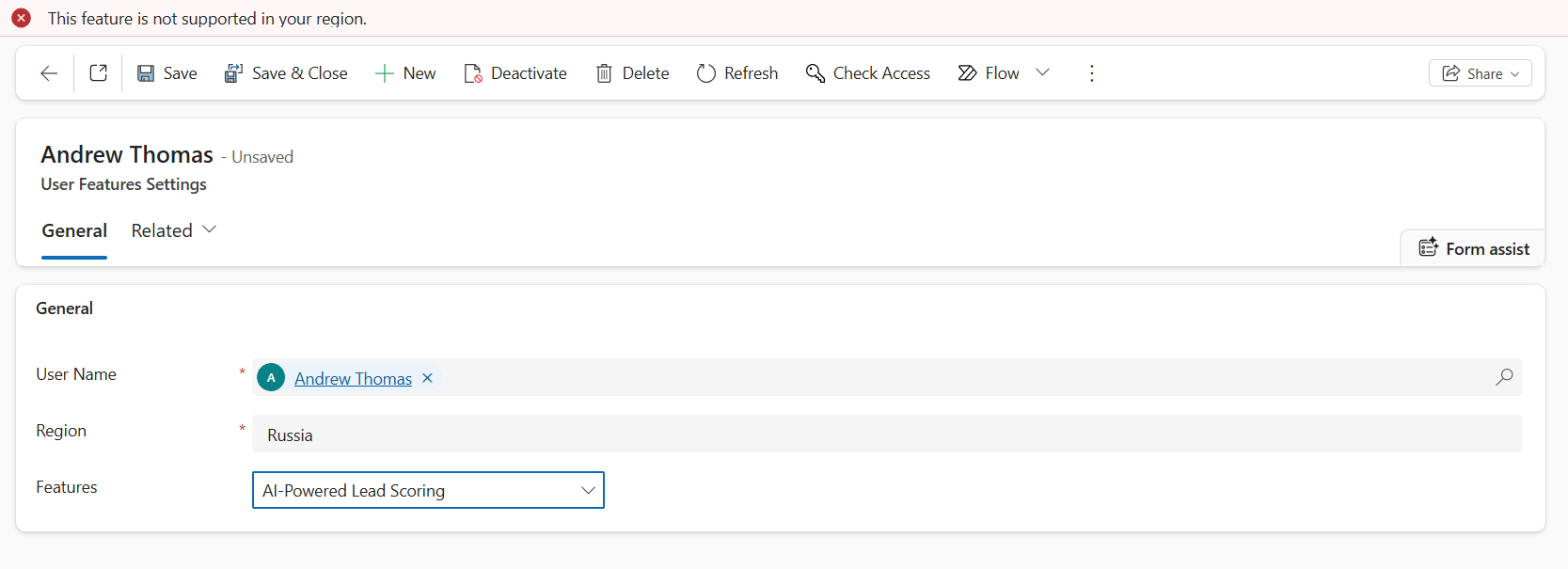
Now, when the admin selects a feature, the form checks if the feature is supported in the user’s region and enables the respective settings. If not, a form-level notification is displayed.

Let’s walk through how to implement events in our PCF control with a step-by-step guide to implement events.

Step-by-Step Implementation

Step 1: Define the Custom Event in the PCF Manifest

Define the custom event that the PCF control will expose. This is done in the same way as we define properties in the ControlManifest.Input.xml. Here’s what the new event declaration looks like:

<event name=”featureChangedisplay-name-key=”featureChange” description-key=”The event to handle feature change.” />

Step 2: Implement the Event in the PCF Control (index.ts)

In index.ts, define a method to fire the event and pass it to your React component via props. Include parameters (e.g., a selected license key) to provide context to the form script.

private handleValidate = () => {
if (this._selectedFeature) {

this._context.events.featureChange({

featureKey: this._selectedFeature,

supportedRegions: this._supportedRegions.map(r => r.toLowerCase()),

});

}

};


private handleFeatureChange= (key: string, supportedRegions: string[]) => {

this._selectedFeature = key;

this._supportedRegions = supportedRegions;

};

public updateView(context: ComponentFramework.Context<IInputs>): React.ReactElement {

const props: IFeatureControlProps= {

featureChange: this.handleValidate,

onFeatureChange: this.handleFeatureChange,

};

return React.createElement(FeatureControl, props);

}

Step 3: Update the React Component (FeatureControl.tsx)

In your React component, define the props interface and bind the event handler to the onChange of the Dropdown. So, when the user changes the option in the Dropdown, the onFeatureChange and featureChange methods will be triggered. The featureChange is the event that we had set in the Manifest file.

export interface IFeatureControlProps{

featureChange: () => void;

onFeatureChange: (selectedKey: string, regions: string[]) => void;

}

export const FeatureControl = (props: IFeatureControlProps) => {

const [selectedKey, setSelectedKey] = React.useState<string | undefined>(undefined);

return (

<div>

<Dropdown options={options} selectedKey={selectedKey}

onChange={(event,option) => {

const key = option?.key as string;

const regions = (option as IFeatureOption)?.data?.supportedRegions || [];

setSelectedKey(key);

props.onFeatureChange(key,regions);

if(key) { props.featureChange(); }

}}

placeholder="Select a feature"

styles={{ root: { minWidth: 200 } }}

/>

</div>

);};

Step 4: Update the Existing Form Script (TypeScript Web Resource)

Update your existing web resource to handle the featureChange event. Register it on the form’s on-load event to attach the event handler to the PCF control. So, when the event is triggered from the PCF control, it invokes the method defined in this script –

namespace IKL{

export namespace FeatureControl {

export class CheckFeature {

private readonly controlName = "sha_features";

public onLoad(executionContext: any): void {

let formContext = executionContext.getFormContext();

let featureControl = formContext.getControl(this.controlName);

if (featureControl ) {

featureControl.addEventHandler("featureChange", (params: any) => {

this.onFeatureChange(params, formContext);

});

}

}

public onFeatureChange(params: any, formContext: any): void {

//Here, our logic for enabling settings and showing form-level notification will come.

}

}

}

}

let featureValidate = new IKL.FeatureControl.CheckFeature();


Summary: What’s Happening Here:

  • We define a custom event (featureChange) in the manifest file.
  • In the PCF control, we fire that event from the React Component when the user selects/changes the dropdown option.
  • The JavaScript Web Resource present on the CRM Form listens for that event and executes the logic.

Time to See It in Action

Now that everything is wired up, event in the manifest, handler in the control, and logic in the form script, you’re ready to test it. Load up your form, interact with the control, and watch how your external script reacts instantly. Smooth, seamless, and finally possible thanks to the PCF Events!

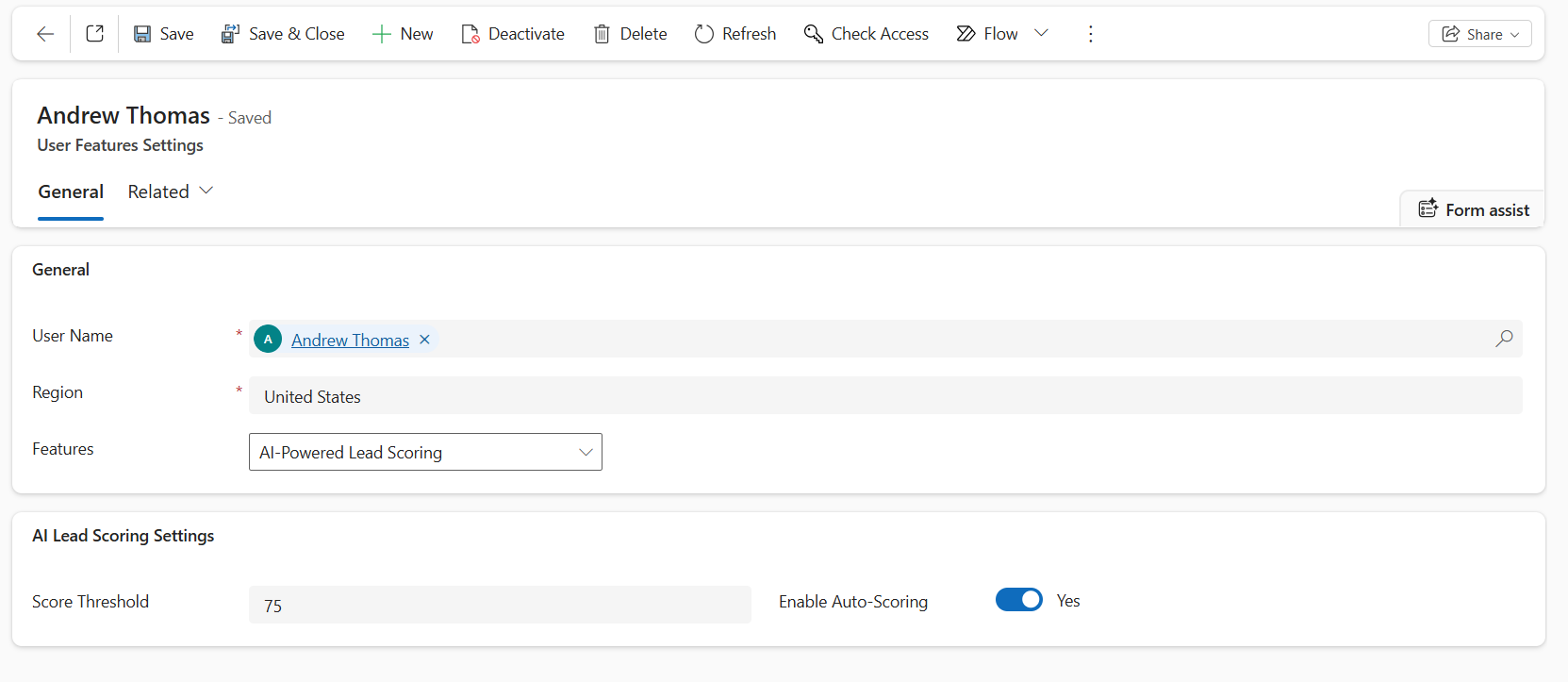
Now, based on the user’s selected feature, the PCF control’s FeatureChange event enables the corresponding settings. Refer to the screenshots below for a better understanding.

PowerApps Component Framework Events

PowerApps Component Framework Events

Conclusion

The introduction of Events in PowerApps Component Framework (PCF) has extended its limits of what developers can do with the field-level controls. What once seemed to be a rigid, isolated environment now has a more interactive and integrated ecosystem, allowing PCF controls to communicate directly with the Parent Form.

Whether you’re triggering form script events or updating related fields, Events are a bridge between the PCF control and the CRM form. This capability of Events not only simplifies complicated workarounds but also promotes cleaner, more consistent, and maintainable code.

As you design your next PCF control, consider leveraging Events to create more powerful, flexible, and context-aware experiences across model-driven apps.

The post How to Call External Scripts using PowerApps Component Framework Events: Part 1 first appeared on Microsoft Dynamics 365 CRM Tips and Tricks.
❌