Power Up - Upskill Yourself...

Reading view

How to Integrate Dynamics 365 to Replicate CRM Security Permissions with SharePoint
How to Integrate Dynamics 365 to Replicate CRM Security Permissions with SharePointIntegrating Dynamics 365 CRM with SharePoint is essential for modern document management. But most organizations overlook a critical issue until it’s too late:

Your CRM security model does not extend to SharePoint.

When you use the out-of-the-box Dynamics 365 SharePoint integration, ALL users can see ALL documents in SharePoint, regardless of the security roles you have carefully configured in Dynamics 365 CRM. Your CRM permissions simply do not carry over. A salesperson restricted to their own account records in CRM can freely browse other accounts’ documents in SharePoint. In other words, your document security becomes disconnected from your CRM security model.

This is not a theoretical risk. It is a real data security and compliance issue that affects businesses worldwide, especially those dealing with sensitive customer data, financial records, legal documents, or GDPR-regulated information.

Key Takeaways

  • Native Dynamics 365–SharePoint integration does not carry over CRM security permissions.
  • This creates a serious data exposure risk, where users can access documents they shouldn’t.
  • Microsoft’s native setup enables integration, but does not solve the security gap.
  • SharePoint Security Sync automatically replicates CRM roles and permissions into SharePoint.
  • Any changes in CRM (roles, ownership, teams) are reflected in SharePoint in real time.
  • The result: a secure, unified document management experience with zero manual effort.

In this guide, you’ll learn:

  1. How to set up the native Dynamics 365 CRM and SharePoint integration step by step
  2. How to replicate your CRM security roles and permissions directly into SharePoint, closing the permissions gap permanently

Part 1: Setting Up the Native Dynamics 365 and SharePoint Integration

This section covers the baseline Microsoft server-based SharePoint integration.

Step 1: Enable Server-Based SharePoint Integration

Step 1.1: Navigate to Document Management Settings
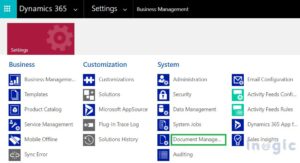
In Dynamics 365, go to Settings (the gear icon at the top right) → Advanced Settings → System → Document Management → Configure Server-Based SharePoint Integration.
How to Integrate Dynamics 365 to Replicate CRM Security Permissions with SharePointStep 1.2: Select SharePoint Online
In the integration wizard, choose Online when prompted for your SharePoint location.
Note: The On-premises option is intended for Dynamics 365 On-Premises environments and will be disabled if you are using Dynamics 365 Online.

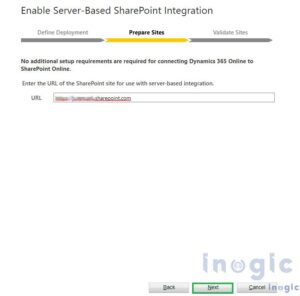
Step 1.3: Enter and Validate Your SharePoint Site URL
Paste the URL of your SharePoint site (e.g., https://yourcompany.sharepoint.com/sites/CRM). Click Next, and the wizard will validate the URL automatically.

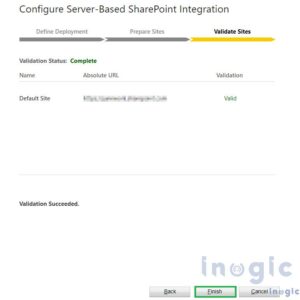
Step 1.4: Complete the Wizard
Once validation passes, click Finish to enable the server-based integration. Important: Once server-based integration is enabled, you cannot revert to client-side integration.
How to Integrate Dynamics 365 to Replicate CRM Security Permissions with SharePoint

How to Integrate Dynamics 365 to Replicate CRM Security Permissions with SharePoint

Step 2: Configure Document Management Settings
After enabling the integration, you need to define which CRM entities will store documents in SharePoint and configure the folder structure.

Step 2.1: Open Document Management Settings
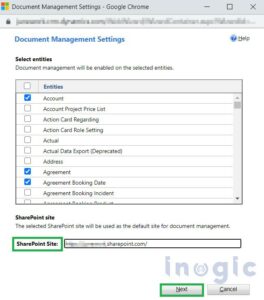
Return to the Document Management screen and click Document Management Settings. A wizard will open where you can select which entities (e.g., Account, Contact, Opportunity, Case) will have SharePoint document storage enabled.

Step 2.2: Select Entities

Check all entities for which you want to store documents in SharePoint. You can follow the defaults suggested by the wizard or customize based on your business processes. Click Next when ready.

Step 2.3: Validate the SharePoint URL Again

Re-enter and validate your SharePoint site URL. Once marked as valid, proceed to the next step.

Step 2.4: Define Folder Structure
Choose how folders will be organized in SharePoint.

Step 2.5: Finish
Click Finish. The wizard creates document libraries in SharePoint for your selected entities. You will see a Documents tab appear on those entity records in Dynamics 365.
How to Integrate Dynamics 365 to Replicate CRM Security Permissions with SharePoint

Your integration is now live, but your data is still exposed.
SharePoint does not respect your Dynamics 365 security model.

This builds urgency to continue reading.

Part 2: Configuring SharePoint with Dynamics 365 CRM to Replicate CRM Permissions

To close this security gap, you need a solution that synchronizes CRM security with SharePoint in real time.
SharePoint Security Sync by Inogic is a purpose-built Dynamics 365 app that automatically syncs CRM security privileges with SharePoint without any additional cost to purchase a VM machine or Azure credits.
Any change to a user’s security role in Dynamics 365 is automatically reflected in SharePoint, with no manual work required.

Step 1: Connector Configuration — Connecting to Your SharePoint Site
The Connector is the link between Dynamics 365 and your SharePoint site. SharePoint Security Sync supports multiple connectors, allowing you to connect to multiple SharePoint sites (e.g., SharePoint_1, SharePoint_2, SharePoint_3), each pointing to a different SharePoint site URL.

Step 1.1: Create a New Connector
Navigate to the SharePoint Security Sync App in Dynamics 365. Click on the Connectors entity in the left navigation, then click New to create a new Connector record.

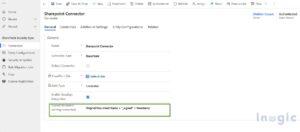
Step 1.2: Fill in Connector Fields
Populate the following required fields:

  • Name: Give your connector a clear name (e.g., SharePoint_Primary)
  • Connector Type: Select SharePoint from the dropdown
  • Default Connector: Enable this checkbox if this is your primary connector
  • SharePoint Site: Select the valid SharePoint site URL where files will be stored

Note: Each connector must point to a unique SharePoint site. You cannot reuse the same SharePoint site across multiple connectors.

Step 1.3: Select Authentication Type

  • App (Azure AD App Registration): Authentication via Azure Active Directory app. When any action is performed, the logged-in user’s name appears, providing true user-level audit trails.
How to Integrate Dynamics 365 to Replicate CRM Security Permissions with SharePointStep 1.4: Authenticate the Connector
Once the Connector record is saved, click the Authenticate button on the command bar.

This button is only visible to users with System Administrator or SharePoint Security Sync Administrator roles.

Once authenticated, it will show a pop-up for successful authentication.

Step 2: Configuration for Mapping CRM Entities to SharePoint

Entity Configuration defines which Dynamics 365 entities (Account, Contact, Opportunity, Case, etc.) are connected to SharePoint through a specific connector, and how their documents are handled.

Step 2.1: Navigate to Entity Configurations
Go to SharePoint Security Sync → Entity Configurations, and click New. Alternatively, open your Connector record and click on the Entity Configuration tab, then click + New.

Step 2.2: Fill in the General Tab
Populate these fields:

  • Connector: Select the connector you created in Step 1
  • Entity Name: Choose the CRM entity (e.g., Account, Opportunity)
  • Attachment Action:
    – Copy: Attachment is copied to SharePoint; the original remains in CRM
    – Move: Attachment is migrated out of CRM to SharePoint permanently
    – None Selected: Attachments stay in CRM, but the Attach2Dynamics document UI is still available
  • Override Files: If enabled, uploading a file with the same name replaces the existing file. If disabled, a new versioned copy is created.
  • Auto Create Folder: Set to Yes to automatically create a SharePoint folder for each new record in this entity.

Step 2.3: Configure Custom Folder Structure (Optional)
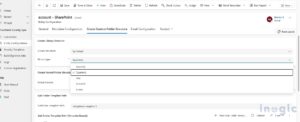
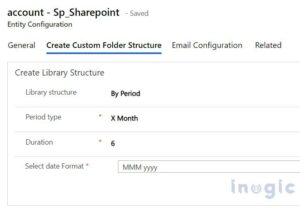
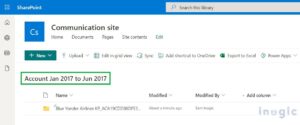
SharePoint Security Sync allows you to define exactly how document libraries and record folders are organized in SharePoint. In the Create Custom Folder Structure tab:  Library Structure options:

  • By Period: Libraries created based on date periods (Monthly, Quarterly, Yearly, or custom X Month / X Year inter
How to Integrate Dynamics 365 to Replicate CRM Security Permissions with SharePoint

  • By Starting Character: Libraries named based on the first character of a chosen field
  • Custom: Libraries named based on the full value of any chosen field (text, option set, or lookup). Record Folder Format: Use any combination of field logical names in curly braces and static text.

For example: {name} Documents would create a folder named after the record’s name, followed by the word ‘Documents’.
How to Integrate Dynamics 365 to Replicate CRM Security Permissions with SharePoint

How to Integrate Dynamics 365 to Replicate CRM Security Permissions with SharePointStep 2.4: Save the Entity Configuration
Click Save. The security privilege synchronization for this entity will begin automatically the next time a user accesses the Files tab or clicks the Attach2Dynamics button on a record of this entity type.

Step 3: Configuring Hierarchy-Based Folder Structure (Optional)

If you want documents from related entities (e.g., Opportunities linked to an Account) to be stored in a hierarchical folder structure in SharePoint, you can configure this through Dynamics 365 Document Management Settings.

Step 3.1: Set Up Hierarchy in CRM
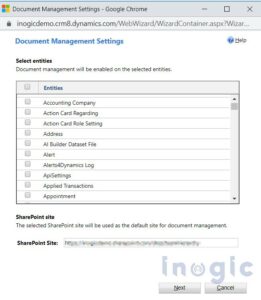
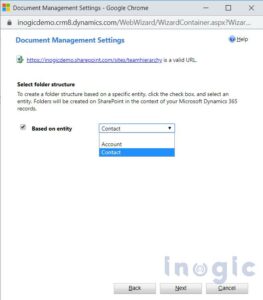
In Dynamics 365, go to Advanced Settings → Settings → Document Management Settings. Select the entities, enter your SharePoint URL, enable the ‘Based on Entity’ checkbox, and choose Account or Contact as the parent entity. Click Next and then Finish.
How to Integrate Dynamics 365 to Replicate CRM Security Permissions with SharePoint

How to Integrate Dynamics 365 to Replicate CRM Security Permissions with SharePoint

Step 3.2: Configure Entity Configuration for Hierarchy
In SharePoint Security Sync, create or edit an Entity Configuration for the related entity (e.g., Opportunity). In the Folder Structure Fields field, which appears when hierarchy is configured, select the parent entity (Account or Contact). Click Save.

Conclusion

Without security synchronization, SharePoint becomes a blind spot in your CRM architecture.
With the right setup, it becomes a secure extension of your Dynamics 365 environment.

Integrating Dynamics 365 CRM with SharePoint is one of the most impactful steps you can take to improve document management, reduce CRM storage costs, and enhance team collaboration. The native Microsoft integration makes this connection easy to establish, but it leaves a critical security gap that puts your sensitive data at risk.

SharePoint Security Sync by Inogic closes that gap permanently by automatically replicating your CRM security roles, business unit structures, and record-level access controls into SharePoint.

The good news is, you don’t need to purchase any Azure credits or additional VMs.

The result is a secure, unified environment where what users can see in CRM exactly matches what they can access in SharePoint, automatically, in real time, with no manual administration overhead.

Learn More & Get Started

Explore the full SharePoint Security Sync tool from the Inogic Website or Microsoft Marketplace. For enterprise licensing, demos, or technical queries, reach out to the Inogic team at crm@inogic.com.

The post How to Integrate Dynamics 365 to Replicate CRM Security Permissions with SharePoint first appeared on Microsoft Dynamics 365 CRM Tips and Tricks.
SharePoint Security and Metadata Management: A Complete Guide for CRM

Did you know that over 60% of organizations struggle with managing document access and permissions across CRM and SharePoint?

For instance, imagine a marketing manager, Emma, who handles dozens of client proposals stored in SharePoint. She spends hours manually assigning permissions to ensure sensitive documents aren’t exposed to the wrong people. Not only is this process time-consuming, but it’s also prone to human error, leaving critical data vulnerable.

Now, imagine a system where permissions and metadata sync automatically with Dynamics 365 CRM, ensuring the right people have access to the right documents at the right time. This is where automating SharePoint security and metadata management becomes a game-changer.

SharePoint Security and Metadata Management

In this blog, we’ll explore how to streamline your document management, improve security, reduce manual errors, and boost productivity using SharePoint Security Sync.

Why Metadata Management and Security Sync Matter in CRM

Organizations today manage thousands of documents, emails, and records. Without proper metadata and security controls, several issues arise:

  • Sensitive documents may be accidentally exposed.
  • Teams spend hours manually assigning permissions.
  • Compliance risks increase, particularly in finance, healthcare, and legal sectors.

SharePoint Security and Metadata Management

Metadata management and security sync provide solutions:

  • Consistent permissions: Users see only what they’re authorized to access.
  • Improved searchability: Metadata allows users to filter and find documents quickly.
  • Regulatory compliance: Secure data handling helps meet industry standards.
  • Operational efficiency: Automates repetitive tasks, freeing up time for high-value work.

Challenges of Manual SharePoint Security and Metadata Management

Managing SharePoint and CRM manually comes with multiple challenges:

  1. Time-consuming manual updates
    Assigning permissions for each document individually is tedious and inefficient.
  2. Inconsistent metadata tagging
    Without a standardized system, teams may use different naming conventions, making it hard to locate files.
  3. Access errors and compliance risks
    Human error can expose sensitive information to unauthorized personnel.
  4. Scalability issues
    SharePoint’s 5,000-item view limit can hinder large document libraries, requiring workarounds like custom folder structures.
  5. Limited visibility for managers
    Supervisors struggle to see if team members have access to the correct documents.

How to Overcome These Challenges

The solution lies in automating SharePoint security and metadata management. Here’s how:

1. Automatically Replicate CRM Security to SharePoint

With SharePoint Security Sync, security roles and permissions from Dynamics 365 CRM are mirrored in SharePoint.

  • Changes to a user’s role in CRM immediately reflect in SharePoint.
  • Ensures consistent role-based access and reduces manual errors.

Example: Emma updates a client record in CRM. Permissions in SharePoint automatically adjust, preventing unauthorized access and saving hours of manual work.

2. Create Custom Folder Structures and Document Libraries

Organize documents by period, activity, or custom fields. SharePoint Security Sync allows:

  • Daily, weekly, monthly, quarterly, or yearly folder structures.
  • Multiple folders for activity-based entities like emails, tasks, or appointments.
  • Efficient handling of SharePoint’s 5,000-item view limit.

3. Metadata Mapping and Filtering

Metadata adds context to your documents, making them searchable and manageable. With automation:

  • Map CRM fields like Account Name, Customer Type, or Region to SharePoint columns.
  • Enable filters to quickly locate documents based on metadata.
  • Maintain consistent metadata across CRM and SharePoint.

Enhancing Document Discovery with SharePoint AI Search

While metadata management and security sync ensure documents are structured and protected, quickly finding the right information remains a key challenge.

SharePoint Knowledge AI Search enhances document discovery by combining Azure AI Search with Copilot for SharePoint. Users can ask natural language questions and receive permission-aware, contextual answers synthesised from multiple SharePoint documents.

4. File-Level Security Syncing

Control access at the file or document level, based on:

  • Users
  • Business Units (BU)
  • Parent-Child Business Units (PCBU)
  • Organization (Org)

Real-time syncing ensures that only authorized personnel can view or edit specific files, safeguarding sensitive data.

5. Bulk Migration and Version Control

Automate the migration of historical CRM records to SharePoint.

  • Retry failed migrations with a single click.
  • Choose to override existing files or save them as new versions.
  • Ensure large-scale document libraries are properly structured and secure.

Best Practices for SharePoint Security and Metadata Management

  1. Define metadata standardsEstablish naming conventions and field types across teams.
  2. Map CRM fields carefully to SharePoint columnsAccurate mapping improves searchability and reporting.
  3. Review access levels regularlyEnsure role-based permissions reflect organizational changes.
  4. Leverage automation tools like SharePoint Security SyncReduces errors, enforces compliance, and saves time.
  5. Train employeesProper usage ensures adoption and maximizes system benefits.

Industries That Benefit Most

  • Finance & Banking: Secure client data and maintain regulatory compliance.
  • Healthcare: Protect sensitive patient records while adhering to HIPAA.
  • Legal & Consulting: Secure contracts, agreements, and case files efficiently.
  • Sales & Marketing: Organize campaigns, proposals, and client documentation.

FAQs: SharePoint Security & Metadata Management in CRM

How to sync Dynamics 365 CRM security roles with SharePoint automatically?

With tools like SharePoint Security Sync, you can automatically replicate CRM security roles to SharePoint. Any changes in user roles, teams, or permissions in Dynamics 365 are instantly updated in SharePoint, ensuring consistent access control and document-level security without manual effort.

How to manage metadata in SharePoint for CRM documents?

Metadata in SharePoint allows you to classify CRM documents based on fields such as Account Name, Opportunity Type, Region, or Status. Using metadata management features in tools like Attach2Dynamics, you can map CRM fields to SharePoint columns, apply filters, and improve document searchability.

Can SharePoint security and metadata be automated for bulk CRM records?

Yes. Bulk migration jobs allow you to move multiple CRM records, emails, and attachments to SharePoint, maintaining metadata and security privileges. Failed migrations can be retried with a single click, making it easier to handle large-scale deployments.

How to maintain file-level security for CRM documents in SharePoint?

File-level sync ensures that access to each file respects CRM security levels such as user-level, BU, PCBU, or organization-level access. This ensures sensitive data remains secure even during real-time or bulk migrations.

How to set up custom folder structures in SharePoint for CRM records?

SharePoint Security Sync allows you to create custom libraries and folders based on periods (daily, weekly, monthly), starting characters, or custom fields. You can also create multiple folders for activity-based entities like emails, appointments, and tasks.

How to map lookup fields from CRM to SharePoint metadata?

You can create a SharePoint list, add a lookup column, and map it to the CRM field in the Metadata Configuration tab. This ensures CRM data relationships are maintained in SharePoint and improves filtering, search, and reporting capabilities.

How to prevent unauthorized access when sharing CRM documents in SharePoint?

SharePoint Security Sync mirrors CRM sharing rules, so if a record is shared or assigned in CRM, permissions in SharePoint update automatically. Users only see documents they are authorized to access, reducing the risk of data leaks.

How to apply metadata filters in SharePoint for CRM documents?

Use the filter icon in the Attach2Dynamics UI to filter by CRM fields such as Account Name, Country, or Customer Type. This helps users quickly locate documents, improving productivity and efficiency.

How to handle version control when migrating CRM documents to SharePoint?

The Override Files feature allows you to choose whether to overwrite existing files or save as a new version. This ensures version history is preserved, while also keeping document libraries organized.

How to integrate electronic signatures with CRM documents in SharePoint?

With DocuSign integration, users can sign SharePoint-stored documents directly from the Attach2Dynamics UI. This feature improves workflow efficiency, reduces paper handling, and maintains compliance for legal and financial records.

How to search CRM documents deeply in SharePoint?

The Deep Search feature allows users to search across all folders and subfolders within SharePoint, based on the current path. This is particularly useful for organizations managing large document libraries with complex folder structures.

How to send CRM documents via email using SharePoint metadata?

Attach2Dynamics allows sending documents as links or attachments. Metadata-based document selection ensures users attach the correct file, and the email body can be customized with default or personalized text.

Key Takeaways:

Automating SharePoint security and metadata management helps organizations:

  • Reduce manual errors
  • Maintain consistent access controls
  • Improve document organization and searchability
  • Comply with regulations
  • Scale efficiently as your document library grows

Whether you’re in finance, healthcare, legal, or sales, implementing automation tools like SharePoint Security Sync can transform the way your team manages documents and CRM data.

Try SharePoint Security Sync today and streamline the way your organization manages documents and data.

Try SharePoint Security Sync with a 15-day free trial from our Website or Microsoft Marketplace.

Prefer a guided walkthrough? Email us at crm@inogic.com.

The post SharePoint Security and Metadata Management: A Complete Guide for CRM first appeared on Microsoft Dynamics 365 CRM Tips and Tricks.

How to Improve SharePoint Online Storage Performance and Maintain Document Security

How to Securely Improve SharePoint Online Storage Performance

Why Do Businesses Hit the SharePoint Online Storage Limit So Quickly?

Because SharePoint is at the heart of Microsoft 365’s collaboration ecosystem, it often becomes a “document dump” before teams realize it. From project files and client proposals to CRM attachments synced from Dynamics 365, storage fills up fast.

💡 Did you know?
The default SharePoint Online storage allocation is 1 TB + 10 GB per licensed user.
Many mid-size Dynamics 365 deployments exceed this within 6 – 12 months if unmanaged.

Result?
Slower sites, upload errors, and unexpected storage costs.

SharePoint Online Storage Performance

What Are the Biggest Challenges with SharePoint Online Storage?

Businesses face three main roadblocks:


Challenge

Impact

Why It Happens

Storage Limit
Teams can’t upload large files or new records SharePoint has fixed per-tenant storage unless extra space is purchased

Permission Management
Risk of unauthorized data access Manual permission updates are inconsistent

Unstructured Data Growth
Redundant and disorganized files Lack of automated folder structuring and syncing from CRM

Example Use Case:

A healthcare provider syncing patient records and imaging files from Dynamics 365 quickly reaches storage limits. Without structured folders or automation, essential files become scattered and difficult to manage securely.

How Can You Overcome SharePoint Storage Limitations?

You don’t need to buy extra storage immediately. Instead, optimize how SharePoint and Dynamics 365 interact.

Here’s how You can :

Securely Manage and Optimize SharePoint Online Storage for Dynamics 365 Attachments with Attach2Dynamics

SharePoint Online Storage Performance

Attach2Dynamics allows you to move or copy Dynamics 365 attachments, emails, notes, and sales literature, directly to cloud storage like SharePoint, Azure Blob, or Dropbox.

  • Frees up Dynamics 365 space instantly
  • Keeps hyperlinks for easy access in CRM
  • Enables bulk migration with scheduled jobs

Watch:

·       Replicate CRM Security in SharePoint with SharePoint Security Sync

One of the biggest pain points? When CRM users have certain access rights, but SharePoint doesn’t match them.

That’s where SharePoint Security Sync steps in.

SharePoint Online Storage Performance

It automatically replicates Dynamics 365 security roles and permissions in SharePoint, ensuring:

  • Consistent access control
  • Automatic privilege syncing (users, teams, roles)
  • Real-time updates whenever CRM security changes

Want to go deeper? Check out our detailed guide: How to Boost SharePoint Performance and Security in Dynamics 365 CRM

·       Structure Your Storage Smartly

Create custom folder structures in SharePoint to overcome the 5,000-item view threshold.

Best practices:

  • Organize folders by record type, date, or project
  • Automate folder creation via Attach2Dynamics
  • Enable metadata tagging for quick searchability

·       Monitor and Optimize Regularly

Use SharePoint’s Storage Metrics to identify which sites or libraries consume most space.
Schedule quarterly audits to clean redundant or archived data.

How Do Attach2Dynamics and SharePoint Security Sync Work Together?

SharePoint Online Storage Performance

Together, they help enterprises:

  • Minimize SharePoint bloat
  • Ensure unified access control
  • Keep CRM and SharePoint in sync, without manual work

What Are the Use Cases for Businesses?

Here’s how different industries benefit:


Industry

Use Case

Benefit

Real Estate
Store property images & client docs securely less storage use

Finance
Manage sensitive statements with synced access Audit-ready compliance

Healthcare
Control patient-related docs securely HIPAA-aligned permissions

Manufacturing
Archive invoices and specs from Dynamics 365 Improved search and traceability

What Happens When You Don’t Optimize?

  • SharePoint storage costs spiral
  • Team productivity drops due to file errors
  • Compliance risks increase
  • CRM performance slows down

How Can You Get Started?

Start small – audit your CRM attachments and SharePoint usage first.
Then deploy tools like:

Attach2Dynamics – for smart storage, attachment migration & cloud integration.
SharePoint Security Sync – for consistent access control between CRM and SharePoint.

FAQs:

How does SharePoint integrate with CRM systems?

SharePoint seamlessly integrates with CRM systems like Dynamics 365 to provide a secure, centralized document management platform. This integration allows users to store emails, attachments, notes, and documents directly in SharePoint while keeping them linked to CRM records. With apps like SharePoint Security Sync, you can automatically replicate CRM security roles, permissions, and access controls in SharePoint.

What are the benefits of using SharePoint with CRM?

Integrating SharePoint with CRM offers multiple advantages:

  • Optimized Storage: Move large attachments from CRM to SharePoint, freeing up CRM storage.
  • Consistent Security: With SharePoint Security Sync, CRM user permissions are mirrored in SharePoint automatically, eliminating manual access errors.
  • Improved Collaboration: Teams can collaborate on documents within SharePoint without compromising CRM security.
  • Efficient Document Retrieval: Metadata tagging and folder structures make finding documents faster and easier.

What are the best practices for managing SharePoint and CRM together?

To maximize efficiency and security when using SharePoint with CRM:

  • Use Security Sync Tools: Automate permission replication from CRM to SharePoint with SharePoint Security Sync.
  • Organize Documents Smartly: Implement folder structures by project, record type, or date. Leverage metadata for quick searchability.
  • Monitor Storage Regularly: Use SharePoint’s storage metrics and conduct quarterly audits to remove redundant files.
  • Automate Attachment Management: Use tools like Attach2Dynamics to migrate attachments to SharePoint while maintaining CRM links.

What are the best data integrity tools for CRM systems?

Maintaining data integrity in CRM systems is crucial for accurate reporting, compliance, and productivity. Some of the top tools include:

  • SharePoint Security Sync: Ensures CRM access privileges are mirrored in SharePoint, maintaining consistent document security.
  • Attach2Dynamics: Automates attachment migration and metadata mapping, preventing duplicate or disorganized files.

How to organize document storage in SharePoint for Dynamics 365 CRM while overcoming the 5000-file limit?

To efficiently organize document storage in SharePoint for Dynamics 365 CRM and overcome the 5,000-file view threshold, use Attach2Dynamics. It allows you to create custom folder structures based on entity type, date, or project and automate folder creation during record sync.

How can I sync security privileges between Dynamics 365 CRM and SharePoint automatically?

You can automatically sync security privileges between Dynamics 365 CRM and SharePoint using SharePoint Security Sync. This app replicates your CRM’s security model in SharePoint by syncing user roles, teams, and access rights in real-time.

How can I integrate Dynamics 365 CRM with SharePoint, Azure Blob Storage, or Dropbox to manage attachments and save storage space?

To integrate Dynamics 365 CRM with cloud storage platforms like SharePoint, Azure Blob Storage, or Dropbox, use Attach2Dynamics. This app allows users to move or copy CRM attachments, emails, and notes directly to the cloud, instantly freeing up CRM storage.

Is there a way to automatically organize attachments from CRM using metadata when moving them to cloud storage?

Yes, Attach2Dynamics supports metadata-based organization for attachments when moving them to SharePoint or other cloud storage. Users can map CRM fields, such as account name, opportunity, or created date, to SharePoint metadata columns. This allows automatic categorization and easy filtering of documents directly within Dynamics 365 CRM.

Final Thoughts: Future-Proof Your SharePoint + Dynamics 365 Integration

Don’t let storage limits or inconsistent permissions slow your business down.

With Attach2Dynamics and SharePoint Security Sync, you can streamline document management, maintain robust security, and scale your cloud storage effortlessly.

Try Attach2Dynamics and SharePoint Security Sync with a 15-day free trial from our Website or Microsoft AppSource.

Prefer a guided walkthrough? Email us at crm@inogic.com.

The post How to Improve SharePoint Online Storage Performance and Maintain Document Security first appeared on Microsoft Dynamics 365 CRM Tips and Tricks.

❌