
Power Up - Upskill Yourself...
❌

Reading view

Step-by-Step Guide: Implementing the Power Pages Summary Component with Dataverse Tables
Power Pages Summary Component with Dataverse Tables

Overview

Microsoft Power Pages continues to evolve as a powerful platform for building secure, low-code, data-driven websites. One of its latest additions, the Summary Component, brings the power of AI summarization directly into portals.

The Summary Component allows developers and makers to automatically generate short, readable summaries from Dataverse data using the Power Pages Web API. This feature helps users quickly understand patterns, trends, and key details without navigating through individual records.

This blog explains the implementation of the Summary Component for the Lead table in the Power Pages portal to summarize key fields such as Full Name, Creation Date, Annual Revenue, Subject, Company Name, Email, and Telephone Number.

Business Use Case

The goal of this implementation is to provide sales managers and team members with a quick overview of lead information directly from the portal without requiring them to open each record.

Traditionally, reviewing leads involves scanning through a detailed list of entries, which can be time-consuming. The new Summary Component solves this by generating a concise, AI-based paragraph summarizing all relevant leads.

Example: Instead of reading a table with multiple columns, the component can generate a statement like:

“In the last month, five new leads were created, including John Carter from Contoso Ltd. and Priya Mehta from Bluewave Technologies, both showing strong revenue potential.”

This not only saves time but also provides instant insight into the business pipeline.

Step-by-Step Implementation of Summary Component

The following steps outline the implementation of Power Pages Design Studio:

Step 1: Open Power Pages Design Studio

Open the Power Pages Design Studio and navigate to the page where the summary needs to appear.

Step 2: Add the Summary Component

In the selected section, click + More Options → Components → Connected to data → Summary.
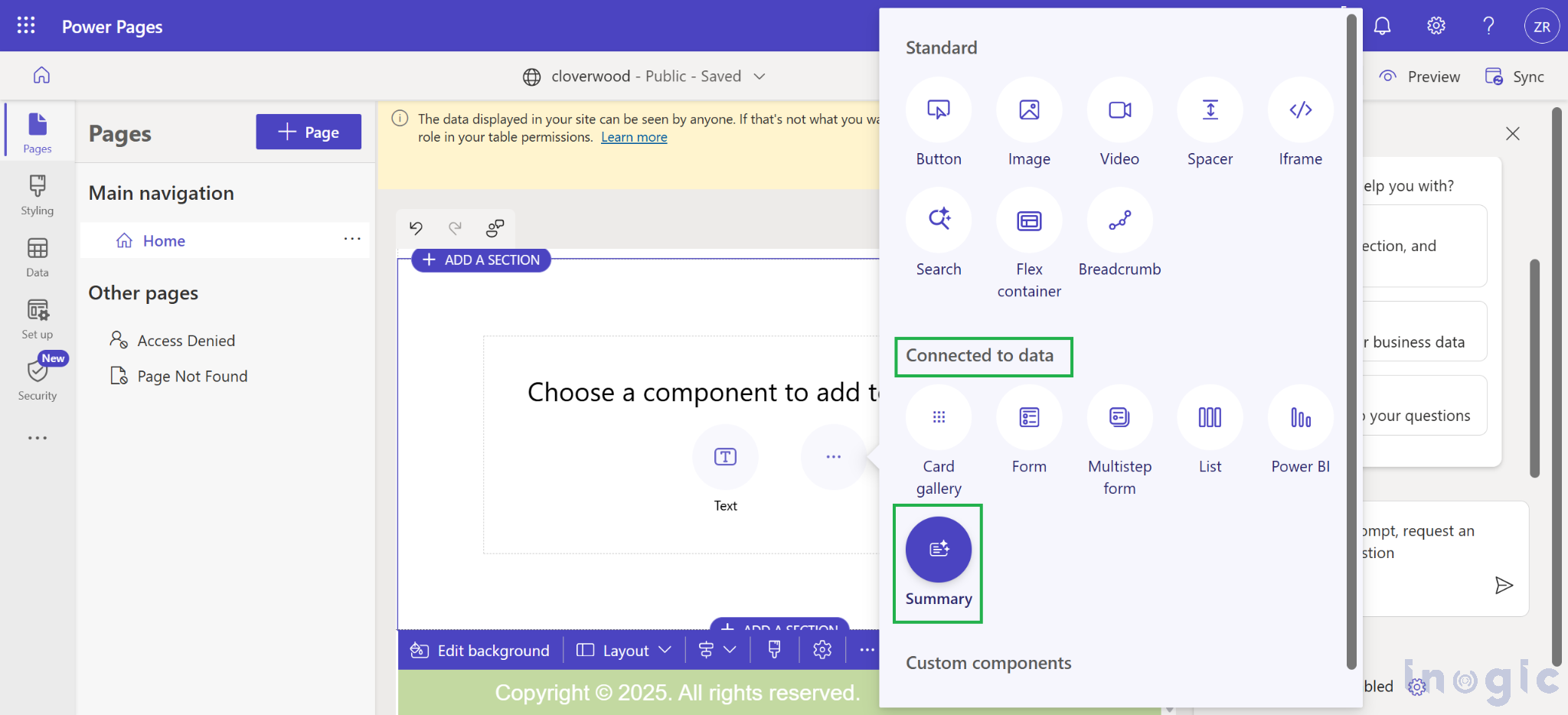
Power Pages Summary Component with Dataverse Tables

Step 3: Configure the Component

In the configuration panel, fill in the details as follows:

  • Title: Lead Summary Overview
  • Summarization API: leads?$select=fullname,subject,companyname,emailaddress1,telephone1,createdon,revenue
  • Additional Instructions:
    “Provide a clear and concise summary highlighting the lead’s name, company, contact details, and the purpose or topic of the lead. Identify any patterns, urgency indicators, or follow-up requirements based on the creation date.”
  • Keep Summary Expanded: Enabled (This will keep the summary expandable by default when the user visits the portal)
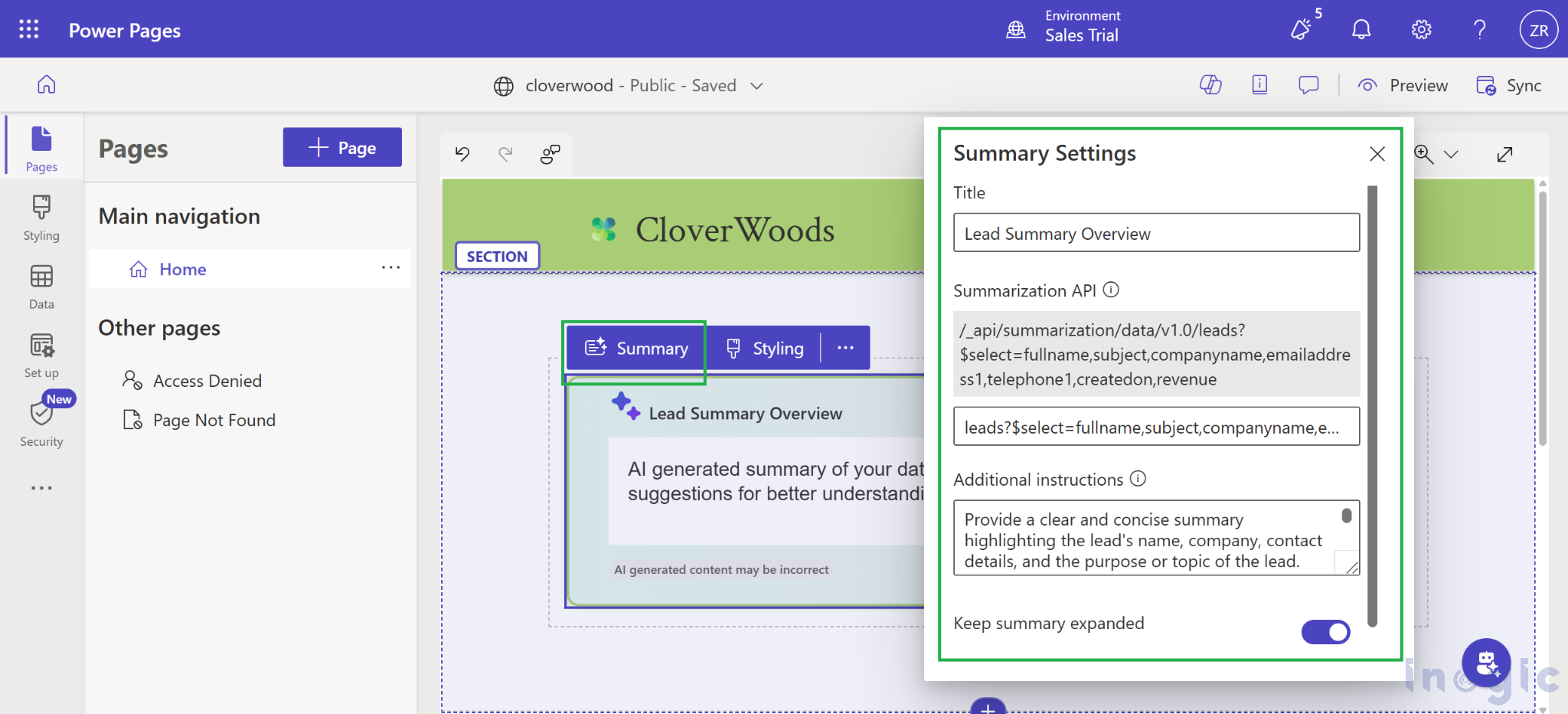
Power Pages Summary Component with Dataverse Tables

This configuration connects the component to the Lead table via the Power Pages Web API and instructs it to summarize the specified fields.

Configuration Settings

Before the Summary Component can retrieve data, permissions and secure access must be configured through the portal.

  1. Enable Web API for the Lead Table

Go to Power Pages Management → Site Settings → + New, and add the following key-value pairs:

  • Name: Webapi/lead/enabled
    Value:
    true
  • Name: Webapi/lead/fields
    Value:
    * (to allow access to all fields) or specify individual fields as fieldlogicalname1, fieldlogicalname2, …

This explicitly grants Web API access for the Lead table in the Power Pages portal.

Additionally, verify that the setting Summarization/Data/Enable is set to true.
If this setting does not exist, create a new record with that name and set its value to true.
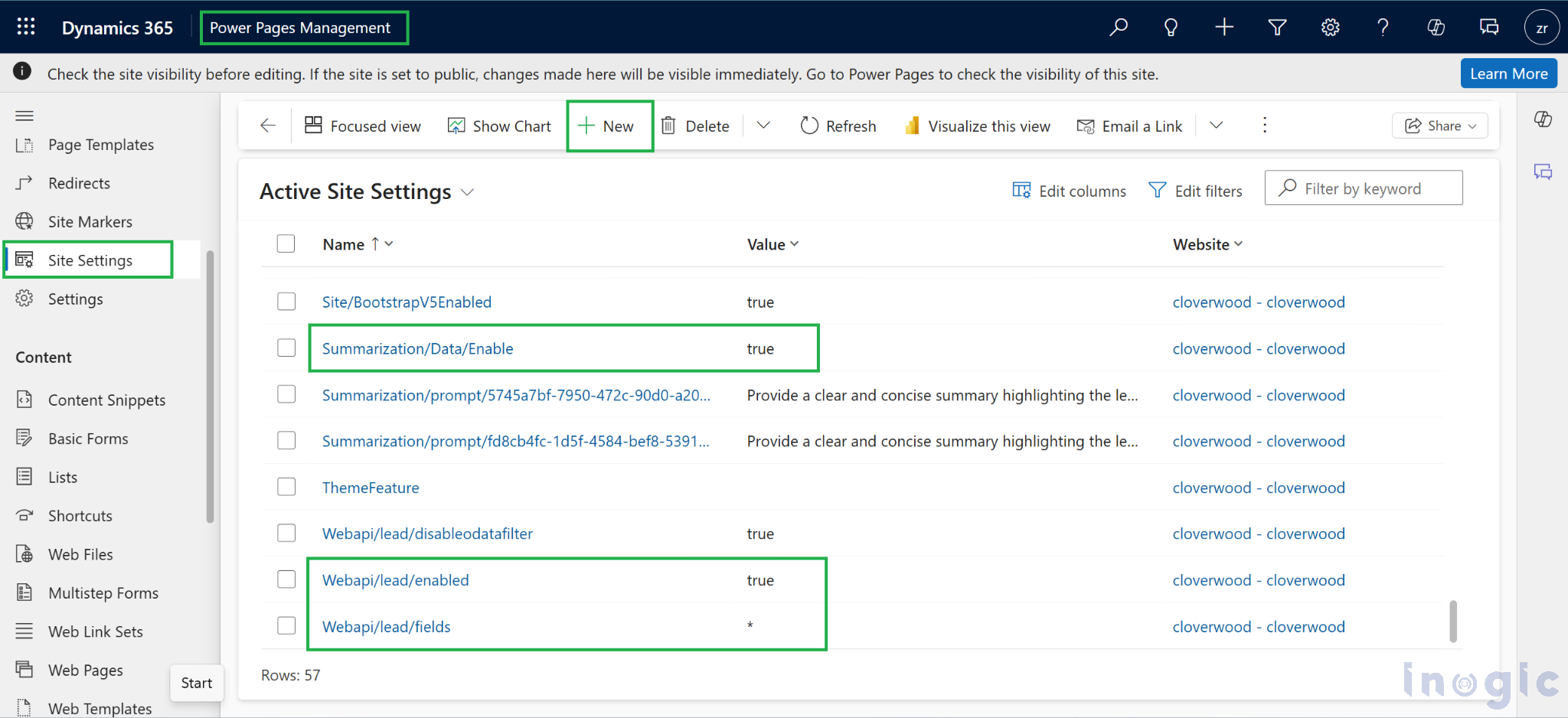
Power Pages Summary Component with Dataverse Tables

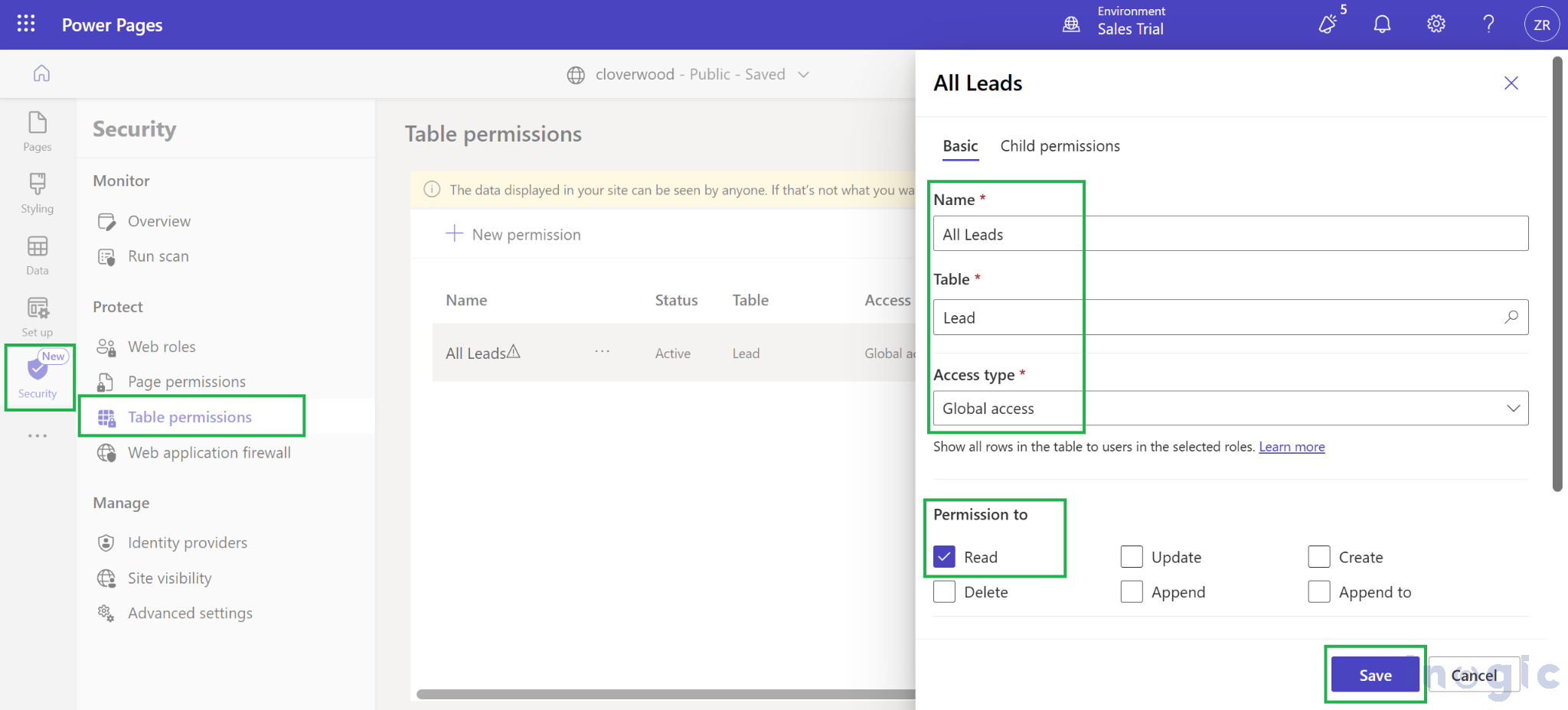
2. Create Table Permissions

In Power Pages → Security → Table Permissions:

  • Create a new permission record with:
    • Name: All Leads or Lead Read Permission
    • Table: Lead
    • Access Type: Global access
    • Permission: Read
  • Assign this permission to the Authenticated Users web role.
Power Pages Summary Component with Dataverse Tables

Without this, data access via the Web API will fail with an error message:

“Something went wrong, please try again later.” error.

Working

Once the configuration is complete, publish the site and test the component.

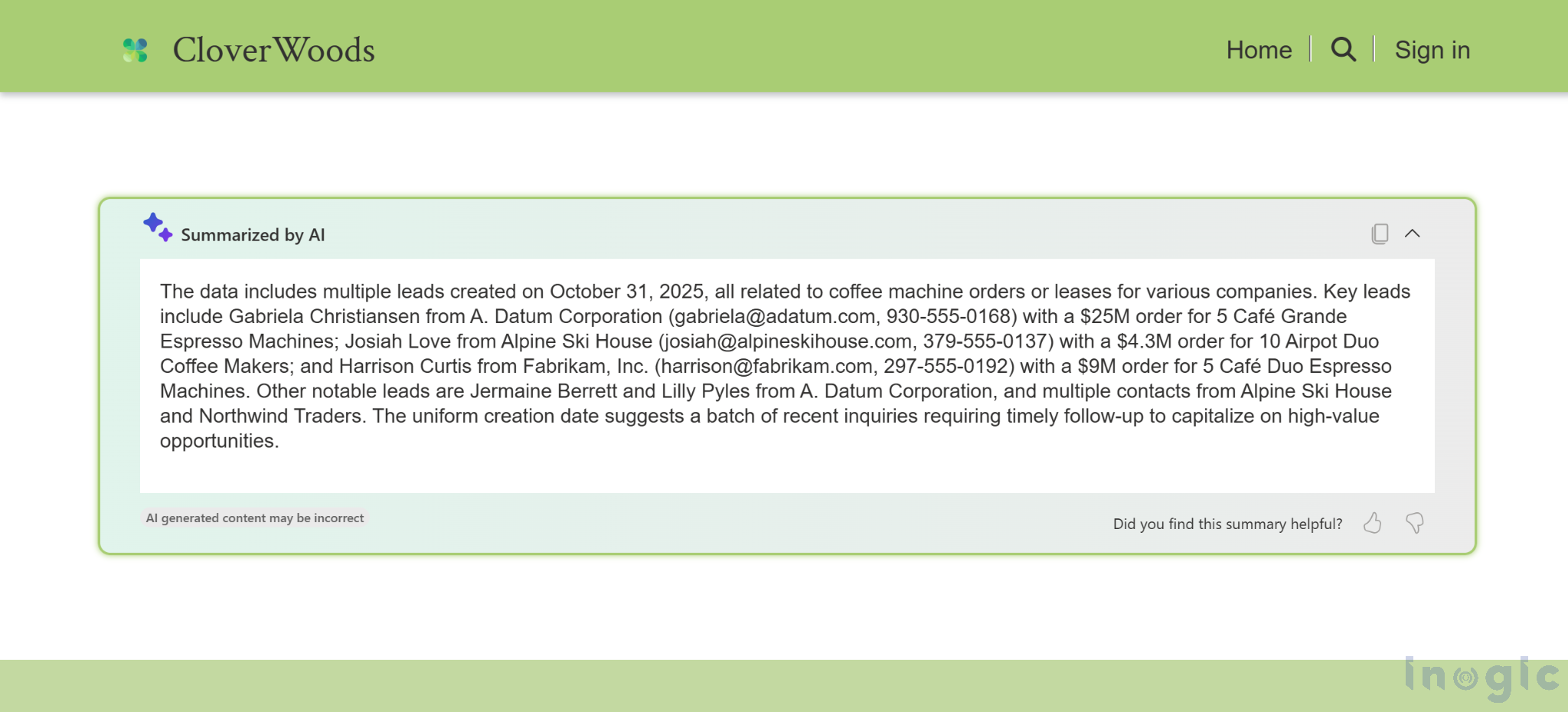
The Summary Component will automatically connect to Dataverse, retrieve lead data, and generate a short summary paragraph that dynamically updates as new records are created or modified.
Power Pages Summary Component with Dataverse Tables

The output proved that the Web API connection and summarization logic were functioning correctly. The results dynamically update as new leads are added or existing records change in Dataverse.

Styling the Summary Component

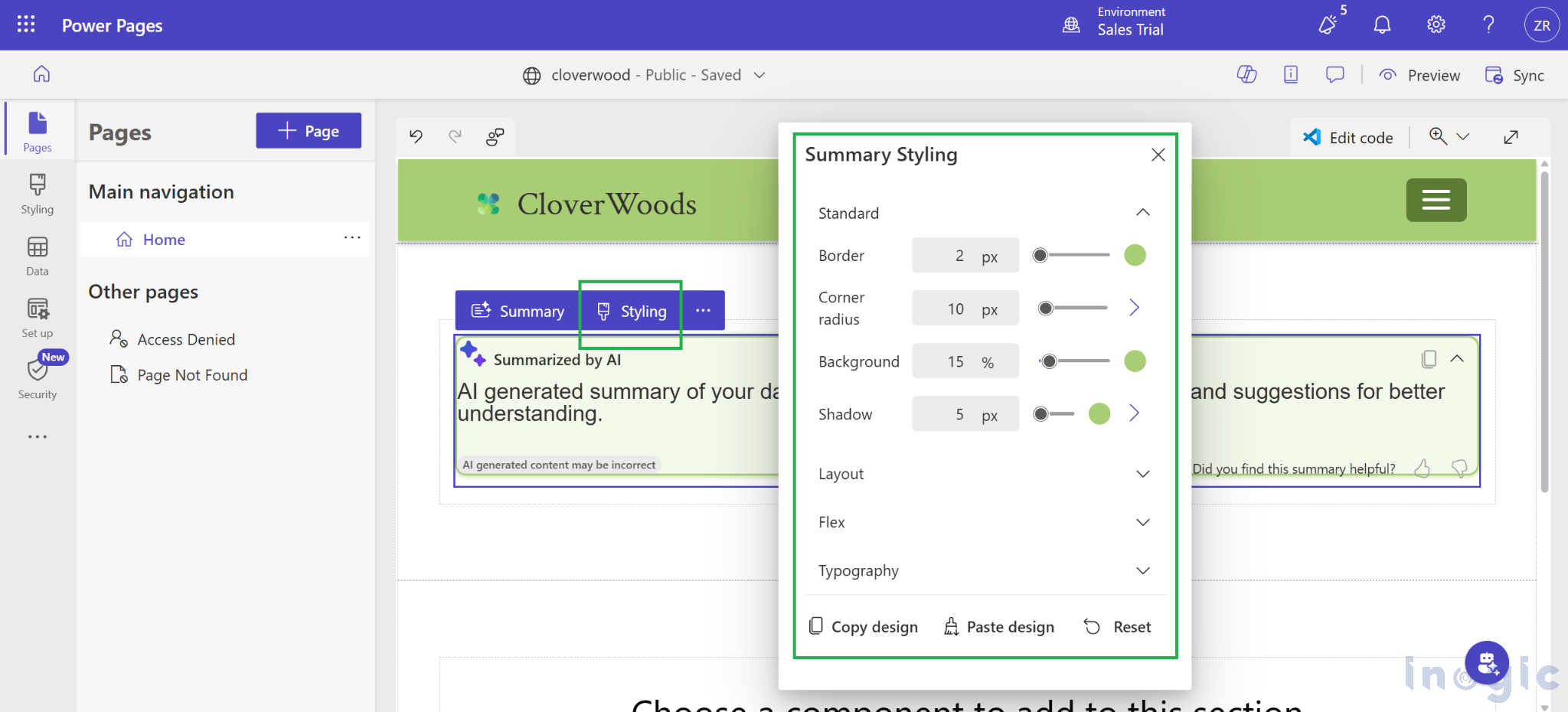
The appearance of the Summary Component can be customized to align with the Power Pages portal theme. Styles such as borders, background colors, shadows, and other visual effects can be applied to ensure seamless integration with the overall site design.
Power Pages Summary Component with Dataverse Tables

FAQs

  1. What is the Summary Component in Power Pages?
    The Summary Component is an AI-powered feature in Microsoft Power Pages that uses natural language generation to summarize data from Dataverse tables, helping users understand key insights quickly.
  2. Can I use the Summary Component for any Dataverse table?
    Yes. It can be connected to any table with Web API access enabled. Just update the summarization API query and permissions accordingly.
  3. Do I need to enable any specific settings before using the Summary Component?
    Yes. Web API access must be enabled for the target table (e.g., Lead) and ensure the Summarization/Data/Enable site setting is set to true. Also, create the appropriate Table Permissions for the portal users.
  4. Does the Summary Component automatically refresh when data changes in Dataverse?
    Yes. Once configured, the summary updates dynamically whenever the underlying Dataverse records are modified or new data is added.
  5. Can I style or customize the Summary Component UI?
    Absolutely. The component’s appearance can be adjusted using custom CSS to align it with their Power Pages theme for a consistent visual experience.

Conclusion

The Summary Component in Power Pages is a game-changer for presenting Dataverse data in a meaningful, AI-driven format. By implementing it for the Lead table, sales teams gain quick, automated insights which resulted in saving time, improving decision-making, and enhancing user experience.

With minimal configuration enabling Web API, creating table permissions, and defining a summarization query the component delivers a seamless experience that transforms raw data into concise insights.


The post Step-by-Step Guide: Implementing the Power Pages Summary Component with Dataverse Tables first appeared on Microsoft Dynamics 365 CRM Tips and Tricks.

Microsoft Power Pages: The authentication key for your portal will expire

Logo of Microsoft Power Pages featuring overlapping purple shapes and the text 'Microsoft Power Pages'.

I saw the below Notification today, while I was working on the Portal requirements.

Screenshot of a portal management interface displaying details such as portal ID, organization ID, and an expiration date for the authentication key, with warnings about cache clearing and key renewal procedures.

Notification:
The authentication key for your portal will expire on 8/5/2025 6:24:53 AM UTC. Expiration of the authentication key will result in downtime of the portal because it won’t be able to connect to Dynamics 365 (online).

Actually, when you create a website with Power Pages, it connects to Microsoft Dataverse using an authentication key. This key is generated when the website is created, and the public part is uploaded to Microsoft Entra. You need to renew this key every year. If you don’t, your website will stop working once the key expires.

In the article, will explain the process to renew the Website Authentication Key step by step.

Follow the below steps.

Pre-requisite:
You must be a Global Administrator, or an owner of the Microsoft Entra ID application linked to this website to perform this action.

Step 1: Open Power Platform Admin Center.

https://aka.ms/ppac

or

https://admin.powerplatform.microsoft.com

Screenshot of the Power Platform Admin Center dashboard, featuring a welcome message and navigation options.

Step 2: Click on Manage.

Screenshot of the Power Platform Admin Center with a welcome message and navigation menu, highlighting the 'Manage' option.

Step 3: Click on the required Environment.

Screenshot of the Power Platform Admin Center, showing the 'Manage' section and a list of environments, including 'D365 Development'.

Step 4: Click on Resources and Click on Power Pages sites.

Power Platform Admin Center interface showing the environment details, resources dropdown, and access section.

Step 5: Click on the required website to update the Authentication Key.

Screenshot of the Power Platform Admin Center showing the Environments section with a list of Power Pages sites, including their names, statuses, and other details.

Step 6: Click on Website Authentication Key under Security.

Screenshot of the Power Platform Admin Center showing the 'Customer Service Portal' settings including site details and security options.

Note:
If you do not have Global Administrator or an owner of the Microsoft Entra ID application linked to this website, you can see the below message.

Power Platform Admin Center interface showing details for the Customer Service Portal, including authentication key expiration date and security settings.

Step 7: Click on Update key.

Screenshot of the Power Platform Admin Center showing details for the Customer Service Portal, including application type, site visibility, and an existing authentication key with its expiration date and thumbprint.

Step 8: Click on OK.

Update Key dialog in the Power Platform Admin Center, alerting about the portal restart due to key update.

Authentication key update is in progress.

Screenshot of the Power Platform Admin Center, displaying the 'Manage' section with a notification about authentication key updates for a Customer Service Portal.

Step 9: After 10 to 15 mins, refresh the webpage and click on the Website Authentication Key to see the updated Expiration date for next one year.

Screenshot of the Power Platform Admin Center displaying the Website Authentication Key section, showing details about the existing authentication key expiration.

Hope you had followed all the steps and updated the expiration date of your website.

Please like and share your valuable feedback on this article and follow my blog to get my articles to your Inbox.

Click on the below image to navigate to my YouTube Channel.

Graphic promoting a YouTube channel with the text 'Has my blog post helped you?' and buttons for 'WATCH', 'LEARN', and 'SUBSCRIBE'.

Below are my earlier articles that you can have a look.

Microsoft Azure: You’re not eligible for an Azure free account

How to create Microsoft Azure 30 days trial?

Edit in Visual Studio Code for the Web in Power Apps Portals

Error: The object cannot be updated because it is read-only in Microsoft Power Apps

Resolved: Fix connections issue in Power Automate Flow

Clear all objects feature in Power Apps Solutions

Power Automate Error: The ‘inputs.parameters’ of workflow operation of type ‘OpenApiConnection’ is not valid.

Power Automate Error: To use FilteringAttributes, your trigger must include an Update event on Dataverse Trigger

Dynamics 365 CE Solution Import Failed in Azure DevOps Pipelines

Power Automate Error: Cannot write more bytes to the buffer than the configured maximum buffer size: 104857600

Error while opening a Tool in XRMToolBox

The Power Automate Cloud Flows Best Practices Whitepaper is now LIVE!

Error in Power Automate: There’s a problem that needs to be fixed to trigger this flow. To see more details, open Flow checker.

How to get the Dataverse Table’s first row from List Rows in Power Automate?

Microsoft Dataverse Accelerator – Part 2 – Installation

Microsoft Dataverse Accelerator – Part 1 – Introduction

How to get the Database Version of the Dataverse?

API playground feature not available in Dataverse Accelerator App?

How to Explore and test Dataverse in the Web API playground (preview)?

Web resource method does not exist in Dynamics 365 CE

How to get Environment Variable Value in Dynamics 365 CE using JavaScript?

Model-driven Apps – openAlertDialog – JavaScript – Code Snippet

Power Automate – Flow is not running on Trigger condition

Power Automate – Input field Delete option is disabled

Recipient of type ‘Contact’ with ID is marked as non-emailable

Preferred Solution | New feature | Microsoft Dataverse

New and Retired Microsoft Dynamics 365 Certifications

Environment settings behavior (Preview) feature in Model-driven Apps

Error while connecting to Dataverse environment in XrmToolBox

Power Fx Formula Columns in Microsoft Power Apps

How to Enable 2024 Release Wave 1 Updates in the Microsoft Dynamics 365 CE Environment?

Delete and Restore records (Preview) feature in Microsoft Dataverse

Microsoft Power App Environments Retention Period

How to Override the Model-driven app header colors?

Timeline Highlights (New feature) in Microsoft Power Apps

Model-driven App – Cannot “See associate records” option in the sub grid (arunpotti.com)

Bookmark the Important Dynamics 365 URLs

How to Enable Tenant-level analytics for Power Automate and Power Apps?

Microsoft Power Automate Copy and Paste Action in New DesignerHow to Setup Multi-Factor Authentication for your Microsoft Power Apps environment?

Microsoft Power Apps | Modern Themes | Preview feature

How to Download and Install the .NET Framework?

How to Create a SharePoint Site Online?

How to add and use Copilot answer control (Preview) in Microsoft Power Apps?

Dark Mode in Microsoft Power Apps

How to create Microsoft 365 E3 Trial for 30 days?

Refreshed look of solution dependencies in Dataverse Solutions

Microsoft Power Automate | Version History | Restore | New Feature

MICROSOFT LEARN – Artificial Intelligence Skills Challenge​ 2024!!!

Resolved – ‘InvokerConnectionOverrideFailed’ Error When a Power App Custom Page call a Power Automate Flow

How to Create Microsoft Power Apps Trial 30 days?

Not able to Create Power Automate Flow in Custom Page in Model-Driven App?

How to Enable Inline Actions feature in Microsoft Canvas Apps?

How to use /mention in Outlook web client for Dataverse records?

Associate Activities Multiple Related Records (Preview) feature in Microsoft Dynamics 365 CE

How to Enable Aggregation (preview) feature in Microsoft Power Apps?

Power Apps – Some components of this app require you to sign in. If you don’t sign in, part of the app may not work.

How to Enable the SQL Server stored procedures (preview) feature in the Power Apps?

How to get the Client Version of the Model Driven Apps?

How to get Microsoft 365 E3 Trial for 30 days?

How to Enable Copilot for Model-Driven apps feature in Dynamics 365 CE Environment?

[Resolved] Web resource method does not exist in Dynamics 365 CE JavaScript Error

How to Enable Blocking unmanaged customizations (Preview) feature in Dynamics 365 CE?

How to create Microsoft Power Apps Developer Plan Environment?

Microsoft Power Apps Developer Plan vs Power Apps Trial 30 days

What is Microsoft Power Apps Developer Plan?

[Resolved] PCF Field Control not showing anything in the PCF Test Environment?

[Issue Resolved] ReferenceError: Web resource method does not exist in Dynamics 365 CE Javascript Error

[Issue Resolved] Subcomponent cannot be added to the solution because the root component Template is missing in Dataverse

How to Turn Off the Modern Look in the Model Driven Apps?

How to Turn on the New modern, refreshed look for the Model-Driven apps?

Microsoft Power Apps – Apps filter feature

How to Create Microsoft Power Apps 30 days Online Trial Version and an Environment?

Microsoft Power Apps – Solutions filter Preview feature

How to Show the Power Automate complete Expressions?

Dataverse Error: Cannot start the requested operation [EntityCustomization] because there is another [PublishAll] running at this moment.

Power Automate Error: You should specify a contact or account.

How to get the Choice Text and Value in the Dataverse using JavaScript?

Microsoft Dataverse Low Code No Code Plugins

How to convert the Number String to Number Array?

How to Integrate Instant Plugins in the Power Automate Flow?

Power Apps – ‘actionname’ is an unknown or unsupported function in namespace ‘Environment’

Dataverse Browser V1.1.0.1 is available for Dataverse Plugin Debugging

How to Integrate Instant Plugins in the Canvas App?

How to Enable Access to Microsoft Dataverse Actions (Preview feature) in the Power Apps?

How to Create an Instant Plugin in the Dataverse Environment?

How to Install the Microsoft Dataverse Accelerator in the Dataverse Environment?

What is Microsoft Dataverse Accelerator?

How to get the Logged in User Information in the Power Apps?

How to Install Power Platform Tools in Visual Studio Code?

How to Install the Apps from the Microsoft AppSource to your Dataverse Environment?

Microsoft Power Apps Maker Portal has a new look

Microsoft Power Apps Emulator (New Feature)

How to Enable the Dataverse Offline (Experimental Feature) in the Canvas Apps?

How to set the Authoring Version in the Canvas App?

New version of Dataverse Browser is available for Dataverse Plugin Debugging

Latest Free Practice Assessments for Microsoft Certifications

Download CRM 365 V9.X Tools using PowerShell

How to set the Refresh cadence for a Power Platform Environment?

Update forms and views (Preview feature) in Dataverse

How to connect to Microsoft Dataverse in Power Automate Flow using Service principal?

How to Enable Copilot (Preview) feature in Canvas Apps?

How to Debug a Dataverse Plugin without Installing the Profiler in the Plugin Registration Tool?

How to Enable the Licenses (Preview) feature for a Power Platform Environment?

How to Enable Maker Welcome Content (preview) in Power Apps Maker Portal?

How to Enable Managed Environments for a Dataverse Environment?

How to Enable the Modern Controls (Preview feature) in the Canvas Apps?

How to Enable 2023 Release Wave 1 updates in the Dataverse Environment?

How to Deploy Enterprise Applications in the new Dataverse Environment?

What is Preview, Experimental and Retired features in Canvas Apps?

How to Enable the New Power Fx Formula Bar in Power Apps Studio?

Writing Power Fx formulas with natural language

Power Fx Formula Columns in Dataverse

Generating Power Fx formulas from examples

How to Create Dynamics 365 Marketing 30 Days Trial Version Online?

How to disable Multi-Factor Authentication (MFA) on Dynamics 365 Login?

How to Create Microsoft Power Apps 30 days Online Trial Version and an Environment?

❌