Power Up - Upskill Yourself...

Reading view

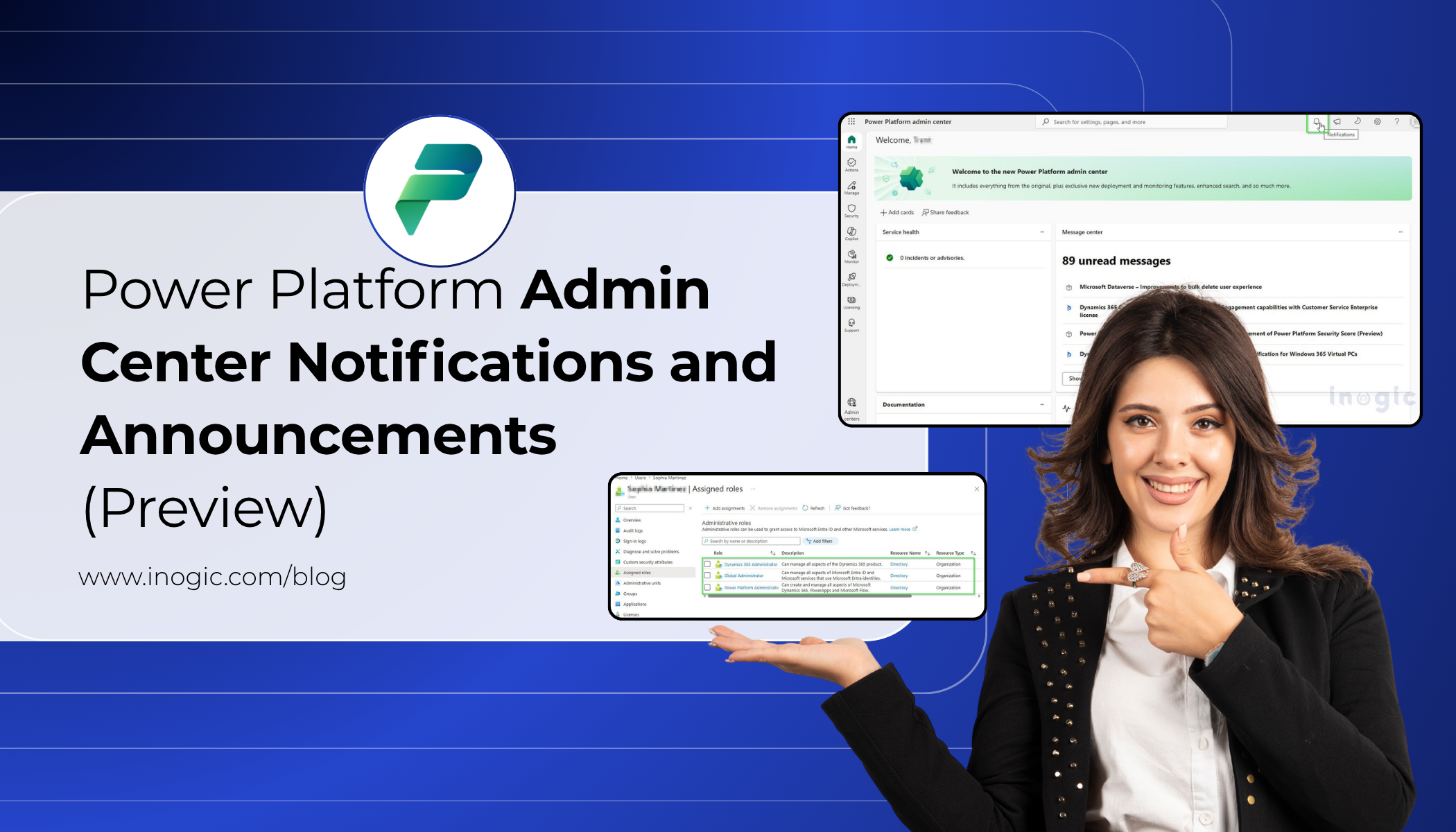
Power Platform Admin Center Notifications and Announcements (Preview)

Admin Center NotificationsManaging enterprise applications across Microsoft Power Platform and Dynamics 365 can be challenging for administrators. Teams must continuously monitor storage, licensing, environmental health, operational failures, and platform updates across multiple systems.

As organizations increasingly depend on these platforms for business-critical operations, even a minor issue can quickly disrupt users and impact overall business processes if not identified and resolved in time.

Consider a company using Power Apps and Dataverse for customer service operations across multiple departments. One day, Dataverse storage begins nearing its limit. Because Dataverse throttles performance when storage exceeds allocated capacity, workflows begin slowing down, users face delays while creating records, and some automations stop working properly.

Because the alert is often buried across emails, dashboards, or separate monitoring tools, administrators may not notice the issue immediately. By the time teams investigate, business operations are already impacted.

To address challenges like this, Microsoft introduced Notifications and Announcements (Preview) in the Power Platform admin center.

This feature provides a centralized and proactive administration experience where admins can:

  • Monitor tenant health directly from the admin center
  • Identify operational issues earlier
  • Stay informed about Microsoft platform updates
  • Respond faster to critical alerts
  • Reduce dependency on multiple monitoring systems

Instead of manually searching across different portals, administrators can now review important operational alerts and product communications directly within their daily workflow. For enterprise teams, this means less firefighting and more proactive control.

Requirements to Access Notifications and Announcements

During the preview phase, access to Notifications (🔔) and Announcements (📣) is limited to specific administrator roles in Microsoft Entra ID.

Only users assigned one of the following roles can access these features inside the Power Platform admin center:

  • Power Platform Administrator
  • Dynamics 365 Administrator
  • Global Administrator

Follow the steps to assign required role

  • Open the Microsoft Entra Admin Center and sign in with an administrator account.
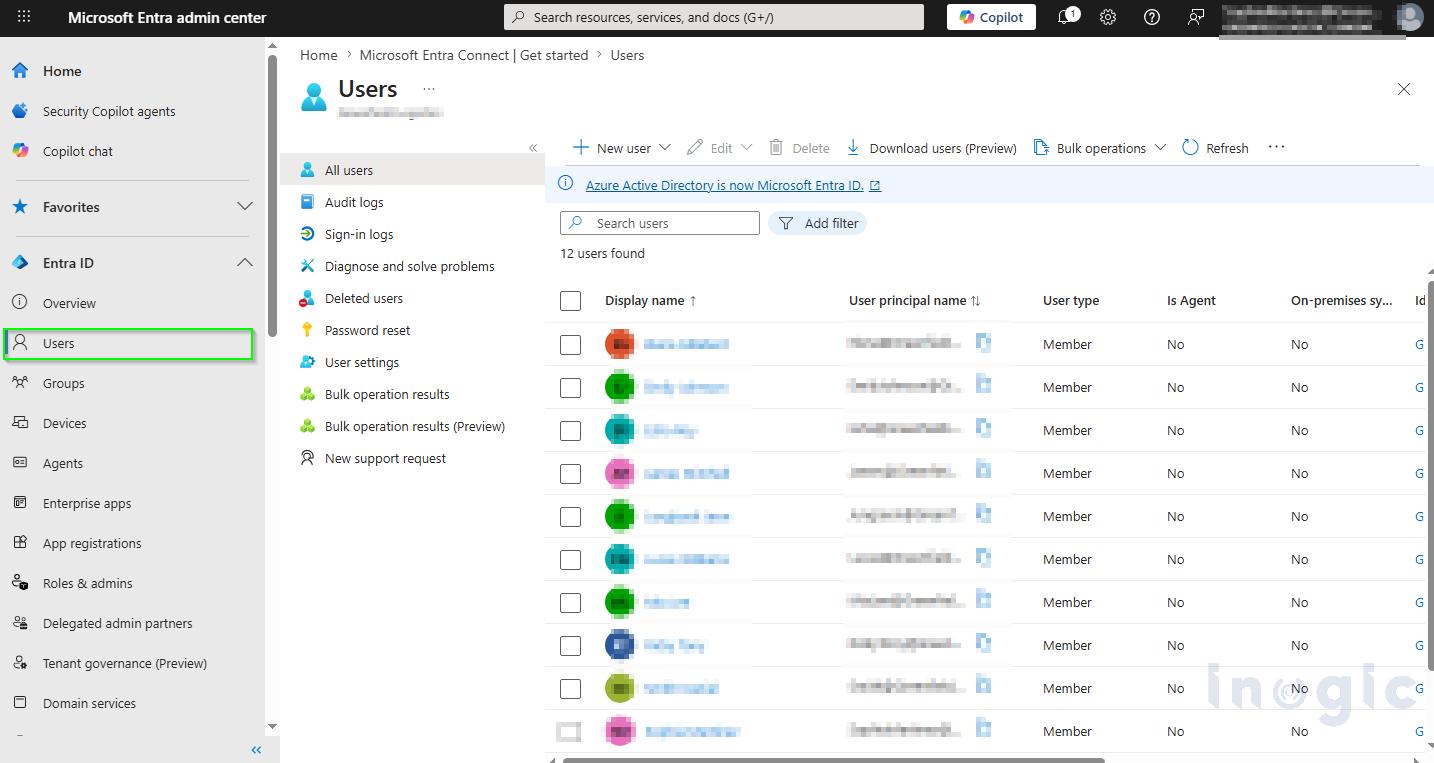
  • In the left navigation pane, go to IdentityUsers.
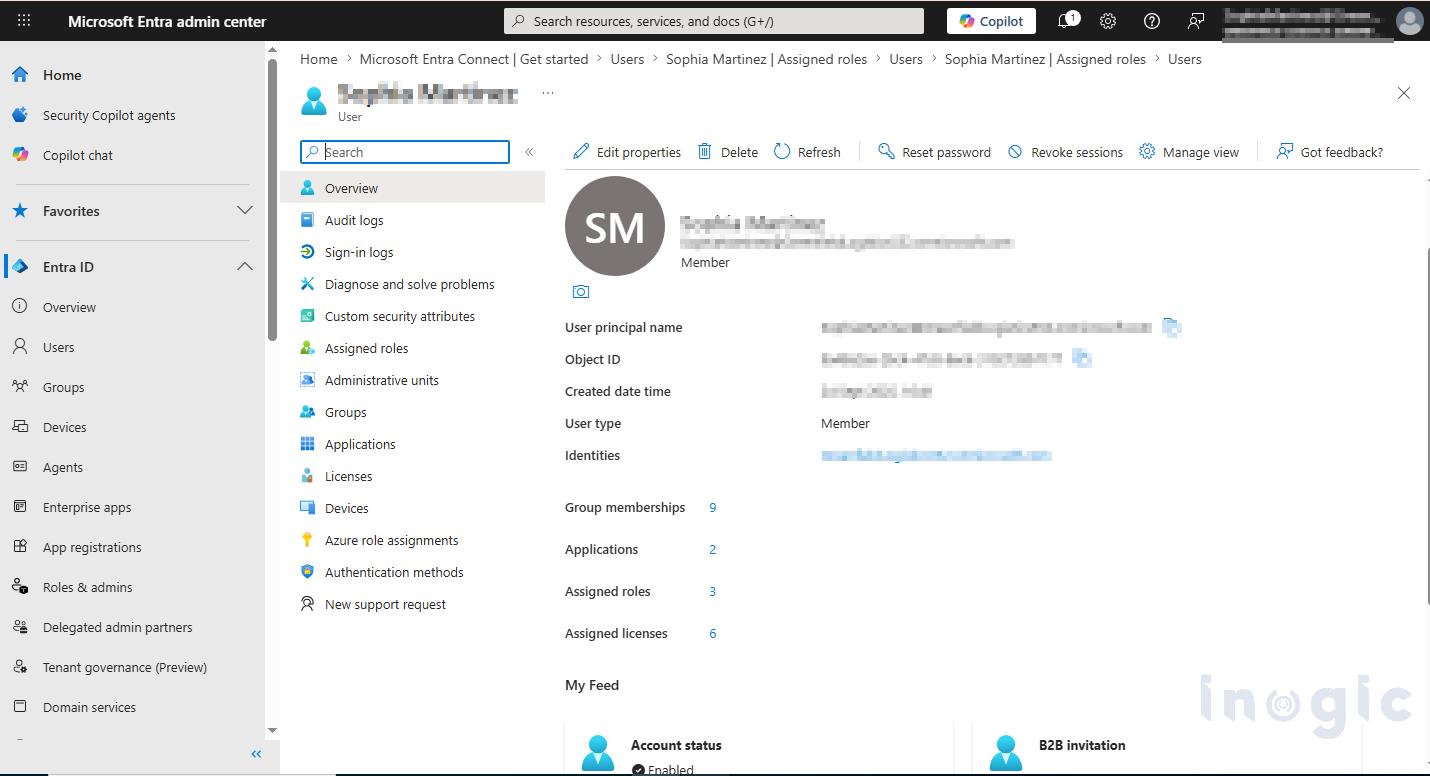
  • Select the user who needs access to Notifications and Announcements in the Power Platform admin center. Admin Center Notifications
  • Open the user profile, then select Assigned roles or Manage roles. Admin Center Notifications
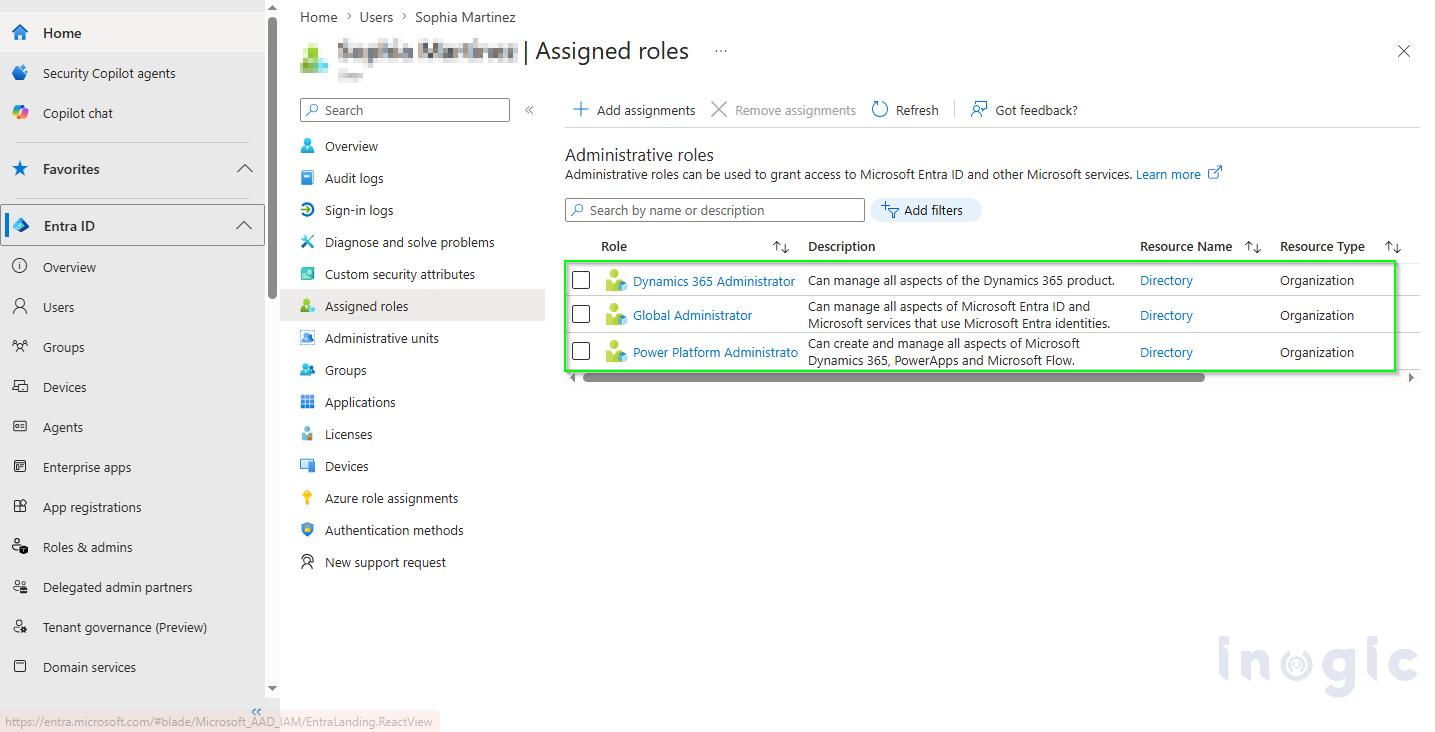
  • Click Add assignments to assign a new administrator role. And
  • Assign one of the following Microsoft Entra administrator roles:
  1. Power Platform Administrator
  2. Dynamics 365 Administrator
  3. Global AdministratorAdmin Center Notifications

Save the changes and sign in to the Power Platform admin center. The user will then be able to access the Notifications (🔔) and Announcements (📣) icons from the top toolbar.

Notifications (🔔)

Notifications help administrators monitor important operational issues directly inside the Power Platform admin center. These alerts are tenant-specific and help admins quickly identify issues related to environment health, storage, licensing, compliance, or other operational risks.

For example, if Dataverse storage starts nearing its limit, administrators can take action before workflows, apps, or business operations are affected.

Notifications may include:

  • License or capacity alerts
  • Dataverse storage warnings
  • Compliance or environment-related issues

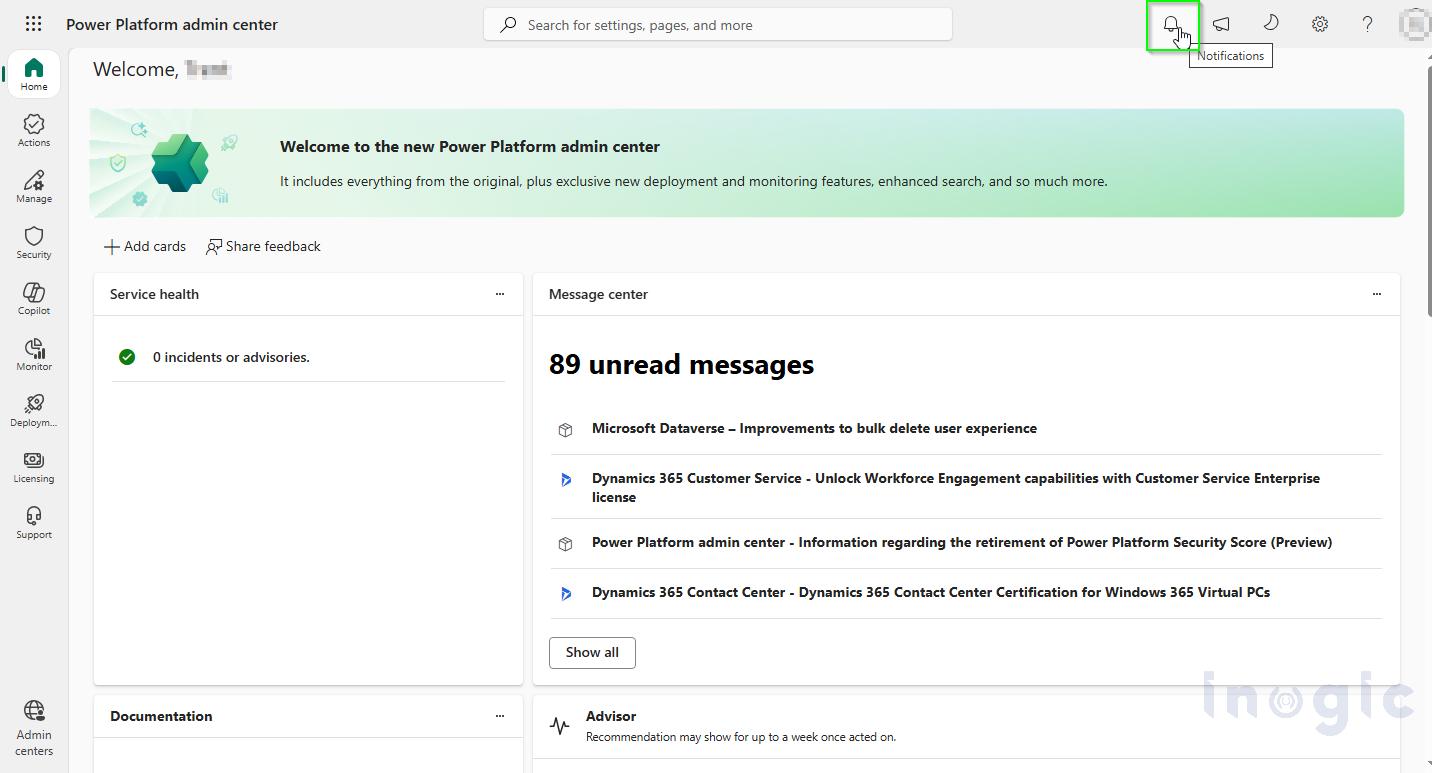
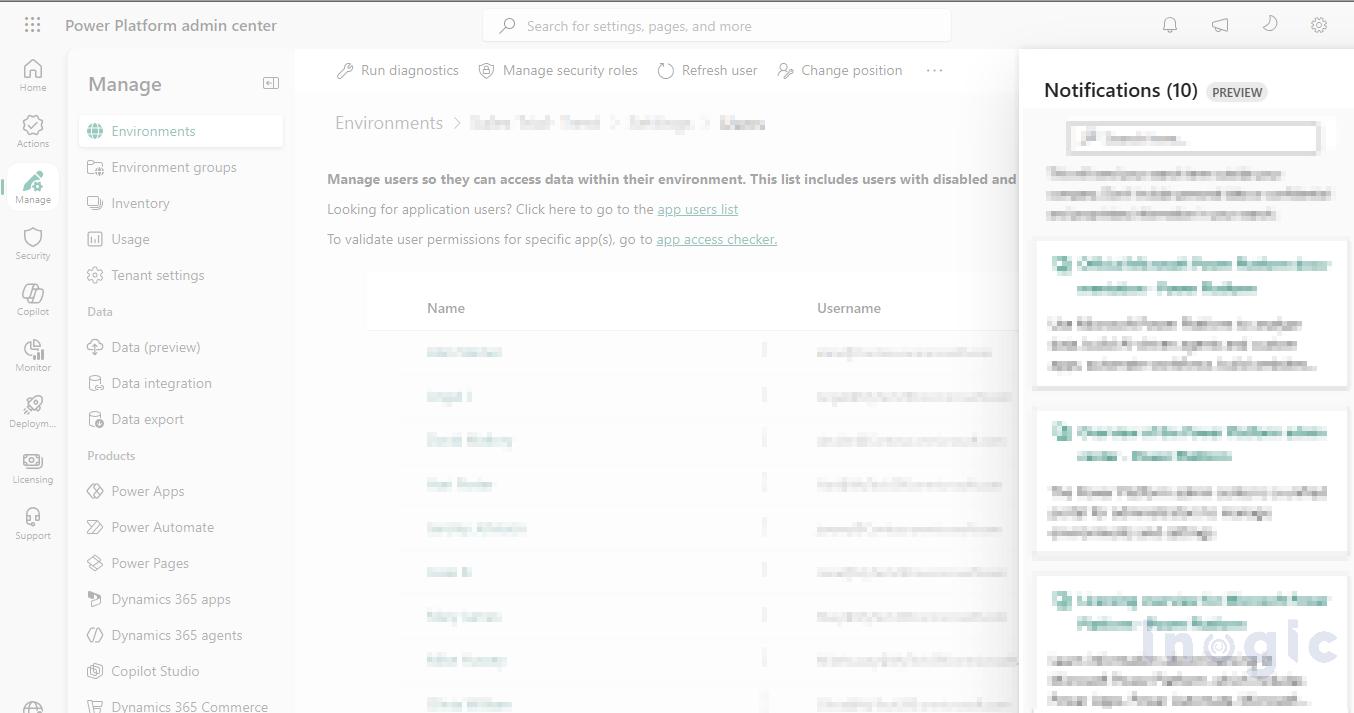
Admins can access notifications directly from the Bell icon (🔔) available in the upper-right corner of the Power Platform admin center, as shown in the screenshot below.

Admin Center Notifications

The Notifications pane displays:

  • Unread alerts
  • Notification summaries
  • Severity indicators such as Info, Warning, or Critical
  • Timestamps for newly generated alerts

The Notifications pane also categorizes alerts by severity to help administrators prioritize issues more effectively:

  • Info – Informational updates or recommendations that do not require immediate action
  • Warning – Potential risks or approaching limits that may require attention soon
  • Critical – Urgent issues or service disruptions that require immediate action

As shown below, notifications are currently available in this environment because notifications appear only when tenant-level operational events or alerts are generated.

Admin Center Notifications

Selecting a notification opens the full message and may provide direct links to related areas such as Capacity, Licensing, or Environments, helping administrators investigate issues faster.

How to Act on a Notification (Example):

If you receive a Dataverse storage warning, clicking the notification typically links directly to the Capacity page. From there, you can view usage breakdowns, purchase additional storage add-ons, or identify tables with stale data to purge. This creates a clear path from alert to resolution.

Admins can also:

  • Mark notifications as read
  • Dismiss notifications from the list
  • Receive toast notifications during sign-in or page refresh for newly generated alerts

About Toast Notifications:

Toast notifications are temporary pop-up messages that appear briefly in the corner of your screen when you sign in or refresh the page. They ensure you don’t miss new critical alerts even if you don’t have the Notifications pane open. After a few seconds, they disappear automatically without disrupting your workflow.

Overall, Notifications improve operational visibility and help organizations respond to platform issues more proactively.

Announcements (📣)

Announcements help administrators stay updated with the latest Microsoft platform updates directly inside the Power Platform admin center. Unlike Notifications, which focus on operational issues, Announcements are mainly designed for product updates, feature releases, webinars, and upcoming platform changes.

Administrators no longer need to rely entirely on multiple Microsoft blogs and documentation portals to stay informed about important updates.

Announcements may include:

  • Public preview features
  • General Availability (GA) updates
  • Product enhancements
  • Microsoft events and webinars
  • Release notes and learning resources

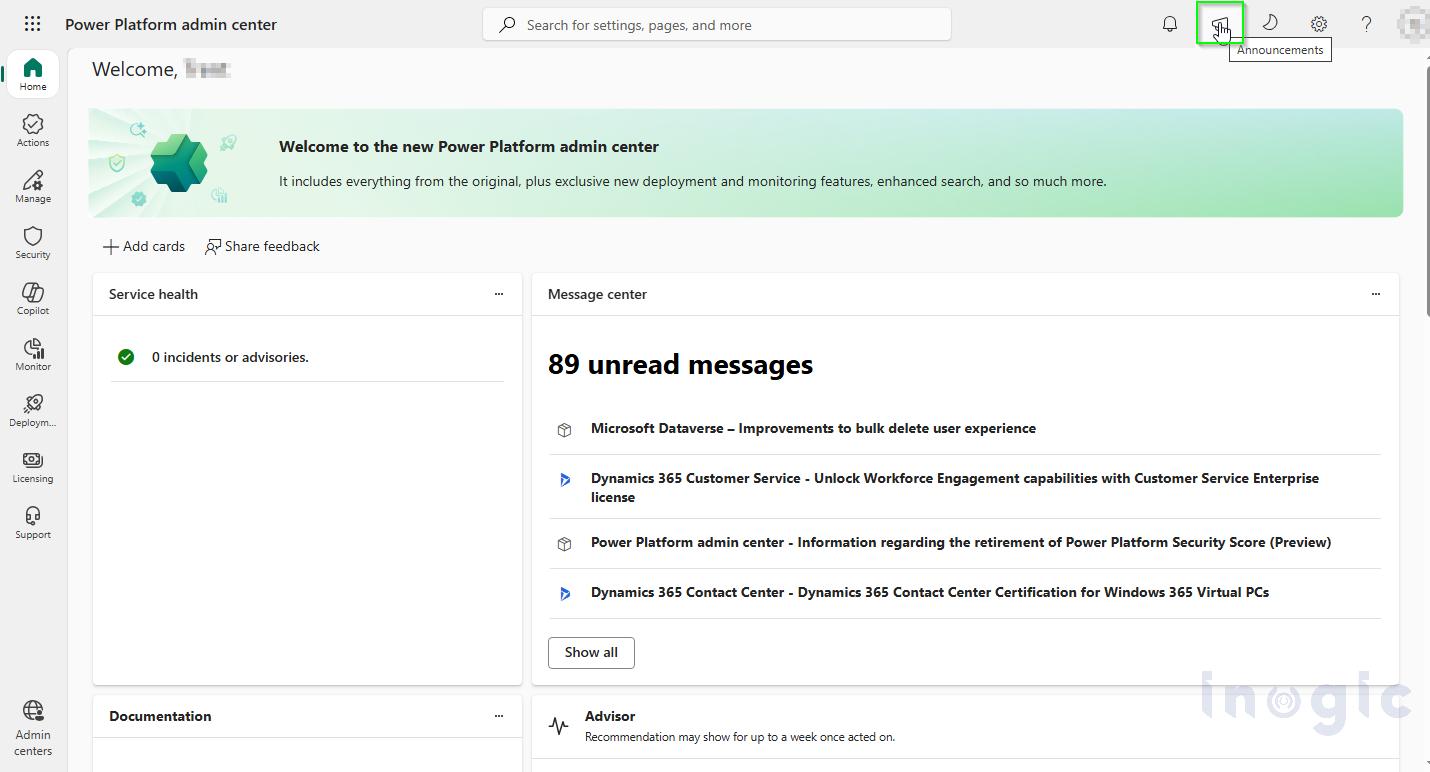
Admins can access Announcements from the Megaphone icon (📣) in the top-right corner of the admin center, as shown in the screenshot below.

Admin Center Notifications

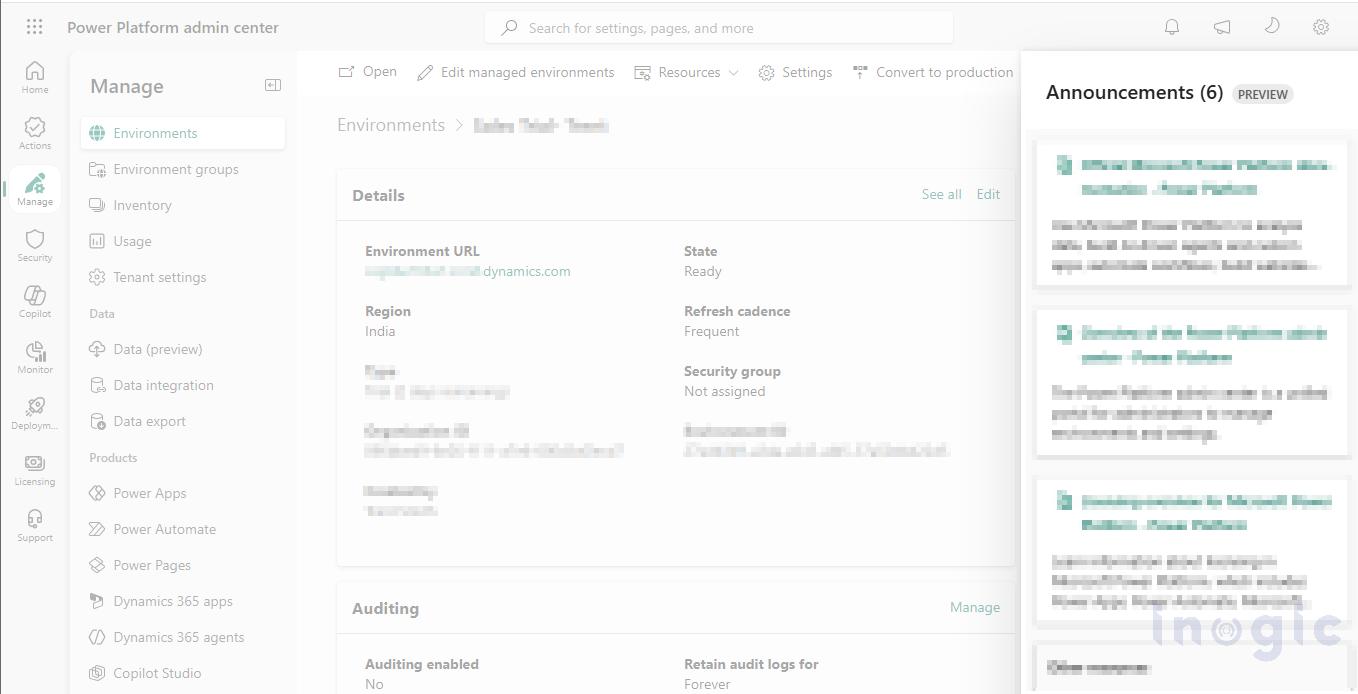
The announcements panel displays recent updates, summaries, and publication details to help administrators quickly review important Microsoft communications. As shown below, announcements are currently available in this environment because announcements appear based on Microsoft product communications and preview availability.

Admin Center Notifications

Another useful benefit is that announcements often include direct links to Microsoft Learn documentation, release notes, and product blogs, helping organizations understand and plan for upcoming changes more efficiently.

Notifications vs Announcements

Although Notifications and Announcements are available together inside the Power Platform admin center, both serve different purposes.

Consider a real-world example:

A company notices that Dataverse storage is reaching its limit. Administrators receive a Warning notification, allowing them to take action before workflows, apps, or automations are affected. This is an operational alert that directly impacts the organization’s environment.

At the same time, Microsoft may publish an Announcement about an upcoming Power Platform feature release or licensing update. While this does not require immediate action, it helps administrators prepare for future platform changes and adoption planning.

In simple terms:

  • Notifications help admins monitor and respond to operational or tenant-level issues.
  • Announcements help admins stay informed about Microsoft product updates, releases, and upcoming changes.

Together, these features provide a more centralized and proactive administration experience inside the Power Platform admin center.

Relationship with Microsoft 365 Message Center

The Power Platform admin center Notifications are designed to complement existing Microsoft 365 monitoring and communication systems rather than replace them. Together, they help administrators get a complete view of both tenant health and platform-wide updates.

For organization-wide updates such as feature rollouts, deprecations, breaking changes, or service announcements, administrators continue to rely on the Microsoft 365 Message Center. It is the primary source for Microsoft 365-wide communications that may impact multiple services across an organization, including Power Platform.

In contrast, Power Platform Notifications focus on tenant-specific operational alerts. These alerts help administrators quickly identify and respond to issues related to environment health, storage capacity, licensing, compliance, or service disruptions that directly affect their Power Platform environments.

For example, if a Dataverse environment is nearing its storage limit, administrators receive a notification within the Power Platform admin center and can take action before it impacts applications, workflows, or users.

In simple terms:

  • Microsoft 365 Message Center is used for planned changes, updates, and Microsoft-wide communications.
  • Power Platform Notifications are used for real-time, tenant-level operational issues.

Together, they provide better visibility by combining long-term platform communication with real-time operational monitoring inside the Power Platform admin center.

Conclusion:

Power Platform admin center Notifications and Announcements (Preview) provide administrators with a more proactive and centralized management experience.

Notifications help teams respond quickly to tenant-level operational issues such as storage, licensing, and environment risks, while Announcements keep administrators informed about upcoming Microsoft updates, features, and platform changes.

Together, these features improve visibility, streamline administration, and complement the Microsoft 365 Message Center for a more complete view of both operational issues and platform updates.

FAQs

1. What are Notifications in the Power Platform admin center?

Notifications are tenant-specific operational alerts that help administrators monitor issues related to storage, licensing, environment health, compliance, and service disruptions within Microsoft Power Platform.

2. What are Announcements in the Power Platform admin center?

Announcements are informational updates from Microsoft that include feature releases, public previews, product enhancements, webinars, release notes, and upcoming platform changes.

3. Who can access Notifications and Announcements in the Power Platform admin center?

During the preview phase, only users assigned the following Microsoft Entra administrator roles can access these features:

  • Power Platform Administrator
  • Dynamics 365 Administrator
  • Global Administrator

4. How are Notifications different from Microsoft 365 Message Center updates?

Microsoft 365 Message Center provides organization-wide updates such as feature rollouts and planned changes, while Power Platform Notifications focus on real-time tenant-level operational alerts like storage limits, licensing issues, or environment health warnings.

5. Can Notifications help monitor Dataverse storage capacity?

Yes. Notifications can alert administrators when Dataverse storage approaches allocated capacity limits, helping teams take corrective action before workflows, applications, or automations are impacted.

Power Platform Administrator Dynamics 365 Administrator Global Administrator" } },{ "@type": "Question", "name": "How are Notifications different from Microsoft 365 Message Center updates?", "acceptedAnswer": { "@type": "Answer", "text": "Microsoft 365 Message Center provides organization-wide updates such as feature rollouts and planned changes, while Power Platform Notifications focus on real-time tenant-level operational alerts like storage limits, licensing issues, or environment health warnings." } },{ "@type": "Question", "name": "Can Notifications help monitor Dataverse storage capacity?", "acceptedAnswer": { "@type": "Answer", "text": "Yes. Notifications can alert administrators when Dataverse storage approaches allocated capacity limits, helping teams take corrective action before workflows, applications, or automations are impacted." } }] }

The post Power Platform Admin Center Notifications and Announcements (Preview) first appeared on Microsoft Dynamics 365 CRM Tips and Tricks.

Modernizing Dynamics 365 Delivery: How CI/CD and ALM Drive Real Business Reliability

You invested in Dynamics 365 to streamline operations, improve customer engagement, and drive growth.

But instead of speed and efficiency, your teams are dealing with:

  • Delayed deployments/releases
  • Unexpected production errors
  • Last Minute fixes
  • Frustrated stakeholders

Here’s is the truth; Most Dynamics 365 failures don’t come from bad code. They come from broken deployment practices.

At Inogic, we help businesses shift from reactive, error-prone deployments to predictable, automated, and scalable delivery models using modern practices like Azure DevOps CI/CD and Power Platform ALM pipelines.

Why Your Deployments Keep Breaking

For years, Dynamics CRM development followed a familiar pattern:

  • Export solutions from Development
  • Import into Test and Production
  • Perform manual validations

While this may work in simple scenarios, it breaks down at scale.

Common Challenges

  • Human Errors: A missed dependency or incorrect configuration can break production.
  • Environment Mismatches: What works in Test fails in Production
  • Lack of Visibility: No clear tracking of who changed what and when.
  • Slow Time-to-Market: Manual processes delay releases and business responsiveness.
  • Difficult Rollbacks: Fixing failed deployments takes hours instead of minutes.

The Business Impact

Every failed deployment isn’t just an IT issue it affects:

  • Revenue opportunities
  • Customer experience
  • Team productivity
  • Business continuity

Every unstable release erodes trust in your system.

The Shift: CI/CD with Azure DevOps

Modern businesses cannot afford slow, unpredictable releases.

This is where Continuous Integration (CI) and Continuous Delivery (CD) come in.

With Azure DevOps CI/CD, your deployment process becomes automated, consistent, and reliable.

What Changes with CI/CD?

  1. A developer makes a change
  2. The pipeline automatically builds and tests the solution
  3. Errors are caught early
  4. Approved changes move seamlessly to higher environments

What This Means for Your Business

  • No more manual exports/imports
  • Faster and more frequent releases
  • Reduced deployment risks
  • Full visibility into every change

Think of it as a factory line for your software, every step automated, tested, and optimized.

Bringing Control to Low-Code with ALM

The rise of low-code tools like Power Apps and Power Automate has empowered business users to innovate faster.

But without governance, this can lead to:

  • Uncontrolled changes
  • Broken dependencies
  • Security risks
  • Environmental chaos

The Fix: Power Platform ALM Pipeline

Application Lifecycle Management (ALM) introduces structure into low-code development.

Key Environments

  • Development – Safe space for building
  • Test – Validation and user acceptance
  • Production – Stable, business-ready solutions

The Result

  • Version control for every solution
  • Controlled and automated deployments
  • Easy rollback to previous versions
  • Scalable innovation without chaos

This is essential for organizations scaling their Power Platform development services.

What Modern ALM & CI/CD Actually Deliver

When you move from manual processes to automated pipelines, the impact is immediate:

  • Faster Time-to-Value: Release cycles shrink from weeks to days—or even hours.
  • Reduced Risk: Automated testing minimizes production errors.
  • Better Collaboration: Developers, IT teams, and business users work in sync.
  • Full Traceability: Every change is logged, tracked, and auditable.
  • Instant Rollbacks: Failures can be reversed quickly with minimal disruption.
  • Scalability: Grow your system without increasing complexity.

Why Inogic?

At Inogic, we don’t just implement pipelines we fix the underlying process.

Our Approach

  • Audit your current deployment process
  • Identify bottlenecks and risks
  • Implement structured CI/CD pipelines
  • Establish governed ALM practices
  • Train your teams for long-term success

Because tools alone don’t solve problems, process does.

Turn Your Dynamics 365 Into a Growth Engine

If your deployments still depend on manual effort, you don’t have a strategy you have a risk.

By modernizing your development lifecycle, you can:

  • Eliminate release-day stress
  • Deliver faster, smarter updates
  • Build a resilient and scalable system

Let’s Fix What’s Slowing You Down

If your last deployment caused delays, rework, or uncertainty it’s time to rethink your process.

Let’s identify where your deployment pipeline is breaking and how to fix it.

📧 crm@inogic.com

🌐 www.inogic.com

FAQs

What is Azure DevOps CI/CD in Dynamics 365 development?

Azure DevOps CI/CD in Dynamics 365 development is an automated process that builds, tests, and deploys CRM customizations across environments. It ensures that every change is validated before release, reducing errors and enabling faster, reliable deployments.

Why are manual deployments risky in Dynamics 365 environments?

Manual deployments in Dynamics 365 environments are risky because they rely on human intervention, which can lead to missed dependencies, configuration mismatches, and production failures. These issues often result in downtime, delayed releases, and increased operational costs.

What is a Power Platform ALM pipeline?

A Power Platform ALM pipeline is a structured deployment process that manages the movement of apps, flows, and solutions from development through testing and production. It ensures version control, governance, and consistent deployments across environments.

How does CI/CD improve Dynamics 365 implementation services?

CI/CD improves Dynamics 365 implementation services by automating testing and deployment, reducing manual effort, accelerating release cycles, and ensuring consistent configurations across environments.

How does Azure DevOps help in Dynamics CRM development?

Azure DevOps helps in Dynamics CRM development by enabling automated builds, test validation, release pipelines, and version tracking. It provides complete visibility into changes and ensures stable, repeatable deployments.

How does deployment automation reduce downtime in Dynamics 365?

Deployment automation reduces downtime by eliminating manual errors, enabling pre-deployment testing, and allowing quick rollback to stable versions if issues occur during release.

The post Modernizing Dynamics 365 Delivery: How CI/CD and ALM Drive Real Business Reliability first appeared on Microsoft Dynamics 365 CRM Tips and Tricks.

How to Monitor Power Platform Resources Using Alerts

How to Monitor Power Platform Resources Using Alerts

Overview

Managing a large-scale Microsoft Power Platform environment can be challenging, especially when it involves multiple Dynamics 365 CRM applications used across sales, service, and marketing teams. Performance issues such as slow loading, app crashes, or access failures can often go unnoticed until they escalate, impacting productivity and user experience.

To address this challenge, the Alerts feature in the Power Platform Admin Center provides a proactive way to monitor resource health and application performance. By setting up alerts, administrators can detect and resolve issues before they affect end users, ensuring higher uptime and smoother operations.

Business scenario

A global organization leveraging Dynamics 365 CRM for day-to-day operations faced recurring issues where users encountered delays or errors while opening model-driven apps. Often, these incidents went unreported until they disrupted workflows and caused frustration among teams.

After implementing Power Platform Alerts, administrators began receiving immediate notifications whenever the app’s success rate dropped below 100%. These alerts helped identify potential issues such as connection failures, permission errors, or licensing conflicts, well before users experienced any disruptions.

This proactive monitoring drastically improved reliability, minimized downtime, and enhanced user confidence across the organization.

How Power Platform Alerts work?

Prerequisites

To configure and manage Power Platform Alerts:

  • The admin must have Tenant or Environment Administrator
  • The target environment must be of Managed Type.

Step-by-step guide to Setting Up Alerts

Step 1: Access the Power Platform Admin Center

Open the Power Platform Admin Center and sign in with the appropriate administrator credentials.

Monitoring Your Power Platform Resources with Alerts

Step 2: Navigate to the Monitor Section

From the left-hand navigation pane, select Monitor.

Monitoring Your Power Platform Resources with Alerts

Step 3: Open the Alerts Dashboard

Within the Monitor section, click on Alerts to access the alerts dashboard.

Monitoring Your Power Platform Resources with Alerts

Step 4: Create a New Alert Rule

Click + Alert rule to create a new alert.
A configuration panel will appear where administrators can define the alert’s parameters.

Monitoring Your Power Platform Resources with Alerts

Monitoring Your Power Platform Resources with Alerts

Step 5: Configure the Alert Details

  • Name: Enter a clear, descriptive name for the alert.
  • Entity to Track: Choose whether to monitor a Power Automate flow or a Power App.
  • Scope: Set the scope to Environment and select the target environment.
  • Metric and Condition: Select a metric to monitor and define conditions (e.g., “is equal to” or threshold-based triggers).
  • Severity: Choose the alert level to Low, Medium, or High.
  • Notification Type: Decide whether to receive alerts via Email or view them only in the Admin Center.

Once saved, the system automatically evaluates current data to determine if any alerts should be triggered.

Monitoring Your Power Platform Resources with Alerts
Step 6: Define Metrics, Conditions, and Notifications

Select the metric to be monitored and set the trigger condition, such as “is equal to” a specific value or threshold. Next, choose the severity level for the alert, i.e., to Low, Medium, or High for indicating its importance.

Finally, decide how the alert should be delivered:

  • Email Notification: Sends the alert directly to the configured administrator’s email.
  • Admin Center Notification: Displays the alert within the Power Platform Admin Center dashboard.

Once configured, the system will automatically evaluate the defined conditions and trigger alerts whenever the monitored metric meets or exceeds the set threshold.

Monitoring Your Power Platform Resources with Alerts

Step 7: Save and Trigger the Alert

Click Save to activate the alert rule. Once saved, the system automatically checks the current data to determine if any alerts need to be triggered.
If the configured conditions are met, the alert will appear on the dashboard according to the defined parameters.

Monitoring Your Power Platform Resources with Alerts

Step 8: Receive Email Notifications (If Configured)

If the email notification option was selected while setting up the alert rule, an alert message will be sent to the administrator’s registered email address whenever the rule is triggered.
This ensures that admins are promptly informed of any performance issues or failures, even without logging into the Admin Center.

Step 9: Access the Triggered Alert in the Admin Center

Click Open Triggered Alert in the email or notification panel to navigate directly to the Power Platform Admin Center.
This link provides a quick way to review the triggered alert and perform further diagnostics.

Monitoring Your Power Platform Resources with Alerts

Step 10: Review Detailed Alert Information

Within the Admin Center, detailed information about the triggered alert can be viewed, including the specific model-driven app, alert type, timestamp, and record owner.
This detailed insight allows administrators to identify the root cause quickly and take corrective actions to restore normal performance.

Monitoring Your Power Platform Resources with Alerts

FAQs

  1. What are Power Platform Alerts?
    Power Platform Alerts are automated notifications that help administrators monitor the performance, availability, and health of Power Platform components such as Power Apps, Power Automate flows, and environments.
  2. Who can configure Alerts in Power Platform?
    Only users with Tenant Administrator or Environment Administrator roles can configure and manage alerts. The environment must also be of Managed Type to enable monitoring.
  3. Can alerts be configured for specific apps or flows?
    Yes. Administrators can choose specific model-driven apps, canvas apps, or flows to monitor by defining their metrics and conditions during alert configuration.
  4. How are alerts delivered to admins?
    Alerts can either appear in the Power Platform Admin Center or be delivered via email notifications, depending on the settings chosen during configuration.
  5. What happens when an alert is triggered?
    When a configured metric meets the specified condition such as a drop in app success rate, the alert is triggered. Admins can then view detailed information, including the impacted app, issue type, and owner, to take quick corrective actions.

Conclusion

Implementing Power Platform Alerts has transformed the way administrators manage and monitor Dynamics 365 CRM environments. What was once a reactive and manual process has evolved into a proactive, automated monitoring system that enhances visibility and control.

By receiving real-time notifications on performance issues, organizations can act swiftly to prevent disruptions, reduce downtime, and maintain user trust. Power Platform Alerts not only strengthen operational efficiency but also ensure that mission-critical applications remain reliable and responsive at all times.

The post How to Monitor Power Platform Resources Using Alerts first appeared on Microsoft Dynamics 365 CRM Tips and Tricks.

Dynamics 365, Power Platform & Copilot Outsourcing Services by Inogic!

Dynamics 365, Power Platform & Copilot Outsourcing Services by Inogic!

In today’s fast-paced digital world, businesses can’t rely entirely on manpower; they need to adopt powerful technologies and scalable platforms to boost productivity and delight customers. Microsoft’s Dynamics 365, Power Platform, and AI-powered Copilot are the secret weapons — but only if you know how to wield them. To unlock their full potential, companies need the right partner—one with deep domain knowledge, technical expertise, and a proven delivery model.

That’s where Inogic steps in. As a trusted Dynamics 365 outsourcing company, Inogic delivers a full suite of consulting, development, and AI solutions to help businesses work smarter, not harder. Whether you need a single app or a complete transformation, we help you scale faster with confidence.

1. AI Solutions: Powering the Future with Intelligent Automation

Imagine a sales representative who never sleeps, never forgets to follow up, and always knows which leads are the most promising. That’s the magic of AI, powered by Inogic’s integration of Azure OpenAI Copilot into Dynamics 365 applications.

Consider a customer service team overwhelmed with repetitive inquiries. This is where we can make a difference. By deploying AI chatbots, we can instantly address 60% of frequently asked questions, allowing human agents to focus on more complex issues, similar to having an assistant who never complains about overtime.

With AI, businesses can:

  • Enhance lead generation by identifying and nurturing prospects more efficiently.
  • Automate customer responses, improving service delivery.
  • Deliver real-time insights and assistance to employees and customers.

By embedding intelligence into key touchpoints, companies can unlock smarter decision-making and deliver superior customer experiences.

2. Professional Services for Power Platform

Power Platform empowers organizations to develop custom apps, automate business processes, analyze data, and deploy virtual agents—all with low-code tools. Inogic’s end-to-end Power Platform expertise spans:

  • Model-Driven Apps: Create data-centric business applications with prebuilt forms, views, and logic for complex business scenarios
  • Power Pages: Build secure, low-code websites for external users with rich customization options
  • Microsoft Power Apps: Design custom apps using a visual interface with drag-and-drop components and minimal coding
  • Power Automate: Automate repetitive tasks and business workflows through an intuitive visual designer
  • Power BI: Convert data into actionable insights with interactive dashboards and real-time reporting
  • Power Virtual Agents: Develop intelligent chatbots to manage support, FAQs, and internal queries without writing code
  • Microsoft AI Builder: Add AI features like predictions, document processing, and object detection using low-code tools

With the right implementation and support, businesses can fully leverage Power Platform to accelerate digital transformation and improve operational agility.

3. Comprehensive Development Services

Beyond consulting, Inogic offers a wide array of Dynamics 365 and Power Platform development services designed to cater to diverse business requirements, including:

These services offer flexible and scalable solutions for software development, data management, and system integration.

Why Choose Inogic?

  • 10+ Years of Expertise in Dynamics 365 & Power Platform
    Successfully implemented solutions across 25+ industries
  • 90% Automation Success Rate
    Proven results with Copilot and Power Platform driving measurable efficiency gains
  • 1000+ Projects Delivered Globally
    Trusted by organizations across North America, Europe, the Middle East, and APAC
  • 360° Service Coverage
    From consultation and design to development, integration, and ongoing support
  • Custom-Built Solutions with 99% Client Retention
    Highly adaptable and scalable solutions tailored to unique business needs
  • Microsoft Gold Partner
    Recognized for technical excellence and consistent delivery of Microsoft-certified services

Ready to Bring Copilot to Life in Your Business?

Whether you’re exploring low-code innovation or full-scale AI transformation, Inogic’s Copilot integration experts and Power Platform consulting services can get you there faster and smarter.

Visit our services page at inogic.com/services or connect directly with our experts at crm@inogic.com.

The post Dynamics 365, Power Platform & Copilot Outsourcing Services by Inogic! first appeared on Microsoft Dynamics 365 CRM Tips and Tricks.

❌