Power Up - Upskill Yourself...

Reading view

Calling Dataverse Actions and Functions from Power Apps Code Apps
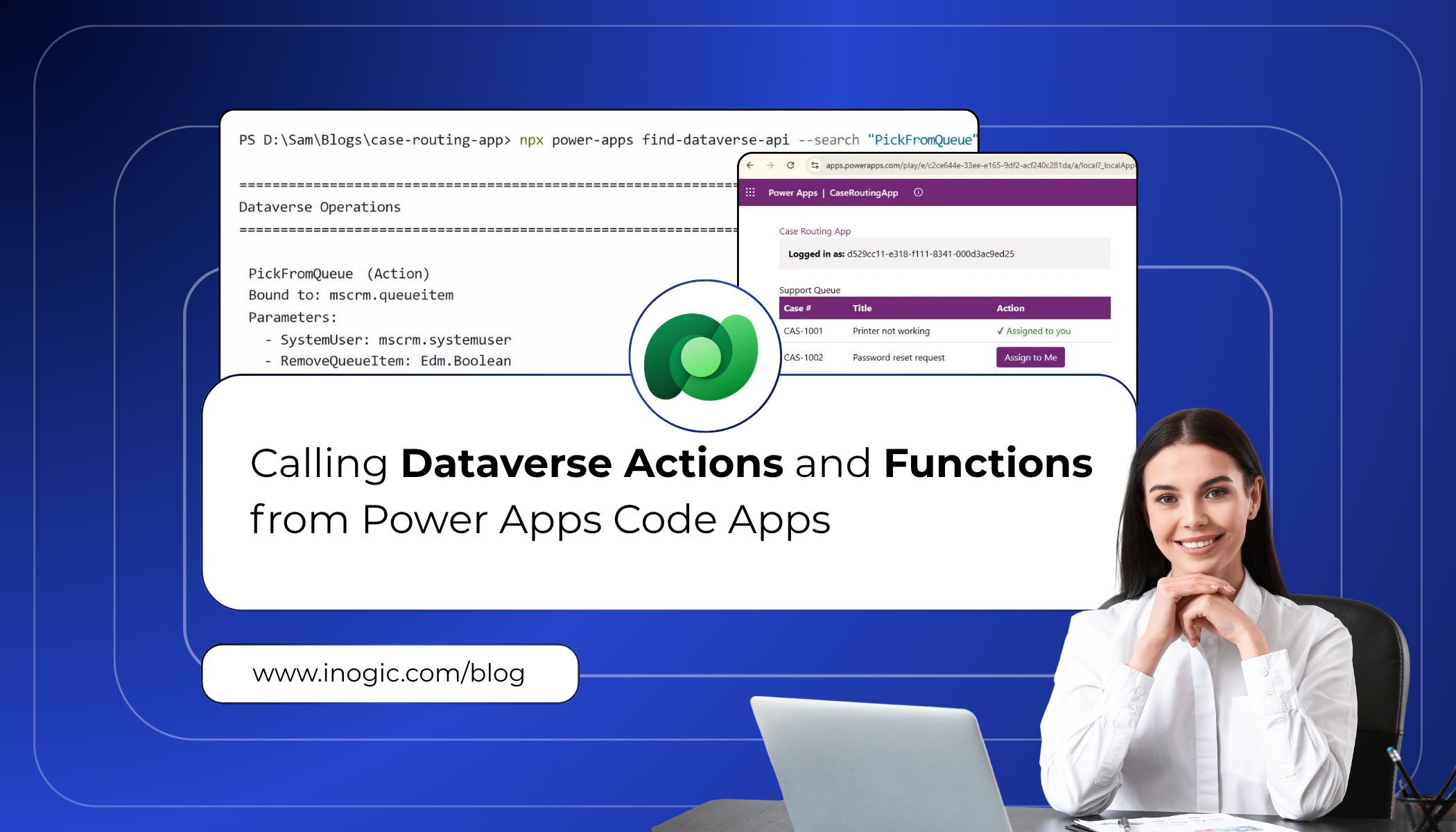
DataverseWhen building Power Apps code apps, one of the most powerful things you can do is reach directly into Dataverse to trigger business logic. Whether it is routing a support ticket to the right queue, checking who the current user is, or running a custom API operation, Dataverse actions and functions are the engine behind most enterprise workflows.

In the past, calling these operations required manually writing Web API fetch calls, constructing the right URLs, and handling typed responses by hand. It worked, but it was slow, error-prone, and hard to maintain as schemas evolved.

Microsoft has now introduced a much cleaner developer experience through the Power Apps npm CLI. With just two commands — find-dataverse-api and add-dataverse-api — you can discover operations in your Dataverse environment, generate fully typed TypeScript service classes, and call them directly from your code app with confidence.

This blog walks through exactly how to do that, using a real-world scenario: a support team that needs to automatically route incoming cases to the correct queue based on priority.

Client Scenario: Automated Case Routing

A client running a customer support operation on Dynamics 365 came to us with a specific pain point. Their agents were starting every shift by manually scanning a shared queue, finding cases relevant to them, and self-assigning each one individually through the Dynamics 365 UI. With dozens of queued cases at any given time, agents were spending the first 15–20 minutes of every shift just on assignment, before they had even looked at a single customer issue.

They needed a code app that displayed all cases currently sitting in the queue and allowed an agent to pick and assign any case to themselves with a single click. The assignment logic already existed as a Dataverse bound action called PickFromQueue. The challenge was invoking it cleanly from a modern Power Apps code app.

The requirements the client laid out were straightforward:

  • View all active cases in a clean, filterable list
  • Select a case from the queue and assign it to yourself with one click
  • Show who is currently logged in so agents can confirm their session
  • Ensure all operations are type-safe and maintainable

This is exactly the kind of scenario the add-dataverse-api command was built for.

Prerequisites

Before following this guide, make sure the following are in place:

  • A Power Apps code app initialised using npx power-apps init
  • The @microsoft/power-apps package at version 1.1.1 or later in your package.json
  • An active CLI session (the CLI will prompt you to authenticate if not already logged in)
  • Access to the Dataverse environment that contains the operations you want to call
  • js installed on your machine (version 18 or later recommended)

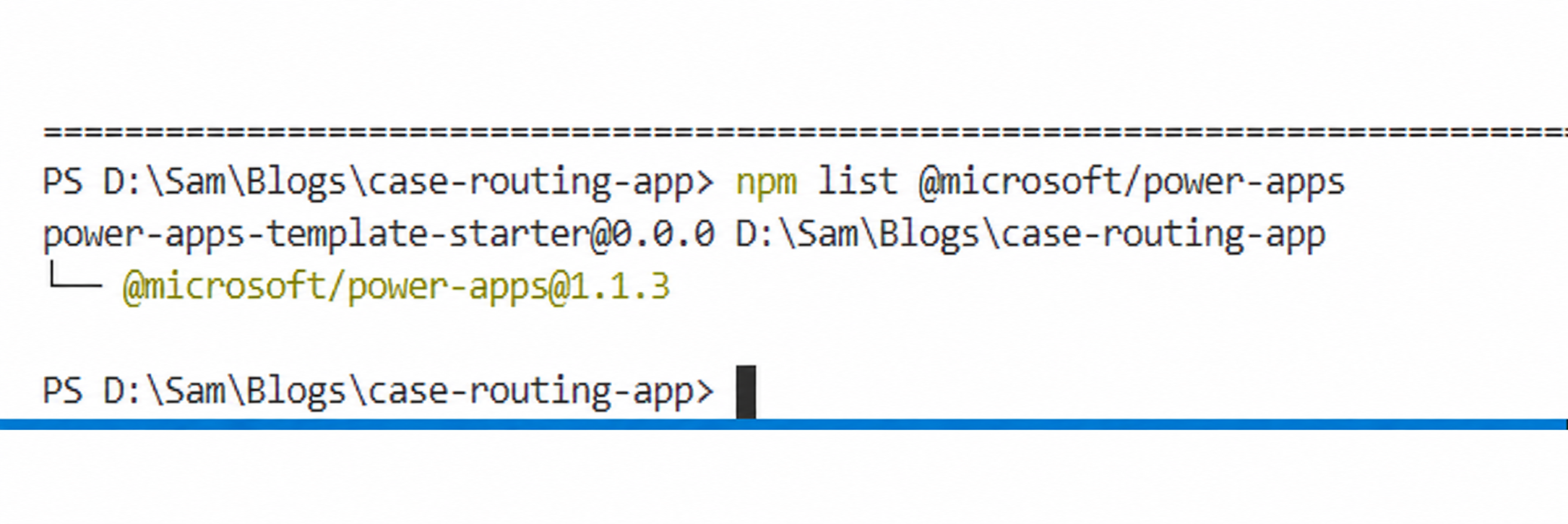
Note: Run npm list @microsoft/power-apps to confirm the package version (1.1.1 or later). The CLI version (shown by npx power-apps –version) may differ from the package version..
Dataverse 1

Step 1: Discover Available Dataverse Operations

The first step is to find out which Dataverse operations are available in your environment. The find-dataverse-api command performs a case-insensitive substring search against the operation names in your connected environment.

For this scenario, we need two operations. The first is WhoAmI, which identifies the current logged-in user. The second is PickFromQueue, which picks a case from a queue and assigns it to a specified user.

Finding WhoAmI

Run the following command in your terminal from inside the code app project folder:

npx power-apps find-dataverse-api --search "WhoAmI"

The output will show the operation name, its kind (Function or Action), and its return type:
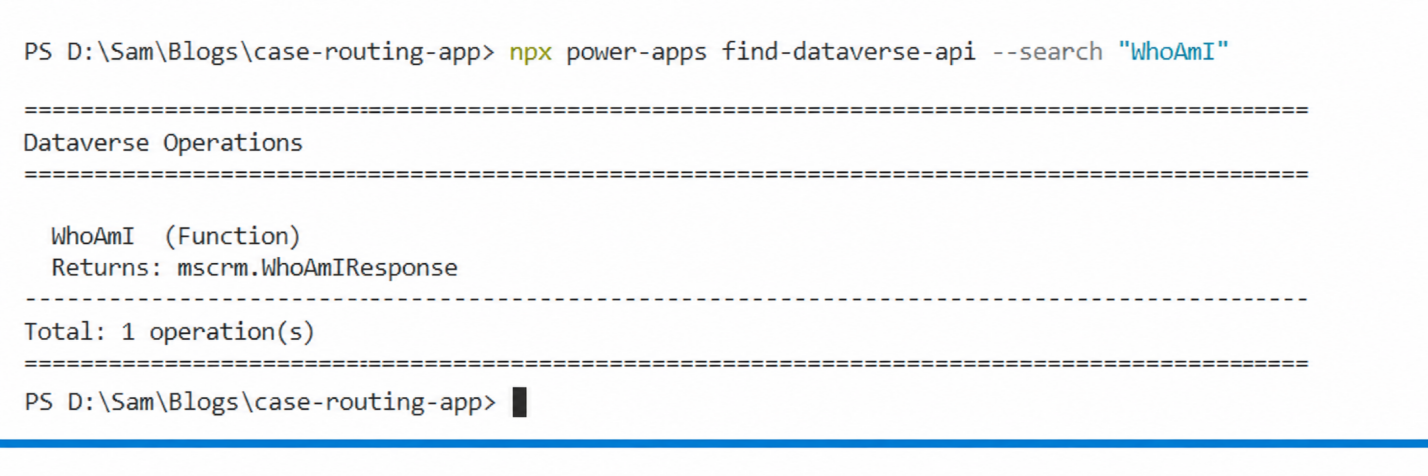
Dataverse

Finding PickFromQueue

Next, search for the PickFromQueue action:

npx power-apps find-dataverse-api --search "PickFromQueue"

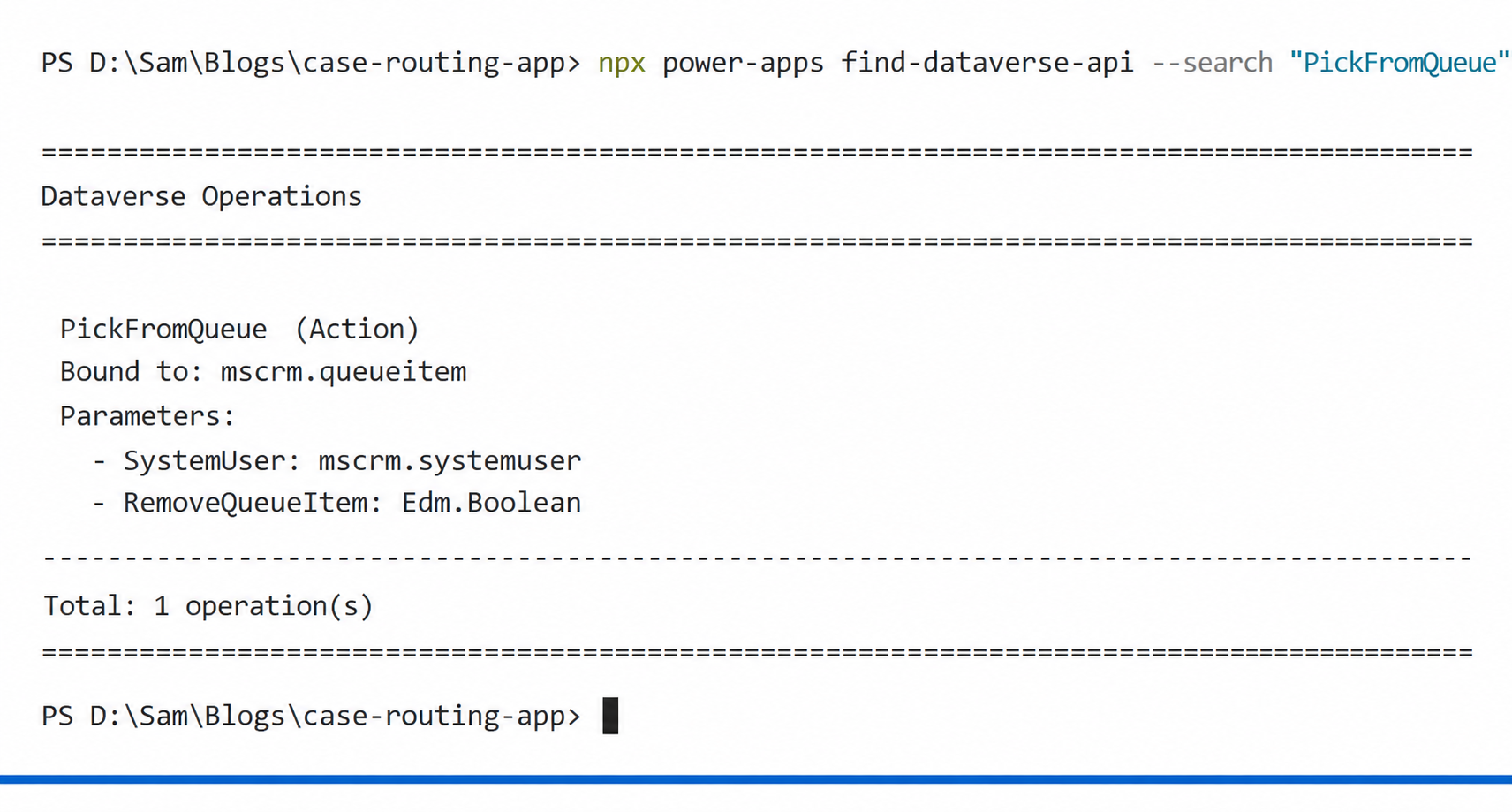
You will see something like this:
Dataverse

Notice that PickFromQueue is a bound action — it is bound to mscrm.queueitem, meaning it must be called with the GUID of the queue item record as its first argument. This is an important distinction that affects how the generated service method works, which we will cover shortly.

If you want to inspect the raw JSON output for scripting purposes, add the –json flag:

npx power-apps find-dataverse-api --search "PickFromQueue" --json

Step 2: Add the Operations to Your Code App

Once you have confirmed the operation names, use the add-dataverse-api command to wire them into your project. This command does several things automatically:

  • Fetches the full operation definition from your environment’s Dataverse metadata endpoint
  • Creates a schema file at the configured schema path
  • Generates TypeScript model files for any entities referenced in the operation
  • Generates a typed service class for the operation
  • Updates power.config.json with the necessary database reference
  • Regenerates dataSourcesInfo.ts to include the new operation

Adding WhoAmI

npx power-apps add-dataverse-api --api-name WhoAmI

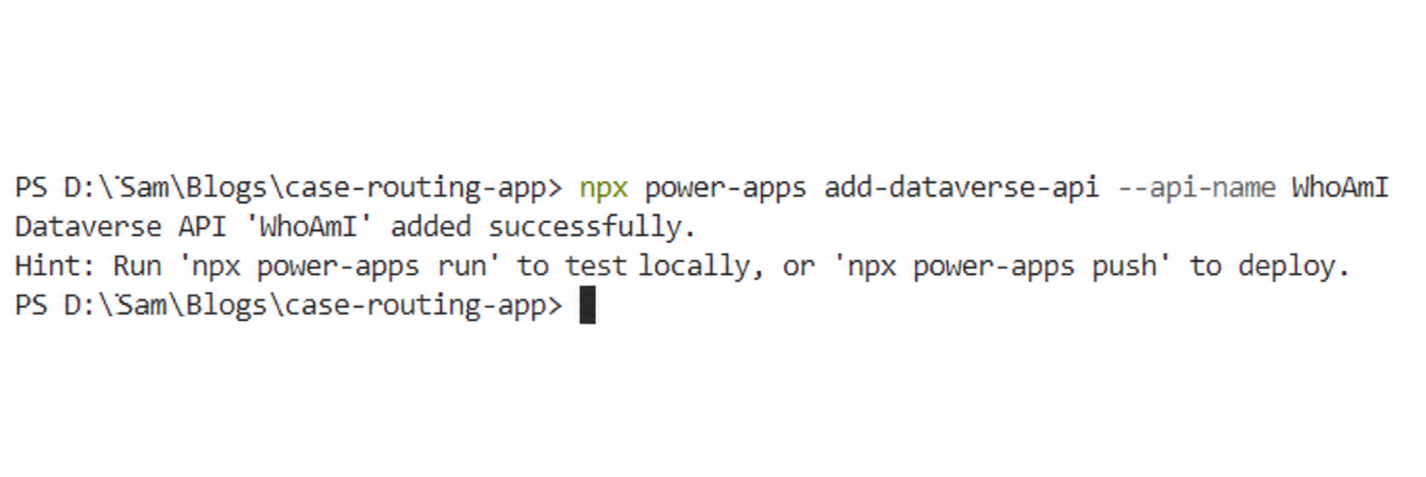
On success, you will see:
Dataverse 1

Adding PickFromQueue

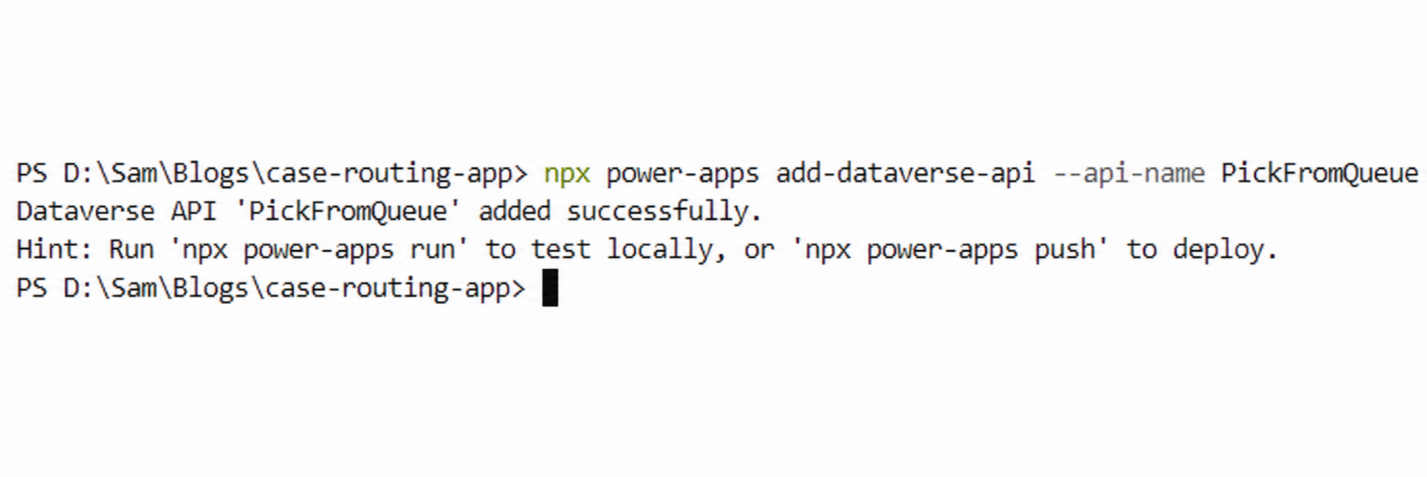
npx power-apps add-dataverse-api --api-name PickFromQueue

Or using the short alias:
Dataverse

npx power-apps add-dataverse-api -n PickFromQueue

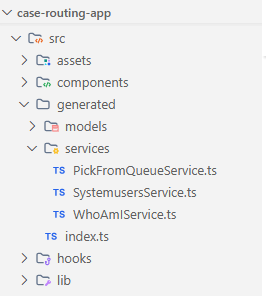
Once both commands complete, your project structure will include new generated files. Here is a summary of what was created or updated:

File What Changed
schemas/dataverse/WhoAmI.Schema.json Created — operation schema
schemas/dataverse/PickFromQueue.Schema.json Created — operation schema
schemas/appschemas/dataSourcesInfo.ts Regenerated to include both operations
power.config.json Updated with default.cds database reference
generated/services/WhoAmIService.ts Generated typed service class
generated/services/PickFromQueueService.ts Generated typed service class

Dataverse

Step 3: Use the Generated Services in Your App

With the service classes generated, you can now import and call them directly in your application code. The CLI handles all the Web API URL construction, authentication headers, and response parsing behind the scenes.

Calling WhoAmI

Import the WhoAmIService from the generated services directory and call it to retrieve the current user’s identity:

import { WhoAmIService } from './generated/services/WhoAmIService';

const userInfo = await WhoAmIService.WhoAmI() as any;

const currentUserId = userInfo.UserId;

const businessUnitId = userInfo.BusinessUnitId;

const orgId = userInfo.OrganizationId;

The result object contains three GUIDs — UserId, BusinessUnitId, and OrganizationId — all fully typed. In the case routing app, we use the UserId to display which agent is currently logged in, giving the team lead confidence before performing any routing action.

Calling PickFromQueue

The PickFromQueue action is a bound operation, which means the generated service method takes the queue item GUID as its first argument, followed by the operation parameters:

import { PickFromQueueService } from './generated/services/PickFromQueueService';
const handlePickCase = async (queueItemId: string, currentUserId: string) => {

const systemUser = {

'@odata.type': 'Microsoft.Dynamics.CRM.systemuser',

systemuserid: currentUserId

};

await PickFromQueueService.PickFromQueue(

queueItemId,    // GUID of the queue item (first arg for bound actions)

systemUser,     // The system user to assign the case to

true            // RemoveQueueItem — remove from queue after picking

);

console.log('Case picked from queue successfully');

};

The function picks the case from the queue and assigns it to the specified user. When RemoveQueueItem is true, the item is automatically removed from the queue to prevent duplicate assignments.

Note: For bound operations, the first argument is always the GUID of the record the action is bound to. In this case, PickFromQueue is bound to mscrm.queueitem, so the first argument is the queue item ID.

Step 4: Build the Case Routing UI

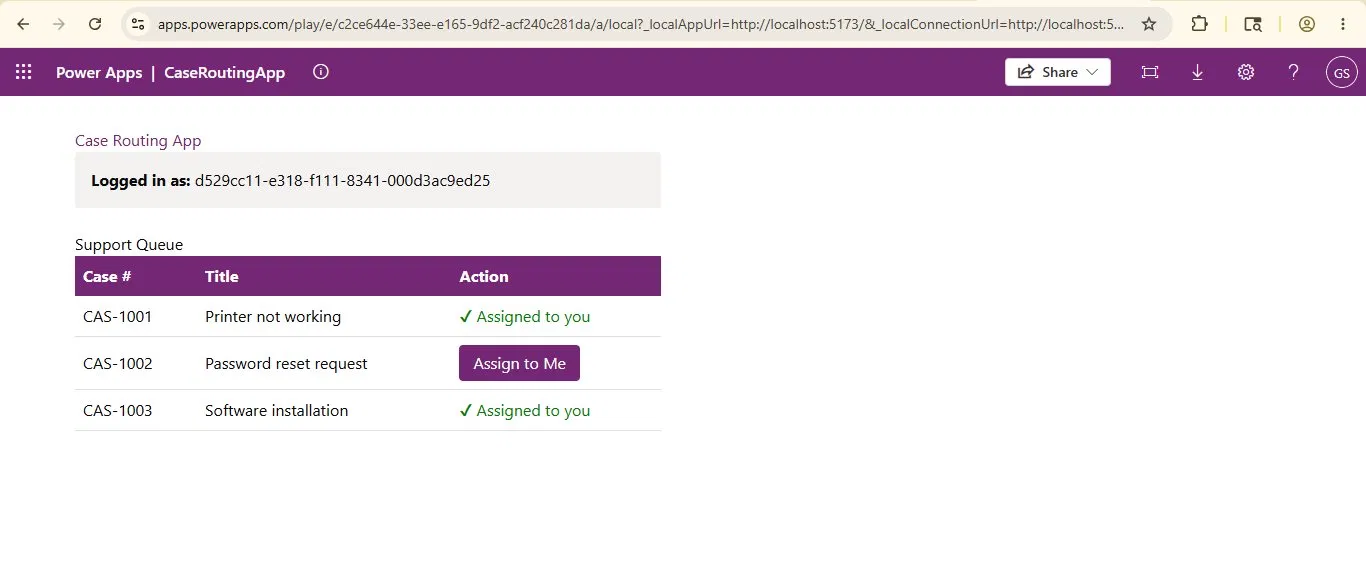
With both services wired up, the final step is to build the actual interface the team leads will use. The component needs to show a list of open cases, allow selection, and trigger the routing action.

Below is a simplified version of how the component comes together:

import { useEffect, useState } from 'react';

import { WhoAmIService } from './generated/services/WhoAmIService';

import { PickFromQueueService } from './generated/services/PickFromQueueService';

// Sample cases in queue (in production, fetch from Dataverse)

const queuedCases = [

{ id: 'CAS-1001', title: 'Printer not working',    queueItemId: '< queue-item-guid-1 >' },

{ id: 'CAS-1002', title: 'Password reset request', queueItemId: '< queue-item-guid-2 >' },

{ id: 'CAS-1003', title: 'Software installation',  queueItemId: '< queue-item-guid-3 >' },

];

export const CaseRoutingApp = () => {

const [currentUserId, setCurrentUserId] = useState('');

const [routedCases, setRoutedCases] = useState<Record<string, boolean>>({});

useEffect(() => {

WhoAmIService.WhoAmI().then((r: any) => setCurrentUserId(r.UserId));

}, []);

const handlePickCase = async (queueItemId: string, caseId: string) => {

const systemUser = {

'@odata.type': 'Microsoft.Dynamics.CRM.systemuser',

systemuserid: currentUserId

};

await PickFromQueueService.PickFromQueue(queueItemId, systemUser, true);

setRoutedCases(prev => ({ ...prev, [caseId]: true }));

};

return ( /* your JSX here */ );

};
Dataverse 

Once you are happy with the result in local preview, run:

npx power-apps push

This deploys the app to your Dataverse environment and makes it available inside the model-driven app.

Important Notes and Common Pitfalls

A few things to keep in mind as you work with this feature:

Bound vs. Unbound Operations

The distinction between bound and unbound operations matters for how you call the generated service method. Bound operations always take an id: string as the first argument (the GUID of the record the operation is bound to). Unbound operations, like WhoAmI, take only the declared parameters.

The CLI detects the operation type automatically and generates the method signature accordingly. You do not need to configure anything manually.

Re-running add-dataverse-api is Safe

If the operation’s signature changes in your environment — for example, a developer added a new optional parameter — simply re-run the same command:

npx power-apps add-dataverse-api --api-name PickFromQueue

The command is idempotent. It overwrites the schema and regenerates the service class with the latest definition. It will not create duplicate entries in power.config.json, and it will not overwrite entity schema files that already exist.

Conclusion

The add-dataverse-api command is a significant quality-of-life improvement for developers building Power Apps code apps. Instead of handwriting Web API calls, managing URL patterns for bound vs. unbound operations, and manually typing response objects, you get fully generated, type-safe service classes in seconds.

For the support team in our scenario, the result was exactly what the client needed. Cases are now routed with a single click, the correct agent identity is confirmed before any action is taken, and the development time was a fraction of what it would have taken with raw Web API calls.

Whether you are calling WhoAmI to verify the current session, triggering a bound action like PickFromQueue to execute business logic, or invoking a custom operation your team has built, the CLI handles the scaffolding so you can focus on building the experience.

FAQs

What is add-dataverse-api in Power Apps code apps?

The add-dataverse-api command is a Power Apps CLI feature that generates fully typed TypeScript service classes for Dataverse actions and functions. It eliminates the need to manually write Web API fetch calls when building Power Apps code apps.

How do you call Dataverse actions from a Power Apps code app?

You can call Dataverse actions in a Power Apps code app by using the Power Apps npm CLI commands find-dataverse-api and add-dataverse-api. These commands generate typed service classes that let developers invoke Dataverse actions directly in TypeScript.

What is the difference between bound and unbound Dataverse actions?

Bound Dataverse actions are linked to a specific Dataverse table or record and require a record GUID as the first parameter. Unbound actions are standalone operations that do not require a record reference. For example, PickFromQueue is bound, while WhoAmI is unbound.

The post Calling Dataverse Actions and Functions from Power Apps Code Apps first appeared on Microsoft Dynamics 365 CRM Tips and Tricks.

How to restrict Unwanted Power Automate flow execution

Power Automate

In Microsoft Dataverse, Power Automate flows are commonly used to execute business logic when records are created, updated, or deleted. They work well for most user-driven and real-time business operations.

However, in certain scenarios such as integrations, background jobs, bulk data operations, or system maintenance tasks running these flows is not always required and can negatively impact performance or cause unintended automation triggers.

To address this, Microsoft provides a way to bypass Power Automate flow execution when performing operations through the Dataverse SDK. This allows developers to update or delete records without triggering associated flows, giving greater control over when automation should or should not run.

In this blog, we’ll explore when and why bypassing Power Automate flows makes sense, how it works at a technical level, and what to keep in mind before using it in production environments.

Why Bypass Power Automate Flows?

Bypassing flows is useful when the operation is system-driven and the flow logic is not needed.

Some common reasons include:

  • Avoiding unnecessary flow execution during background operations
  • Improving performance during bulk updates or migrations
  • Preventing flows from triggering repeatedly or causing loops
  • Keeping business automation separate from technical or maintenance logic

This approach ensures that Power Automate flows run only when they genuinely add business value, rather than during behind-the-scenes system updates.

Steps to Perform

For demonstration purposes, the logic is implemented using a desktop application. The objective is to clearly compare a standard update operation with one that bypasses Power Automate flow execution.

In both scenarios:

  • The same account record is updated
  • The only difference is whether the bypass flag is applied during the update request

Update Event Without Bypass

In this scenario, the record is updated using the standard SDK request without any bypass flag.

/// <summary>

/// Update the record Account record

/// </summary>

/// <param name="service"></param>

private static void UpdateRecord(CrmServiceClient service, string accountName, Guid accountId)

{

try

{

//Step 1: Get Record to update

Entity ent = new Entity("account", accountId);

#region Create Account name

ent["name"] = accountName;

#endregion

// Step 2: Update

service.Update(ent);

Console.WriteLine($"Record updated successfully. {DateTime.Now}");

}

catch (Exception ex)

{

SampleHelpers.HandleException(ex);

}
}

Restrict Unwanted Power Automate flow execution

Restrict Unwanted Power Automate flow execution

Observed behavior:

  • The update operation succeeds
  • The associated Power Automate flow is triggered
  • Any downstream logic defined in the flow executes as expected (for example, SharePoint operations, notifications, or validations)

This is the default and expected behavior when performing update operations through the SDK.

Update Event with Power Automate Flow Bypass

In this scenario, the same update operation is executed, but the request includes the bypass flag to skip Power Automate flow execution.

/// <summary>

/// Update the record Account record with bypass logic

/// </summary>

/// <param name="service"></param>

private static void UpdateRecordWithBypass(CrmServiceClient service, string accountName, Guid accountId)

{

try

{

//Step 1: Get Record to update

Entity ent = new Entity("account", accountId);

#region Create entity record object

ent["name"] = accountName;

#endregion

// Step 2: Create delete request

var updateRequest = new UpdateRequest

{

Target = ent

};

// Step 3: Bypass Power Automate flows

updateRequest.Parameters.Add("SuppressCallbackRegistrationExpanderJob", true);

// Step 4: Execute

service.Execute(updateRequest);

Console.WriteLine($"Record updated with bypass successfully. {DateTime.Now}");

}

catch (Exception ex)

{

SampleHelpers.HandleException(ex);

}
}

Restrict Unwanted Power Automate flow execution

Restrict Unwanted Power Automate flow execution

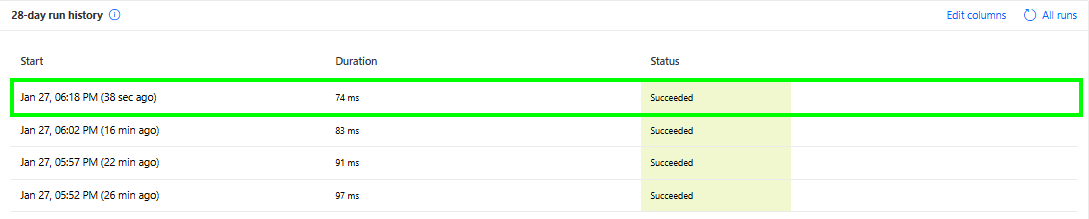
Observed behavior:

  • The record is updated successfully.
  • Power Automate flow does not execute.
  • No SharePoint or automation logic tied to the flow is triggered.

This allows the system to perform controlled updates without affecting existing automation logic.

Conclusion

Bypassing Power Automate flows in Microsoft Dataverse is a powerful capability designed for advanced scenarios, such as:

  • System integrations
  • Maintenance or cleanup jobs
  • Bulk updates and data migrations

When used appropriately, it helps improve performance, avoid unnecessary automation, and maintain clean separation between business logic and technical processes.

However, this feature should be applied carefully and intentionally. Overusing it can lead to missed automation or inconsistent system behavior. When used in the right context, it results in cleaner implementations and more predictable outcomes.

The post How to restrict Unwanted Power Automate flow execution first appeared on Microsoft Dynamics 365 CRM Tips and Tricks.
Building Standalone Apps with Power Apps Code Apps: Using Dataverse and Office 365 Users Connectors (Part 1)

Power Apps

In the Dynamics 365 and Power Apps ecosystem, we have several options for building applications, each one is for a specific type of requirement. Model-driven Apps works well when we need a structured UI with standard components, while we use Canvas Apps to create custom, mobile-friendly interfaces with a low-code approach. Recently, Microsoft introduced another application type called Code Apps, which offers a completely different way to build applications using pro code approach.

With the introduction of  Power Apps Code Apps, things have changed. Code Apps let us build standalone single page applications using modern web frameworks. These are independent applications that cannot be integrated with Canvas Apps or Model-driven Apps.

The best part is that we get direct access to more than 1,500 standard and premium connectors through the Power Apps SDK. We do not have to write any authentication code, no OAuth flows, no custom APIs, no middleware. We just have to connect and use.

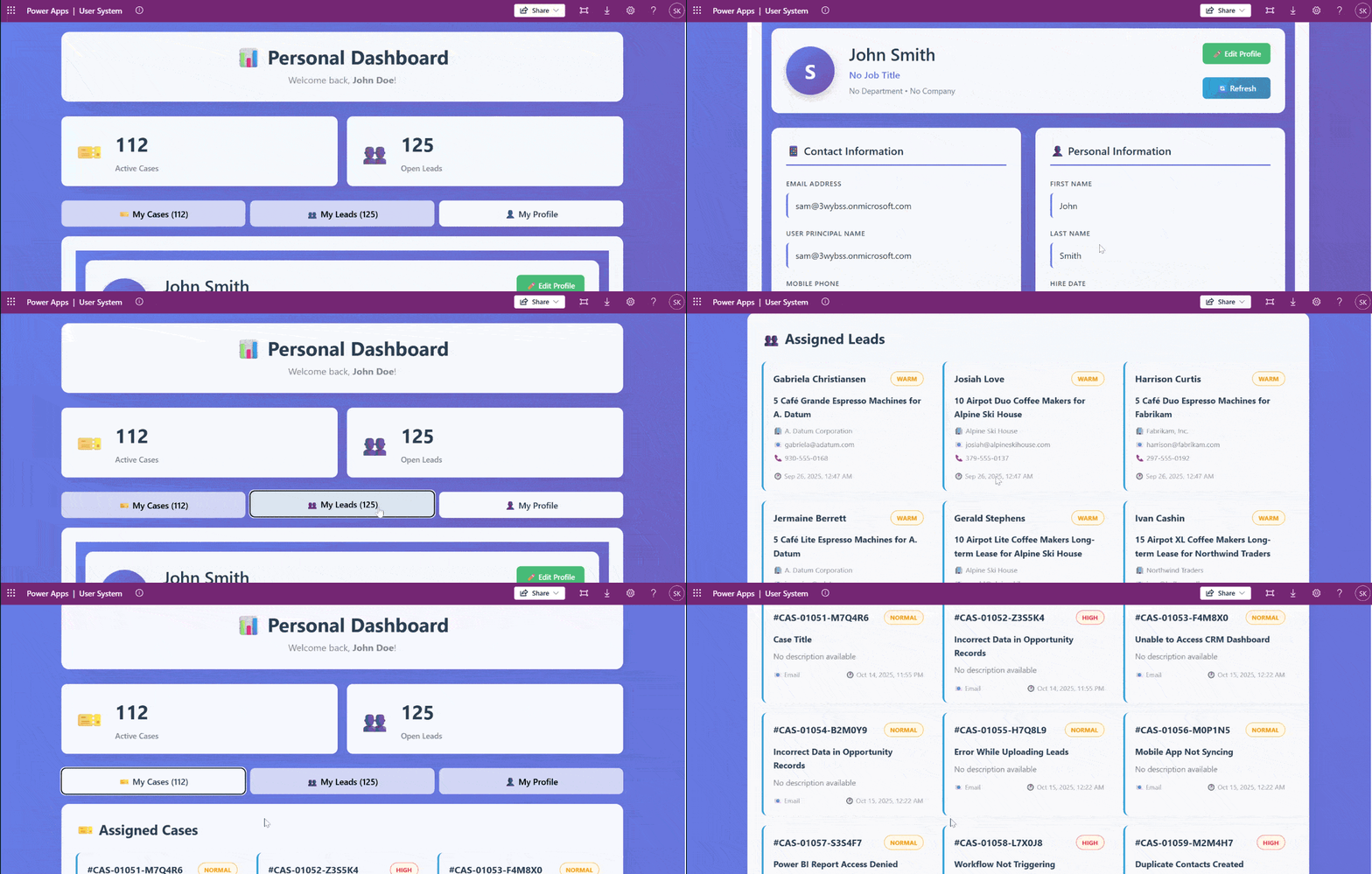
In this article, we’ll walk you through creating a Code App from scratch. We’ll build Personal Dashboard, a simple application that pulls assigned cases and leads from Dataverse and shows current logged in user details using the Office 365 Users and Dataverse connectors.

What Makes Code Apps Different?

We can build a UI of our own choice and connect to a wide range of data sources using more than 1,500 standard and premium connectors provided by the Power Platform. All connections are secure because the Power Apps SDK handles authentication, and each connector enforces user-level permissions. This means the app can only access data that the signed-in user is allowed to see, so there’s no need to write custom authentication code.

Code Apps provide a balanced approach with several key advantages:

  • A standalone application that runs directly within Power Platform
  • Full development with modern web frameworks such as React, Vue, or Angular, with support for  your preferred libraries
  • Direct access to connectors through the Power Apps SDK without custom authentication code
  • Streamlined deployment through a single command to your environment

The connector integration is particularly valuable. Whether the need is to query Dataverse, access current user profile details, or use other services, the connector can be called directly. There’s no need to configure service principals, manage app registrations, or implement token management. The integration works seamlessly within the platform.

Prerequisites

Before getting started, we have to make sure the following prerequisites are in place:

  • Power Apps Premium license with Code Apps enabled environment
  • Visual Studio Code installed
  • Node.js LTS version
  • Power Platform Tools for VS Code extension

Step 1: Setting Up the Code App

Let’s create the app. Open VS Code, launch a PowerShell terminal, and run the following command:

npm create vite@latest PersonalDashboard — –template react-ts

For this application, we are using React as the framework and TypeScript as the variant. After that, navigate to the project folder and install the dependencies:

npm install

Install the node type definitions:

npm i –save-dev @types/node

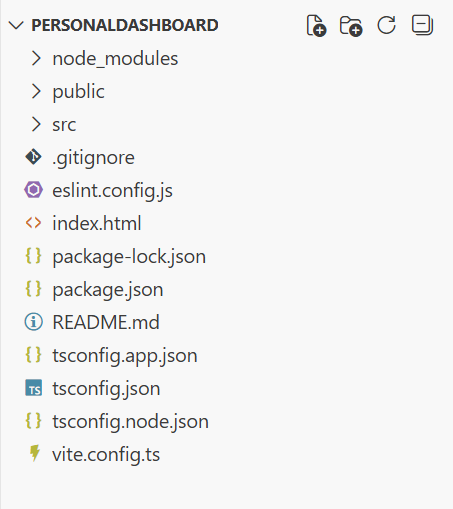
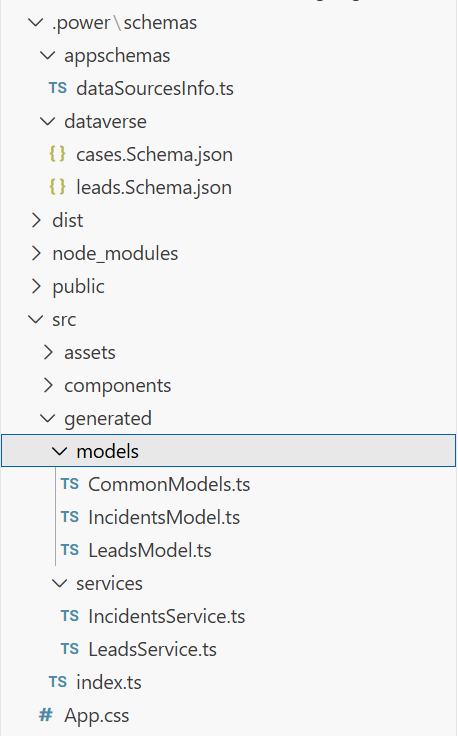
After executing these commands, the project structure will appear as shown in the image below.

PowerAppsCode

According to the official Microsoft documentation, the Power Apps SDK currently requires the port to be 3000 in the default configuration. To configure this, open vite.config.ts and replace the content with the following code:

import { defineConfig } from 'vite'

import react from '@vitejs/plugin-react'

import * as path from 'path'


// https://vite.dev/config/

export default defineConfig({

base: "./",

server: {

host: "::",

port: 3000,

},

plugins: [react()],

resolve: {

alias: {

"@": path.resolve(__dirname, "./src"),

},

},

});

Note for Mac users: It may be necessary to modify the package.json scripts section.

Change from:

"scripts":  {

"dev": "start vite && start pac code run",

"build": "tsc -b && vite build",

"lint": "eslint .",

"preview": "vite preview"

}

to this

"scripts": {
"dev": "vite && pac code run",
"build": "tsc -b && vite build",
"lint": "eslint .",
"preview": "vite preview"
}

Save the file and run the Code App locally by executing:

npm run dev

Browse to http://localhost:3000. If the application loads successfully, press Ctrl+C to stop the server.

Step 2: Initialize the Code App

First authenticate to Power Platform:

pac auth create

After that, sign in with the credentials and select the environment:

pac env select -env <environment-url>

Initialize the Code App:

pac code init –displayName “Personal Dashboard”

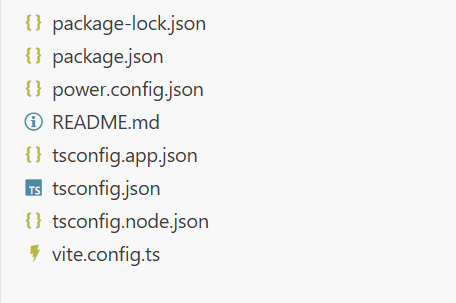
This will create a power.config.json file in the project as shown in the image below.

PowerAppsCode

Now install the Power Apps SDK. This package provides APIs that allow the application to interact directly with Power Platform services and includes built-in logic to manage connections automatically as they are added or removed.

npm install –save-dev “@microsoft/power-apps

Update package.json to run both Vite and the Power Apps SDK server:

"scripts": {
"dev": "start pac code run && vite",
"build": "tsc -b && vite build",
"lint": "eslint .",
"preview": "vite preview"
}

Step 3: Configure Power Provider


Create PowerProvider.tsx under src and add the Power SDK context provider code given below.


import { initialize } from "@microsoft/power-apps/app";

import { useEffect, type ReactNode } from "react";

interface PowerProviderProps {

children: ReactNode;

}

export default function PowerProvider({ children }: PowerProviderProps) {

useEffect(() => {

const initApp = async () => {

try {

await initialize();

console.log('Power Platform SDK initialized successfully');

} catch (error) {

console.error('Failed to initialize Power Platform SDK:', error);

}

};

initApp();

}, []);

return <>{children}</>;

}

Update the main.tsx and add this line in the imports section:

import PowerProvider from './PowerProvider.tsx'

and change this code snippet

<StrictMode>
<App />
</StrictMode>,

to this

<StrictMode>

<PowerProvider>

<App />

</PowerProvider>

</StrictMode>,

Run the app by executing :

npm run dev

Open the URL provided by the Power SDK Server in the same browser profile as that of power platform tenant.

Step 4: Adding Dataverse Connector

Now comes the part where we will add the data source to our application. In this step, we’ll use the Dataverse connector to fetch assigned cases and leads for the logged-in user.

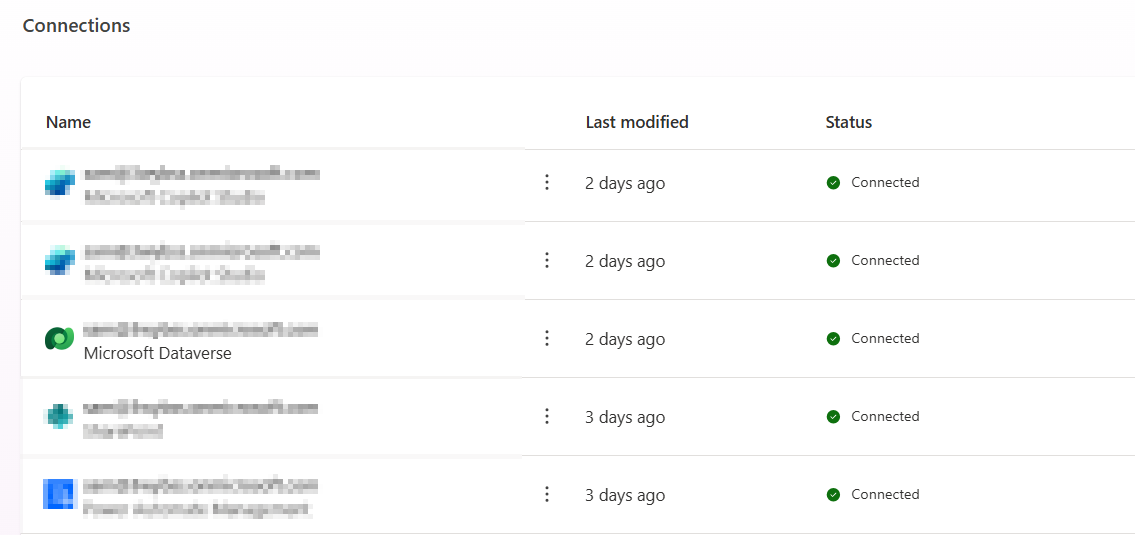
For that First, we need to create a connection:

1. Go to Power Apps and open Connections.

2. Click New Connection and select Dataverse.

Follow the instruction properly to create the connection, as shown in the

PowerAppsCode

Once the connection is ready, we have to open the terminal. For Dataverse, we have to add the tables required for the application. For this example, we’ll add the Leads and Incident (Cases) tables using the following commands:

pac code add-data-source -a dataverse -t lead

pac code add-data-source -a dataverse -t incident

PowerAppsCode

After running these commands, we can see that some files and folders are added to the project. Inside the generated folder, there are services and models folders. These contain the files for Leads, Incidents, and other tables, which can be used in the code. For example:

import { AccountsService } from './generated/services/AccountsService';

Import type { Accounts } from './generated/models/AccountsModel';

CRUD operations can be performed on Dataverse using the app. Before accessing any data, we have to initialize the Power Apps SDK to avoid errors. An async function or state check can ensure the SDK is ready before making API calls. For example:

useEffect(() => {

// Define a function of asynchronous type to properly initialize the Power Apps SDK to avoid any error during runtime


const init = async () => {

try {

await initialize(); // Wait for SDK initialization

setIsInitialized(true); // Mark the app as ready for data operations

} catch (err) {

setError('Failed to initialize Power Apps SDK'); // Handle initialization errors

setLoading(false); // Stop any loading indicators

}

};


init(); // Call the initialization function when the component mounts

}, []);


useEffect(() => {

If (!isInitialized) return;


// Place your data reading logic here

}, []);


Step 5: Adding Office 365 Users Connector

Similar to Dataverse, we need to create a connection for Office 365 Users by following the same steps. Once the connection is ready, we need to add it to the application. First, list all available connections to get the connection ID using command:

pac connection list

It will list all the connections available in the selected environment. We need to Copy the connection ID for Office 365 Users from the list, then add it to the project using:

pac code add-data-source -a “shared_office365users” -c “<connection-id>”

After running this command, the Office 365 Users connector will be available to use in the application, allowing access to user profiles, and other Office 365 user data.


Step 6: Building the UI

There are two ways to build a good UI. The first is the traditional coding approach where we write the complete code manually. The second is by using GitHub Copilot integrated in VS Code with the help of prompts.

Using GitHub Copilot:

We can generate the UI by writing a detailed prompt in GitHub Copilot. Here’s an example prompt:

Create a Personal Dashboard UI component in React with TypeScript that displays:

  1. A header section showing the current logged-in user’s profile information (name, email, job title, and profile photo) fetched from Office 365 Users connector
  2. Two main sections side by side:

– Left section: Display a list of assigned Cases (Incidents) from Dataverse

* Show case title, case number, priority, status, and created date

* Use card layout for each case

* Add loading state and error handling

– Right section: Display a list of assigned Leads from Dataverse

* Show lead name, company, topic, status, and created date

* Use card layout for each lead

* Add loading state and error handling

  1. Use modern, clean UI design with:

– Responsive layout (works on desktop and mobile)

– Tailwind CSS for styling

– Professional color scheme (blues and grays)

– Proper spacing and typography

– Loading spinners while data is fetching

– Error messages if data fails to load

After providing this prompt to GitHub Copilot, it will generate the complete component code. We can then review the generated code, make any necessary adjustments, and integrate it into our application.

Step 7: Deploy Your Code App

Once the code is complete and the app is running locally, the next step is to deploy the application. For Code Apps, deployment is straightforward. First, build the application by running:

npm run build

After a successful build, execute the following command to push the application to Power Apps:

pac code push

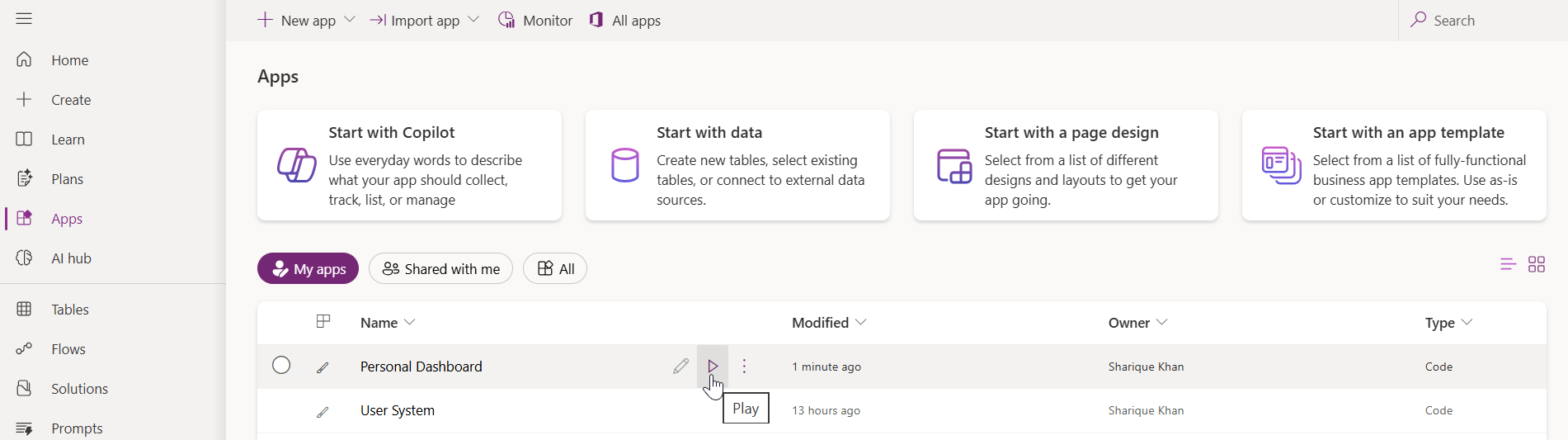
This command will deploy the application to Power Apps. To verify the deployment, go to the Power Apps portal and open the Apps section. The newly deployed Code App will be visible in the list as shown in the image below.

PowerAppsCode

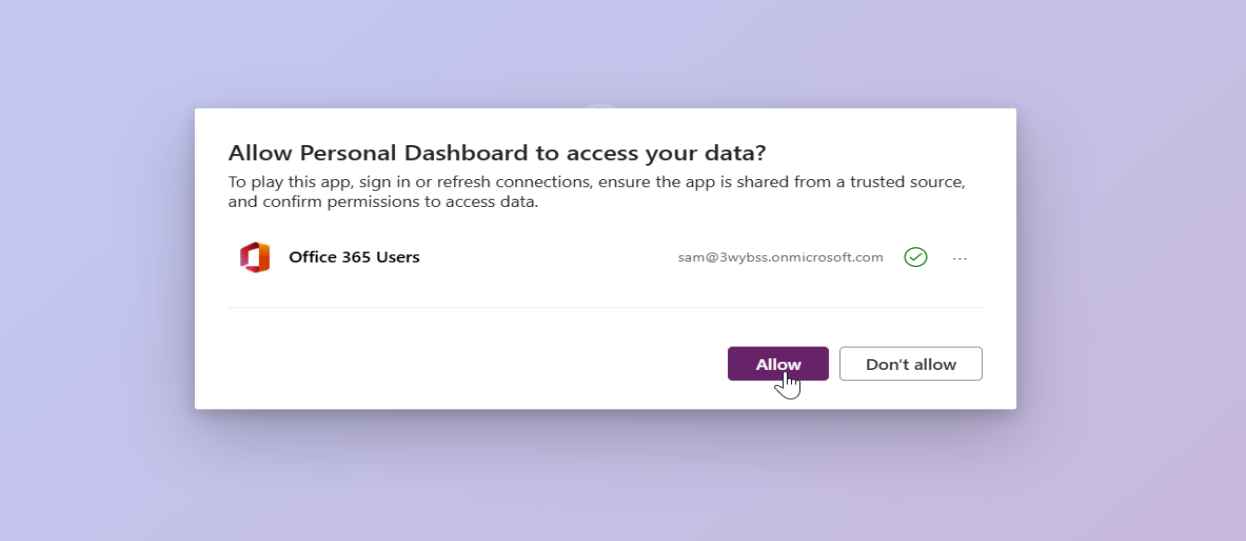
To run the app, click the play button. On the first launch, the application will prompt for permission to access the connected data sources. After allowing the permissions, the application will use those connection references for all subsequent operations.

PowerAppsCode


PowerAppsCode

Conclusion

With Power Apps Code Apps, we can now build standalone applications. The real advantage here is the direct access to over 1,500 connectors through the Power Apps SDK. We can connect to Dataverse, Office 365 Users, and other services without writing any authentication code. The Power Apps SDK handles all the security, and each connector respects user level permissions automatically.

We also get complete freedom to design our own UI using any libraries we prefer. The deployment process is simple. Just run the build command and push it to Power Platform with a single command.

In this article, we built a Personal Dashboard that pulls data from Dataverse and Office 365 Users. The same approach works for any application that needs to connect with Power Platform services. The setup is straightforward, and once the project is initialized, adding new data sources is just a matter of running a few commands.

Code Apps provide a practical way to build custom applications within the Power Platform ecosystem while maintaining secure connections and proper access control.

Frequently Asked Questions (FAQs)

What are Power Apps Code Apps?

Power Apps Code Apps are a new application type in Microsoft Power Platform that allow developers to build standalone single-page applications using modern web frameworks such as React, Angular, or Vue. They provide direct access to Power Platform connectors through the Power Apps SDK without requiring custom authentication code.

How are Code Apps different from Canvas Apps and Model-Driven Apps?

Unlike Canvas Apps and Model-Driven Apps, Code Apps:

  • Are fully standalone applications
  • Use a pro-code development approach
  • Allow complete control over UI and application architecture
  • Cannot be embedded into Canvas or Model-Driven Apps
  • Use modern frontend frameworks instead of low-code designers

Do Power Apps Code Apps require authentication setup?

No. Authentication is handled automatically by the Power Apps SDK. Developers do not need to implement OAuth flows, manage tokens, or configure app registrations. All connectors enforce user-level permissions by default.

Can Power Apps Code Apps connect to Dataverse?

Yes. Power Apps Code Apps can connect directly to Dataverse using the Dataverse connector. Developers can perform CRUD operations on Dataverse tables, such as Leads and Incidents once the SDK is initialized.

How do Code Apps access Office 365 user information?

Code Apps use the Office 365 Users connector to retrieve profile details such as name, email, job title, and profile photo. The connector respects the signed-in user’s permissions automatically.

The post Building Standalone Apps with Power Apps Code Apps: Using Dataverse and Office 365 Users Connectors (Part 1) first appeared on Microsoft Dynamics 365 CRM Tips and Tricks.

Step-by-Step Guide: Implementing the Power Pages Summary Component with Dataverse Tables

Power Pages Summary Component with Dataverse Tables

Overview

Microsoft Power Pages continues to evolve as a powerful platform for building secure, low-code, data-driven websites. One of its latest additions, the Summary Component, brings the power of AI summarization directly into portals.

The Summary Component allows developers and makers to automatically generate short, readable summaries from Dataverse data using the Power Pages Web API. This feature helps users quickly understand patterns, trends, and key details without navigating through individual records.

This blog explains the implementation of the Summary Component for the Lead table in the Power Pages portal to summarize key fields such as Full Name, Creation Date, Annual Revenue, Subject, Company Name, Email, and Telephone Number.

Business Use Case

The goal of this implementation is to provide sales managers and team members with a quick overview of lead information directly from the portal without requiring them to open each record.

Traditionally, reviewing leads involves scanning through a detailed list of entries, which can be time-consuming. The new Summary Component solves this by generating a concise, AI-based paragraph summarizing all relevant leads.

Example: Instead of reading a table with multiple columns, the component can generate a statement like:

“In the last month, five new leads were created, including John Carter from Contoso Ltd. and Priya Mehta from Bluewave Technologies, both showing strong revenue potential.”

This not only saves time but also provides instant insight into the business pipeline.

Step-by-Step Implementation of Summary Component

The following steps outline the implementation of Power Pages Design Studio:

Step 1: Open Power Pages Design Studio

Open the Power Pages Design Studio and navigate to the page where the summary needs to appear.

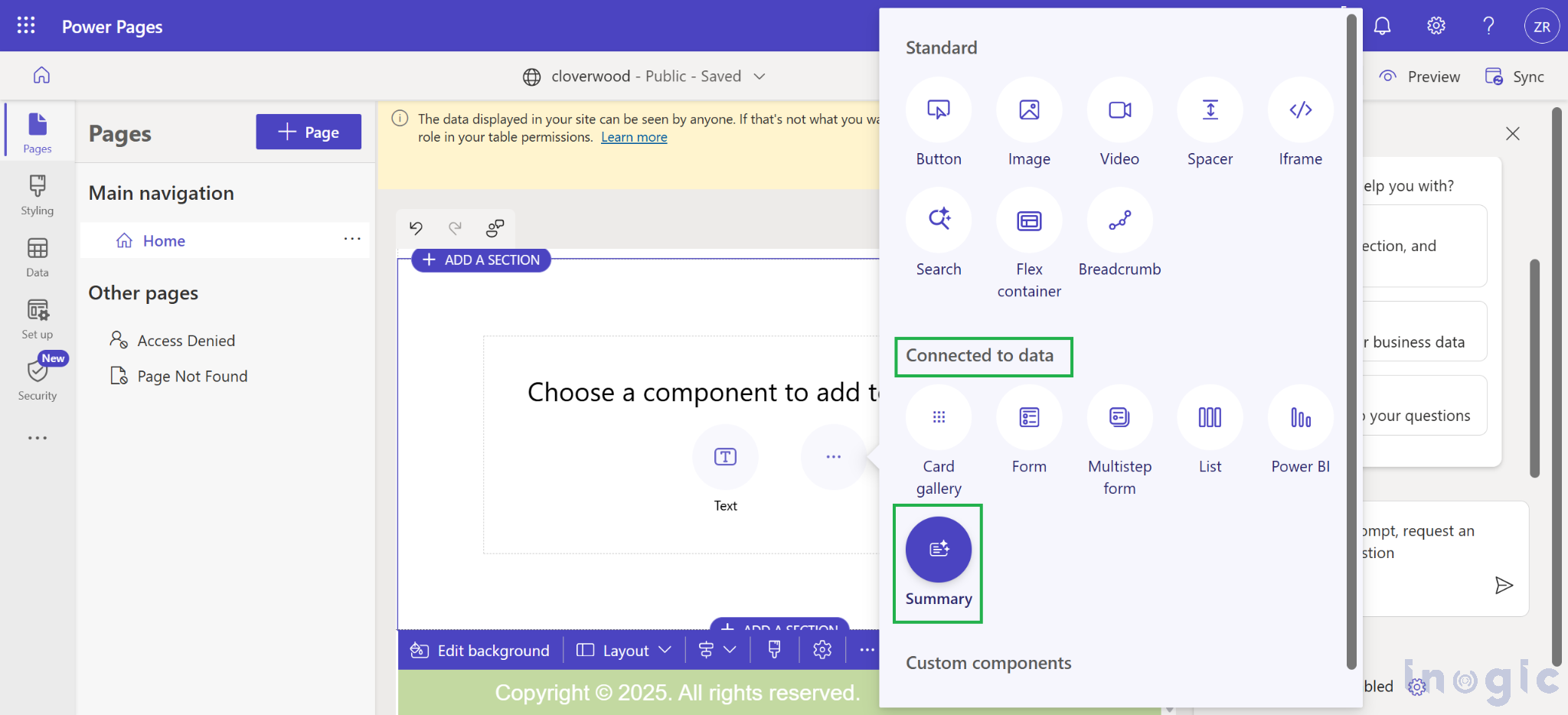
Step 2: Add the Summary Component

In the selected section, click + More Options → Components → Connected to data → Summary.

Power Pages Summary Component with Dataverse Tables

Step 3: Configure the Component

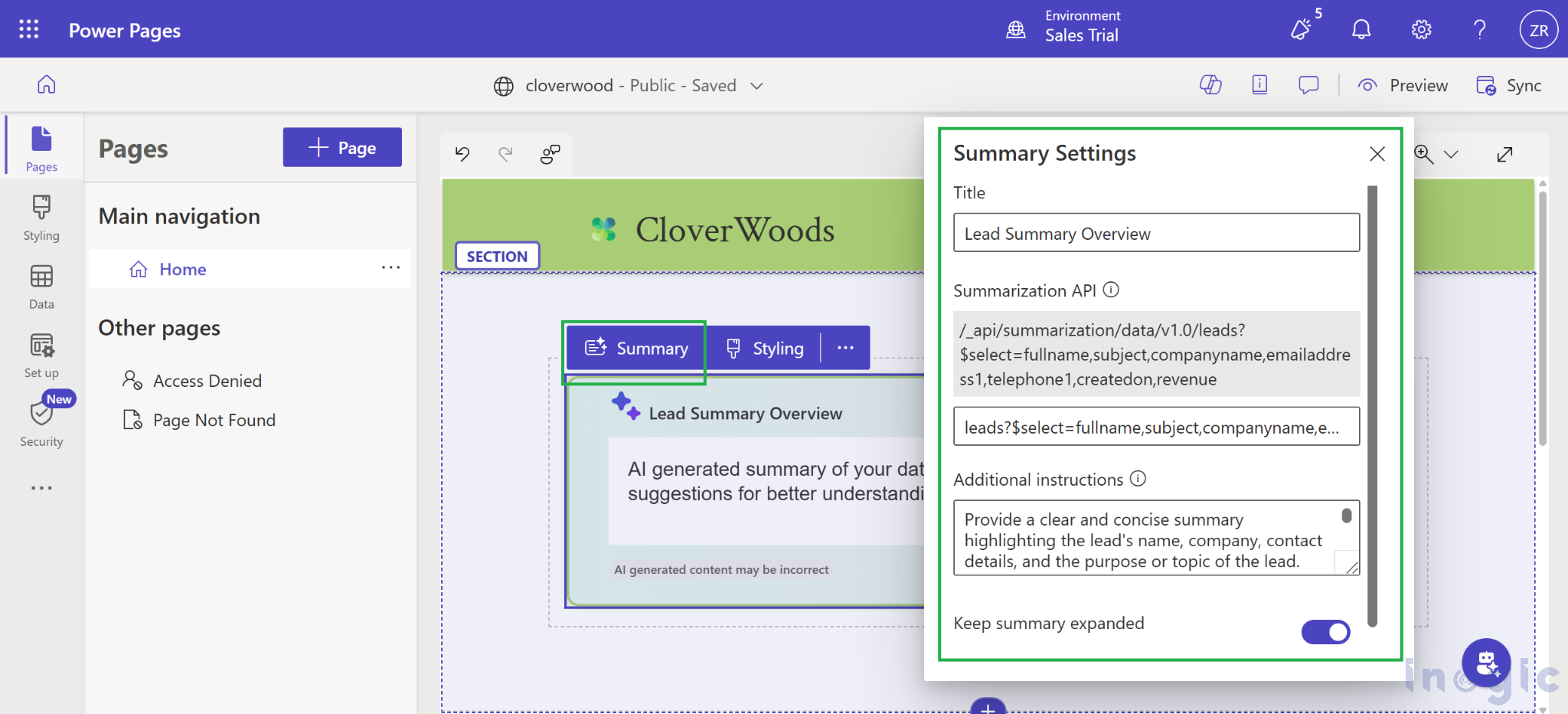
In the configuration panel, fill in the details as follows:

  • Title: Lead Summary Overview
  • Summarization API: leads?$select=fullname,subject,companyname,emailaddress1,telephone1,createdon,revenue
  • Additional Instructions:
    “Provide a clear and concise summary highlighting the lead’s name, company, contact details, and the purpose or topic of the lead. Identify any patterns, urgency indicators, or follow-up requirements based on the creation date.”
  • Keep Summary Expanded: Enabled (This will keep the summary expandable by default when the user visits the portal)

Power Pages Summary Component with Dataverse Tables

This configuration connects the component to the Lead table via the Power Pages Web API and instructs it to summarize the specified fields.

Configuration Settings

Before the Summary Component can retrieve data, permissions and secure access must be configured through the portal.

  1. Enable Web API for the Lead Table

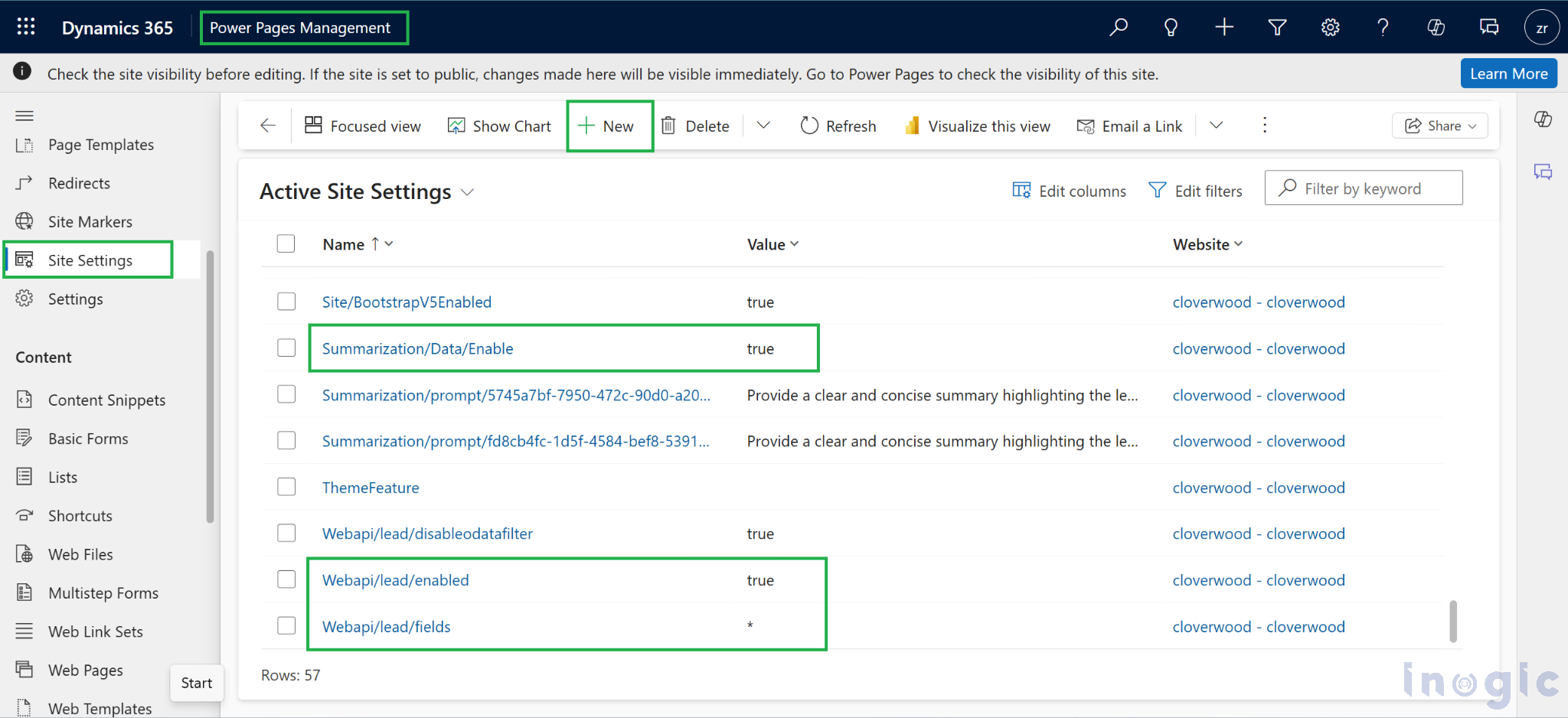
Go to Power Pages Management → Site Settings → + New, and add the following key-value pairs:

  • Name: Webapi/lead/enabled
    Value:
    true
  • Name: Webapi/lead/fields
    Value:
    * (to allow access to all fields) or specify individual fields as fieldlogicalname1, fieldlogicalname2, …

This explicitly grants Web API access for the Lead table in the Power Pages portal.

Additionally, verify that the setting Summarization/Data/Enable is set to true.
If this setting does not exist, create a new record with that name and set its value to true.

Power Pages Summary Component with Dataverse Tables

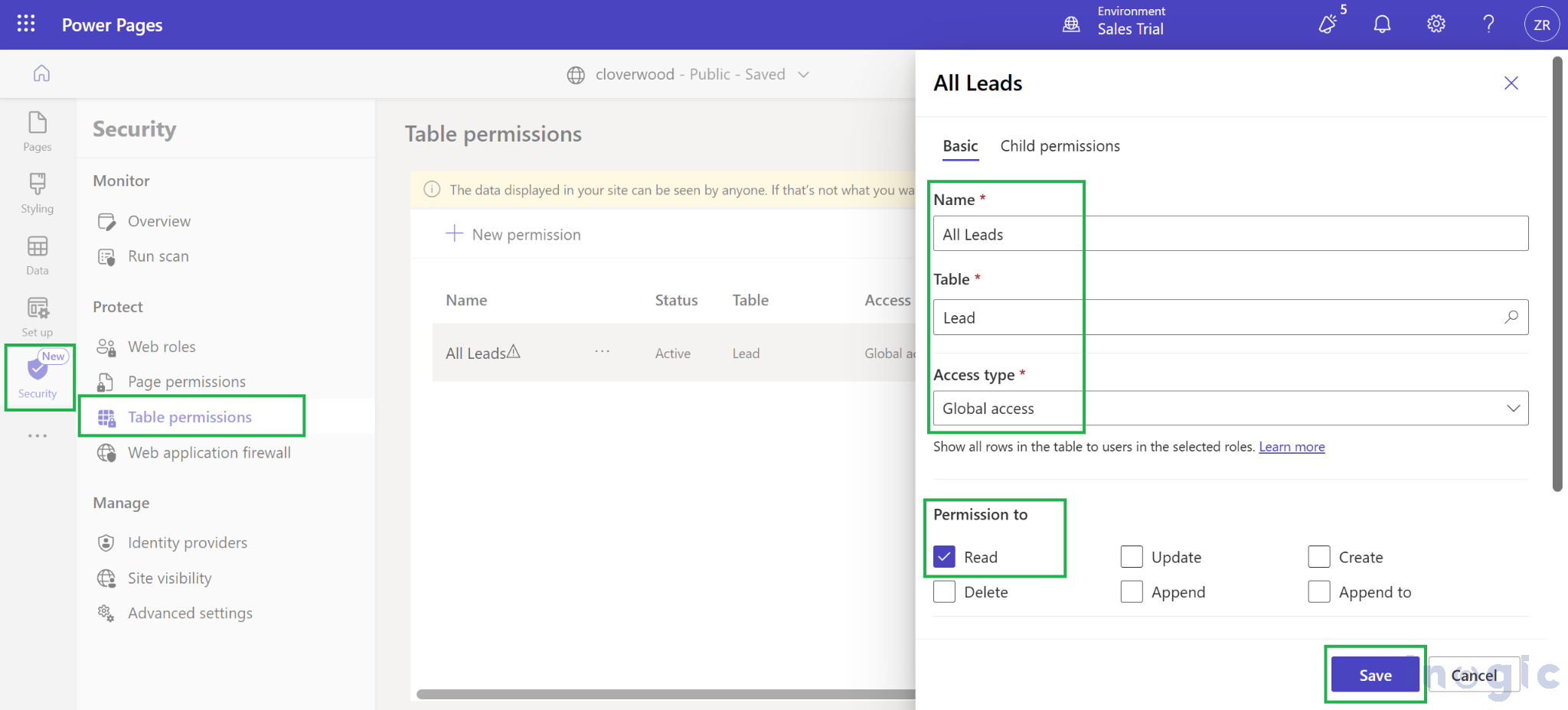
2. Create Table Permissions

In Power Pages → Security → Table Permissions:

  • Create a new permission record with:
    • Name: All Leads or Lead Read Permission
    • Table: Lead
    • Access Type: Global access
    • Permission: Read
  • Assign this permission to the Authenticated Users web role.

Power Pages Summary Component with Dataverse Tables

Without this, data access via the Web API will fail with an error message:

Something went wrong, please try again later.” error.

Working

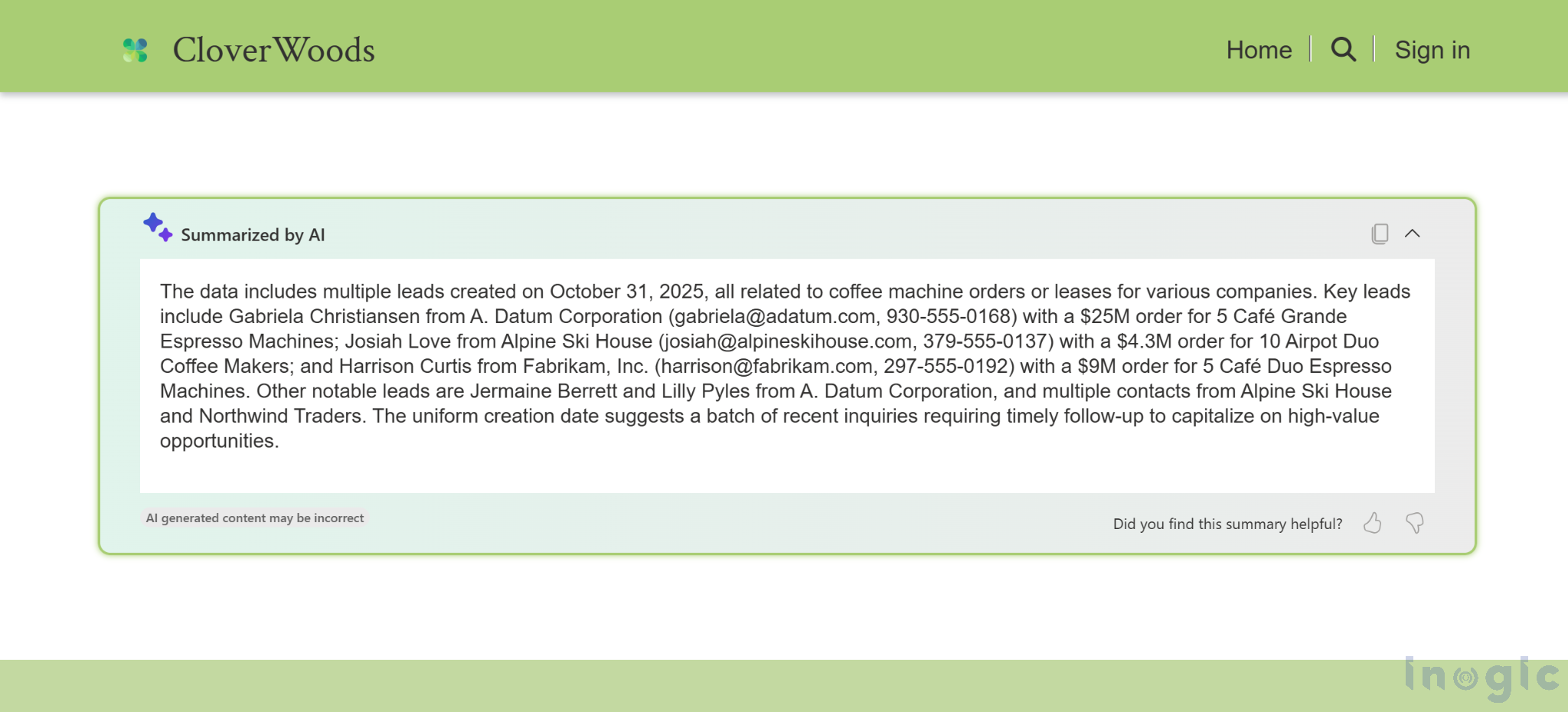
Once the configuration is complete, publish the site and test the component.

The Summary Component will automatically connect to Dataverse, retrieve lead data, and generate a short summary paragraph that dynamically updates as new records are created or modified.

Power Pages Summary Component with Dataverse Tables

The output proved that the Web API connection and summarization logic were functioning correctly. The results dynamically update as new leads are added or existing records change in Dataverse.

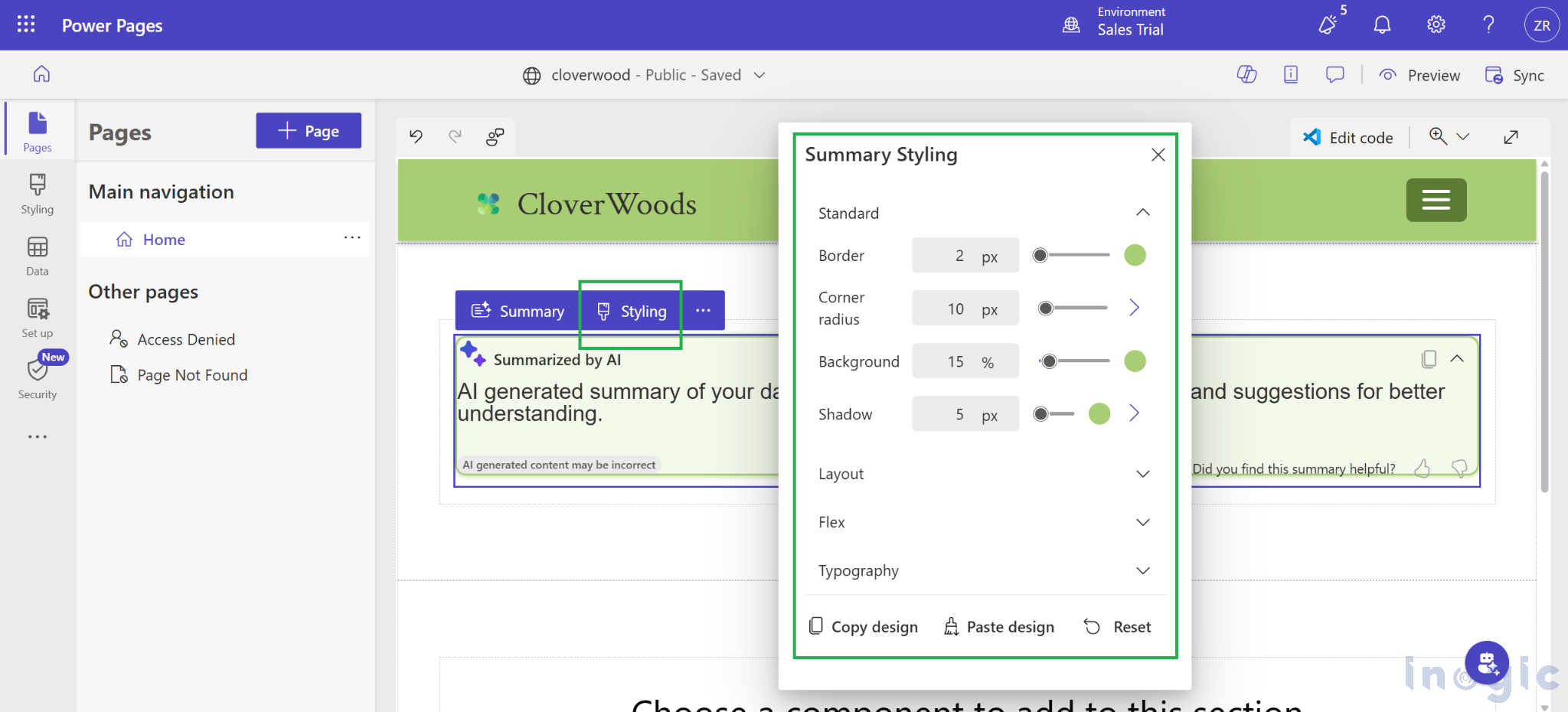
Styling the Summary Component

The appearance of the Summary Component can be customized to align with the Power Pages portal theme. Styles such as borders, background colors, shadows, and other visual effects can be applied to ensure seamless integration with the overall site design.

Power Pages Summary Component with Dataverse Tables

FAQs

  1. What is the Summary Component in Power Pages?
    The Summary Component is an AI-powered feature in Microsoft Power Pages that uses natural language generation to summarize data from Dataverse tables, helping users understand key insights quickly.
  2. Can I use the Summary Component for any Dataverse table?
    Yes. It can be connected to any table with Web API access enabled. Just update the summarization API query and permissions accordingly.
  3. Do I need to enable any specific settings before using the Summary Component?
    Yes. Web API access must be enabled for the target table (e.g., Lead) and ensure the Summarization/Data/Enable site setting is set to true. Also, create the appropriate Table Permissions for the portal users.
  4. Does the Summary Component automatically refresh when data changes in Dataverse?
    Yes. Once configured, the summary updates dynamically whenever the underlying Dataverse records are modified or new data is added.
  5. Can I style or customize the Summary Component UI?
    Absolutely. The component’s appearance can be adjusted using custom CSS to align it with their Power Pages theme for a consistent visual experience.

Conclusion

The Summary Component in Power Pages is a game-changer for presenting Dataverse data in a meaningful, AI-driven format. By implementing it for the Lead table, sales teams gain quick, automated insights which resulted in saving time, improving decision-making, and enhancing user experience.

With minimal configuration enabling Web API, creating table permissions, and defining a summarization query the component delivers a seamless experience that transforms raw data into concise insights.


The post Step-by-Step Guide: Implementing the Power Pages Summary Component with Dataverse Tables first appeared on Microsoft Dynamics 365 CRM Tips and Tricks.

Retrieve and Validate Field Associated Workflows in Dynamics 365/Dataverse

Retrieve and Validate Field Associated Workflows in Dynamics 365Dataverse

Workflows (also known as processes) in Dynamics 365 automate business logic such as approvals, field updates, or triggering other workflow actions. Sometimes, we need to check whether a workflow exists for a specific field before performing an action on a form.

For example, when updating sensitive fields like Credit Limit or Risk Category, you may want to warn users if workflows are already associated with these fields, since saving the record could trigger important automated processes.

In this blog, we’ll explore:

  • Workflow categories and what they mean.
  • How to retrieve workflows related to a specific field.
  • A practical implementation where we check workflows before setting a Risk Category

Workflow Categories in Dynamics 365

In Dynamics 365, every workflow or process is assigned a Category value in the workflow table. For detailed insights into workflow properties, you can always check Microsoft’s official documentation for the latest updates. Below are the key category values:

Category Value Workflow Type
0 Classic Workflow
1 Dialog
2 Business Rule
3 Action
4 Business Process Flow (BPF)
5 Modern Flow (Cloud Flow)
6 Desktop Flow
7 AI Flow

Use Case

Suppose you’re handling the Account entity in Dynamics 365.

  • When a user updates the Credit Limit, the system automatically sets the Risk Category (High, Medium, or Low).
  • But before setting this field, we want to check if any workflows (category = 5, i.e., Cloud Flows) are already linked with this Risk Category field.
  • If workflows exist, we show a confirmation pop-up to the user:
    “There are workflows associated with this field. Saving may trigger them. Do you want to continue?”

This ensures users are aware of possible automated actions before proceeding.

Implementation in Power Apps (JavaScript on Form)

We’ll add a JavaScript function to the onChange event of the Credit Limit field.

Step 1: Retrieve Workflows from Dataverse

We query the workflow table using Web API and filter by:

  • Category = 5 (Cloud Flow)
  • clientdata containing our field (in this case, cre44_riskcategory)

Code:

// Helper function to check if workflows exist for a given field

async function checkAssociatedWorkflows(fieldLogicalName) {

try {

const query = "?$select=workflowid,name,clientdata" + "&$filter=category eq 5 and contains(clientdata, '" + fieldLogicalName.toLowerCase() + "')";


const results = await Xrm.WebApi.retrieveMultipleRecords("workflow", query);


return results.entities && results.entities.length > 0;

} catch (error) {

console.error("Error fetching workflows:", error.message);

return false; // fail safe → act like no workflows

}

}

Step 2: Handle Credit Limit Change

When the Credit Limit changes, we determine the Risk Category value and then check workflows.

Code:

// Function: Called on Credit Limit field OnChange

async function onCreditLimitChange(executionContext) {

try {

var formContext = executionContext.getFormContext();

var creditLimit = formContext.getAttribute("creditlimit").getValue();


if (creditLimit == null) return;


// Auto-set Risk Category based on Credit Limit

let riskCategoryValue = null; // OptionSet Values: 1=High, 2=Medium, 3=Low (example)


if (creditLimit > 100000) {

riskCategoryValue = 1; // High

} else if (creditLimit > 50000) {

riskCategoryValue = 2; // Medium

} else {

riskCategoryValue = 3; // Low

}


// Before setting High/Medium, check workflows

if (riskCategoryValue === 1 || riskCategoryValue === 2) {

const hasWorkflows = await checkAssociatedWorkflows("cre44_riskcategory");


if (hasWorkflows) {

Xrm.Navigation.openConfirmDialog(

{

title: "Workflows Detected",

text: "There are workflows associated with Risk Category. Setting it to High/Medium may trigger them. Do you want to continue?",

confirmButtonLabel: "Yes, Continue",

cancelButtonLabel: "No, Cancel"

}

).then(function (result) {

if (result.confirmed) {

// User confirmed → set field

formContext.getAttribute("cre44_riskcategory").setValue(riskCategoryValue);

} else {

// User cancelled → reset field

formContext.getAttribute("cre44_riskcategory").setValue(null);

}

});

} else {

// No workflows → set directly

formContext.getAttribute("cre44_riskcategory").setValue(riskCategoryValue);

}

} else {

// Low risk → set directly

formContext.getAttribute("cre44_riskcategory").setValue(riskCategoryValue);

}

} catch (error) {

Xrm.Navigation.openAlertDialog({

title: "Error",

text: "A failure occurred in Web API.\nDetails: " + error.message

});

}

}

Execution in Account Form

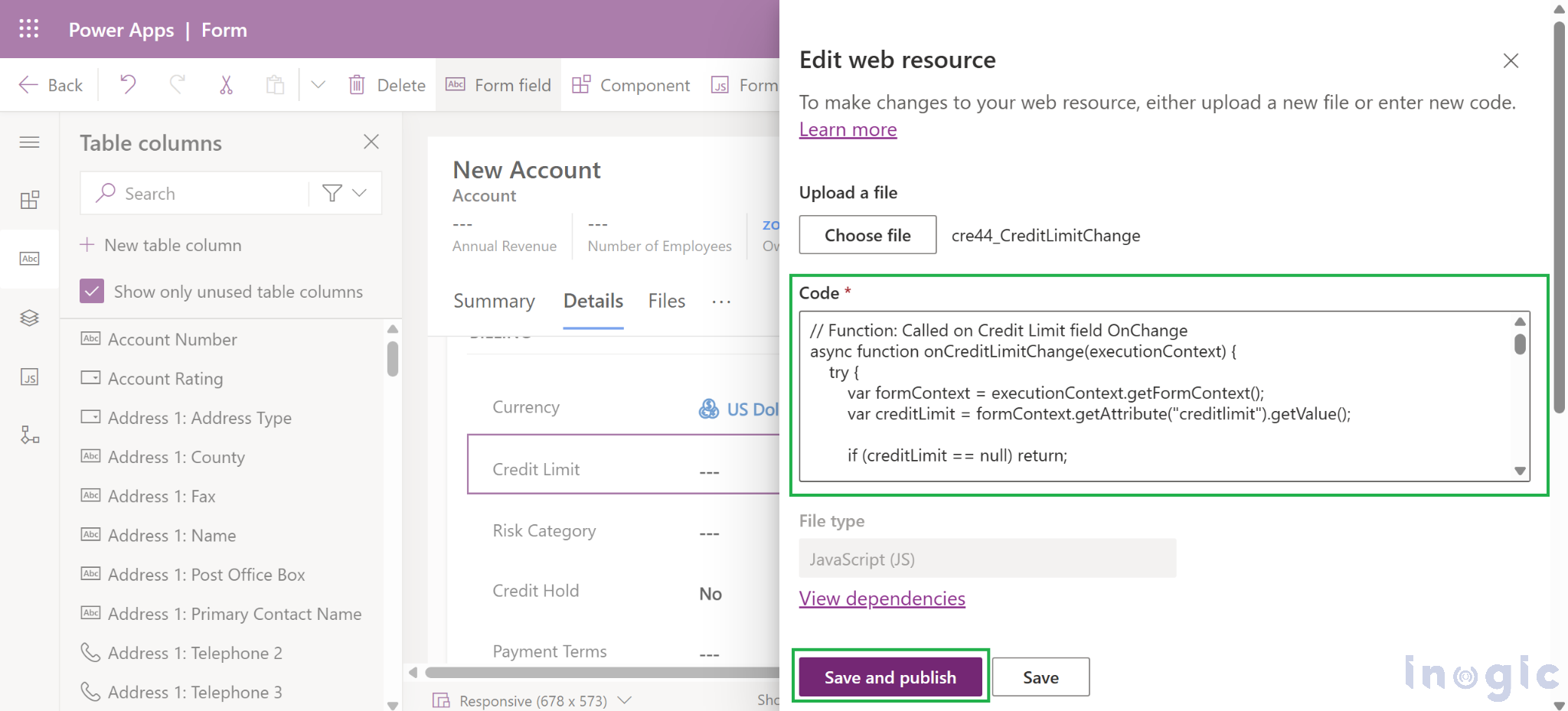
1. Add the provided JavaScript web resource within your Dynamics 365 solution.

Validate Field Associated Workflows in Dynamics 365

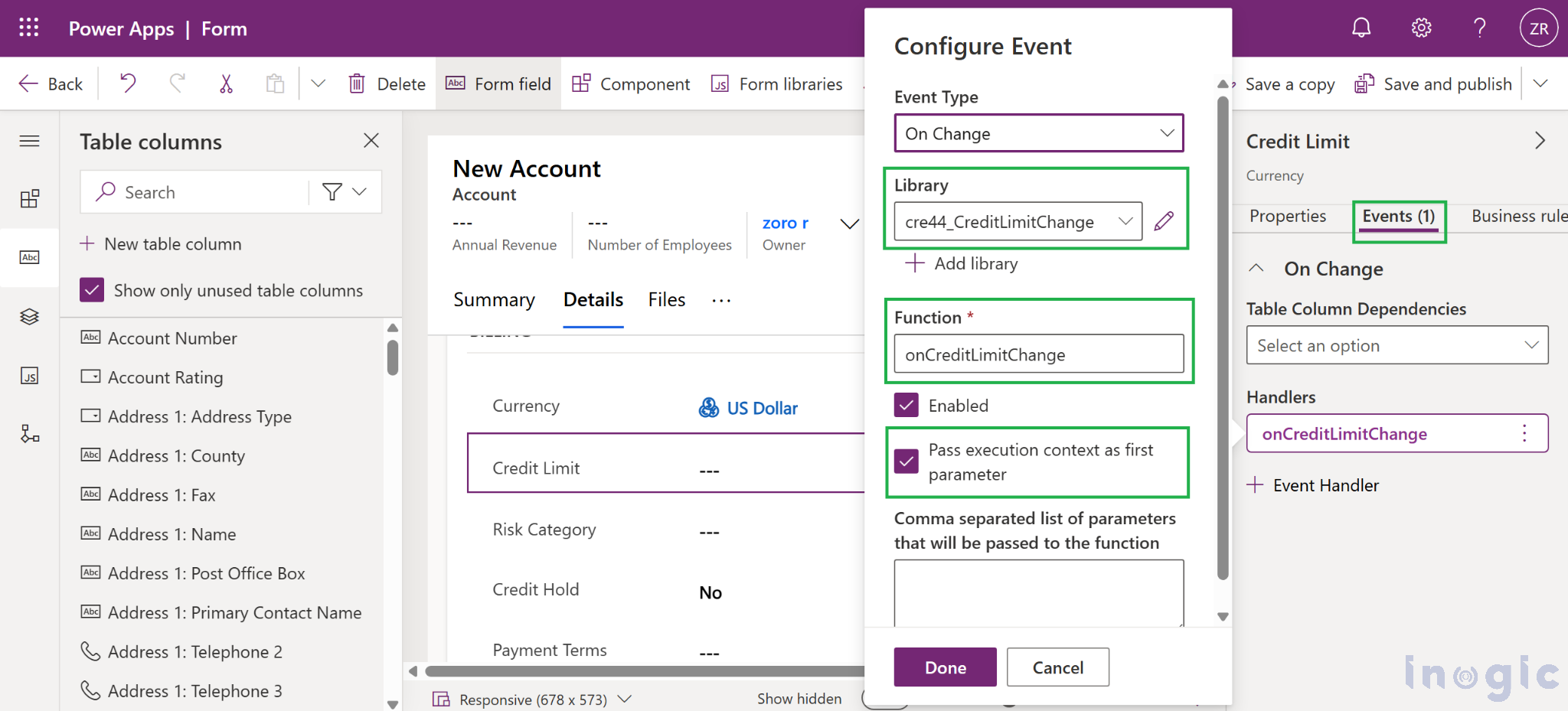
2. On the Account form, bind the onCreditLimitChange function to the Credit Limit field’s OnChange event.

Validate Field Associated Workflows in Dynamics 365

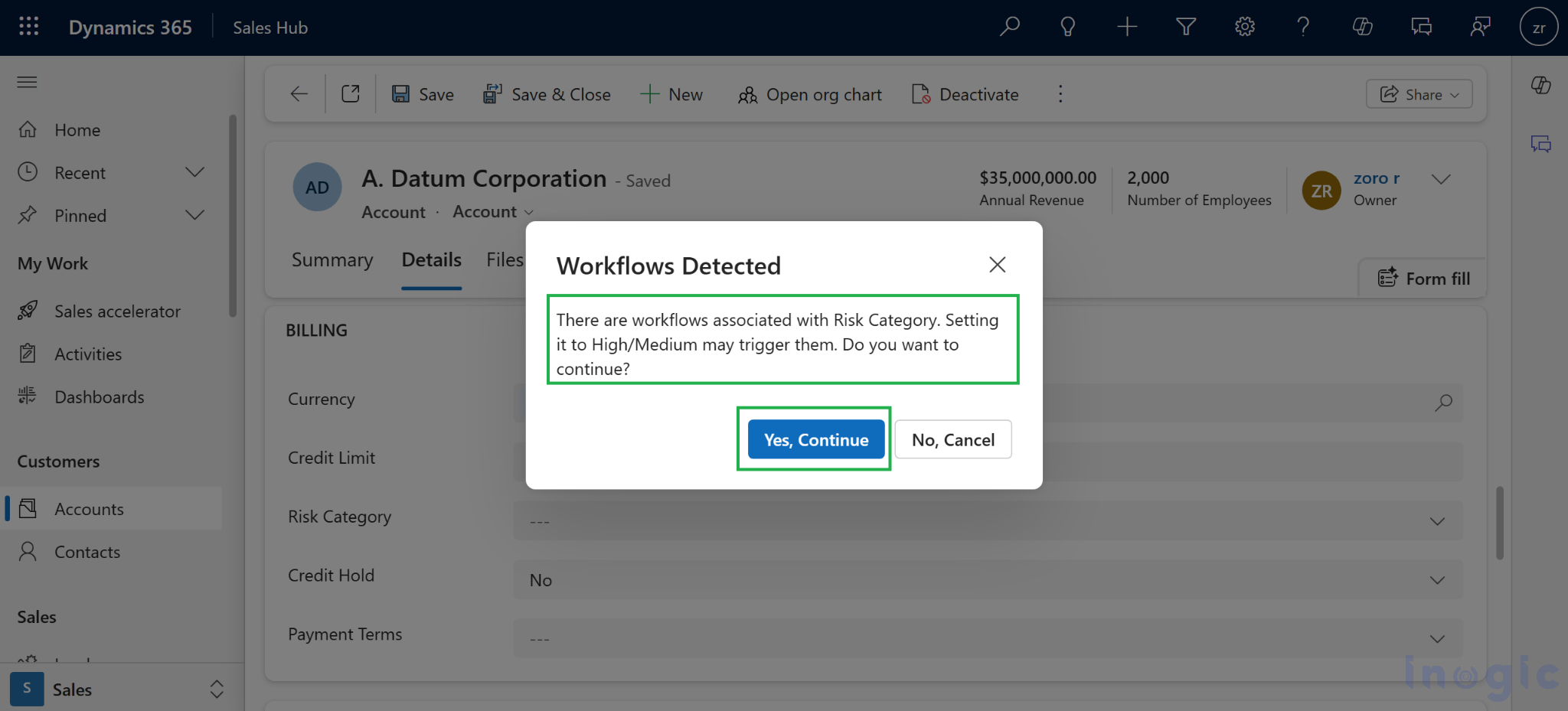
3. Publish and test:

If workflows exist for Risk Category (and it’s set to High/Medium), you’ll get a confirmation popup, and if no workflows exist, the field is updated directly.

alidate Field Associated Workflows in Dynamics 365

Summary

  • Workflows in Dynamics 365 are categorized by type (Classic, Dialog, Action, BPF, Cloud Flow).
  • Retrieve workflows from the workflow table by executing Web API queries.
  • In our example, we checked for Cloud Flows (category 5) linked to the Risk Category field before updating it.
  • This approach adds a safety layer, ensuring users are aware of automation that might get triggered.

This method is very useful when dealing with sensitive fields like Credit Limit, Risk Category, or Approval fields in Dynamics 365.

Conclusion

Identifying workflows linked to specific fields in Dynamics 365 helps avoid unexpected automation. It ensures better control while updating sensitive fields like Credit Limit or Risk Category. This improves system reliability and reduces troubleshooting efforts. Overall, it empowers admins to manage workflows with confidence.

The post Retrieve and Validate Field Associated Workflows in Dynamics 365/Dataverse first appeared on Microsoft Dynamics 365 CRM Tips and Tricks.
❌