Power Up - Upskill Yourself...

Reading view

Restrict Unauthorized Users to Access CRM Data in SharePoint
Control Acccess to CRM Data

In Dynamics 365 CRM, managing access to records is essential for maintaining security and protecting sensitive information. Integrating Dynamics 365 CRM with SharePoint allows efficient storage of attachments, addressing CRM’s memory limitations and improving document management. However, this integration does not automatically synchronize security privileges between the two systems. To resolve this issue, a dedicated security privilege replicator solution is crucial. This solution ensures that access level privileges are consistently synchronized across business units and users, streamlining operations while upholding stringent security protocols.

Firstly, let’s understand the different access levels in Dynamics 365 CRM based on which security privileges were applied.

In Dynamics 365 CRM, access levels determine the scope of records a user can interact with based on their security role. Here are the primary access levels:

  1. None: It means the user can’t access any records.
  2. User: It means the user has “User level” access to records within CRM. The user can access
    • The records which are created on their own.
    • The records which are shared with the user.
    • The records which belong to the team with which the user is associated.
  1. Business Unit (BU): It means the user has “Business Unit” level access to records within CRM. Here, users can access records that are created by them or users who are part of the same business unit.
  2. Parent Child Business Unit (PCBU): The user who has this access level privilege, can access the records that are created by their own, and the user within the child business unit.
  3. Organization: The user with this access level privilege can access the records of all the users under the same organization.

The form can be filled in the actual website url.
These privilege control mechanisms ensure that unauthorized access to records is prevented. Organization managers can regulate record access, maintaining confidentiality and authority over organizational information. Due to this CRM users can upload files, folders, or attachments without worrying about security privileges.

But has the community already developed this security synchronization solution?

Indeed, it has!

The SharePoint Security Sync application is the perfect solution to tackle the challenges of technology integration.

What is the SharePoint Security Sync application all about?

SharePoint Security Sync application developed by Inogic, a proud ISV partner of Microsoft, for Dynamics 365 CRM is a powerful tool designed specifically for this purpose. It not only tackles security challenges but also synchronizes access levels for different business units and users. With this integration, you can simplify your operations while upholding strict security measures for both the organization and individual users. Additionally, it ensures that files and data are easily accessible and effectively handles storage management.

Why you need to have this SharePoint Security Sync application:

Auto Replication of Security Privileges:

This application enables real-time replication of security privileges from Dynamics 365 CRM to SharePoint. It eliminates security breaches and facilitates easy sharing and collaboration on records and documents. Any changes to a user’s security role in Dynamics 365 CRM are instantly reflected in SharePoint.

For example, consider Joe is part of the Mango business unit, and Den is part of the Test business unit. Each of them has access privileges specific to their respective business unit.
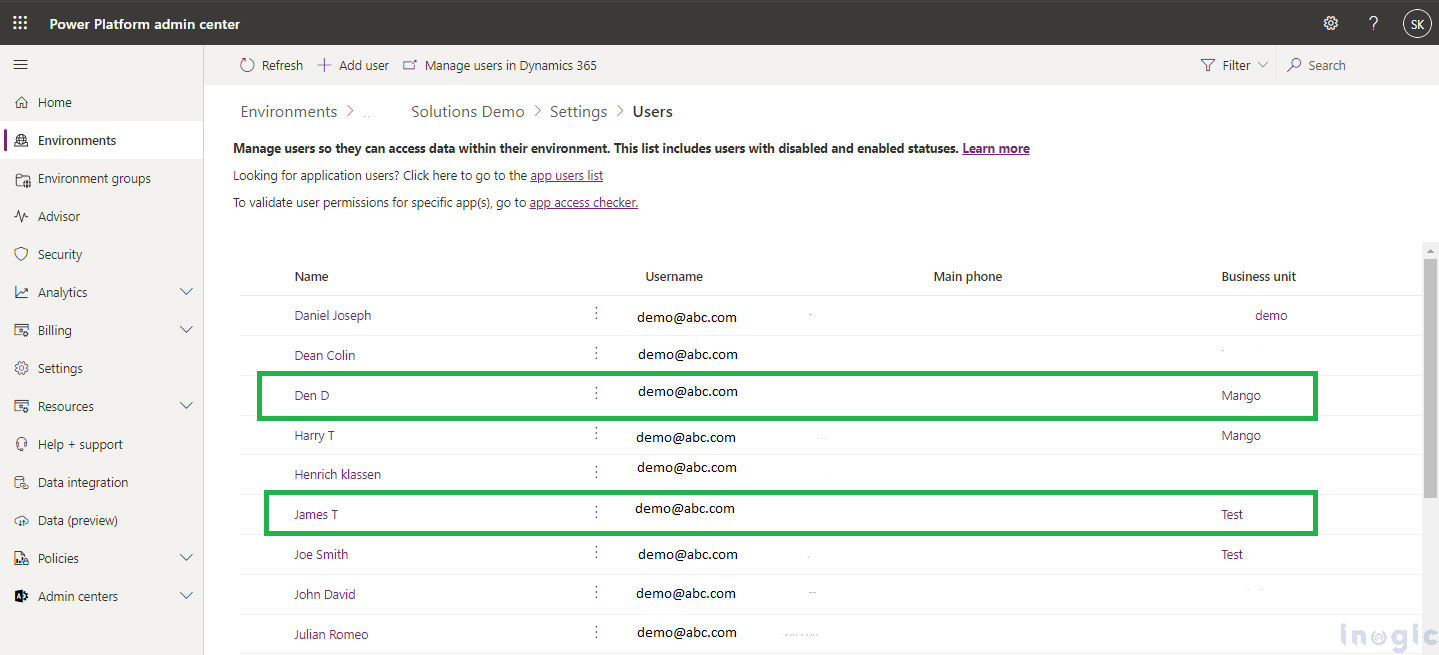
Importance of Replicating Dynamics 365 CRM Access

Under the Test business unit, the user is granted read and write privileges.
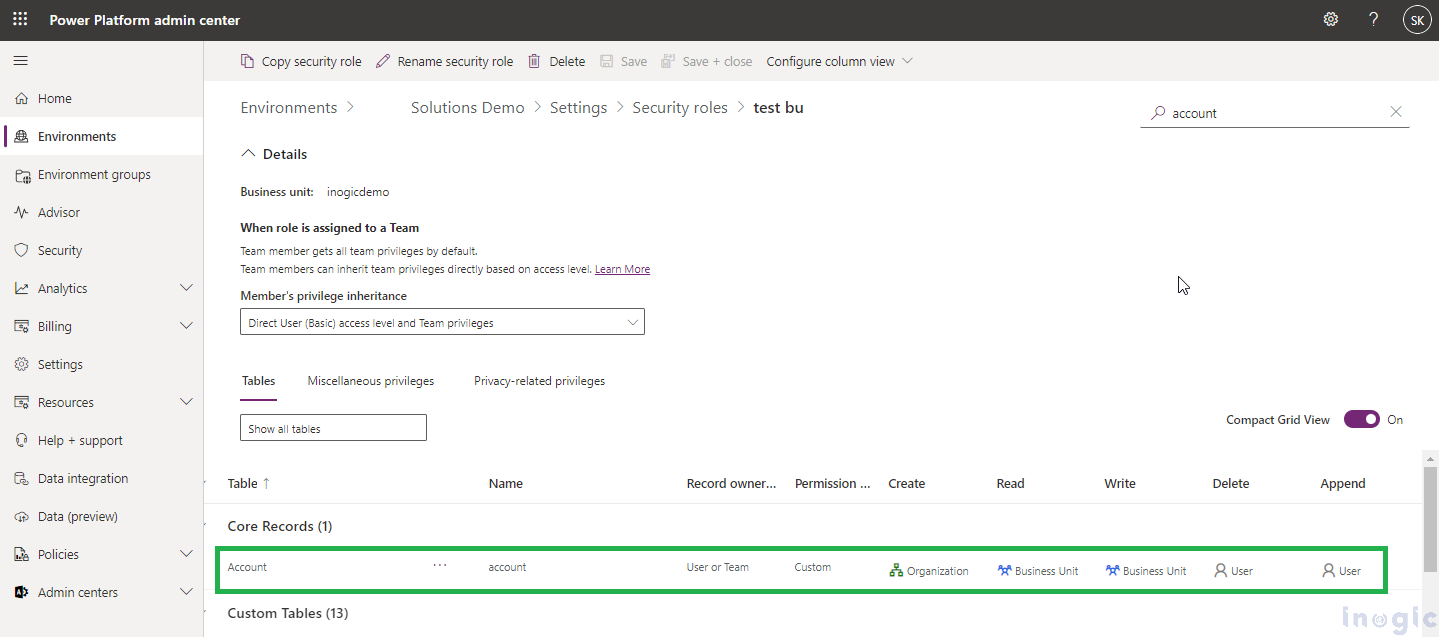
Importance of Replicating Dynamics 365 CRM Access

With the implementation of Inogic SharePoint Security Sync application, these security privileges will be replicated from CRM to SharePoint. As shown in the images below, Joe’s records are not visible to Den in SharePoint.
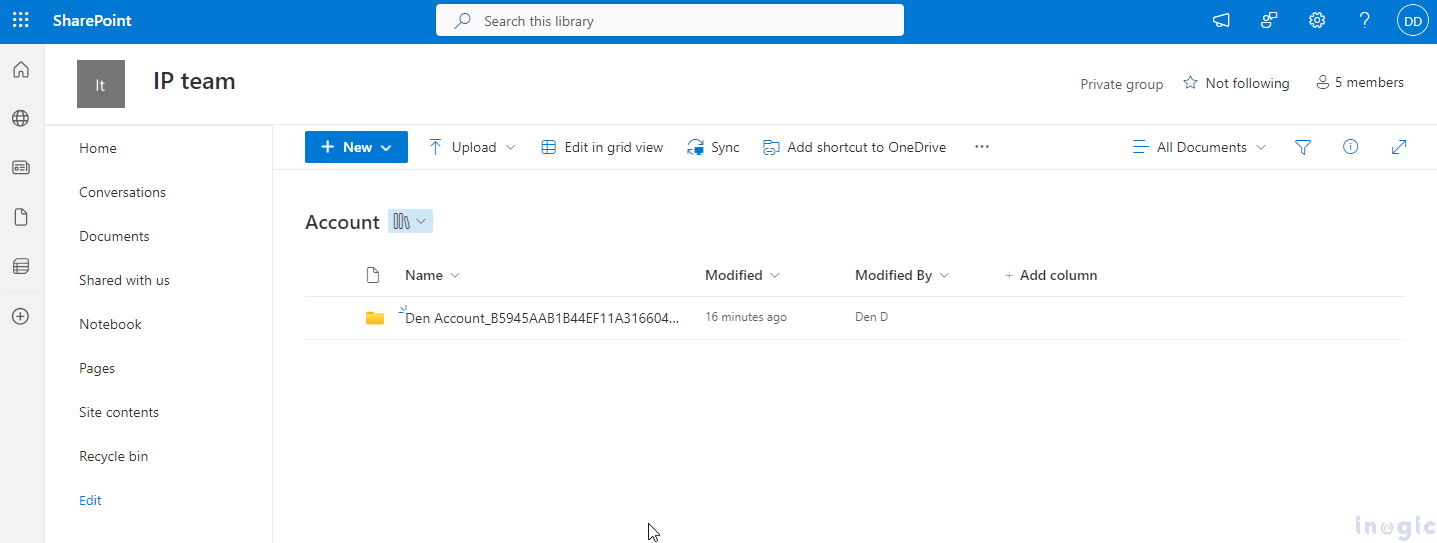
Importance of Replicating Dynamics 365 CRM Access

Similarly, Den’s records are not visible to Joe in SharePoint.
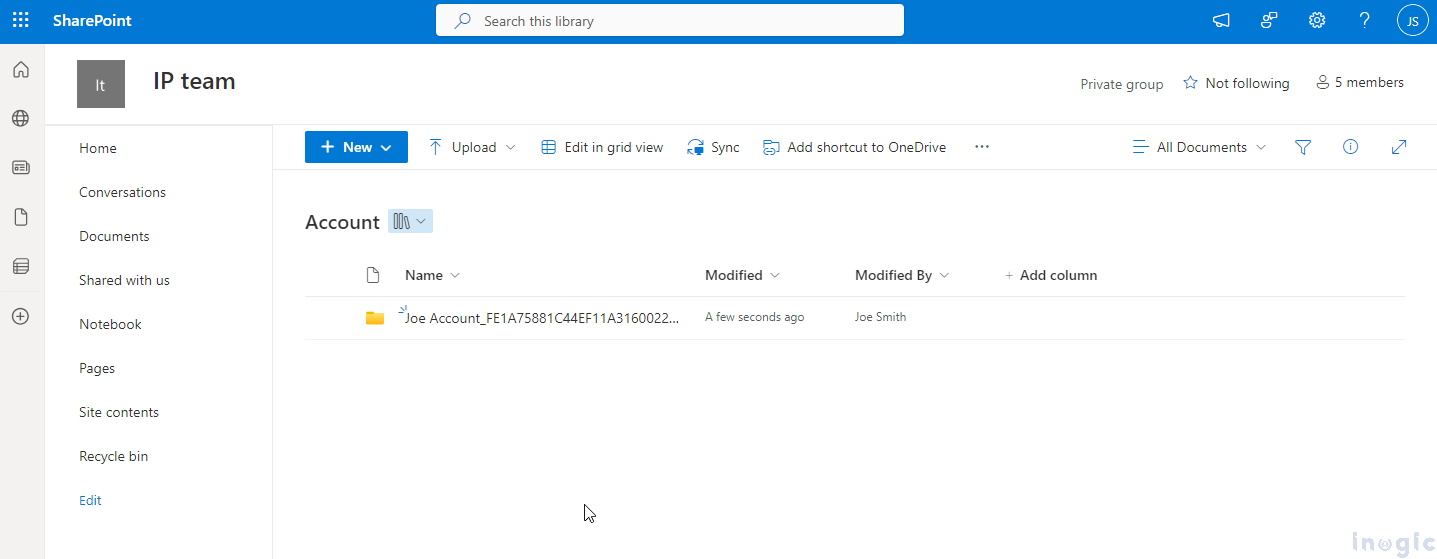
Importance of Replicating Dynamics 365 CRM Access

Using the SharePoint Security Sync app, the security privileges assigned in CRM are automatically synced with SharePoint.

Along with security privileges syncing, SharePoint Security Sync also facilitates Folder Structure to resolve storage limits:

SharePoint, by default, offers a storage limit of 50,000 items in each folder of record, which may be insufficient for CRM integration. This limitation can be addressed by implementing a custom folder structure and utilizing workflows to automate the creation of these folders. Users can now create a customized folder structure within SharePoint for storing and managing CRM documents/attachments. Users can customize the Library Structure and the Record Folder Structure within SharePoint as per their requirements.

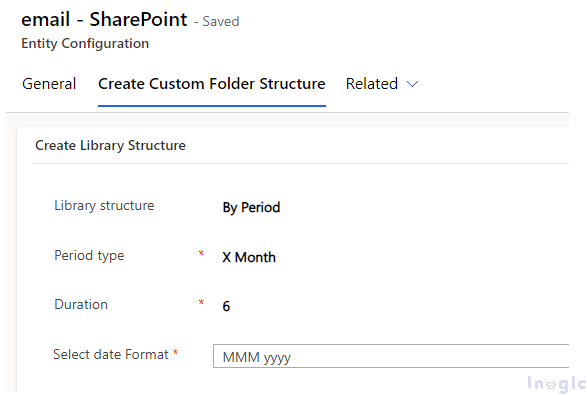
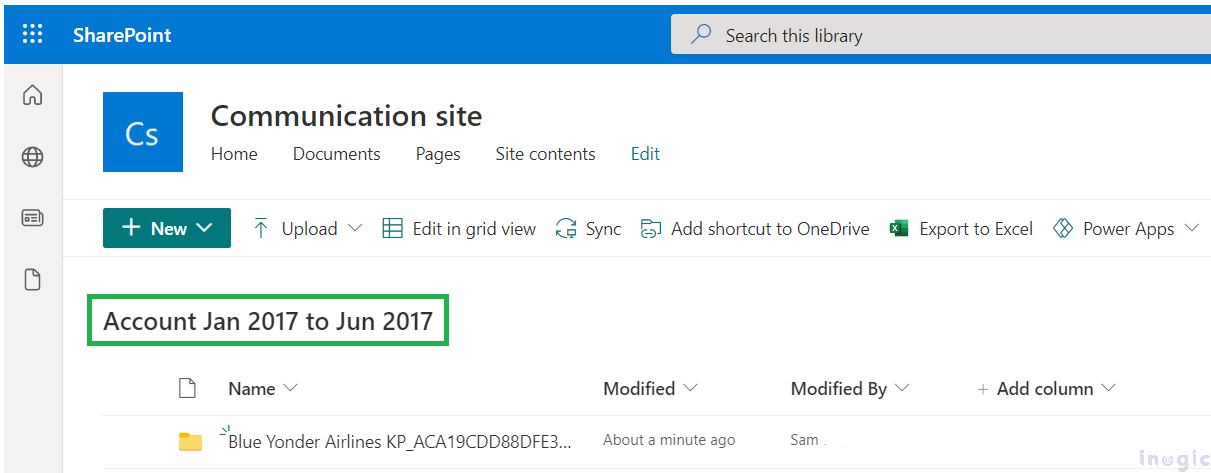
With this, you can set up your document library to organize files based on different periods. For example, you can choose to sort documents by daily, weekly, monthly, quarterly, or yearly periods, depending on when they were created. You’ll need to fill out a few details, like choosing the type of period (Daily, Weekly, Monthly, etc.), specifying the duration if you pick options like ‘X Month’ or ‘X Year’, and selecting a date format for display.

For example, if a user sets the ‘Period type’ to ‘X Month’ and the ‘Duration’ to ‘6’, SharePoint will create a library that organizes documents every six months based on when the records were created.
Importance of Replicating Dynamics 365 CRM Access

Importance of Replicating Dynamics 365 CRM Access

Thanks to the SharePoint Security Sync app for Dynamics 365 and SharePoint, only authorized users can access the records, ensuring that sensitive data remains well protected.

Do want to protect your organizational data and documents? SharePoint Security Sync is here for your help!

You can access a 15-day trial of the application on our website or Microsoft AppSource. To schedule a personalized demo, feel free to email us at crm@inogic.com.

The post Restrict Unauthorized Users to Access CRM Data in SharePoint first appeared on Microsoft Dynamics 365 CRM Tips and Tricks.
  •  

Extend your customer outreach with WhatsApp marketing within Dynamics 365 Customer Insights

The Power of WhatsApp Marketing for Brands: A Game Changer

Today, brands constantly bombard customers with emails, calls, and social media ads. It can be hard to stand out from the noise and connect with customers in a meaningful way. But what if there was a way to reach customers directly on a platform they already use and love?

Enter WhatsApp marketing. With a staggering 85% of customers preferring to receive brand updates and communications via WhatsApp, it’s no surprise that it’s becoming a game-changer for marketers.


This blog covers how you can leverage the power of WhatsApp marketing with Dynamics 365 Customer Insights using WhatsApp4Dynamics, with a fictional example of a beauty brand called A&B Organics.

A&B Organics Leverages WhatsApp4Dynamics

A&B Organics’ marketing team wanted to leverage the growing popularity of WhatsApp and its potential to reach customers on a more personal level.

However, being a Dynamics 365 CRM user, they did not want fragmented communication channels. They wanted something that could be integrated into their existing system and did not require additional training for their users. This is where Inogic’s WhatsApp4Dynamics came into the picture.

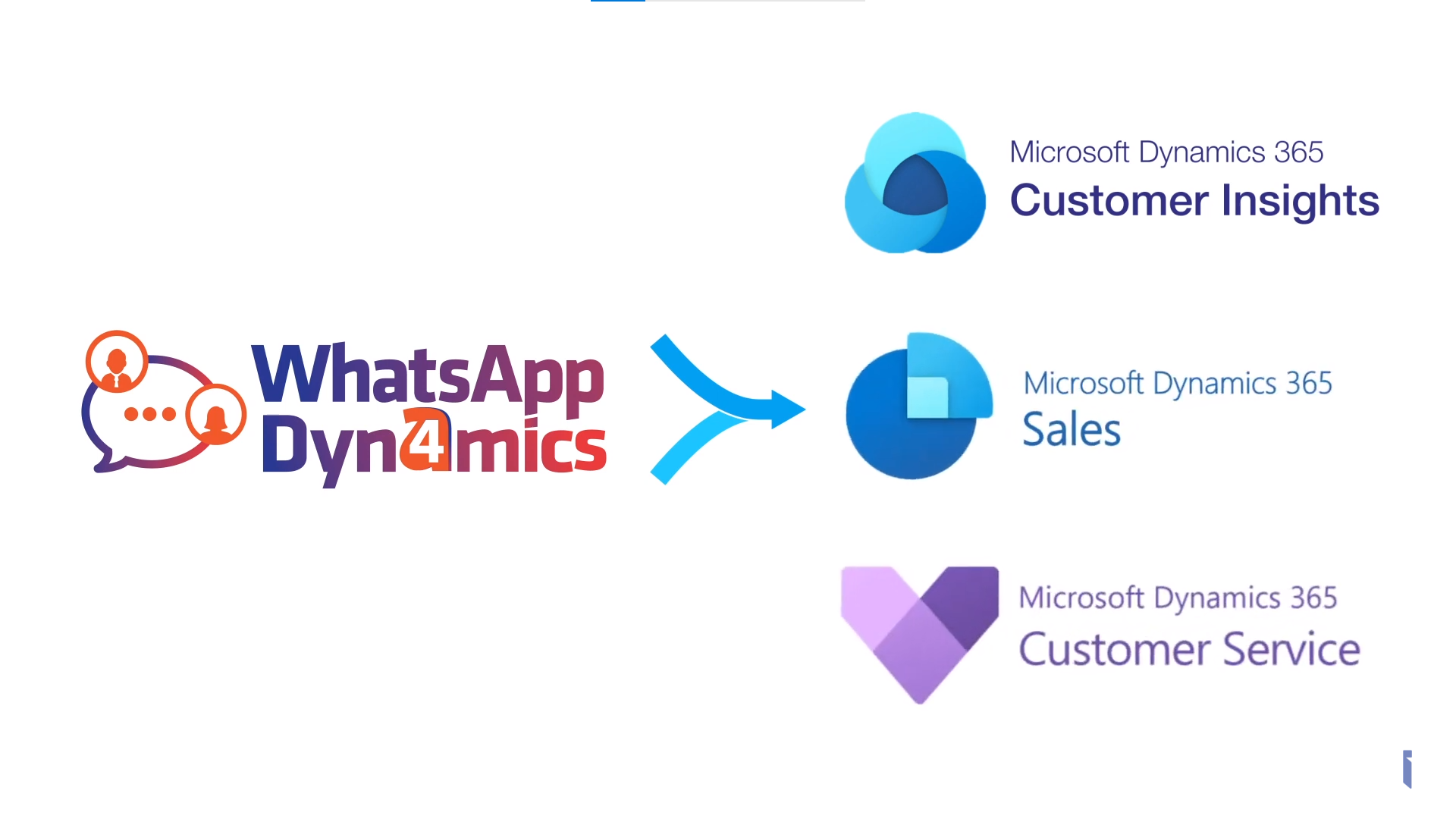
WhatsApp4Dynamics is a WhatsApp Integration app that integrates WhatsApp Business with Dynamics 365 Sales, Customer Insights and Customer Services.

Dynamics 365 Customer Insights

As they were using Customer Insights for marketing, this low-code, no-code ISV app became just the solution they needed.

Here’s how they did it:

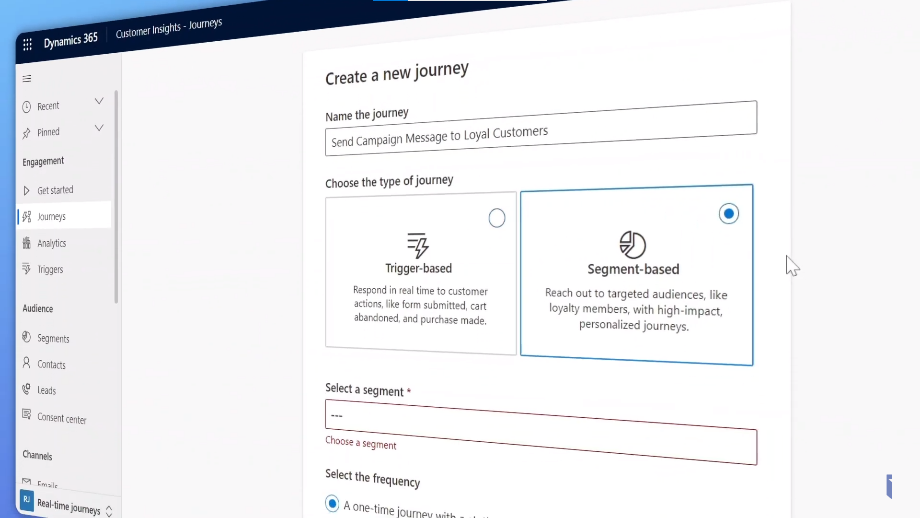
  1. Segment-Based Journey for Increased Engagement

Segment-Based Journey for Increased Engagement

Robert, the new marketing lead at A&B Organics, wanted to let his loyal customers know about upcoming discounts and offers. He created a segment-based journey within his CRM campaign, targeting loyal customers. This strategic approach helped boost engagement rates and elevate campaign performance.

The form can be filled in the actual website url.

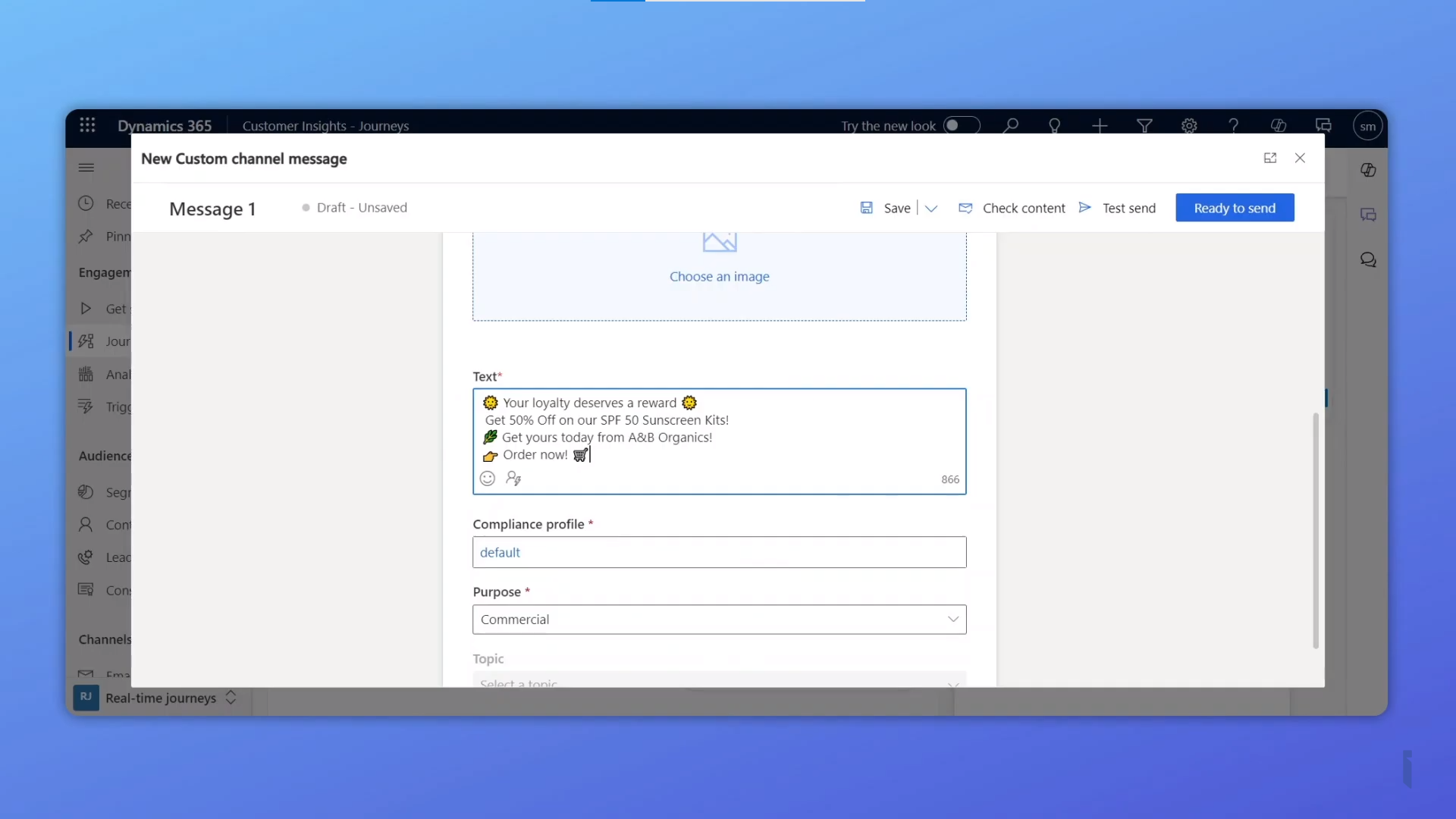
  1. The Power of Emojis

The Power of Emojis

Robert strategically integrated relevant emojis throughout his bulk messaging. This helped him connect with customers on a more personal and familiar level.

  1. Monitor Campaign Performance with WhatsApp4Dynamics Insights

Monitor Campaign Performance with WhatsApp4Dynamics Insights

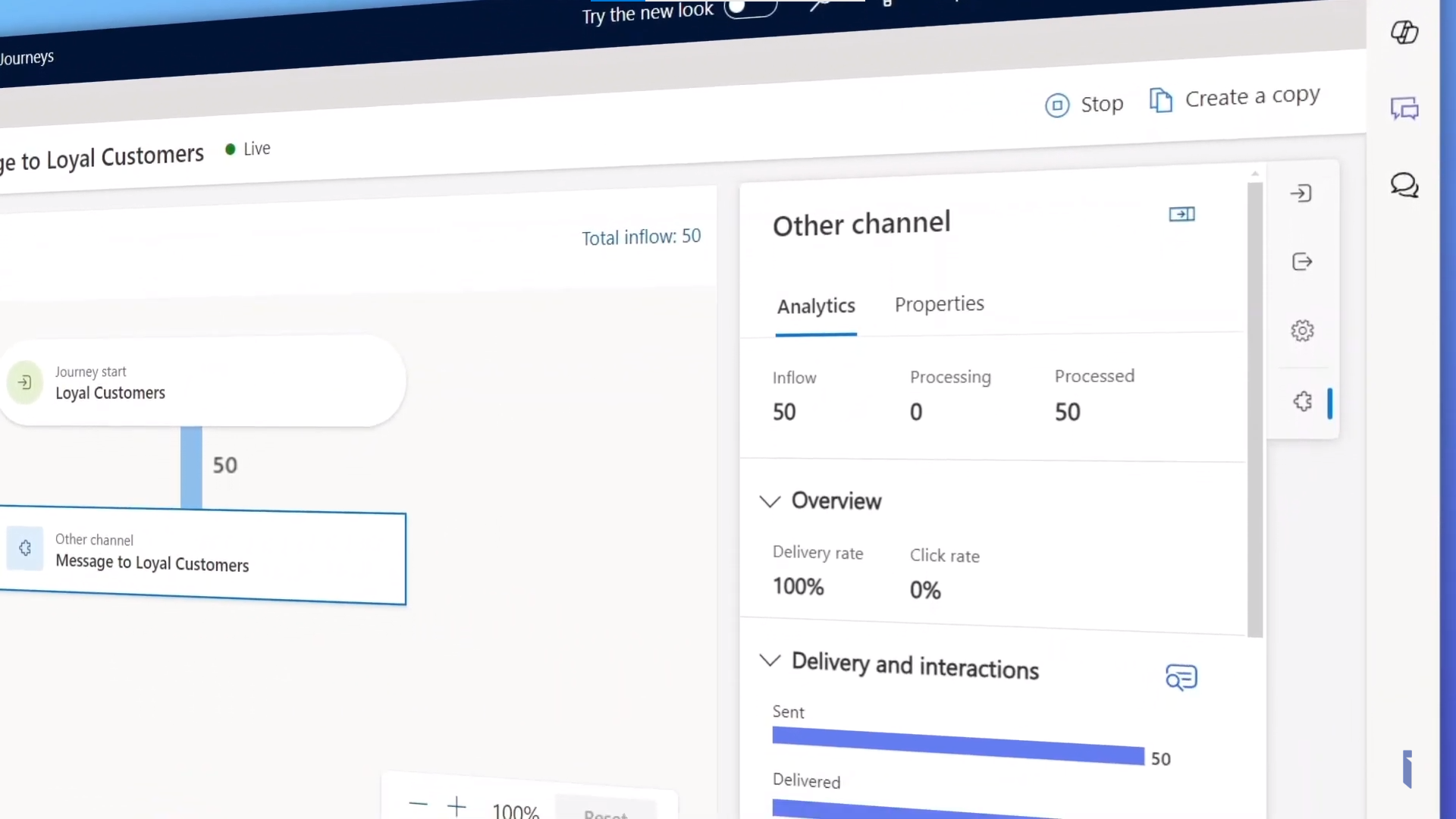
WhatsApp4Dynamics provides valuable insights that Robert could access within the journey to monitor the campaign’s success and delivery statistics. This allowed him to track important metrics and adjust as needed.

  1. Trigger-Based Journeys

 Trigger-Based Journeys

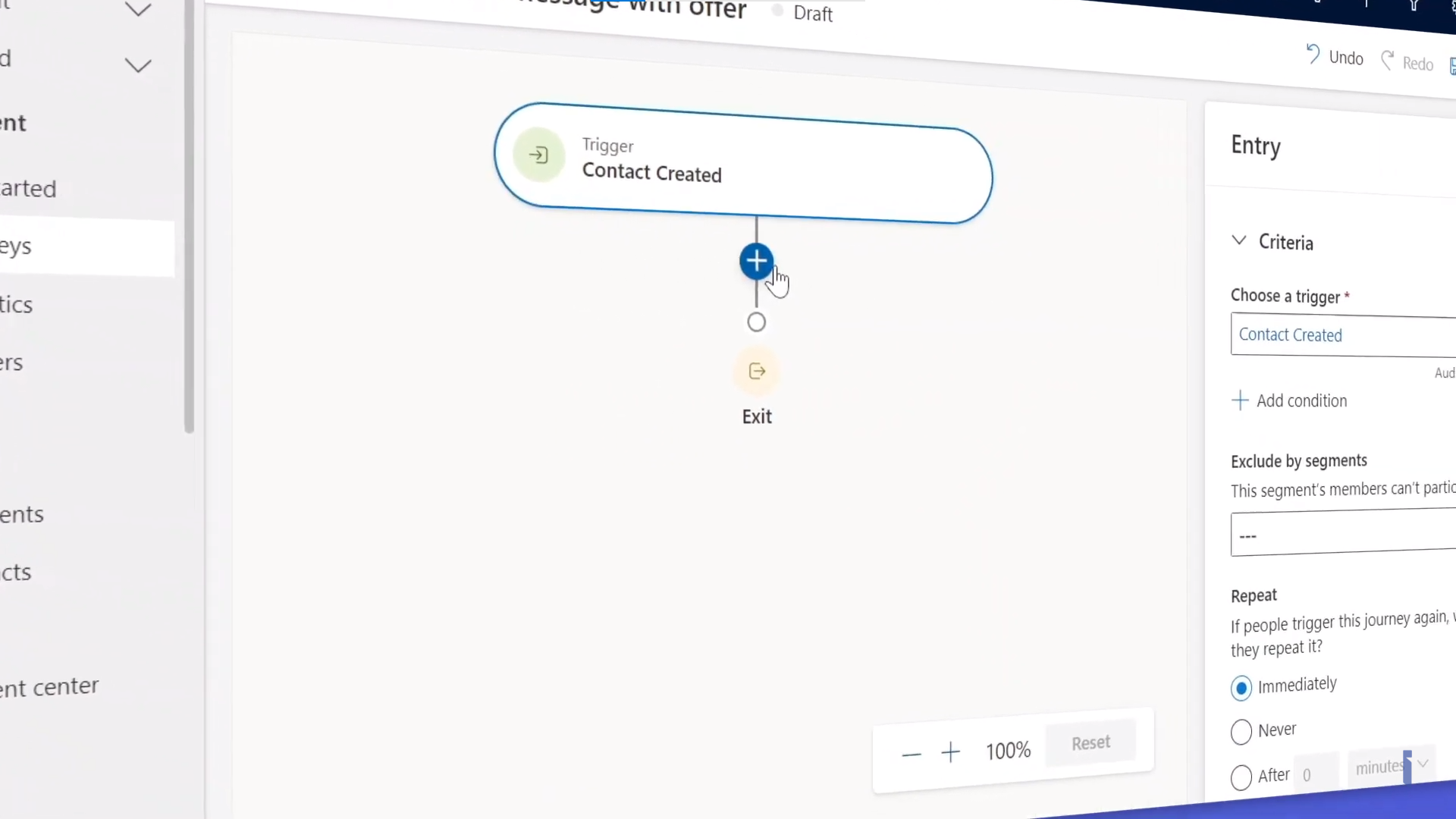
Robert also created a new trigger-based journey for WhatsApp contacts. This powerful feature made possible by WhatsApp4Dynamics ensures that whenever a new customer is added to CRM, a welcome message with a campaign update is automatically sent to them on WhatsApp. This is just one approach, there are numerous ways you can benefit from this feature.

A Resounding Success

The WhatsApp marketing campaign proved to be a resounding success for Robert and his marketing team. They achieved a significant 5x increase in product inquiries, demonstrating the power of this innovative marketing strategy.

Ready to Explore WhatsApp Marketing?

This blog post just scratched the surface of the numerous features available in WhatsApp4Dynamics.

And Many more.

To learn more about how you can leverage WhatsApp marketing to take your customer engagement to the next level, watch our video showcasing how A&B Organics sales team efficiently handles incoming inquiries using WhatsApp4Dynamics for Dynamics 365 Sales.

Download WhatsApp4Dynamics today from Microsoft AppSource or the Inogic website. Don’t hesitate to connect with our product experts at crm@inogic.com to discuss your specific needs and explore how WhatsApp marketing can help your brand achieve its goals.

The post Extend your customer outreach with WhatsApp marketing within Dynamics 365 Customer Insights first appeared on Microsoft Dynamics 365 CRM Tips and Tricks.
  •  

Dynamics 365 Sales Alerts: Native Notifications vs. Alerts4Dynamics – Which one is Right for You?

Native Notifications vs. Alerts4Dynamics

For an effective sales process, it is crucial to be up-to-date with important sales events. By staying abreast of these crucial moments, you gain a vital edge, allowing you to tailor outreach, craft timely offers, and strike while the iron’s hot. Imagine the missed sales deal and loss of revenue if you remained oblivious to new leads entering the CRM or subscription renewals.

Conversely, consider the doors that swing open when you proactively engage with prospects, offering a well-timed solution that directly addresses their queries.

Dynamics 365 CRM, with its in-app notifications, enables salespeople to stay informed about simple and quick updates such as new record creation, etc. However, when aiming to establish an effective sales communication system tailored to update about diverse sales events, a more robust alert management solution becomes essential.

If you wish there was a better way, A notification system that whispers critical updates when you need them most and allows you to personalize alerts and notifications based on your preferences? And it lets you create alerts and notifications for specific sales events. Enter Alerts4Dynamics by Inogic, the ultimate upgrade for your notification game.

Alerts4Dynamics is a sales alert / notification solution for Microsoft Dynamics 365 CRM. It lets you create four types of alerts and notifications, such as announcement, rule-based, record-based, and event-based alerts, in multiple languages. These notifications can be displayed either indefinitely or for a specified duration and are accessible from any location within CRM, notifications can be pop-ups, form notifications, or email notifications.

Here is an in-depth comparison between the Alerts4Dynamics app and Dynamics 365 CRM In-app notifications to help you comprehend what’s best for your CRM sales alerts and notification needs.

1. Alerts and Notifications Visibility

CRM In-App Notifications: Dynamics 365 CRM In-App Notifications are visible only in the app you have enabled them for. Suppose you have enabled In-App notifications in Dynamics 365 Sales, then you will be able to see the notifications in Dynamics 365 sales, but you won’t be able to see notifications in Dynamics 365 field service or Dynamics 365 customer service until you enable the In-App Notifications for these apps.

Alerts4Dynamics: Sales alerts created using Alerts4Dynamics app are visible globally in your Dynamics 365 CRM on Dynamics 365 Sales, Dynamics 365 Field Service, Dynamics 365 Project Service Automation, Dynamics 365 Customer Service, and Power Apps.

The form can be filled in the actual website url.

2. Alerts and Notifications Modes

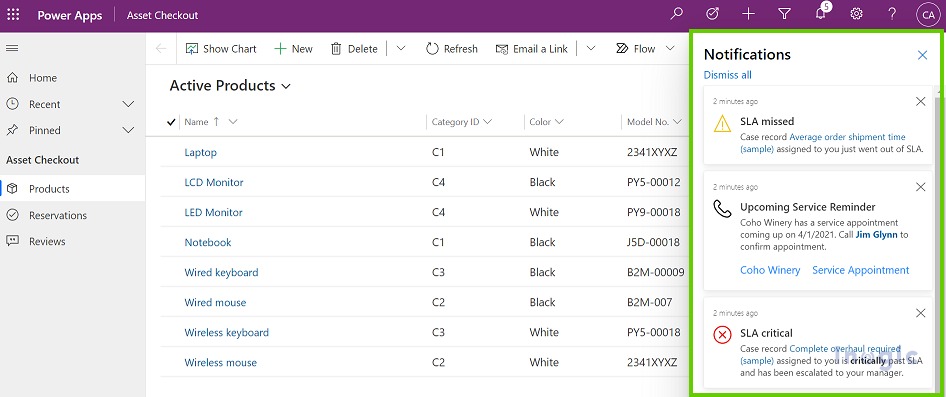
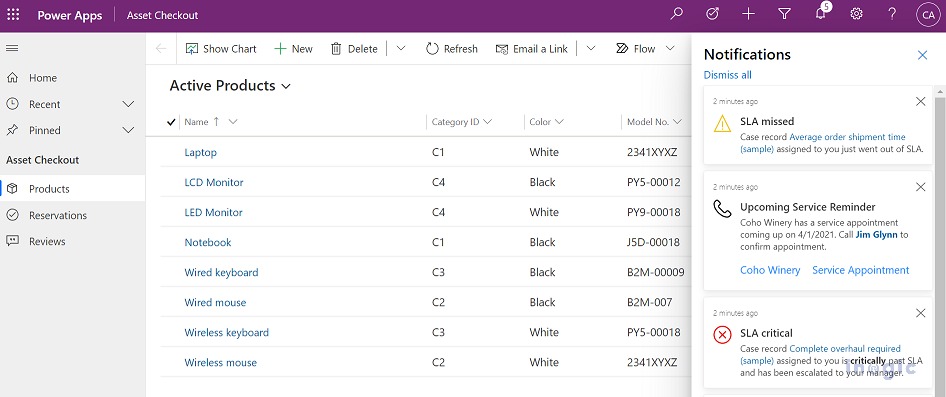
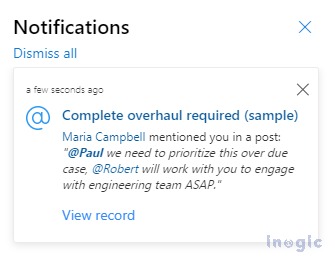
CRM In-App Notifications: Dynamics 365 CRM in-app notifications can be displayed through two different notification modes, i.e., as toast or within the notification centre.

Dynamics 365 Sales Alerts_ Native Notifications vs. Alerts4Dynamics

Dynamics 365 Sales Alerts_ Native Notifications vs. Alerts4Dynamics

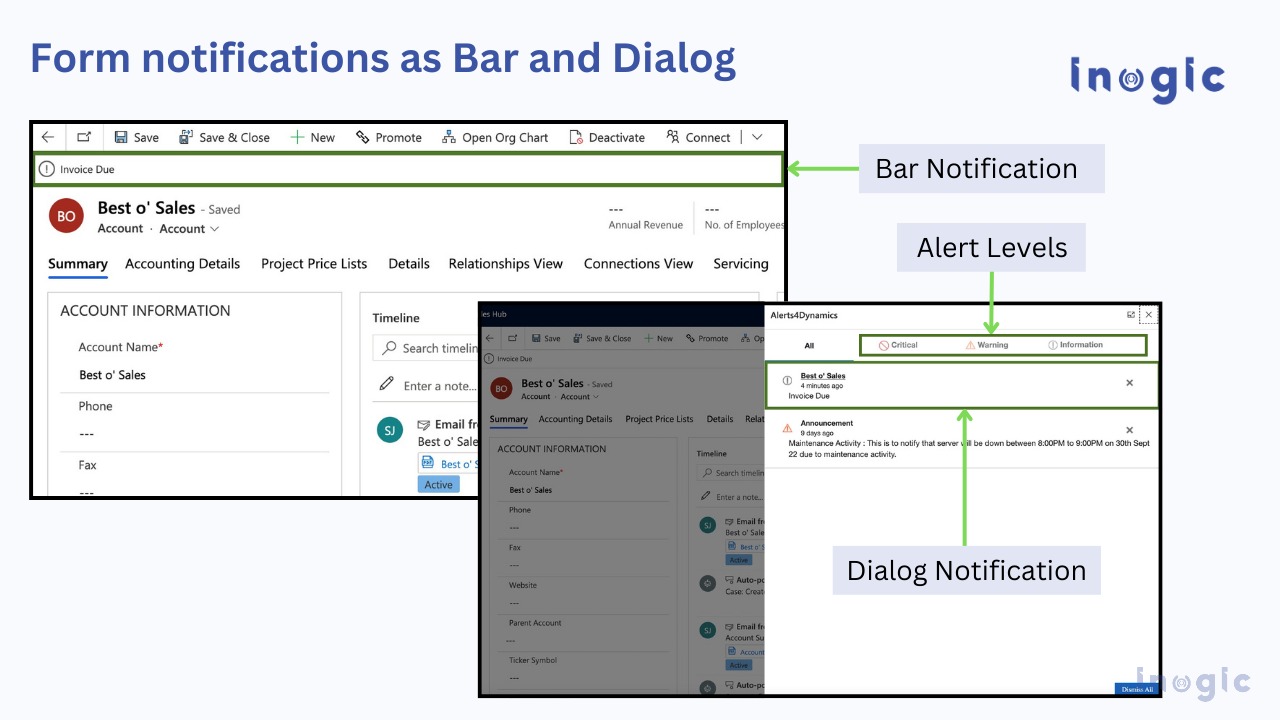
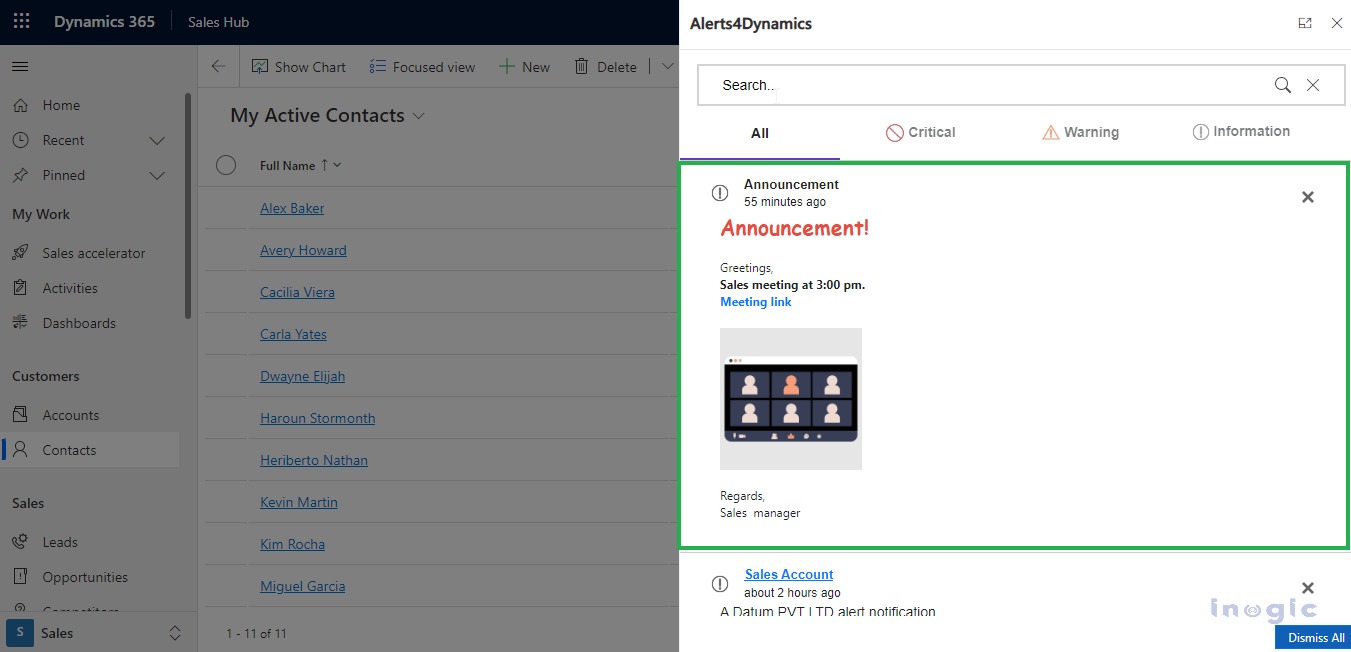
Alerts4Dynamics: Sales alerts created using the Alerts4Dynamics app can be displayed in three modes: pop-ups, form notifications, or email notifications to CRM users and external audiences, i.e., clients. In addition to that, with ‘User Preference’, you can send alerts to the users based on the preferences they have set as a mode to receive an alert.

In the below screenshot, you can see how notifications created using Alerts4Dynamics appear in CRM.

Dynamics 365 Sales Alerts_ Native Notifications vs. Alerts4Dynamics

3.

Types of Alerts and Notifications

CRM In-App Notifications:  Dynamics 365 CRM In-App notifications can help you create simple notifications to inform CRM users about new cases being assigned, new opportunities created, opportunities closed, leads qualified, etc.

Dynamics 365 Sales Alerts_ Native Notifications vs. Alerts4Dynamics

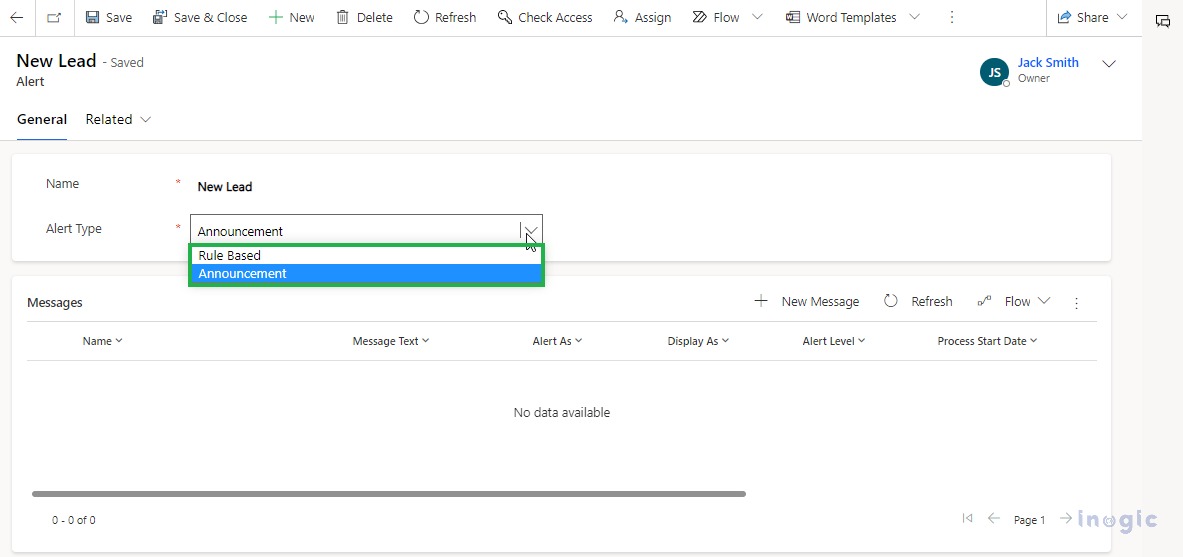
Alerts4Dynamics: Alerts4Dynamics can help you create four types of alerts, i.e., rule-based, event-based, record-based alerts, and announcements.

  • Rule-based alerts are created to inform users about particular conditions and are subsequently classified into Simple and Advanced Alert categories.
  • Event-based alerts empower users to trigger an alert for any occurrence within CRM.
  • Announcements, generated at organizational level, stand as alerts accessible from any location within the CRM.
  • Record-based alerts are tailored to provide information specific to individual records.

Dynamics 365 Sales Alerts_ Native Notifications vs. Alerts4Dynamics

4. Message Rich Text

CRM In-App Notifications: Dynamics 365 CRM in-app notifications allow you to create engaging notification messages with limited text formatting options, i.e., bold, italic, bullet list, number list, and hyperlinks.

Dynamics 365 Sales Alerts_ Native Notifications vs. Alerts4Dynamics

Alerts4Dynamics: The Alerts4Dynamics app empowers users to create highly engaging messages by offering a diverse range of text formatting options. Users can customize font style, size, and enhance text with bold, italic, underline, and strikethrough effects. Additionally, they can incorporate background colors, text colors, bullets, and numbered lists, adjust indentation, and include quotation marks. The app also allows users to embed links, images, and tables into their messages for a more dynamic communication experience.

Dynamics 365 Sales Alerts_ Native Notifications vs. Alerts4Dynamics

5. Dismiss Alerts

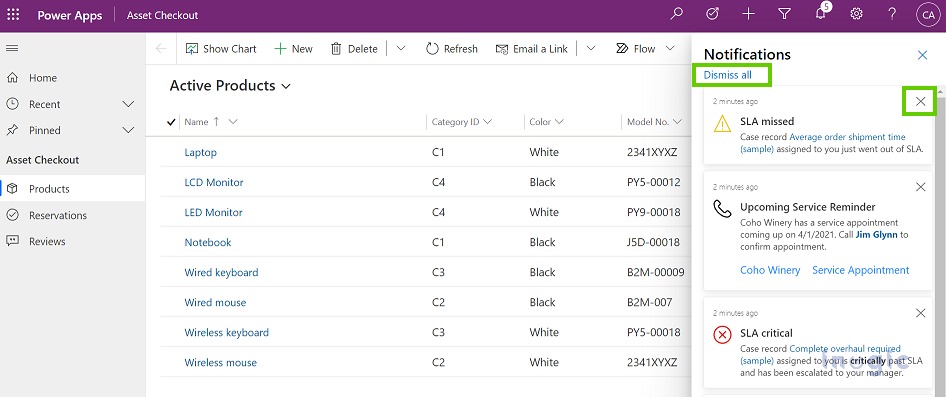
CRM In-App Notifications: In-app notifications appear in the notification center, where they are stored until you dismiss them. By default, these notifications have a 14-day lifespan, although the expiration date can be customized by your system administrator. To dismiss a single notification, simply click the close X button. For a swift clearing of your notification center, opt for ‘Dismiss all’ to dismiss and remove all notifications at once.

Dynamics 365 Sales Alerts_ Native Notifications vs. Alerts4Dynamics

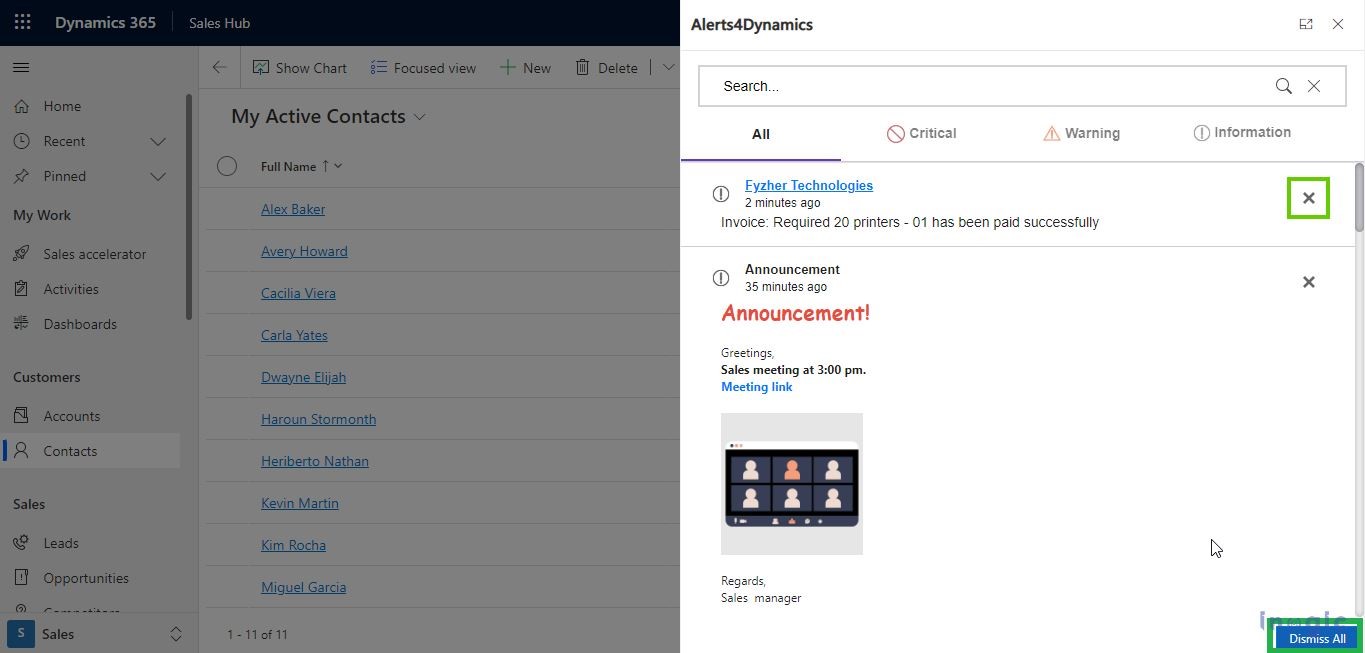
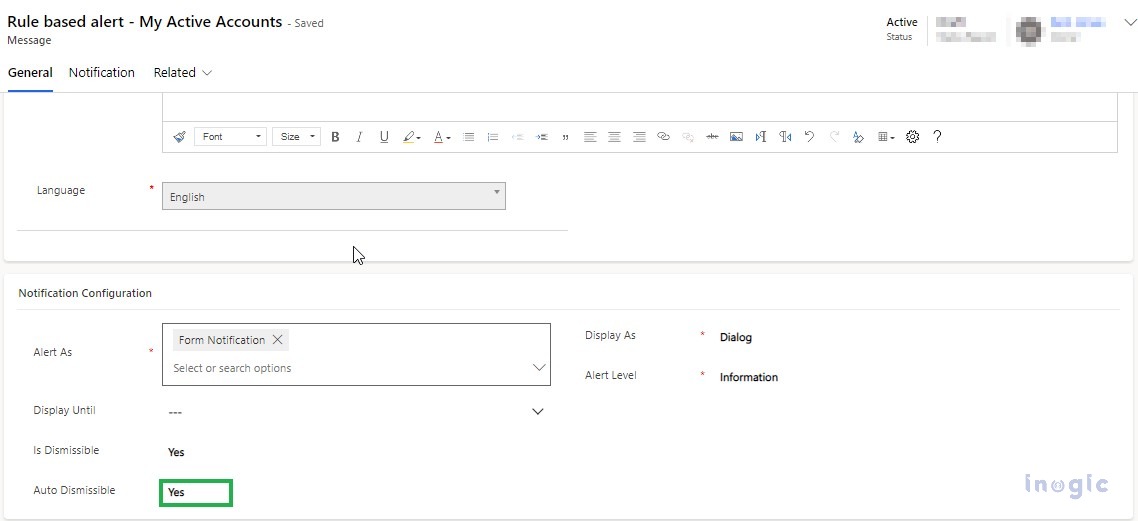
Alerts4Dynamics: Alerts4Dynamics includes the above features of dismissing the alerts and also comes with more nuanced customization. The app also enables you to configure notifications to automatically get dismissed once the record moves out of the rule/condition defined while configuring an alert. One can even set the notifications as non-dismissible.

Dynamics 365 Sales Alerts_ Native Notifications vs. Alerts4Dynamics

Dynamics 365 Sales Alerts_ Native Notifications vs. Alerts4Dynamics

6. Alert and Notification Level

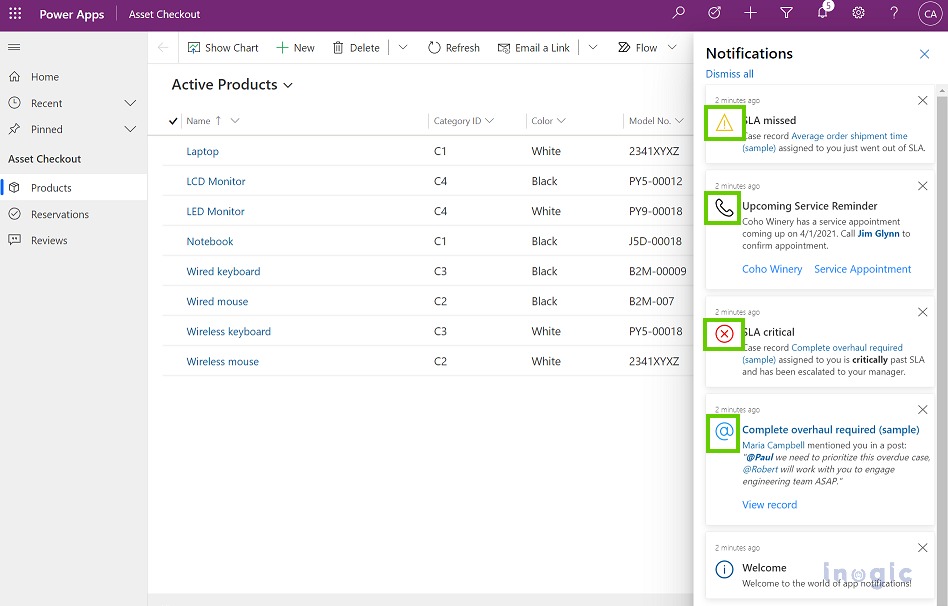
CRM In-App Notifications: In-App notifications allow you to signify the priority level of a notification with different icons on individual notifications that denote different alert levels, i.e., informational, mention, success, failure, or warning.

Dynamics 365 Sales Alerts_ Native Notifications vs. Alerts4Dynamics

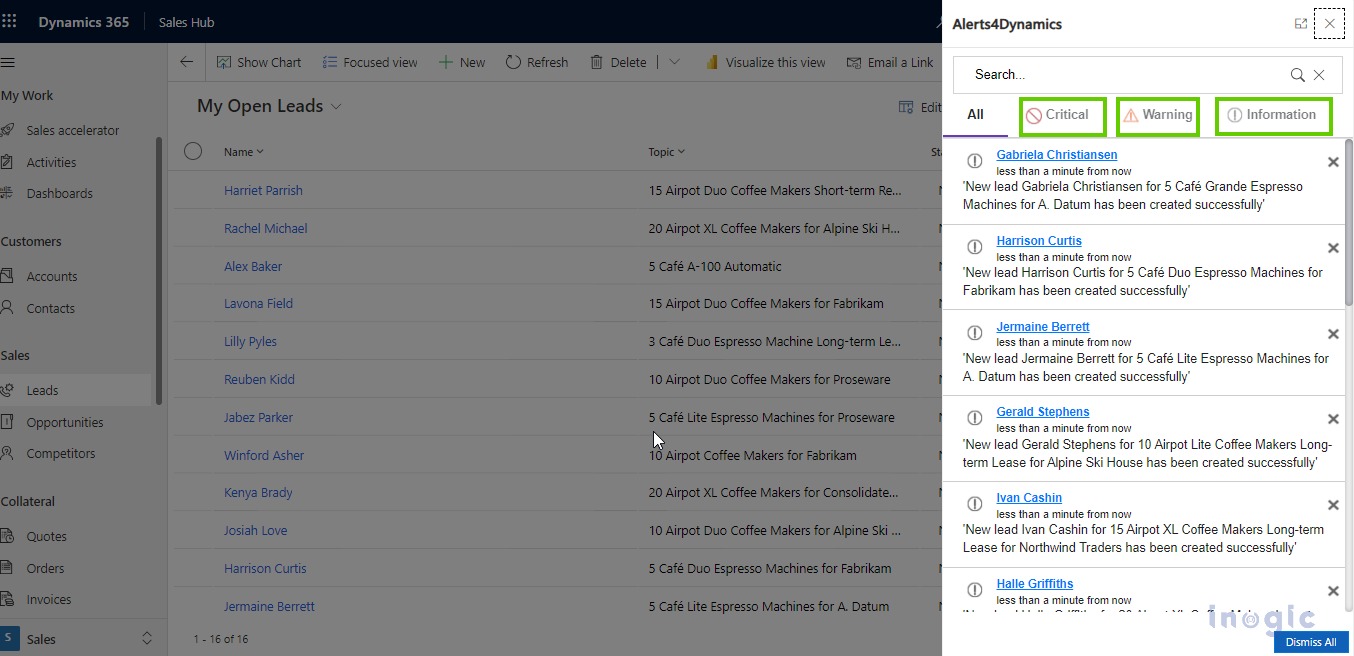
Alerts4Dynamics: Empowers users to effortlessly classify alert levels into three categories: Information, Warning, or Critical, during the configuration process. This feature enables CRM users to effectively prioritize alerts according to their urgency, gaining a clear understanding of their significance. Alerts4Dynamics enhances user experience by presenting notifications on the alert panel, strategically organized into distinct sections based on priority levels. This intuitive design ensures a seamless navigation experience, allowing users to respond promptly to alerts based on their criticality.

Dynamics 365 Sales Alerts_ Native Notifications vs. Alerts4Dynamics

So, these were some of the key functionalities of the Alerts4Dynamics app and Microsoft Dynamics 365 CRM In-App notifications. They can help you streamline sales communication in CRM.

Now that we have talked about some of the common features between CRM’s inert notification system and Alerts4Dynamics and shown you why Inogic’s app fills the unintentional white spaces, let us check out some of the unique features of Alerts4Dynamics. These take alerts and notification management to a whole another level.

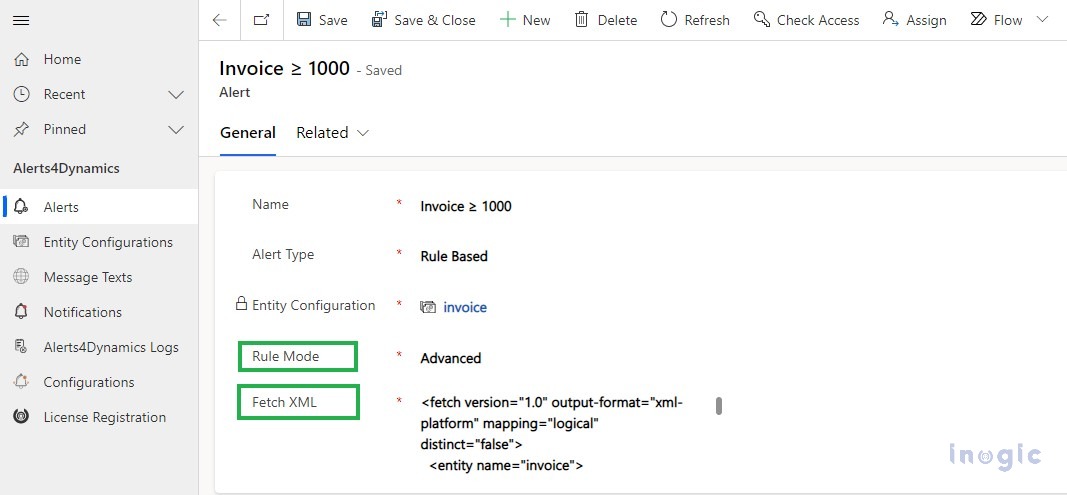
  1. Rule Based Alerts: A Rule-Based alert in CRM is generated in response to specific conditions and is classified into two types: Simple and Advanced. Simple alerts are created based on system views associated with the selected Entity Configuration.

On the other hand, Advanced alerts allow users to define conditions for alert generation, such as creating alerts for Invoices with a total amount greater than or equal to $1,000. This dynamic capability enables precise tailoring of alerts to align with specific business needs.

Dynamics 365 Sales Alerts_ Native Notifications vs. Alerts4Dynamics

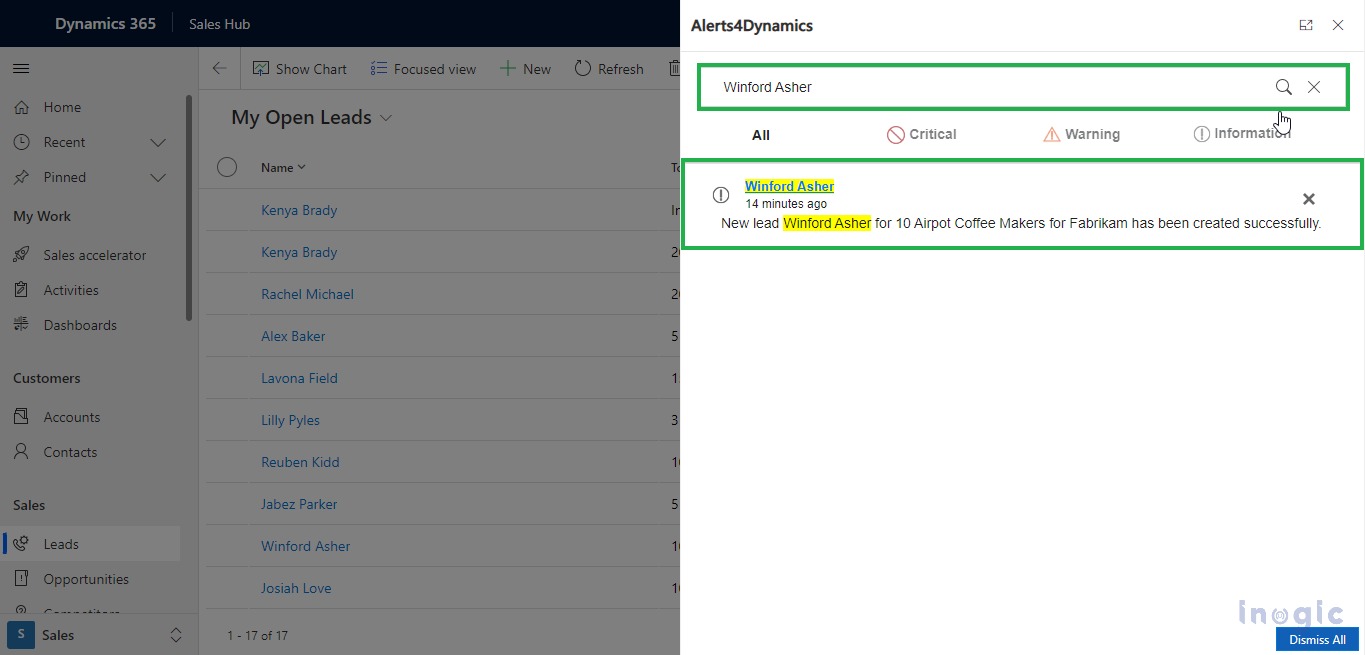
  1. Search Notifications: With notification search bar on the notification panel, you can quickly search for desired notifications, and it will display the desired notifications in real-time.

Dynamics 365 Sales Alerts_ Native Notifications vs. Alerts4Dynamics

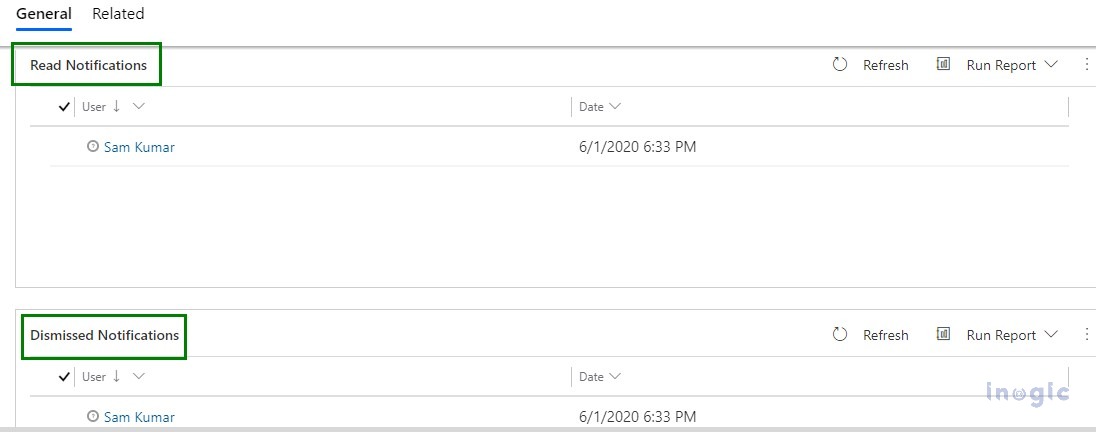
  1. Notification Logs: Alerts4Dynamics allows you to view the log of read/dismissed notifications by users. If you want to know whether a user has read the notification or dismissed it, then you can simply do so by accessing the notification logs.

Dynamics 365 Sales Alerts_ Native Notifications vs. Alerts4Dynamics

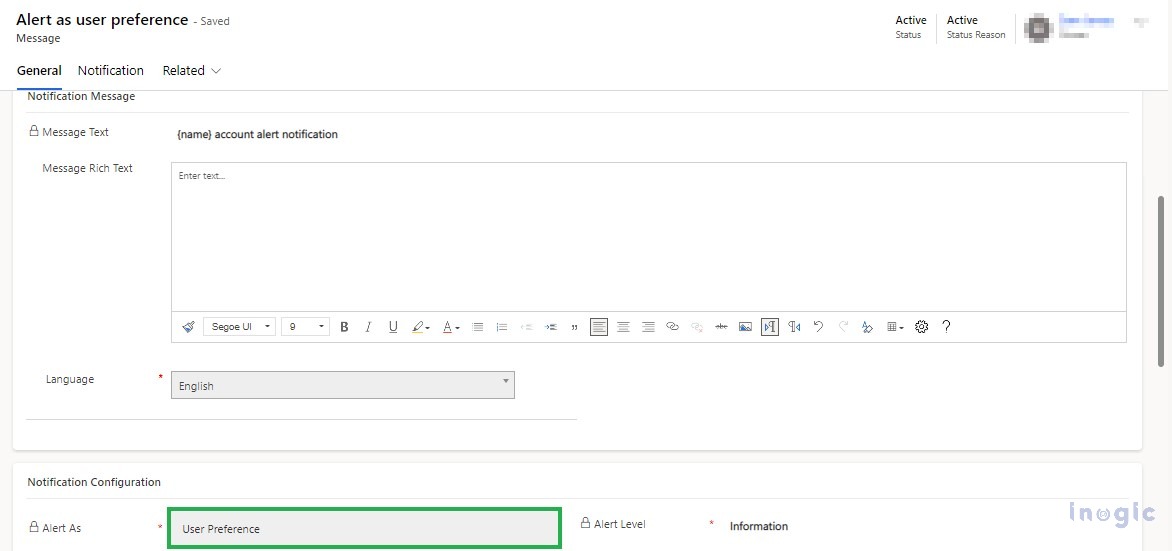
  1. Set User Preference: By using Alerts4Dynamics CRM, users can decide how they want to view an alert, i.e., through pop-ups, form notifications, or email notifications. They can also choose the language they want to receive the message in.

Dynamics 365 Sales Alerts_ Native Notifications vs. Alerts4Dynamics

Never miss a hot lead again. Receive instant notifications on lead updates and close the deal before anyone else. Respond to urgent customer issues promptly with real-time sales alerts.

Conclusion

While Dynamics 365 CRM in-app notifications might be good for a quick shout, Alerts4Dynamics delivers a symphony of information. It’s personalized, powerful, and puts you in control.

To test the app for your organization’s needs, you can download it for a 15-day free trial from our website or Microsoft AppSource.

If you want to explore the app and its features in detail and clear any doubts related to its implementation in Dynamics 365 CRM, then you can mail us at crm@inogic.com to get a personalized demo of the app.

Are you ready to experience the difference? Try Alerts4Dynamics today!

The post Dynamics 365 Sales Alerts: Native Notifications vs. Alerts4Dynamics – Which one is Right for You? first appeared on Microsoft Dynamics 365 CRM Tips and Tricks.
  •