Login
Login
Streamlining SharePoint File Analysis with Microsoft Copilot Studio Code Interpreter
 Organizations today store massive volumes of structured data sales figures, inventory records, and financial reports in Excel and CSV files across SharePoint libraries. When someone needs a quick insight from that data, the typical path involves downloading the file, opening it in Excel or Power BI, writing formulas or building visuals, and then sharing the result. It works, but it’s slow, manual, and requires a level of technical skill that not every team member has.
What if there was a way to simply ask a question and get the answer complete with accurate calculations and even a chart without ever leaving a chat window.
That’s the promise of Code Interpreter in Microsoft Copilot Studio. This preview feature allows Copilot Studio agents to go beyond simple Q&A by dynamically generating and executing Python code to analyze structured data files. When paired with a SharePoint Document Library as a knowledge source, it creates a powerful self-service analytics experience: users ask questions in plain English and the agent does the heavy lifting searching SharePoint for the right file, writing the code, running the computation, and delivering the result.
In this blog, we’ll explore what Code Interpreter is, how it works with SharePoint, and see it in action.
Code Interpreter is a capability within Microsoft Copilot Studio that enables AI agents to generate and execute Python code on the fly in response to user queries. Rather than relying solely on the large language model’s inherent reasoning which can be unreliable for math and data-heavy questions Code Interpreter offloads analytical tasks to deterministic Python computations.
The agent doesn’t estimate the answer. Instead, it writes a precise Python script, runs it against the actual data, and returns the calculated result. The math is real. The answer is accurate. And the user never sees a single line of code unless they choose to.
You can enable code interpret in the agent setting in Generative AI, scrolling down you will find the option for code interpreter and enable that.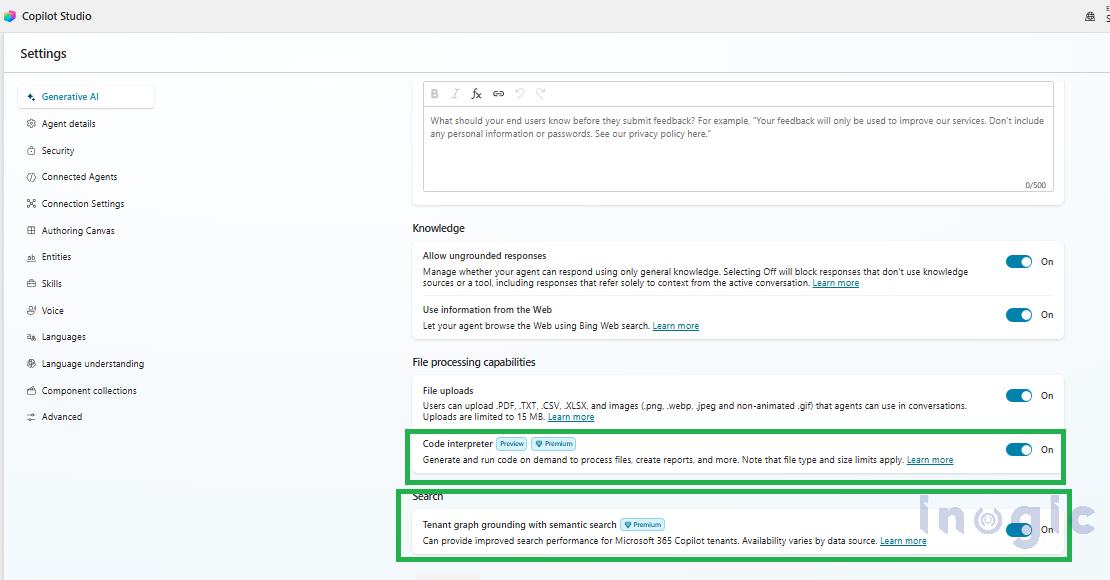
There are two ways to feed structured data into a Copilot Studio agent for analysis. The first is user-uploaded files where someone attaches a CSV or Excel file directly in the chat. The second, and more enterprise-relevant approach, is connecting a SharePoint Document Library as a knowledge source. In this blog, we focus on the SharePoint approach.
When a user asks an analytical question, the agent follows a multi-step process behind the scenes:
- Understand the query: The orchestrator interprets the natural language question and determines it requires data analysis.
- Search SharePoint: The agent uses Work IQ Microsoft’s enhanced retrieval layer to search the connected SharePoint knowledge source and locate the relevant structured file.
- Retrieve and inspect: The agent retrieves the file content and examines its structure columns, data types, and rows.
- Generate Python code. Based on the query and the data, the agent writes a Python script tailored to answer the question.
- Return the result. The output a table, a chart, a number, or a summary is delivered back to the user in the chat.
To demonstrate this capability, we have two structured datasets stored in a SharePoint Document Library SalesReport.xlsx containing employee-level sales performance data, and BusinessSalesAnalysis.xlsx containing order-level business data with products, categories, regions, and revenue.
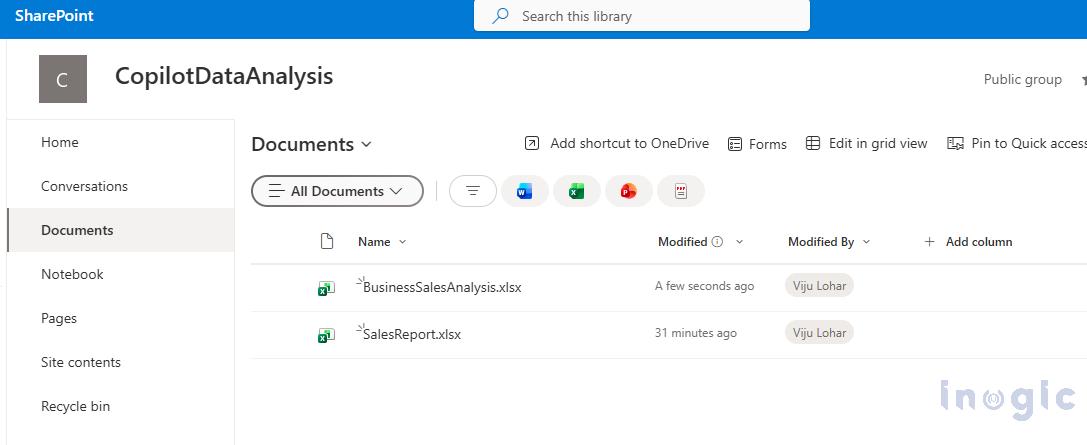
With Code Interpreter enabled and the SharePoint files connected as a knowledge source, the agent can now answer analytical questions directly. Let’s see how it responds to a couple of queries.
Below are some of the question asked to the agent.
Query 1: “Which product category generated the highest revenue in the uploaded Excel report?”
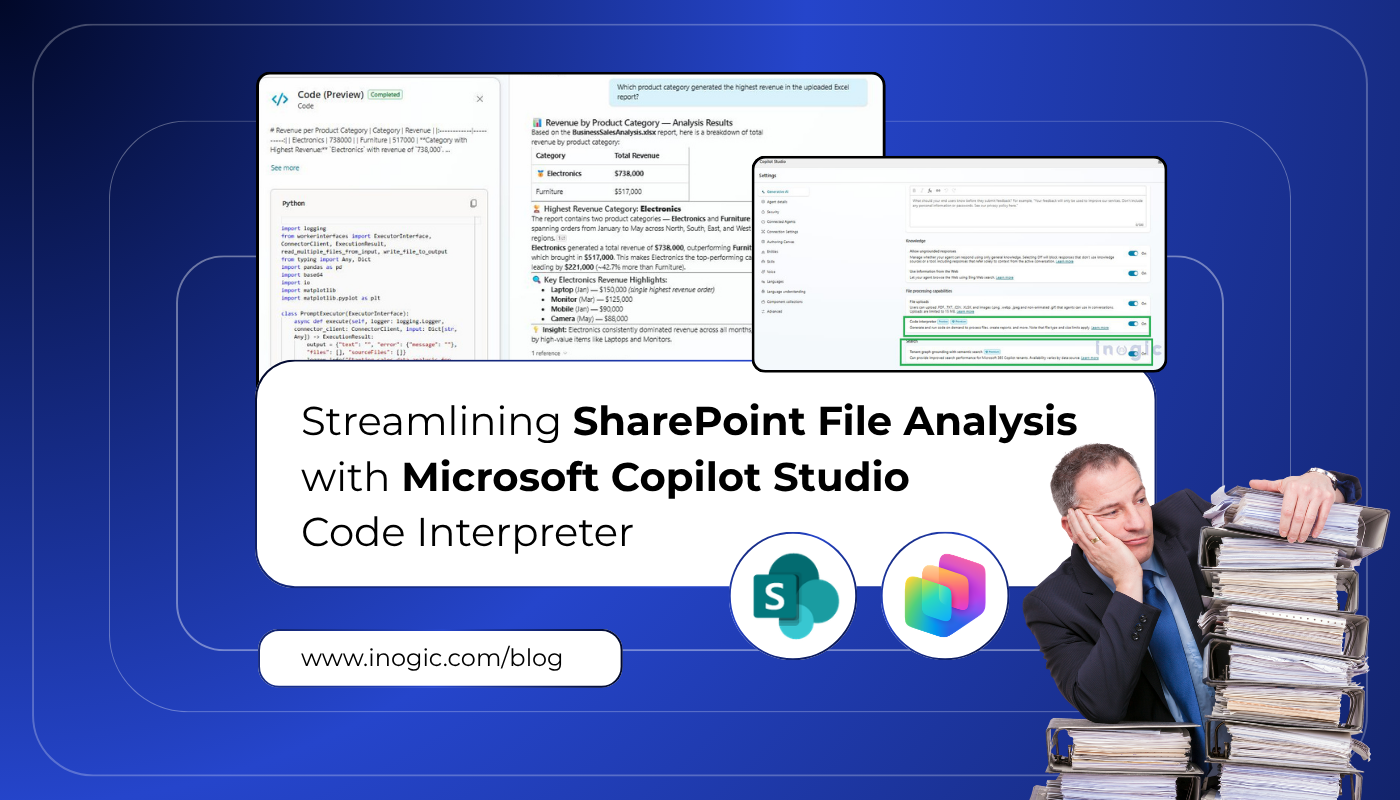
The agent identified the relevant file, executed Python code to calculate revenue by product category, and returned a clear breakdown Electronics leading at $738,000 followed by Furniture at $517,000. It even highlighted key revenue drivers like Laptops and Monitors.
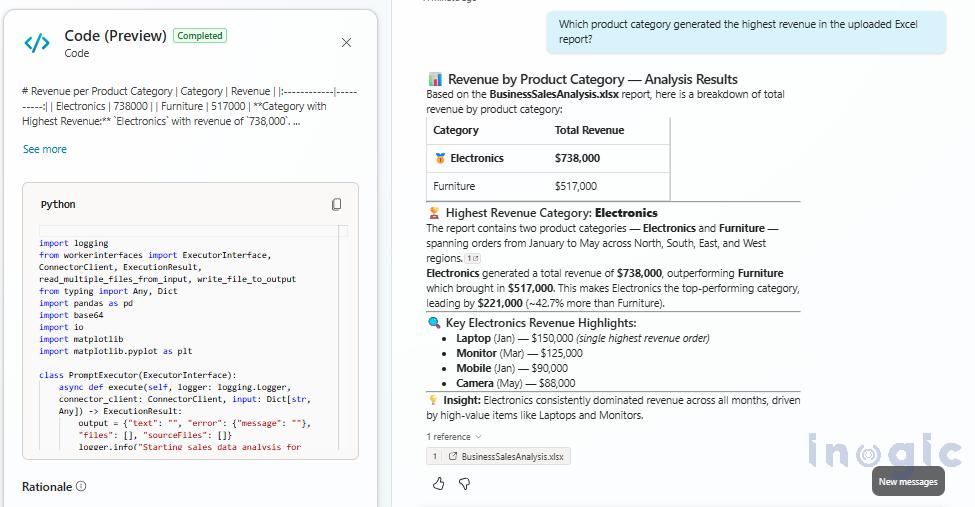
Query 2: Analyze the uploaded sales dataset and provide a summary of overall business performance.
This time, the agent analyzed both datasets together and returned a comprehensive summary $1,255,000 in total revenue, $286,000 in profit, 321 units sold, and a 22.79% profit margin. It also generated a month-over-month revenue and profit trend table from January through May.
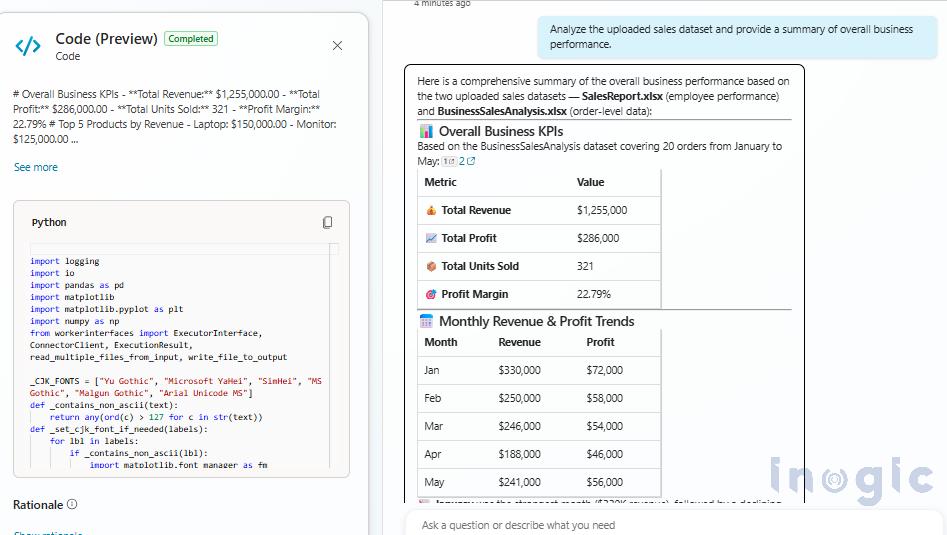
As you can see, the agent has used the Code Interpreter to answer the user’s queries generating Python code behind the scenes, running real calculations against the SharePoint data, and returning accurate, formatted results directly in the conversation. No manual data work. No formulas. Just a natural language question and a precise answer.
Conclusion
Code Interpreter in Microsoft Copilot Studio brings real computational power to the conversational AI experience. By combining natural language understanding with deterministic Python execution and grounding it in the structured files already living in SharePoint it creates a genuinely useful self-service analytics layer. Users ask questions in plain language. The agent finds the data, writes the code, runs the computation, and delivers the answer all within seconds.
FAQs
What is Code Interpreter in Microsoft Copilot Studio?
Code Interpreter is a capability in Microsoft Copilot Studio that enables AI agents to generate and execute Python code automatically. It allows agents to perform data analysis, calculations, visualizations, and file processing based on user queries, delivering accurate results directly within a conversation.
How does Code Interpreter work with SharePoint files?
When SharePoint Document Libraries are connected as a knowledge source, the Copilot Studio agent can locate relevant Excel or CSV files, analyze their contents, generate Python code to answer user questions, execute the code, and return insights such as summaries, calculations, tables, or charts.
Can Microsoft Copilot Studio analyze Excel files stored in SharePoint?
Yes. Microsoft Copilot Studio can analyze Excel files stored in SharePoint when the library is configured as a knowledge source and Code Interpreter is enabled. Users can ask questions in natural language, and the agent retrieves and analyzes the data automatically.
What types of files can Code Interpreter analyze?
Code Interpreter primarily supports structured data files such as Excel (.xlsx) and CSV (.csv) files. These files can be uploaded directly by users or accessed through connected SharePoint Document Libraries.
Why is Code Interpreter more accurate for data analysis?
Unlike traditional AI responses that rely on probabilistic reasoning, Code Interpreter generates and executes actual Python code against the source data. This ensures calculations, aggregations, and analytical results are based on real data processing rather than estimation.
The post Streamlining SharePoint File Analysis with Microsoft Copilot Studio Code Interpreter first appeared on Microsoft Dynamics 365 CRM Tips and Tricks.
 Organizations frequently receive employee requests for training programs, certifications, or skill-development courses. Traditionally, these requests go through manual review and approval processes which can delay decision making and create administrative overhead.
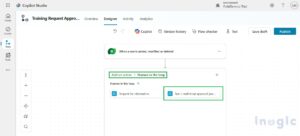 Run a multistage approval (preview) configuration screen
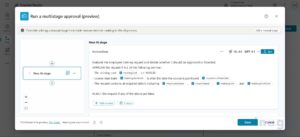 AI instruction configuration inside the Evaluate Request stage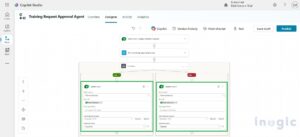
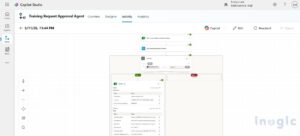 Dataverse Update Row action flow when all conditions are met / true